
Shopware 6 will turn four property groups into a few hundred sellable SKUs in about ten seconds. That part works, and it works reliably. The question this guide tests is what happens next: whether those SKUs help someone buy, or whether they quietly become the reason the visitor leaves without a cart.
The mechanics are already documented. Shopware's official Shopware variant documentation covers the generator, value exclusions, and inheritance in detail, and there is no reason to rewrite it here. What the documentation deliberately leaves out is the consequence layer.
Three consequences come up again and again in our implementation work: variant overload on the product detail page, swatch selection that drops the customer's quantity on reload, and canonical URLs that let twenty near-identical variant pages compete with each other for the same query.
A note on versions, because it matters for the settings named below. This guide reflects Shopware 6.7 as of Q3 2026. Shopware confirmed in its roadmap update that the next major version, 6.8, has moved to 2027, and that Extended Support for 6.6 runs until 6.8 ships. So the 6.7 admin described here is the current one, and it will stay current for a while.
Properties vs. variants in Shopware 6
In Shopware 6, properties are global attributes such as Color or Size that live in a central pool and drive filtering. Variants are the concrete purchasable SKUs generated from combinations of those properties. Every variant is built from properties, but not every property has to generate a variant.
That last sentence is the part most setups get wrong. Shopware's documentation states it plainly: the properties used to generate variants "do not have to be the same properties as those assigned to the product for the filters." Two separate jobs, one shared pool.
Technically, a variant is not a special object type. In the data model a product is a self-referencing entity, and a variant is simply a child row pointing at a parent. That is why a variant can carry its own EAN, its own stock, and its own price while still inheriting everything you never touched.
If any of this is your first pass at the platform, the what Shopware is overview sets the context, and category structure covers the taxonomy layer that sits above products.
When a property should not become a variant
Ask one question: does the customer have to choose it before they can buy? Color and size, yes. Thread pitch on a screw, yes. Material composition, country of manufacture, care instructions, no. Those are filter and specification data.
Generating variants from an attribute nobody selects multiplies your SKU count for nothing. It also spreads stock across rows that will never move independently. Keep it in the property pool for filtering, or use a custom field.
| Dimension | Static data (standard Shopware) | Consultation data (advisory-ready) |
|---|---|---|
| Focus | Technical specification | Customer need or use case |
| Example | "Material: 100% polyester" | "Breathable, dries fast" |
| Logic | Selection by exclusion (filter) | Selection by recommendation (matching) |
| Owner of the decision | The customer | The shop |
| Goal | Correct inventory management | Correct purchase decision |
Both columns matter. The left one keeps your warehouse honest. The right one is what an advisory layer needs in order to answer a question the customer can actually phrase.

Creating variants in Shopware 6: step by step
To create variants in Shopware 6, define properties globally under Catalogues > Properties, open the main product, switch to the Variants tab, and run the Variant Generator. Select the property groups to combine, set exclusions for impossible combinations, then generate. Variants inherit the parent product's data unless explicitly overridden.
The order matters more than the clicks. Surcharges and exclusions are configured inside the generator, before generation. Set them afterwards and you are editing rows one at a time, or bulk-editing in batches capped at 1,000 variants per operation (Shopware documentation). The full backend walkthrough lives in our Shopware admin guide.
- Define properties globally. Catalogues > Properties. Set the display type here (text, colour, or image), because that single setting decides whether the customer later sees the word "Mint green" or the actual colour.
- Prepare the parent product. Name, product number, manufacturer, tax rate, and a price. Shopware will not let you reach the Variants tab until the product has been saved once with the required fields.
- Open the Variant Generator from the Variants tab and pick your property groups under Select values. The count of active options per group is shown on the left as you go.
- Set price surcharges for individual options while you are still in the generator. A surcharge defined here is applied during generation instead of being patched in later.
- Define value exclusions. Click Value exclusion, then Exclude values. Conditions are joined with "and", so `Color > is one of > Blue` combined with `Size > is one of > XS, XXXL` stops those specific combinations from ever being created.
- Generate, then configure the storefront display. Set the order of properties and options, and assign a dedicated image per variant. This step is skipped constantly and it is the one customers actually see.
Variant pricing: surcharges and inheritance
Two mechanisms, and they behave differently. A price surcharge set in the generator is applied per option at generation time, so an XXL surcharge lands on every XXL variant at once. Inheritance is the other lever: by default each variant inherits the parent price, and the chain symbol in the variant list breaks that link for a single row.
Once broken, the link stays broken. If you later change the parent price, that variant keeps its own. This is the single most common source of "why is one size still on the old price" tickets after a price update.
For anything conditional, such as customer-group pricing or scaled prices, use Advanced pricing with the Rule Builder rather than overriding variants individually. Rules survive a repricing. Manual overrides do not.
Variant-level inventory and stock
Stock lives on the variant, not the parent. That is correct behaviour and it is also where variant explosion turns into an operational problem: 5 colours by 4 sizes by 3 lengths is 60 rows to count, restock, and reconcile with your ERP.
Shopware 6.6 changed stock handling, and 6.7 keeps that model. Available stock is reduced when the order is placed; the physical stock figure follows when the order status moves to completed. If Clearance sale is enabled on a variant, it cannot oversell beyond available stock.
Before you generate, do the multiplication. Four groups with five options each is 625 SKUs, and that is a catalog decision, not a click.
| Variants per parent product | Storefront display | What to watch |
|---|---|---|
| 2 to 8 | Swatches or buttons, all options visible | Nothing. This is the case Shopware handles out of the box. |
| 9 to 30 | Swatches for the visual group, dropdown for the rest | Variant images and stock accuracy. Assign a cover image per option. |
| 31 to 120 | Single main variant in the listing, plus filters | Exclusions become mandatory. Listing performance starts to matter. |
| Over 120 | Guided selection in front of the variant picker | Do not ask the customer to configure. Ask what they are doing. |
Variant overload and choice paralysis
Variant overload happens when the generator produces more combinations than a customer can evaluate. Beyond roughly six visible options, choice becomes a cost rather than a benefit and conversion falls. The fix is not fewer products but fewer simultaneous decisions, guiding the customer to one option instead of displaying all of them.
The study everyone cites here is Iyengar and Lepper's 2000 field experiment, published in the Journal of Personality and Social Psychology. A supermarket tasting booth showed either 6 or 24 jams. The larger display attracted more people, about 60% of passers-by stopped versus 40% for the small one. Purchases went the other way: 30% of the limited-choice group bought a jar, against 3% of the extensive-choice group. Their third study, using 6 versus 30 chocolates, found 48% versus 12% on a comparable behavioural measure.
Versus 40% at the 6-jam display. More choice attracts more attention. Source: Iyengar & Lepper, JPSP 2000
31 of the customers who stopped went on to buy a jar.
4 customers. The attention advantage did not survive contact with the decision.
The same direction of effect in a controlled lab setting with 134 participants.
Now the honest part, because this claim gets repeated far past what the evidence supports. Those purchase figures rest on 31 people and 4 people at a jam booth. Benjamin Scheibehenne, Rainer Greifeneder and Peter Todd revisited the whole literature for the Journal of Consumer Research in 2010, and their meta-analysis is blunt about it: "In a meta-analysis of 63 conditions from 50 published and unpublished experiments (N = 5,036), we found a mean effect size of virtually zero but considerable variance between studies."
So no, adding a seventh colour will not collapse your conversion rate. I think the choice-overload framing is the most overstated idea in e-commerce content, and it survives mainly because the jam story is memorable.
What is real, and what the meta-analysis does not contradict, is narrower and more specific to variants: a customer who selects Length 50mm and watches Material: Brass grey out with no explanation. They were not overwhelmed by choice. They were given a rule they cannot see. That is a UX defect, not a psychology finding, and it has a fix.
Rasendoktor sits exactly on this line. The lawn care specialist handles 2,000 to 3,000 consultation-heavy enquiries in a season, driven by product variety and applications that need real expertise. Their Rasendoktor implementation now runs at a 100% automation rate on webchat with a 16x return on investment and 40% support savings, because the assistant answers the use-case question the variant picker was never able to ask.

Swatch selection and cart updates
Swatch-based variant selection replaces dropdowns with visual colour or material tiles. In Shopware 6 swatches are configured on the property group display type, but the common failure is the cart update: switching a swatch reloads the product page and can silently drop the selected quantity or lose an add-to-cart in progress.
Set the display type at the property group, not the product. Catalogues > Properties, open the group, choose colour or image. Colour uses a hex value; image uses an uploaded media file per option, which is what you want for materials, finishes, and patterns where a hex code tells the customer nothing.
Then assign a cover image per variant under storefront display. Skip it and every swatch shows the same photo, which is the exact scenario Baymard's testing flags: 28% of sites fail to synchronise data across product variations, and users in those sessions could not properly evaluate what they were buying. On mobile listings the gap is wider still, with 57% of sites not making all colour swatches available in list items for visually driven products.
The reload problem, and when to fix it
Default Shopware behaviour on a variant switch is a server round trip. The product detail page re-renders with the new variant's price, stock, and media. Quantity is the casualty. A customer who types 4 into the quantity field and then changes colour usually gets 1 back, and nobody tells them.
The cheap mitigation is to preserve the quantity across the switch by reading it before the reload and restoring it after:
// Preserve the chosen quantity across a Shopware variant switch.
// Runs on the product detail page; survives the reload via sessionStorage.

const KEY = 'sw-pdp-qty';
const form = document.querySelector('.js-variant-form, form[data-variant-switch]');
const qty  = document.querySelector('.product-detail-quantity-select, input[name="lineItems[][quantity]"]');

// Before the variant switch triggers a reload, stash the quantity.
if (form && qty) {
  form.addEventListener('change', () => sessionStorage.setItem(KEY, qty.value));
}

// After the reload, restore it once, then clear.
const stored = sessionStorage.getItem(KEY);
if (qty && stored) {
  qty.value = stored;
  sessionStorage.removeItem(KEY);
}
A full AJAX variant switch, where price, media, and stock update without a reload, is a different budget. It is worth the custom development in two situations: high-consideration products where customers compare four or five variants before deciding, and mobile-heavy traffic where every reload costs a visible second. Below that, fix the quantity bug and move on.
One more setting people miss. In the product list you can combine variants into a single item or fan them out into individual entries. Baymard's benchmark found 12% of sites still fail to combine variations into one list item, which makes a category page read as twelve near-identical products instead of one product in twelve colours.
Intelligent variant consultation
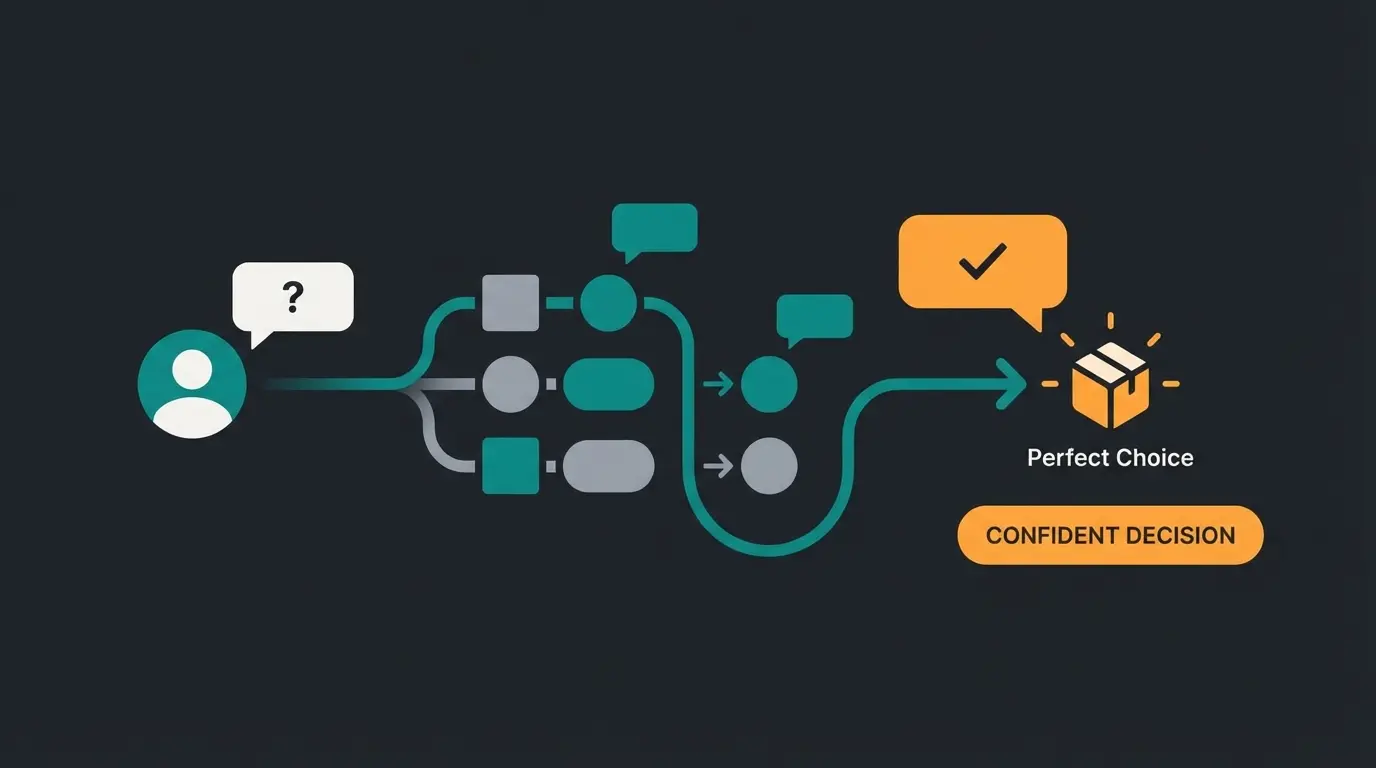
Consultative variant selling replaces the question "which variant do you want?" with "what are you trying to do?". Instead of asking the customer to translate a need into a technical specification, the shop asks about the use case and returns one recommended variant. This converts variant complexity from a barrier into a qualification step.
The gap is a translation gap. Your customer knows they are repairing a roof. Your variant picker wants to know ISO 4017, M8, A2 stainless. Somebody has to do that conversion, and right now you are asking the person with the least information to do it.
Plain dropdowns. The customer must already know the exact specification they need.
Image and colour swatches instead of text labels. Better, still static, still their decision.
Faceted filters in the category narrow the field. Selection by exclusion.
An AI employee asks about the use case and selects the variant. Selection by recommendation.
Comparison: standard Shopware vs. consultative sales
| Dimension | Standard variant filter | Guided consultation |
|---|---|---|
| Input required | Technical data ("ISO 4017, A2") | Use case ("I am repairing a roof") |
| Expertise needed | High. The customer must be the expert. | Low. The customer states the problem. |
| Invalid combinations | Greyed out, unexplained | Never offered, and the reason is given |
| Wrong-item returns | Driven by specification mismatch | Compatibility checked before checkout |
| Where it breaks | Catalogs above roughly 30 variants | Products with no meaningful use-case difference |
Automotive lighting is the hardest version of this problem, which is why it is a useful proof point. HELLA Lightstyle, part of Forvia HELLA, sells auxiliary headlights and LED light bars where the correct choice depends on vehicle, mounting position, cable kit, and ECE approval rules. Not preference. Law.
The timing detail is the interesting one. Truckers and off-road owners work on their vehicles at the weekend, which is precisely when the technical support desk is closed. A variant picker does not care what time it is. Neither does an AI product consultation layer that has been trained on the same fitment tables the support team uses.
Two things to get right before you add a consultation layer. Your product data has to carry use-case attributes, not only specifications, or there is nothing to match against. And it belongs in front of the variant picker, not beside it. Once the recommendation is made, a well-configured cross-selling setup is what attaches the mounting kit and the cable to the order.
If you want to see the mechanics on a live catalog rather than in the abstract, our product consultation via AI page documents the setup, including the +30% basket value and 97% automated consultation figures we measure across advisory-heavy accounts.
SEO for variants: the canonical trap
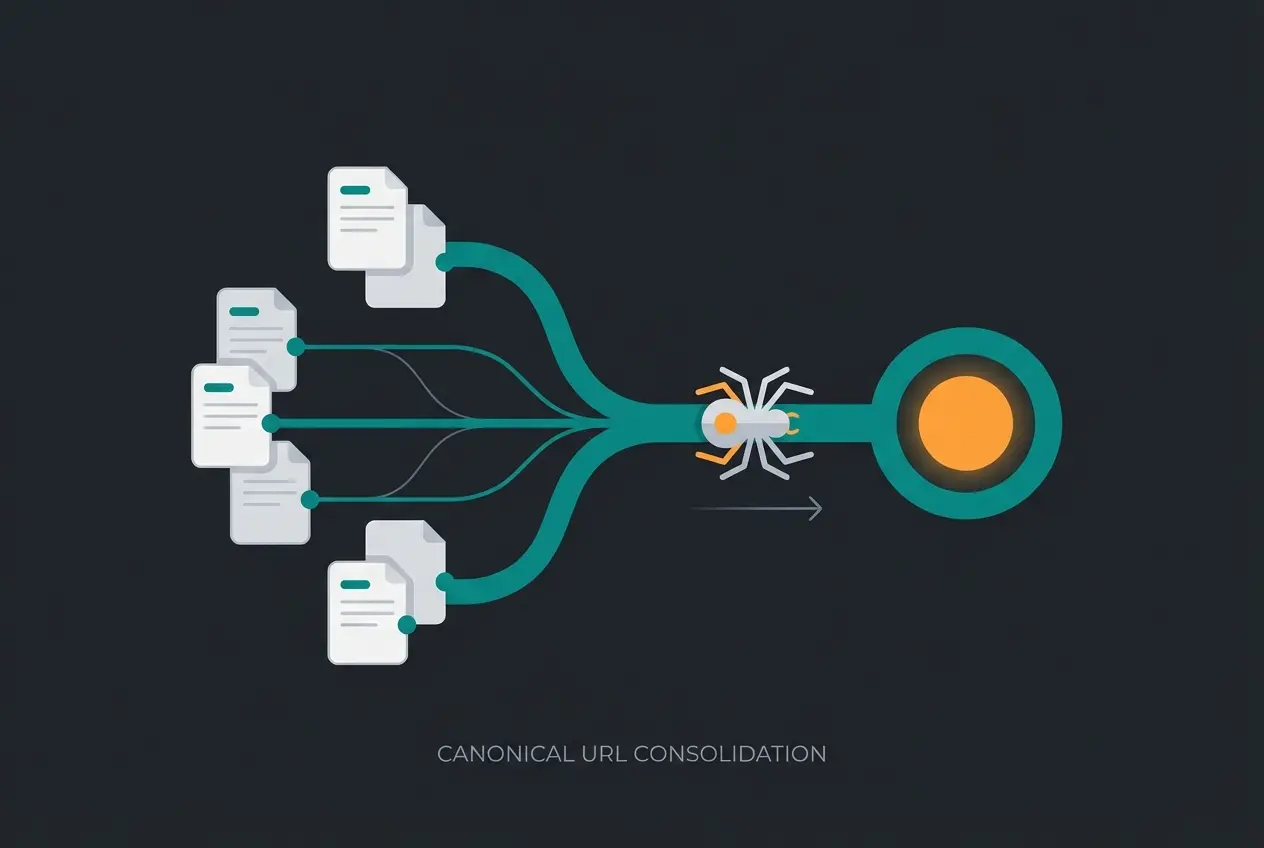
Shopware 6 generates a separate URL for every variant, which produces near-duplicate pages competing for the same query. Set the canonical URL on the parent product so variant URLs consolidate their signals upward, unless a specific variant has genuine standalone search demand, in which case give that one variant its own canonical.
The arithmetic is unforgiving. A shirt in 5 colours and 4 sizes is 20 URLs carrying the same description, the same title pattern, and one differing image. Google has to pick one. Your internal link equity is spread across all twenty while it decides.
The setting is in the product's SEO tab and it only appears once the product actually has variants: Use single canonical URL for all variants. Enable it, then choose which variant supplies the URL under Variant for Canonical URL. Rendered, that is one tag repeated across every variant page:
<!-- Rendered on /shirt-classic-blue-m, /shirt-classic-red-l, and every sibling -->
<link rel="canonical" href="https://example.com/shirt-classic" />
The exception worth making
Sometimes a variant deserves its own canonical. The test is search demand, not your product hierarchy: does anyone search for that exact variant as a thing in itself? "iPhone 15 Pro Max 512GB natural titanium" does. "Classic shirt size M" does not.
Where the exception applies, give that variant a distinguishing token in its SEO path and let it self-canonicalise. Keep the rest pointing at the parent. Mixing the two is fine; what breaks rankings is treating all twenty as equals.
Watch the sitemap while you do this. Shopware writes SEO URLs per sales channel, so a variant you have canonicalised to the parent can still appear as its own sitemap entry, which sends Google a contradictory signal. The wider setup, including URL templates and per-channel configuration, is covered in our Shopware SEO guide.
Performance and troubleshooting
Variant-heavy catalogs slow down in two places: the admin product listing and the storefront listing page. The usual causes are unindexed property filters, missing variant image inheritance, and cached listing configurations that were not rebuilt after generation. Most "my variants are not displaying" reports trace back to inactive variants or an unassigned sales channel.
Work the list in that order. In our implementations the sales channel assignment is the single most frequent cause, and it is also the one people check last because the parent product looks fine in the admin.
| Symptom | Most likely cause | Fix |
|---|---|---|
| No variants visible in the storefront | Generated children are inactive while the parent is active | Variants tab, Active column. Activate individually or via bulk edit. |
| Variants visible in admin, missing in one channel | Sales channel not assigned, or extended visibility set to hidden | Visibility & structure on the parent, then re-check per channel. |
| A variant shows the parent's photo | No cover image assigned under storefront display | Variants tab > storefront display > assign media per option. |
| Options greyed out unexpectedly | Value exclusion rule broader than intended | Reopen Value exclusion. Conditions are joined with "and", not "or". |
| Changes saved but not reflected | Stale cache or index after variant generation | Clear the cache, then run `bin/console dal:refresh:index`. |
| Listing page slow above ~100 variants | Fan out properties in product list enabled for every option | Fan out only the visual group, or switch to single main variant. |
Two structural notes. Property filters that are never used still cost you on every listing query, so prune the pool rather than letting it grow with each new supplier. And rebuild indices after any bulk variant operation, not just after the first generation. The broader tuning work, from caching strategy to listing queries, sits in our performance optimization guide.
If you run more than one language, generate variants once on the parent and translate the property option labels, never the variant rows. Translating rows individually is how a catalog ends up with a German size chart on an English product page. Multilingual shops covers the translation layer properly.
Frequently asked questions
A product variant is one purchasable version of a product. "Basic T-Shirt in red, size M" is a variant of the parent product "Basic T-Shirt". It carries its own SKU, stock level, and optionally its own price and image, while inheriting everything else from the parent.
Properties are global attributes stored centrally, such as a Colour group containing red, blue, and green. Variants are the sellable SKUs generated by combining those options on a specific product. Shopware's documentation notes the properties used for variant generation do not have to match the ones used for filtering.
A variant is the merchandising concept; the SKU is the identifier that tracks it. In Shopware 6 every generated variant gets its own product number and its own stock record, so in practice one variant equals one SKU. The parent product itself is not sellable and holds no stock of its own.
There is no hard ceiling, but two thresholds matter. Above roughly 30 variants per product, value exclusions stop being optional. Above 100, listing performance and the customer's ability to choose both degrade, and a guided selection layer in front of the picker earns its cost.
Usually not. Enable "Use single canonical URL for all variants" in the product's SEO tab so all variant URLs consolidate onto the parent. The exception is a variant with genuine standalone search demand, such as a specific storage capacity and colour of a phone, which can carry its own canonical.
Yes, through two mechanisms. Price surcharges set in the Variant Generator apply per option at generation time, so an XXL surcharge lands on every XXL variant. Alternatively, break the inheritance chain on an individual variant and set its price directly. Broken inheritance does not reconnect when the parent price changes.
Where to start
The setup work is not the hard part, and it never was. Shopware's generator does in seconds what used to take an afternoon of manual product creation.
The hard part is that a generated catalog is a database, and a customer is not running a query. Somewhere between those two facts is where variant-heavy shops lose orders they had already earned.
- Open your top-selling variant parent and count the URLs it generates. Then check whether Use single canonical URL for all variants is enabled.
- Set a quantity of 3 on a variant product, switch the swatch, and see what the quantity field says afterwards.
- Audit one property group and ask whether the customer chooses it or just reads it. Move the read-only ones to custom fields.
- Pull the last 20 support messages about products. Count how many are a customer asking which variant fits their situation.
If that last count is high, the fix is not a better dropdown.
A clean variant setup gets the SKUs right. It still leaves the customer translating their problem into a specification. A Qualimero AI employee asks about the use case instead and recommends one variant, the way Rasendoktor reached a 16x ROI and HELLA Lightstyle cut support inquiries by 60%.
See it on your catalogWritten against Shopware 6.7 (documented range 6.7.1.0 to 6.7.8.2) as of Q3 2026. Shopware 6.8 is scheduled for 2027, so the admin paths above should stay accurate through the 6.7 line.

Kevin is CTO and co-founder of Qualimero. As an AI architect with over 15 years of experience as CTO and CPO in the tech industry, he designs the AI systems that automate tens of thousands of customer interactions daily for Qualimero's clients — reliably, securely, and at scale.