Introduction: Why the Green Padlock Is Just the Beginning
Just a few years ago, the green padlock in the browser address bar was a nice "extra" to give customers a sense of security. Today, it represents the absolute foundation for any e-commerce operation. If you're searching for "Shopware SSL," you likely have a technical issue or are preparing for launch. But this topic goes much deeper than just technical configuration.
In Germany, the situation is crystal clear under the General Data Protection Regulation (GDPR/DSGVO): as soon as personal data is transmitted—and this happens in every shop at least during checkout or contact forms—encryption according to the current state of technology is mandatory. According to maxcluster.de, this legal requirement affects every online merchant. The German Chamber of Crafts confirms this interpretation. A violation can lead to expensive legal warnings, as e-recht24.de warns. This comprehensive Shopware security guide provides additional context on protecting your online store.
But there's a new, strategic aspect that many shop operators overlook: Trust in the Age of AI. We're moving toward an era where AI-powered product consultants and chatbots revolutionize shopping. These systems process user inputs in real-time. If your shop shows technical weaknesses or triggers browser warnings like "Not Secure," trust in these new technologies collapses immediately. Furthermore, according to Mozilla's MDN documentation, modern browser features necessary for advanced user experiences require a secure environment. The Mozilla Secure Contexts documentation explains these requirements in detail.
In this comprehensive guide, we'll walk you through not only the click-by-click instructions for Shopware 5 and 6, but also show you how to fix "Mixed Content" errors, force HTTPS, and technically future-proof your shop. Understanding these fundamentals is essential whether you're implementing AI chatbots or optimizing your existing infrastructure.
of shoppers abandon purchases when they see 'Not Secure' warnings
Only available with SSL - enables multiplexed connections for faster loading
Modern browser APIs like geolocation require secure HTTPS context
The Fast Track Guide: Activating SSL in Shopware 6
Shopware 6 strictly separates the technical server setup from the logical configuration in the shop. This makes the system more flexible but requires a change in thinking for users coming from Shopware 5.
Step 1: Obtaining the Certificate
Before you make a single click in the Shopware Admin, the certificate must be installed on the server. Shopware 6 itself doesn't issue certificates; that's the job of the web server (Nginx or Apache).
- Managed Hosting: With hosts like Profihost, Timme, or Mittwald, you can usually activate free Let's Encrypt certificates with one click in the hosting panel (Plesk, cPanel). According to Creoline, this is the most common approach for most merchants.
- Root Server: Here you need to use tools like `certbot` to request the certificate and integrate it into your web server configuration.
Step 2: Configure the Sales Channel
Once the certificate is active on the server, you need to tell Shopware to use it. This happens in the Sales Channel settings. As shown in YouTube tutorials and Orangebytes guides, the process is straightforward once you understand the structure.
- Log in to the Shopware 6 Administration.
- Select your desired Sales Channel (e.g., "Storefront") from the left menu.
- Scroll to the Domains section.
- You'll see your URL entries here. Click the three dots `...` next to your domain and select Edit Domain.
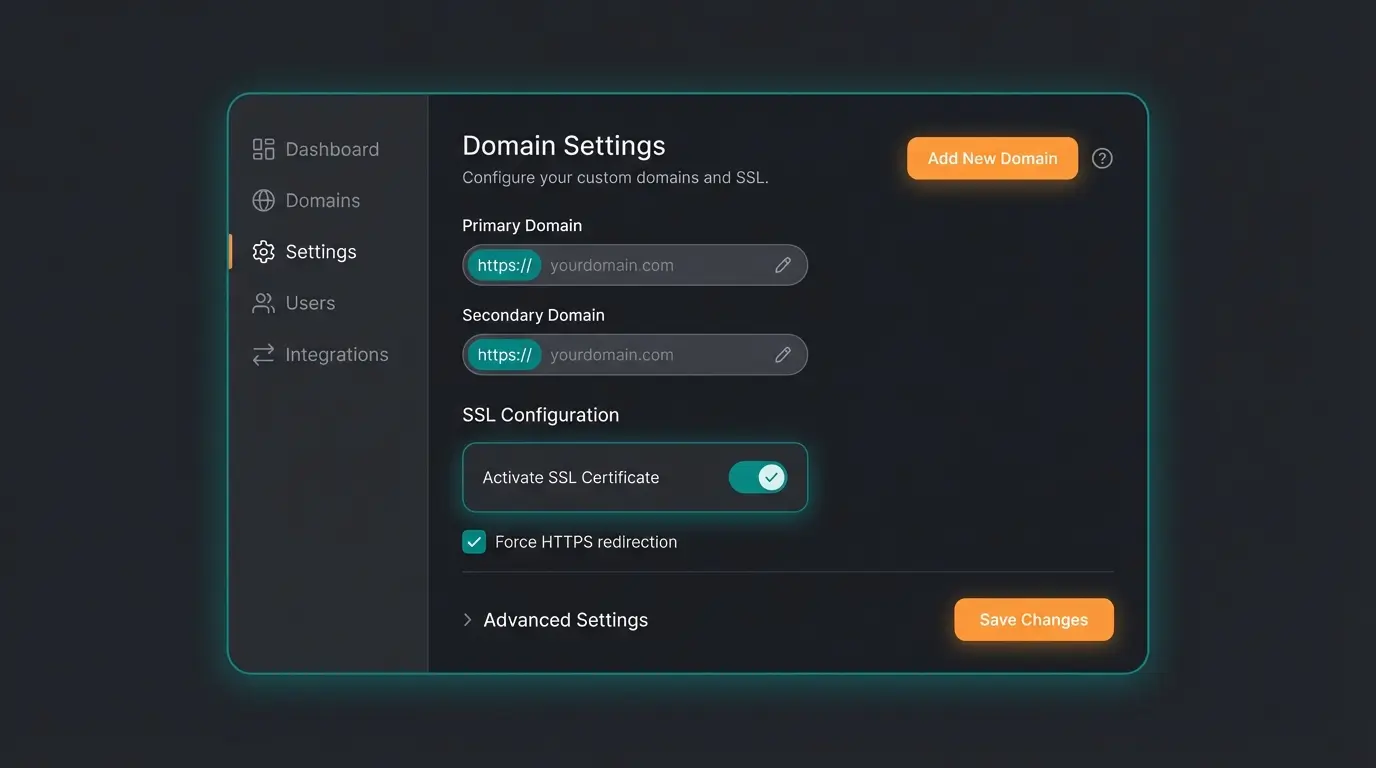
- Make sure the URL starts with `https://`. If it still shows `http://`, change it and check the "HTTPS" checkbox (if explicitly available in your version; in newer versions, often only the URL matters).
- Important: Ensure you configure both the variant with and without "www" if you want to use both (e.g., `https://myshop.com` and `https://www.myshop.com`). The official Shopware documentation confirms this best practice.
Step 3: Frontend Verification
Clear the shop cache (`Settings > System > Caches & Indexes > Clear Caches`) and visit your shop. Does the padlock symbol appear? If yes: Congratulations! If not, or if parts of the page are marked as insecure, continue reading the "Troubleshooting" section.
Legacy Setup: Activating SSL in Shopware 5
For the many merchants still running on the proven Shopware 5 platform, the switch works differently. Here, SSL configuration is deeply rooted in the basic settings (Grundeinstellungen). Understanding these differences is crucial, especially if you're considering a Shopware vs WooCommerce migration.
- Open Backend: Navigate to `Settings > Basic Settings` (Grundeinstellungen).
- Shop Settings: Go to `Shop Settings > Shops` (Shopeinstellungen > Shops).
- Select Shop: Choose your main shop (or the appropriate subshop) from the list.
- SSL Checkboxes: Check the box for Use SSL (SSL verwenden). This activates HTTPS for security-critical areas like checkout and login. Also check Use SSL everywhere (SSL überall verwenden). This ensures the entire shop (including the homepage and categories) is encrypted. The Shopware 5 documentation and Shopware configuration guide explain these settings in detail.
- Host Alias: Ensure your domain is correctly entered in the "Host" and "Hostalias" fields.
- Clear Cache: Confirm the settings and clear the complete shop cache (Theme and Configuration).
Navigate to Settings > Basic Settings > Shop Settings and enable SSL checkboxes
Configure HTTPS URLs in the Sales Channel > Domains section
Certificate must be installed on server before Shopware configuration
Clear cache and verify padlock appears in browser address bar
Forcing HTTPS: The Hard Redirect
Just because SSL is activated doesn't mean visitors will actually use it. Often the shop remains accessible via `http://`. This is bad for SEO (duplicate content) and security. We need to force the server to redirect every insecure request to the secure variant. This consideration ties directly into your Shopware page speed optimization strategy.
This is best done at the server level, before Shopware even loads.
Option A: Apache Web Server (.htaccess)
The `.htaccess` file controls the behavior of the Apache server. For Shopware 6, the file is located in the `/public/` folder. For Shopware 5, the file is in the root directory. According to Lenz E-Business and Botschaft Digital, the following redirect rules are recommended:
Add the following code at the very top of your `.htaccess` (after `RewriteEngine On`):
```apache <IfModule mod_rewrite.c> RewriteEngine On # 1. Redirect from http to https RewriteCond %{HTTPS} off RewriteRule ^(.)$ https://%{HTTP_HOST}/$1 [L,R=301] # 2. Optional: Redirect from non-www to www (for SEO consistency) RewriteCond %{HTTP_HOST} !^www\. [NC] RewriteRule ^(.)$ https://www.%{HTTP_HOST}/$1 [L,R=301] </IfModule> ```
Explanation: The `RewriteCond %{HTTPS} off` checks if the connection is not encrypted. The `R=301` sends the status code "Moved Permanently." This tells Google: "This page has moved permanently, please index only the HTTPS version." The official Shopware documentation provides additional context on these configurations.
Option B: Nginx Web Server
Nginx doesn't use `.htaccess`. Here the configuration must be adjusted in the server block file (vHost). This usually requires root access or support from your host. As explained on StackOverflow and Hetzner's documentation:
```nginx server { listen 80; server_name yourshop.com www.yourshop.com; # Redirect everything to HTTPS return 301 https://$host$request_uri; } server { listen 443 ssl http2; server_name yourshop.com; # ... SSL Certificate Paths ... # ... Shopware Configuration ... } ```
Why SSL Is the Foundation for AI Commerce
Many shop operators see SSL as a tedious mandatory task. But if you plan to equip your shop with modern features like AI product consultants or voice commerce, SSL becomes a technical necessity. This is particularly relevant when implementing solutions like AI Employee Flora or exploring Shopware automation possibilities.
Secure Contexts Explained
Modern browsers (Chrome, Firefox, Safari) have introduced the concept of "Secure Contexts." Certain powerful browser interfaces (APIs) are disabled when the page is not loaded via HTTPS. This includes:
- Geolocation API: Important for "Find a store near me" or shipping calculations.
- Microphone/Camera Access: Essential for voice search or visual search (taking a photo of a spare part).
- Service Workers: The foundation for Progressive Web Apps (PWA) and offline functionality.
If your shop doesn't have clean SSL, these features simply won't work. This directly impacts your ability to provide excellent Shopware customer support through modern channels.
Building Trust in AI Interactions
Imagine integrating an AI solution that asks the customer: "What problems do you have with your skin?" or "What's your budget?" If the browser displays "Not Secure" at that moment, the customer won't enter this sensitive data into the chat window. Trust is currency. A valid SSL encryption signals to the customer's subconscious: "I can communicate safely here." This is especially important when implementing AI customer service solutions that require personal data exchange.
WebSockets (WSS) Requirement
Many modern chat applications and real-time notifications use WebSockets for communication. If your main page runs over HTTPS, the WebSockets must also run over the secure protocol WSS (WebSocket Secure). Mixed operation is often not possible and leads to connection drops. Understanding EU AI Act compliance requirements adds another layer of importance to proper SSL implementation.

Ensure your Shopware store has the security foundation needed for modern AI features. Get started with intelligent product consultation that builds customer trust.
Start Your Free TrialTroubleshooting: Solving Common Shopware SSL Problems
Even with correct setup, errors often occur. Here are the most common scenarios and their solutions.
Mixed Content Errors
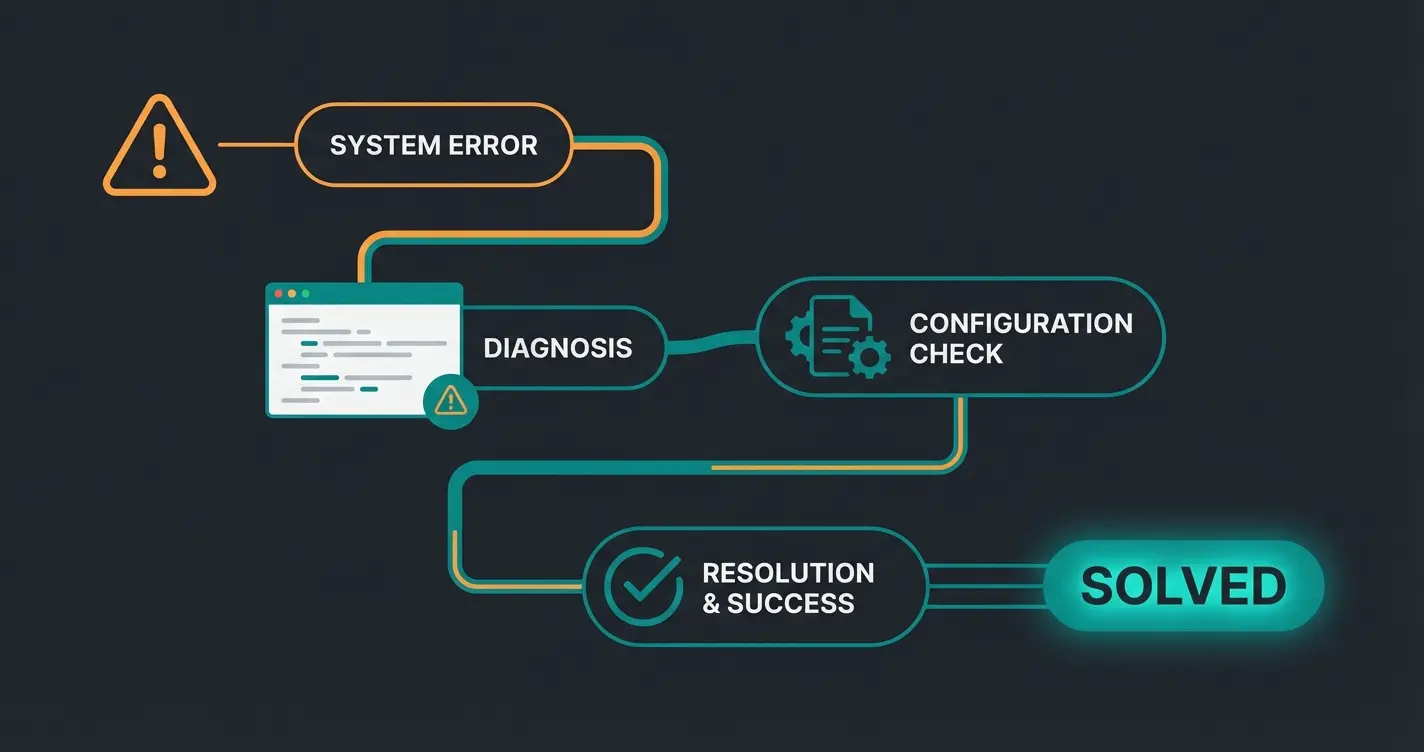
The padlock is there, but it has a yellow warning triangle or is crossed out? This is usually due to "Mixed Content." This means: The main page is secure (HTTPS), but it loads images, scripts, or stylesheets over an insecure connection (HTTP). As discussed on Reddit and in the Shopware community forums, this is one of the most common post-SSL issues.
Diagnosis: Press `F12` (Developer Tools) in the browser and go to the "Console" tab. Red warnings like "Blocked loading mixed active content" show you exactly which file is causing the problem.
Solution: Often old links in the database are hardcoded (e.g., in product descriptions or Shopping Worlds), especially after a migration from SW5 to SW6. You can search and replace these links directly in the database. The Shopware migration documentation and Firebear Studio provide detailed guidance.
SQL Command for Shopware 6 (Example for product descriptions): (Always make a database backup first!)
```sql UPDATE product_translation SET description = REPLACE(description, 'http://yourshop.com', 'https://yourshop.com'); ```
For Shopware 5, it would often be the tables `s_articles_img` or `s_cms_static`, as explained in the Shopware 5 database documentation.
Too Many Redirects Error
The browser reports `ERR_TOO_MANY_REDIRECTS`. This happens when Shopware thinks it's on HTTP and redirects to HTTPS, but the server (or a load balancer in front) redirects back. EcomFirst and Blank Slate Digital have documented this common issue extensively.
Cause: Often a Reverse Proxy (like Cloudflare, Varnish, or an Nginx in front of Apache) sits in front of the shop. The proxy speaks HTTPS with the customer but forwards the request via HTTP to the shop server. Shopware "sees" only HTTP and redirects -> endless loop.
Solution in Shopware 6: You need to configure "Trusted Proxies" so Shopware trusts the `X-Forwarded-Proto` header from the proxy. This is done in the `.env` file or `config/packages/framework.yaml` (adjusted in SW 6.4/6.5). According to StackOverflow discussions:
```yaml # config/packages/framework.yaml framework: trusted_proxies: '127.0.0.1,REMOTE_ADDR' # Or the IP of your load balancer ```
Admin Login Problems
Sometimes the frontend works, but the admin login reloads infinitely or logs you out immediately. This is often related to session cookies and incorrect domain settings. Check the database table `sales_channel_domain` to ensure the URLs are correct, and make sure `APP_URL` is correctly set with `https://` in the `.env` file. The GitHub discussions around Shopware often contain solutions for these edge cases.
| Error Message | Likely Cause | Quick Fix |
|---|---|---|
| Mixed Content Warning | Hardcoded http:// links in theme or database | Use Search & Replace plugin or SQL query |
| ERR_TOO_MANY_REDIRECTS | Reverse proxy configuration conflict | Configure trusted_proxies in framework.yaml |
| Admin Login Loop | Incorrect APP_URL or session cookie domain | Verify APP_URL in .env starts with https:// |
| Certificate Not Trusted | Self-signed or expired certificate | Install valid certificate via hosting panel |
| Partial HTTPS Only | 'Use SSL everywhere' not enabled (SW5) | Enable both SSL checkboxes in Basic Settings |
Performance and Validation: Measuring Success
SSL doesn't slow down the shop—on the contrary. When correctly configured, it enables HTTP/2. HTTP/2 is the successor to the old HTTP protocol and allows the browser to load many files (images, CSS, JS) simultaneously over a single connection (multiplexing). This drastically reduces loading time. HTTP/2 is only supported by browsers over encrypted connections, as Shopware's performance documentation and CheapSSLSecurity explain. This insight is crucial for your overall Shopware SEO guide implementation.
How Do I Test My SSL Quality?
A "green padlock" says nothing about the strength of the encryption. Outdated protocols (like TLS 1.0) are insecure. Use Qualys SSL Labs (ssllabs.com), the industry standard for SSL tests:
- Enter your domain.
- Wait for the scan.
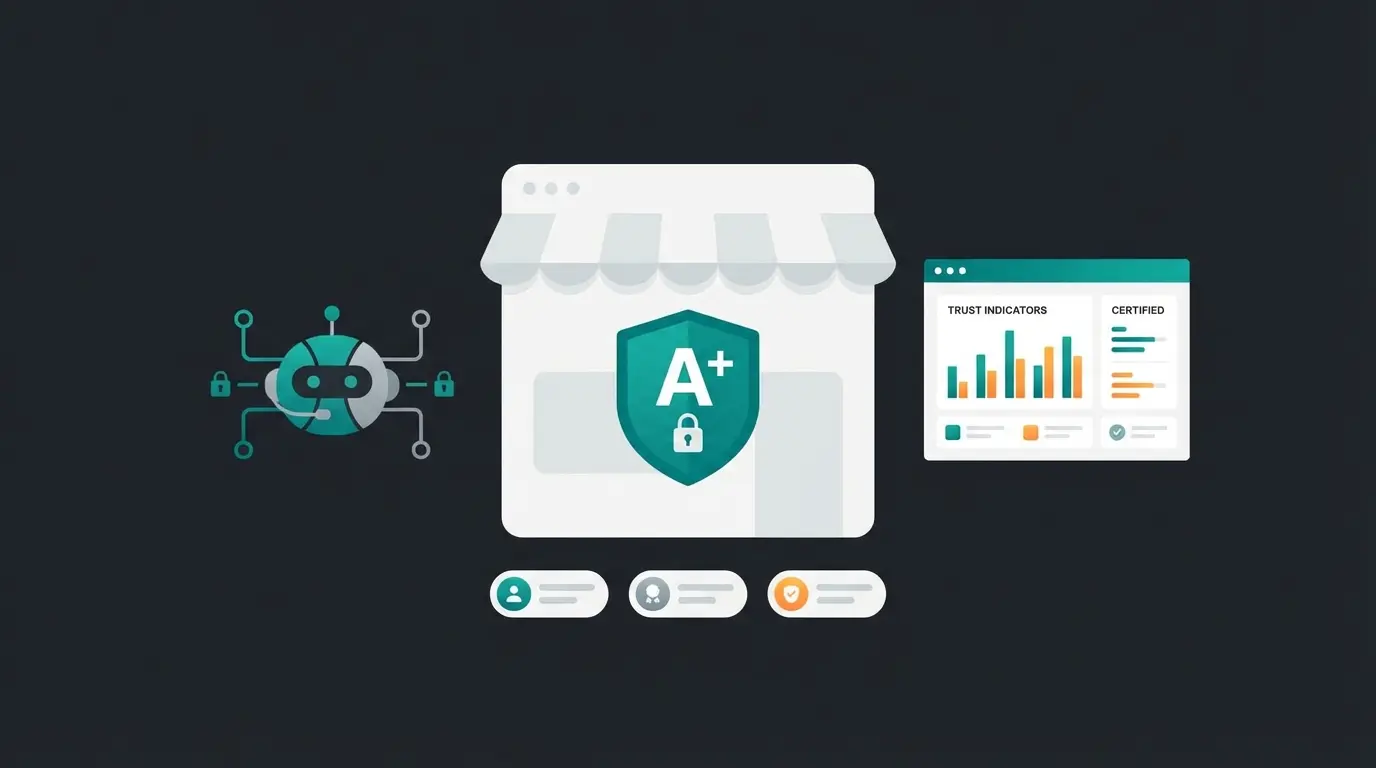
- Goal: You should receive an "A" or "A+" rating.
Improving Your SSL Rating
Grade B or C: Usually outdated protocols (TLS 1.0/1.1) are enabled. Disable these in the web server configuration and allow only TLS 1.2 and 1.3. Online Solutions Group and PSW Group provide detailed guides on modern TLS configuration.
No A+: For the "plus" you need HSTS (HTTP Strict Transport Security). This is a header that tells the browser: "Call this page for the next X months only encrypted, don't even try HTTP." According to Allerstorfer, implementing HSTS is the final step to achieving top security ratings. This is another element that should be part of your Shopware trust elements strategy.
Frequently Asked Questions
Yes. Technically, the encryption is identical to expensive certificates. The only difference is validation. Let's Encrypt only validates the domain (DV). Expensive certificates (OV/EV) validate the company. For pure data security and Google ranking, Let's Encrypt is completely sufficient.
With Let's Encrypt, this usually happens automatically every 90 days through the server. If you have a purchased certificate, you need to upload the new certificate (public key) and private key in your hosting panel and assign it to the shop. In Shopware itself, you usually don't need to change anything as long as the filename on the server stays the same.
In newer Shopware 6 versions, HTTPS is often automatically detected or controlled via the URL. If you change the URL in the domain list to 'https://...', that's sufficient. Make sure you've correctly set up the domain in the web server beforehand.
SSL (Secure Sockets Layer) is the predecessor to TLS (Transport Layer Security). While 'SSL certificate' is still commonly used as a term, modern systems actually use TLS 1.2 or TLS 1.3 for encryption. The certificates work the same way—it's the underlying protocol that has evolved.
Yes, Google has confirmed HTTPS as a ranking signal since 2014. While it's a relatively small factor compared to content quality, it can be the tiebreaker between two otherwise equal pages. More importantly, modern browsers warn users about non-HTTPS sites, which dramatically increases bounce rates.
Conclusion: Security as a Competitive Advantage
Setting up SSL in Shopware is more than a tedious mandatory task for GDPR compliance. It's the foundation for a performant shop (thanks to HTTP/2) and the prerequisite for modern features that improve your customers' shopping experience. Whether you're comparing Shopware vs Shopify or planning a complete infrastructure upgrade, SSL configuration remains fundamental.
Especially if you're thinking about using AI tools, a clean, enforced HTTPS connection without mixed content errors is indispensable. Test your installation today with SSL Labs and make sure your shop not only looks secure but actually is secure.
Get your SSL configuration right and prepare your shop for AI-powered customer experiences. Our team can help you implement secure, high-converting e-commerce solutions.
Get Started Free