
Why Excel for Inventory Management? (And When It Gets Risky)
Before we dive into formulas, we need to understand why Excel inventory management is the standard for startups and where the hidden costs lurk.
The Advantages (Why We Love Excel)
- Cost Efficiency: No monthly license fees for specialized software. Excel is usually already part of the Microsoft 365 package, as noted by rechnungswesen-verstehen.de and software-knowhow.de.
- Maximum Flexibility: Need a new column for "Weight" or "Customs tariff number"? A right-click is all it takes. Rigid systems often don't allow this.
- Familiar Environment: Everyone roughly knows how to fill in a cell. The onboarding time is minimal.
The Disadvantages (The "Excel Trap")
Studies and expert analyses repeatedly reveal the limitations, as documented by ecovium.com:
- Error Susceptibility: One wrong keystroke, one deleted formula – and suddenly the stock level in Excel no longer matches reality. Since entries are often manual, they're easily forgotten.
- Single-User Limit: Excel is not designed (without cloud workarounds) for simultaneous editing by multiple people in the warehouse and sales.
- Lack of Intelligence: An Excel spreadsheet can tell you that you still have 5 red sneakers. But it cannot automatically respond to the customer in chat who is asking about them right now.
Step-by-Step Guide: Creating Your Excel Inventory System
A chaotic list is not management. To work professionally, we need a relational structure. We strictly separate master data (what are we selling?) from movement data (what's happening right now?).
Structure of the Workbook
Open a blank Excel workbook and create three worksheets:
- Master Data (Product Directory)
- Inventory Movements (Goods Receipt/Goods Issue)
- Dashboard (Current Stock & Analysis)
Step 1: The "Master Data" Worksheet
Here you define the "truth" about your products. Each product may appear here only once. According to YouTube tutorials, formatting this correctly is essential.
Recommended Columns:
- A: Item Number (SKU): This must be a unique value (e.g., A-1001).
- B: Item Name: (e.g., "Sneaker Red Flow").
- C: Category: (e.g., "Shoes").
- D: Purchase Price (PP): For inventory value assessment.
- E: Selling Price (SP): For revenue forecasts.
- F: Minimum Stock (Reorder Point): When should you reorder?
Step 2: The "Inventory Movements" Worksheet
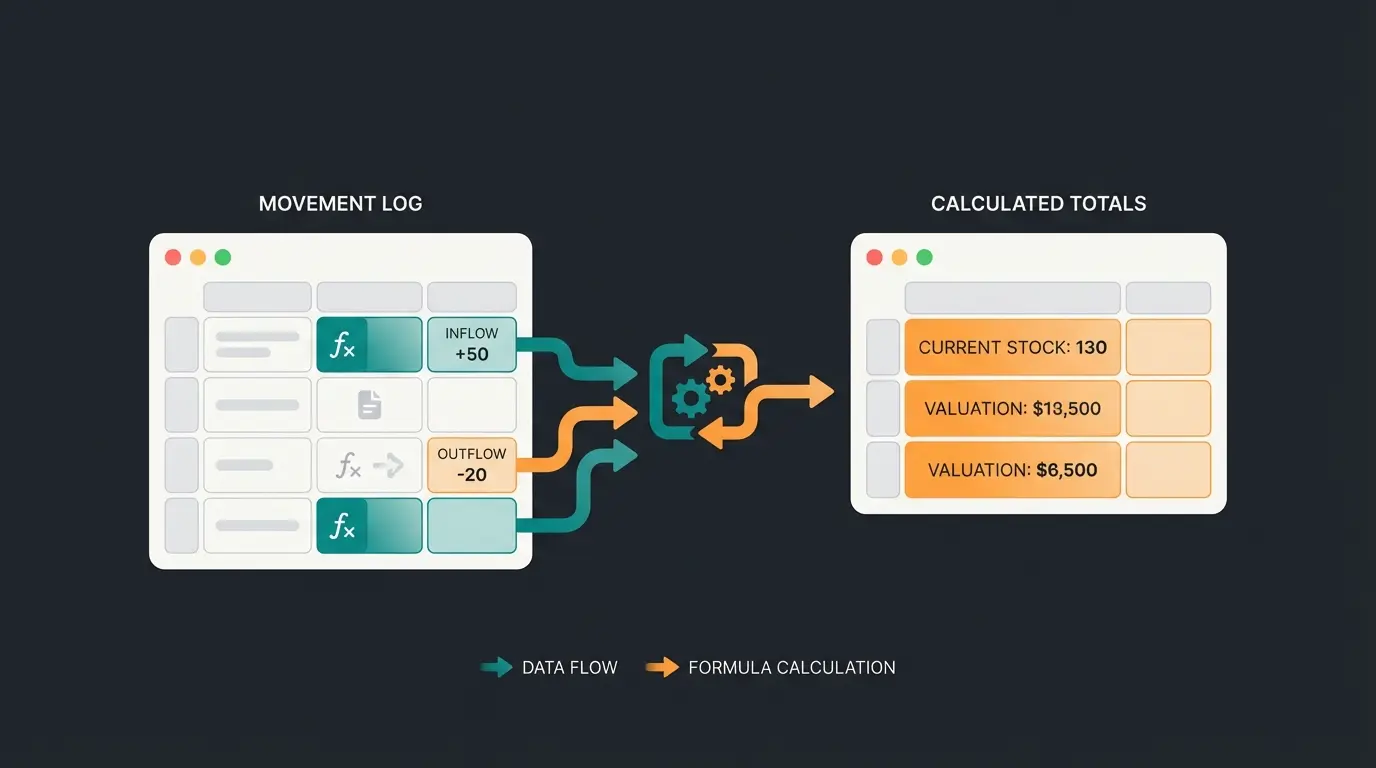
This is where the action happens. You never change the stock directly in the dashboard. Instead, you log every movement. This creates traceability (audit trail).
Recommended Columns:
- A: Date: When did the movement occur?
- B: Item Number (SKU): Which item?
- C: Movement Type: "Inbound" (purchase) or "Outbound" (sale/loss).
- D: Quantity: Number of pieces.
- E: Reference: Order number or delivery note number.
Step 3: The Dashboard (Excel Stock List)
Here we bring everything together. We want to know: What is currently available right now? Copy columns A (SKU) and B (Name) from the master data here. Then we need formulas to calculate the stock.
The Most Important Formula: SUMIF
We need to tell Excel: "Add all inbound entries for item X and subtract all outbound entries." As explained in formula tutorials, this is the foundation of Excel inventory systems.
Let's assume:
- In "Inventory Movements," column B is the SKU, column C is the type, column D is the quantity.
- In "Dashboard," cell A2 is our searched SKU.
The formula for current stock:
`=SUMIF(InventoryMovements!B:B, Dashboard!A2, InventoryMovements!D:D)`
Note: This simple formula adds everything. Since "Outbound" entries reduce stock, you should either record outbound entries as negative numbers in the movement table (e.g., -5) or extend the formula:
The Pro Formula (Calculate Stock):
`=SUMIFS(InventoryMovements!D:D, InventoryMovements!B:B, A2, InventoryMovements!C:C, "Inbound") - SUMIFS(InventoryMovements!D:D, InventoryMovements!B:B, A2, InventoryMovements!C:C, "Outbound")`
Explanation: Sum the quantity (D) IF the SKU matches (B) AND the type is "Inbound." SUBTRACT from that the sum IF the type is "Outbound." This approach is detailed in Excel resources.
Pro Features: Making Your Excel Inventory List Intelligent
Now we have a foundation. But a good Excel inventory management template needs safety nets against human error.
Data Validation (Dropdown Lists)
Typos are the death of any inventory list. If you write "Sneaker" once and "Sneacker" another time, Excel won't find the product. As shown in validation tutorials and traens.com, proper validation is crucial:
- Select column B (SKU) in the "Inventory Movements" sheet.
- Go to Data > Data Tools > Data Validation in the menu.
- Select the List option under "Allow."
- Enter the SKU column from your master data sheet as the source.
Result: You can now only select SKUs in the movement list that actually exist. No more typos!
Conditional Formatting (The Visual Warning System)
You want to immediately see when an item is running low. According to sgd.de and as-computer.de, visual alerts dramatically reduce missed reorders:
- Select the "Current Stock" column in the dashboard.
- Go to Home > Conditional Formatting > Highlight Cell Rules > Less Than.
- Reference the cell with the "Minimum Stock" (or enter a fixed value like "5").
- Choose "Light red fill."
Now your Excel stock level lights up red as soon as you need to reorder.
Barcode Scanner Integration
Many users think barcodes require expensive software. Wrong. A barcode is just a different font for a number. Resources from idautomation.com and free-barcode.com explain the process:
- Scanner: A simple USB handheld scanner (about $20) simulates a keyboard. It reads the code and presses "Enter."
- Font: Install a free barcode font like Code 39 (e.g., from IDAutomation or BarcodesInc).
- Excel Trick: For the scanner to read the code with Code 39, an asterisk () must be placed before and after the number. Formula: `="" & A2 & "*"`. Apply the "Code 39" font to this cell. Print this list and stick it on your shelves.
Item arrives and is physically stored
Stock recorded in your inventory spreadsheet
Customer query arrives - Excel cannot respond
AI reads Excel data and responds instantly
Customer receives answer, makes purchase
Essential Inventory KPIs to Calculate in Excel
An Excel stock list tells you what you have. Key performance indicators tell you how well your business is running. Here are the top 3 you should integrate.
1. Inventory Turnover Rate
This metric shows how often you sell your average inventory per year. A high value is good (goods don't sit long); a too-high value may indicate shortages. According to controllingportal.de and nestegg.cloud, understanding this metric is fundamental:
Formula: `Cost of Goods Sold / Average Inventory`
In Excel:
- Calculate the average stock: `(Beginning Stock + Ending Stock) / 2`
- Divide the sum of "Outbound" entries (sold quantity) by this average.
2. Days Sales of Inventory
How long will my current stock last if sales continue as before? This calculation is explained by herber.de, storabble.com, and controllingportal.de:
Formula: `Current Stock / Average Daily Consumption`
Excel Implementation:
- Calculate sales from the last 30 days (using `SUMIFS` with a date limitation).
- Divide this by 30 to get daily consumption.
- Divide current stock by this daily consumption.
3. ABC Analysis (Pareto Principle)
Find out which items are your "stars." Often 20% of items generate 80% of revenue (A-goods). C-goods are "shelf warmers" that only cause storage costs. Resources from weclapp.com, hands-on-excel.com, and dpunkt.de detail this analysis:
Procedure in Excel:
- Calculate annual revenue per item (Outbound Quantity × Selling Price).
- Sort the list in descending order by revenue.
- Calculate the cumulative share of total revenue.
- Classification: Up to 80%: A-items | 80-95%: B-items | 95-100%: C-items
No additional software fees beyond Microsoft 365
Ideal inventory turnover rate for e-commerce
Continuous customer consulting with AI layer
Typically from just 20% of inventory items
The "Excel Trap": When Lists Become a Brake
Up to this point, you have a solid system. You've created order. But Excel has a fundamental limit that is concealed in most tutorials: The isolation of data.
Imagine the following scenario:
- You have 3 pieces of the "Winter Jacket Model Nordkap" in stock.
- That's correctly listed in your cell C45.
- A customer visits your online shop at 9:00 PM or sends an email: "Do you still have the Nordkap jacket and does it match the blue pants?"
The Problem: Your Excel list cannot respond.
You have to:
- Read the email the next morning.
- Open Excel (hope no colleague has locked the file).
- Look it up.
- Reply to the customer.
In that time, the customer has long since ordered from Amazon. Excel is storage, not a consultant. It manages the backend process (counting) but ignores the frontend process (advising & selling). This is where companies using AI-powered product consultation gain a significant competitive advantage.
Here ends traditional inventory management – and here begins the modern, AI-powered strategy.

Transform your static inventory list into an intelligent AI sales consultant that works 24/7. Upload your Excel data and watch it come alive.
Start Your AI JourneyFrom Static Stock to Active AI Sales Consultant
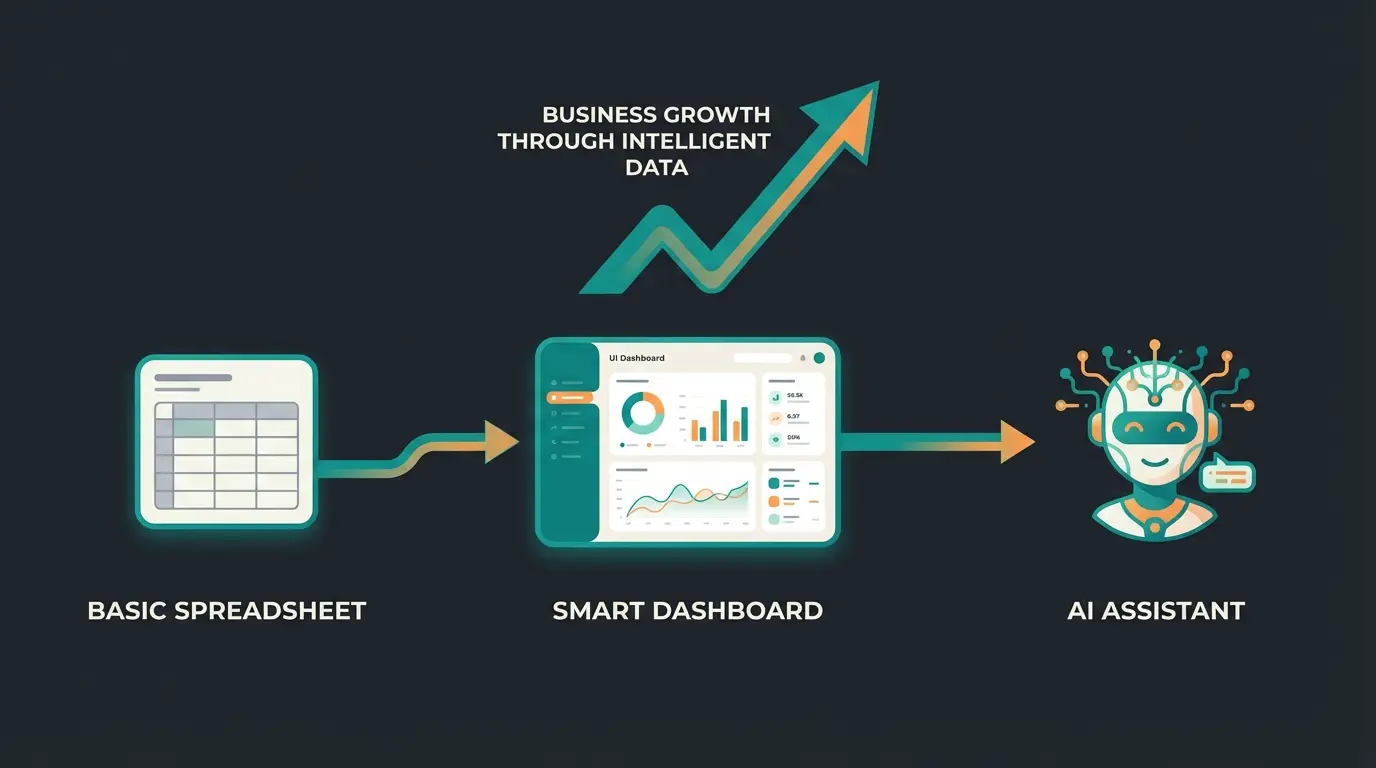
Here lies your strategic advantage over the competition. You no longer use Excel as a dead end, but as training data for Artificial Intelligence.
The Concept: "Layering"
You don't have to immediately abandon Excel (and buy expensive software). You put an intelligent layer on top of it.
Imagine being able to drag and drop your Excel inventory list into an AI tool. This AI doesn't just "read" "Quantity: 3" – it understands the context:
- "This is a winter jacket."
- "It's almost sold out (scarcity)."
- "It matches items in the 'Pants' category."
How AI Revolutionizes Inventory Management
Modern AI tools (like specialized Product Consultants or customized GPT solutions such as AI Employee Kira) can take over the following tasks:
1. Automated Customer Consulting (24/7)
The AI accesses your Excel export. When the customer asks: "What do you have for winter?", the AI responds: "We still have 3 pieces of the Nordkap jacket in stock. Since it's almost gone, you should hurry. I also recommend..." Result: Dead inventory data becomes an active sales conversation. This approach is similar to how KI-Mitarbeiterin Flora handles product inquiries automatically.
2. Intelligent Forecasting
Excel can calculate averages. AI can recognize patterns. According to aiforwork.co and forecasting tutorials, AI-driven predictions are transforming inventory management:
"Attention: Last year, umbrella sales increased by 300% in November. Your current stock of 50 pieces will only last 4 more days based on the current weather forecast."
3. Qualitative Analysis
Excel sees numbers. AI sees content. The AI can analyze your product descriptions in the Excel list and suggest: "Your description for item B-102 is too technical. Customers often ask about 'soft fabric,' but that word is missing from your list. Add it to improve SEO." Companies like those using KI Produktberatung have seen significant improvements through this approach.
Practical Implementation: The "AI-Ready" Workflow
To prepare your inventory management for this step, add a crucial column to your Excel template today: "AI Context".
- Normal Column: "Red Sneaker"
- AI Context Column: "Sporty casual shoe, breathable, ideal for summer, pairs well with jeans, target audience young adults."
Maintain this data now. When you're ready to connect an AI tool, you'll already have the perfect dataset to train your digital sales assistant. This is exactly how KI Mitarbeiter Theresa was trained to provide personalized product recommendations.
| Feature | Excel Only | ERP System | AI-Enhanced Excel |
|---|---|---|---|
| Cost | $0 (included) | $$$$ per month | $ per month |
| Setup Time | Minutes | Weeks/Months | Hours |
| Customer Interaction | None | Limited | Full 24/7 Chat |
| Scalability | Low (10k items) | High | High |
| Learning Curve | Low | High | Low |
| Automation | Manual/VBA | Built-in | AI-Powered |

Automating Alerts and External Integrations
While standard Excel cannot send emails, you can extend its capabilities significantly. Using Power Automate (part of Microsoft 365), you can build a "Flow" as explained by myonlinetraininghub.com and automation tutorials: "When cell X falls below value 5, send email to purchasing@company.com." This requires some learning but completely automates the process.
For businesses handling Social Media Inquiries, integrating inventory data with customer communication channels becomes even more critical. An AI layer can automatically respond to product availability questions across all platforms.
Multi-User Collaboration
Yes, you can use Excel with multiple users! According to alle-meine-vorlagen.de and collaboration videos, through Excel Online (in OneDrive or SharePoint), multiple users can work simultaneously in the file. This prevents file conflicts ("This file is locked by user X"). Businesses requiring automated customer service often start with Excel and graduate to integrated AI solutions.
Scalability Considerations
How many items can Excel manage? Technically over 1 million rows. Practically, according to microsoft.com, the file becomes slow at around 10,000 items and many formulas. From this point, or with more than 50 orders per day, you should consider switching to a merchandise management system or database solution. However, adding an AI layer like AI Assistant Leyla can extend Excel's usefulness significantly by handling customer-facing interactions while you maintain backend data.
Conclusion: Excel Is the Start, AI Is the Destination
A clean Excel inventory management system is the foundation of every successful trading company. With the `SUMIF` and `VLOOKUP` formulas, intelligent data validation, and barcode scanners, you bring order to chaos and save real money compared to expensive ERP systems.
But don't stop there. The market demands speed and consulting. A file on your hard drive cannot deliver that.
- Step 1: Download our optimized Excel template and get your inventory in order.
- Step 2: Use this structured data not just for counting, but as fuel for your future AI sales consultant.
The future of inventory management isn't about managing scarcity – it's about enabling sales. Companies already leveraging Lead Qualification and KI Leadgenerierung understand that data becomes valuable only when it actively drives revenue.
Whether you're looking to hire AI employees or explore a free initial consultation, the journey from static spreadsheets to intelligent sales systems starts with properly structured data. Businesses using KI Chat solutions have discovered that their existing inventory data becomes exponentially more valuable when connected to AI.
FAQ: Common Questions About Excel Inventory Management
Yes, through Excel Online (in OneDrive or SharePoint), multiple users can work simultaneously in the file. This prevents file conflicts ('This file is locked by user X'). For teams requiring real-time inventory updates across sales and warehouse, cloud-based Excel combined with an AI layer provides an excellent middle-ground solution before investing in full ERP systems.
Technically over 1 million rows. Practically, the file becomes slow at around 10,000 items with many formulas. From this point, or with more than 50 orders per day, you should consider switching to a merchandise management system or database solution. However, for most small to medium businesses, Excel remains sufficient when properly structured.
Install a font like 'Code 39' (available free from IDAutomation or similar providers). Use the formula `=""&CELL&""` and format the cell with the barcode font. The asterisk serves as the start/stop character for the scanner. Most USB barcode scanners (around $20) work immediately without additional software.
Standard Excel cannot send emails. However, with Power Automate (part of Microsoft 365), you can build a 'Flow': 'When cell X falls below value 5, send email to purchasing@company.com.' This requires some initial setup but completely automates the reorder notification process.
SUMIF allows one condition (e.g., sum all quantities for SKU 'A-1001'). SUMIFS allows multiple conditions (e.g., sum quantities for SKU 'A-1001' AND movement type 'Inbound'). For inventory management, SUMIFS is typically more useful as you need to differentiate between stock additions and reductions.
Stop letting your carefully maintained Excel data sit idle. Connect it to an AI sales consultant that answers customer questions, recommends products, and drives conversions around the clock.
Get Started Free