
Introduction to Shopware Order Status Management
The Shopware order status is far more than just an internal administrative note for your warehouse team. It represents the most important communication channel to your customers during the critical phase between clicking "Buy" and unboxing their purchase. An unclear status creates uncertainty, increases support ticket volume, and can ruin the buying experience—even when the product itself is perfect.
Many shop operators migrating from Shopware 5 to Shopware 6 initially face a puzzle: Why doesn't a status change trigger an email? Why are there suddenly three different status types for a single order? According to Shopware's official documentation, this architectural change represents a fundamental shift in how order management works.
This guide serves as your comprehensive resource. We cover not only the technical setup and management of statuses in the Shopware 6 admin panel but also show you how to master the Flow Builder and leverage artificial intelligence to elevate your customer communication to new heights. Whether you're looking for Shopware 6 support guidance or advanced automation strategies, this article has you covered.
Understanding Shopware 6 State Machines
To effectively utilize the Shopware order status, you must understand that Shopware 6 operates with so-called "state machines" (Zustandsautomaten). Unlike older systems that often had only a linear status progression, Shopware 6 completely decouples the processes for maximum flexibility.
The Three Pillars of Status Management
An order in Shopware 6 consists of three separate status levels that operate independently yet remain logically connected. This architecture, as documented on Shopware's developer resources, enables complex logistics processes that weren't possible in previous versions.
| Status Type | Technical Name | Description & Example |
|---|---|---|
| Order Status | order.state | The overarching state of the entire order (e.g., Open, In Progress, Completed, Cancelled) |
| Payment Status | order_transaction.state | Relates purely to the money flow (e.g., Open, Paid, Partially Refunded, Failed) |
| Delivery Status | order_delivery.state | The physical status of the goods (e.g., Open, Shipped, Partially Shipped, Returned) |
Why This Separation Is Both Brilliant and Confusing
In practice, this means an order can have the payment status "Paid" while the delivery status is still "Open." Or the delivery status is "Shipped" but the payment status remains "Open" (for example, with invoice purchases). This granular control enables precise tracking of every aspect of an order.
A common misconception is that the status "Payment: Paid" automatically sets the "Order Status" to "In Progress." According to Shopware's Flow Builder documentation, this does not happen automatically by default—it must be defined via the Flow Builder. This is where Shopware support automation becomes essential for efficient operations.
All three statuses start as 'Open' - Order, Payment, and Delivery tracks begin
Payment status changes to 'Paid' while Order and Delivery may remain 'Open'
Order status moves to 'In Progress' - can be automated via Flow Builder
Delivery status changes to 'Shipped' with tracking information attached
All statuses align - Payment 'Paid', Delivery 'Shipped', Order 'Completed'
Tutorial: Status Management in Admin & Bulk Editing
For daily operations, the section under Orders > Overview serves as your command center. Here we demonstrate how to perform status changes efficiently—both individually and for hundreds of orders simultaneously.
Manual Status Change for Individual Orders
When you open a single order, you'll find the status cards in the upper area. The process is straightforward but includes important safeguards built into the state machine logic.
- Open the order in your admin panel
- Click on the dropdown menu for the respective status (Payment, Delivery, or Order)
- Select the new status (e.g., from 'Open' to 'Shipped')
- Note: Shopware checks in the background whether this transition is permitted. If a status is grayed out, the state machine does not allow this direct change
This validation system, as explained in Shopware's order management guide, ensures data integrity across your entire system. For shops requiring advanced Shopware AI capabilities, this structured approach provides a solid foundation.
Bulk Editing: The Time-Saver for High-Volume Shops
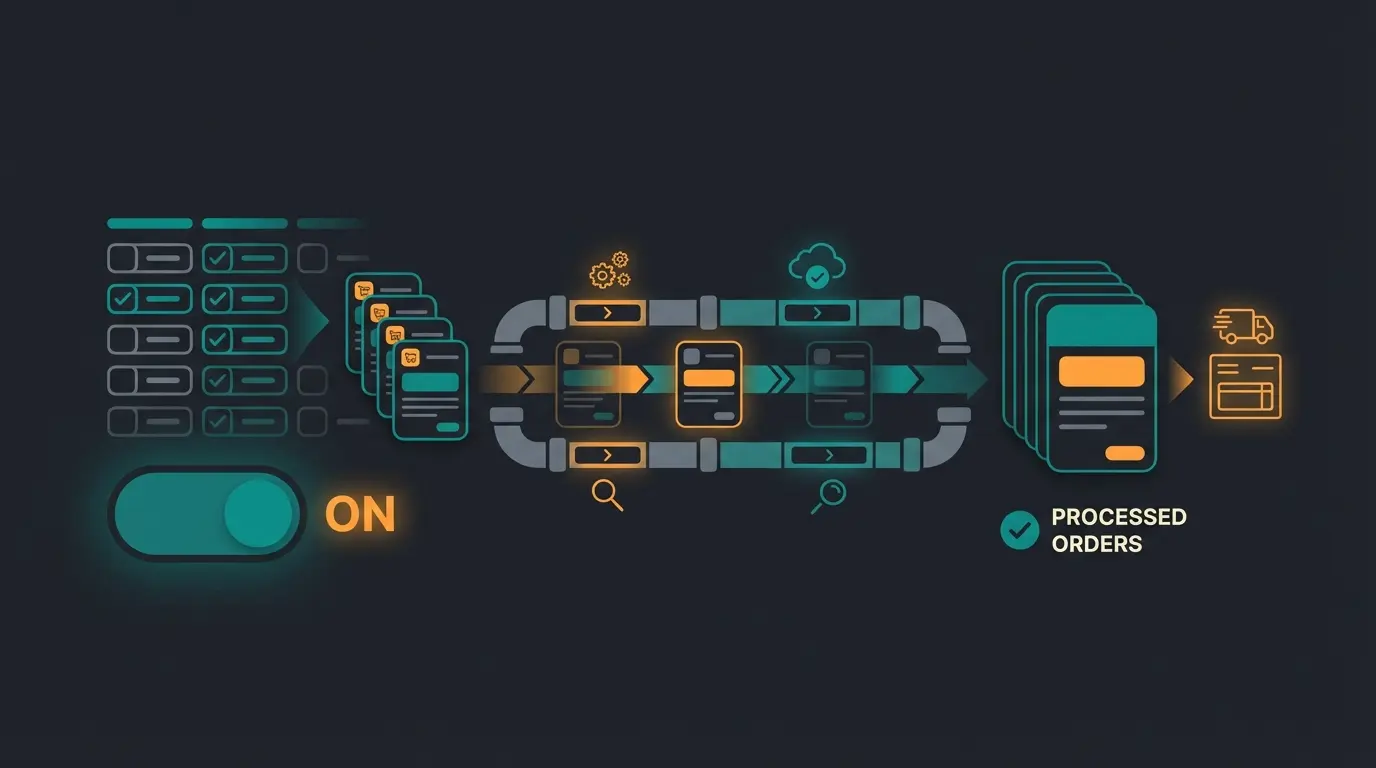
For shops with high order volumes, individual processing simply isn't an option. Shopware 6 offers the Bulk Edit (Mehrfachänderung) feature specifically for this purpose, as demonstrated in various YouTube tutorials from the Shopware community.
- Navigate to the order overview
- Mark all relevant orders using the checkboxes on the left
- Click on the 'Bulk Edit' bar at the top
- A modal opens where you can select, for example, 'Change delivery status' and set the value to 'Shipped'
As noted in Shopware's bulk processing documentation, you should never close the browser tab during bulk editing, as the process runs in the background and could otherwise abort prematurely.
Advanced Automation with the Flow Builder
Here lies the biggest difference from previous versions and the most common source of errors. In Shopware 6, a status change is initially a "silent" event. For the customer to receive an email ("Your package has been shipped"), you must use the Flow Builder.
Why Aren't Emails Being Sent?
If you change the status and nothing happens, the corresponding flow is usually missing. While Shopware delivers standard flows, these often don't cover individual processes. According to Solution25's technical guide, this is one of the most frequently encountered issues during Shopware 6 implementation.
Guide: Setting Up Email Delivery for "Shipped" Status
Here's how to configure the classic scenario—the shipping confirmation. This fundamental automation is essential for any Shopware service implementation.
- Navigate to Settings > Automation > Flow Builder
- Click 'Add Flow'
- Choose trigger: Search for 'state_enter.order_delivery.state.shipped' (Status reached: Delivery > Shipped)
- Add action: Select 'Send Email'
- Configuration: Set recipient to Customer (Standard), select the 'Shipping Confirmation' template, optionally attach the delivery note if already generated
As detailed in Kennersoft's Shopware guide, proper Flow Builder configuration separates professional e-commerce operations from amateur setups.
Automating Complex Scenarios
The Flow Builder can do far more than just send emails. You can automate status dependencies to create sophisticated workflows:
- Scenario: When Payment Status changes to 'Paid'...
- Action: Automatically set Order Status to 'In Progress' and generate the invoice
- Result: Saves your team hundreds of clicks per day and ensures Order Status stays synchronized with the payment flow
This level of automation is where AI customer service integration can further enhance your capabilities, creating truly intelligent order processing workflows.
Transform static status updates into proactive customer engagement. Our AI solutions integrate seamlessly with Shopware's Flow Builder to reduce support tickets and increase satisfaction.
Start Free TrialCustomizing Statuses: Creating New Order States
A frequent question is: "Can I add a status like 'In Production' or 'Waiting for Supplier'?" The answer is: Yes and no.
In the standard Shopware 6 admin under Settings > Shop > State Machine, you can view the statuses, but often cannot simply add new statuses that are fully integrated into the logic without deeper intervention. As discussed on StackOverflow's Shopware community, this is a limitation that requires technical expertise to overcome.
The state machine is deeply anchored in the core. To integrate a clean, update-safe new status, it's usually recommended to use a plugin (available in the Shopware Store) or have an agency implement the customization via code, registering the new status and defining the transitions.
The AI Advantage: From Administration to Experience
While the classic Shopware order status is informative, using AI (Artificial Intelligence) offers the opportunity to transform an administrative act into a service experience. Shopware offers the AI Copilot for this purpose, but the strategy extends far beyond it.
Proactive Communication Instead of WISMO
"Where Is My Order?" (WISMO) accounts for up to 30% of all support inquiries. This represents a massive drain on resources that AI chatbots can effectively address.
WISMO inquiries make up nearly a third of all customer service requests
Each status inquiry takes valuable agent time that could be automated
Shoppers expect proactive delivery updates without having to ask
The problem: A status of "Shipped" tells the customer nothing about whether the package arrives tomorrow or in a week. The AI solution: Use AI tools that match tracking data from logistics providers with your Shopware status. If the AI detects a delay at the shipping provider, it can proactively trigger an email: "Hello, your package is slightly delayed—we're keeping an eye on it." This builds trust before the customer reaches for the phone in frustration.
This is where AI product consultation capabilities shine, enabling intelligent responses to customer inquiries about order status and delivery timelines.
Intelligent Checkout Messages with AI Copilot
The Shopware AI Copilot offers the "Custom Checkout Message" feature. Based on the shopping cart (e.g., fragile items, bulky goods), the AI generates a personalized message on the order status screen after purchase, as demonstrated in Shopware's AI feature videos.
Example: "Thank you for purchasing the wine cooler! Since this is freight shipping, the 'Shipped' status will only be activated once the freight company has called you." This kind of contextual communication represents the future of AI-powered product advice.
AI-Based Customer Classification
The AI Copilot can classify customers based on their ordering behavior. When a VIP customer orders, a flow can be triggered that internally prioritizes the order status or sends a special "Thank you" email. According to Codixio's implementation guide, this customer segmentation capability dramatically improves retention rates.
These AI agents work tirelessly to ensure your best customers receive the attention they deserve, while AI selling techniques help convert status inquiries into upsell opportunities.

Best Practices: The Ideal Status Communication Workflow
How do you strategically leverage Shopware 6's technical capabilities? Here's a blueprint for a workflow that maximizes transparency and customer satisfaction.
Phase 1: Order Receipt & Payment
- Trigger: Order created
- Status: Order: Open, Payment: Open
- Communication: Order confirmation (immediate)
- Pro Tip: Use the Flow Builder to send a 'Payment Confirmation' immediately upon payment receipt (Payment: Paid). This enormously reassures the customer
Phase 2: Processing (Fulfillment)
- Status: Order: In Progress
- Action: Generate documents (Invoice/Delivery Note)
- Communication: No email necessary unless processing takes longer than 2 days. Here, an AI-supported 'We're packing your package' email can work wonders
For complex product inquiries during this phase, AI e-commerce consultation can provide immediate answers without burdening your support team.
Phase 3: Shipping
- Status: Delivery: Shipped
- Important: Tracking code must be imported before the status change
- Communication: Shipping confirmation including tracking link—this is the most important email in the entire process (highest open rate)
Phase 4: Completion & After-Sales
- Status: Order: Completed
- Trigger: Can be automated when Delivery: Shipped + X days
- Communication: Send a 'Review Request' email 3-5 days after delivery using flows with delayed actions
According to Shopware's delayed action documentation, properly configured after-sales flows can increase review rates by up to 40%.
Instant confirmation email with order details and expected timeline
Send payment receipt within seconds of successful transaction
Optional: 'Your order is being prepared' message after 24-48 hours
Critical: Shipping notification with tracking link (highest engagement)
Review request email to capture feedback while experience is fresh
State Machine Transitions: The Complete Matrix
Understanding Valid Status Transitions
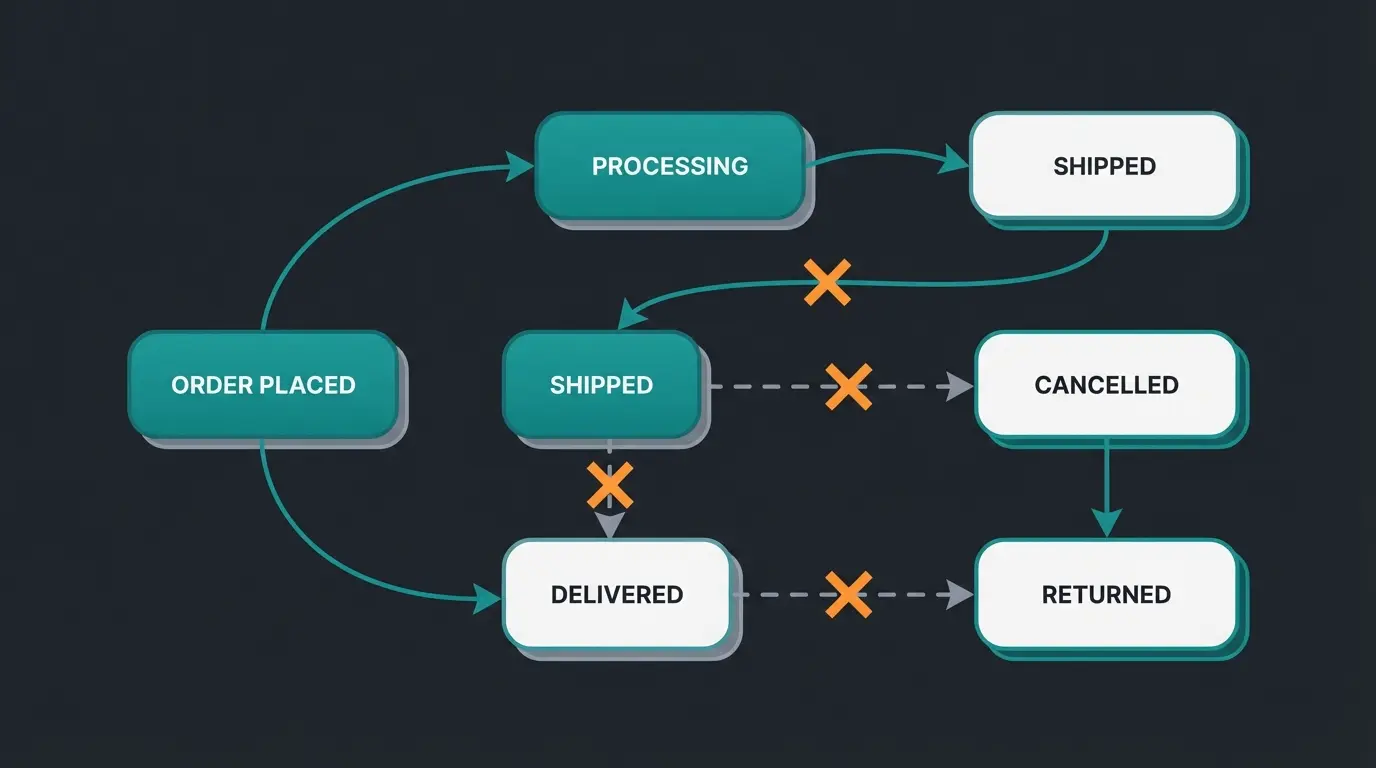
One of the most valuable reference tools for Shopware administrators is understanding which status transitions are valid. The state machine prevents illogical jumps that could corrupt your order data.
| Current State | Valid Transitions | Invalid Direct Transitions |
|---|---|---|
| Order: Open | In Progress, Cancelled | Completed, Refunded |
| Order: In Progress | Completed, Cancelled | Open, Refunded |
| Payment: Open | Paid, Cancelled, Failed | Refunded, Partially Refunded |
| Payment: Paid | Refunded, Partially Refunded | Open, Failed |
| Delivery: Open | Shipped, Partially Shipped, Cancelled | Returned |
| Delivery: Shipped | Returned | Open, Partially Shipped |
This matrix helps explain why certain status buttons appear grayed out in your admin panel. The state machine enforces business logic integrity across all orders.
Troubleshooting Common Status Issues
Even with perfect setup, issues can arise. Here are the most common problems and their solutions, compiled from community forums and official Shopware support resources.
Status Won't Change to "Completed"
Shopware 6 doesn't allow certain transitions directly. Often an order must first be "In Progress" before it can be "Completed." Check whether the current status has a direct path to the target status. The state machine enforces these rules to maintain data consistency.
Flow Not Working as Expected
When your automation fails to trigger, follow this diagnostic checklist:
- Verify the flow is set to Active (not Draft or Disabled)
- Check the trigger type: Did you select 'state_enter...' or 'state_leave...'? The 'state_enter' option is usually the safer choice
- Review conditions: Is there a rule (e.g., 'Only for PayPal') that might not apply to your test case?
- Test with a fresh order rather than manually manipulated test data
Bulk Edit Sending Too Many Emails
Only when you've checked "Trigger Flows" will emails be sent. If you process 100 orders with the checkbox enabled, 100 emails go out. Be extremely careful here—accidentally spamming customers with duplicate notifications damages trust and increases unsubscribe rates.
Shopware 6's state machine enforces logical transitions. An order typically must pass through 'In Progress' before reaching 'Completed.' This prevents data inconsistencies. Check the current status and use the intermediate step if the direct transition is blocked.
Navigate to Settings > Shop > Email Templates. Find the template associated with your desired status (e.g., 'Order delivery shipped' for shipping notifications). You can customize the subject, body text, and which order data variables are included in each template.
Only if you enable 'Trigger Flows' during bulk editing. When disabled, statuses update in the database without triggering any associated flows or emails. Use this option for internal corrections or batch processing where customer notification isn't needed.
Yes, but it requires technical implementation. The standard admin allows viewing state machines but not adding fully-functional new states without code. Use a Shopware Store plugin or work with a developer to properly register new states and define valid transitions.
Verify three things: 1) The flow is set to Active, 2) You're using the correct trigger (state_enter is recommended), and 3) No conditions are filtering out your orders. Test with a real order and check the flow's execution log for errors.
Conclusion: Mastering Shopware Order Status
The Shopware order status in version 6 is a powerful tool. The decoupling of payment, delivery, and order status may seem complex at first, but it offers exactly the flexibility that modern e-commerce requires for sophisticated logistics and customer communication.
The key to success lies not in manually clicking status buttons, but in automation via the Flow Builder. Those who invest time here save hundreds of work hours in the long run and drastically reduce support inquiries.
Your Next Steps
- Audit your current flows: Does the customer receive information at every important step?
- Test bulk editing to accelerate your warehouse processes
- Explore AI features to transform your status emails from pure information into genuine customer retention instruments
- Implement proper state machine transitions to prevent order processing errors
- Consider integrating AI chatbots to handle routine status inquiries automatically
Optimize your processes now—your customer is already waiting for the next notification in their inbox. The combination of proper Shopware configuration and intelligent AI automation creates a customer experience that builds loyalty and reduces operational costs.
Stop losing customers to status uncertainty. Our AI-powered solution integrates with Shopware to provide proactive updates, reduce WISMO tickets by 30%, and turn every order into a trust-building opportunity.
Get Started Free