
Why Speed Alone Won't Win in 2025
Have you ever wondered why your Shopware store feels sluggish despite state-of-the-art server hardware? Or why product changes sometimes take hours before customers can see them?
The answer almost always lies in caching. In the e-commerce world, speed isn't just a technical detail—it's the currency in which conversion rates are paid. Studies consistently show that every second of loading delay costs you real money. But in 2025, simply having a "fast" shop is no longer enough to compete.
The challenge for modern online stores is the paradox of speed versus personalization. Customers expect a page that loads in under 0.5 seconds (static), yet simultaneously delivers content tailored specifically to them (dynamic)—like personalized recommendations, live inventory displays, or AI-powered consultation tools. This is where understanding Shopware performance optimization becomes crucial for your business success.
This guide isn't a simple beginner's "how-to." We dive deep into Shopware 6 architecture, illuminate the critical changes in versions 6.6 and 6.7 (such as the new ESI handling and delayed invalidation), and show you how to develop a caching strategy that combines high performance with high-end user experience.
Maximum acceptable page load for optimal conversion
Per second of additional loading delay
Target for enterprise Shopware installations
Time to First Byte for cached pages
The Fundamentals: How Shopware Caching Really Works
Before we start typing commands into the console, we need to understand what's happening under the hood. Shopware 6 uses a multi-layered caching system built on Symfony. When we talk about "Shopware caching," we typically mean two different things:
HTTP Cache vs. Object Cache
HTTP Cache (Full Page Cache): This is the most important cache for frontend loading times. It stores the fully rendered HTML page. When a visitor calls up the homepage, Shopware doesn't need to start PHP and query the database. Instead, the web server (or Varnish) delivers the finished HTML file directly.
- Goal: Maximum speed (TTFB < 100ms)
- Problem: Cannot store dynamic content (like "Hello, [Name]")
Object Cache (Data Abstraction Layer - DAL): This is where database query results are stored. When Shopware needs to know which products are in category X, it first looks here.
- Goal: Database load reduction
- Technology: File system by default, Redis in professional setups
Understanding these cache layers is essential when calculating your Shopware hosting costs, as the right caching strategy can significantly reduce server resource requirements.
Production Mode: The Most Common Mistake
It sounds trivial but is the cause of 30% of all performance problems with new launches. Shopware checks in the `.env` file which mode it's running in.
Checklist for your .env file:
| Setting | Status | Impact |
|---|---|---|
| APP_ENV=dev | WRONG for live shops | Disables caching, enables debugging |
| APP_ENV=prod | CORRECT for live shops | Full caching enabled, optimized performance |
Caches & Indexes in the Admin Panel
For beginners, Shopware offers a graphical interface under Settings > System > Caches & Indexes.
- Clear Caches: Deletes temporary files
- Update Indexes: Recalculates SEO URLs, category trees, and search indexes
CLI Command Cheatsheet: Professional Tools
Those who run Shopware professionally work with the console. Some things have changed with updates to Shopware 6.5 and 6.6. The topic of "cache warmup" is particularly often misunderstood.
Essential Daily Commands
Here's a list you can copy and pin. Execute these commands in the main directory of your Shopware installation:
| Command | Function | When to Use |
|---|---|---|
| bin/console cache:clear | Clears entire cache (HTTP & Object) | After updates, plugin installations, or config changes |
| bin/console dal:refresh:index | Updates all indexes (SEO, search, etc.) | When products are missing in frontend or filters are incorrect |
| bin/console theme:compile | Recompiles CSS/JS | When design changes aren't visible |
| bin/console messenger:consume | Processes the message queue | Essential for async processes (emails, indexing) |
These commands are fundamental to maintaining optimal Shopware page speed and ensuring your store performs at its best.
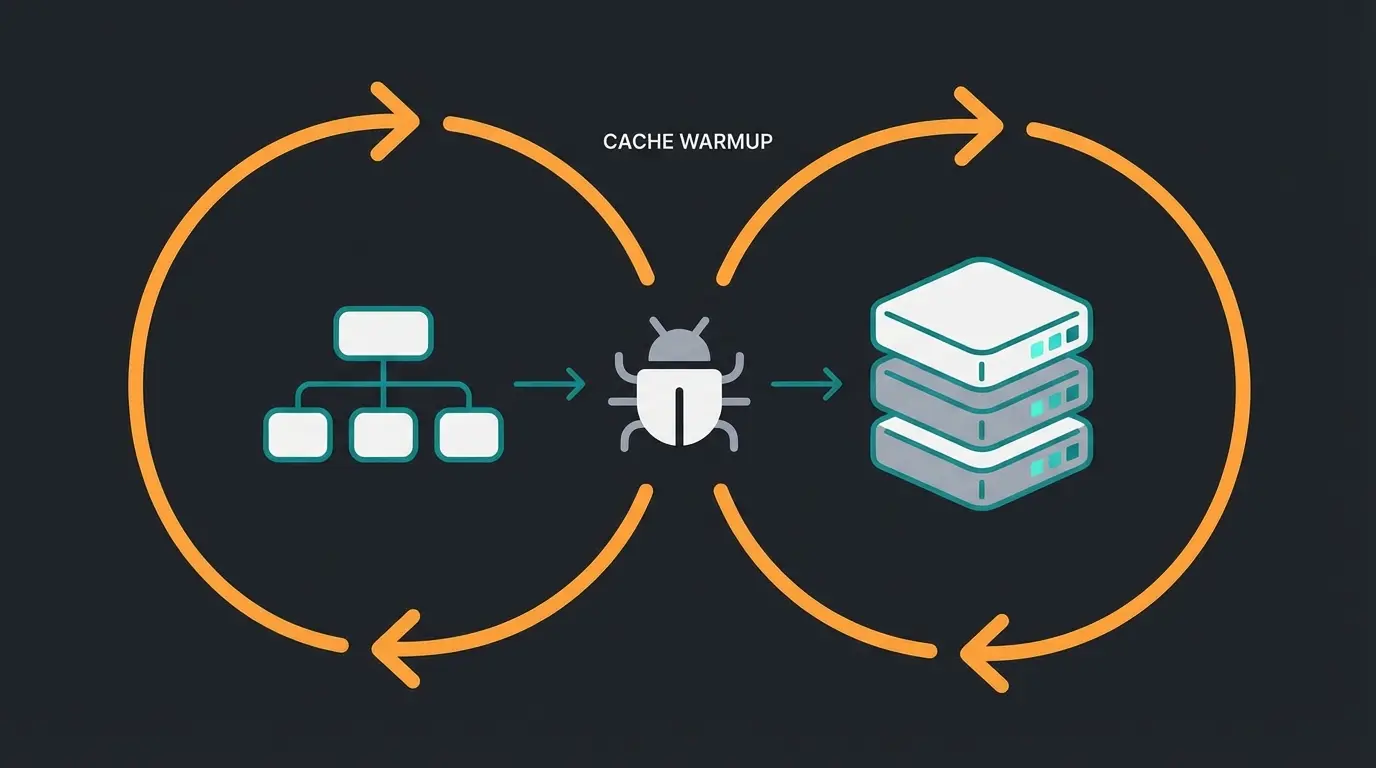
The Cache Warmup Myth (Changes in Shopware 6.6)
The command `bin/console http:cache:warm:up` used to be standard. Attention: In newer Shopware versions (from 6.5.x/6.6), this command has been marked as "deprecated" or works differently, as Shopware now relies on a message-queue-based or external solution, according to Shopware and Ditegra.
Why was this changed? The old warmer generated URLs based on internal rules, which was often inaccurate. Additionally, it massively loaded the server by attempting to warm up everything simultaneously.
The Modern Strategy: Monday Morning Warmup
Instead of an internal command, you should use an external crawler or a script that crawls your sitemap.
Example for a simple warmup script (Bash/Wget):
```bash #!/bin/bash # Loads the sitemap and calls each URL once to fill the cache wget --quiet https://www.my-shop.com/sitemap.xml --output-document - | egrep -o "https://www.my-shop.com[^<]+" | wget --spider -i - --wait 0.5 ```
Advanced Caching: Redis and Varnish Setup
When your shop grows (more than 10,000 products or high traffic spikes), Shopware's file-based caching is no longer sufficient. The file system is slow and blocks I/O operations. This is where Redis and Varnish come into play.
Comparison: File Cache vs. Redis vs. Varnish
| Feature | File Cache (Default) | Redis | Varnish / Reverse Proxy |
|---|---|---|---|
| Speed | Medium (SSD-dependent) | High (In-Memory) | Extremely High (delivers before PHP starts) |
| Complexity | Low (Out-of-the-box) | Medium (Requires server service) | High (Requires VCL configuration) |
| Recommended For | Small shops, dev environments | Medium to large shops | Enterprise & high-traffic shops |
| Dynamic Content | Difficult | Well manageable | Requires ESI or AJAX |
Choosing the right caching infrastructure directly impacts your Shopware cloud hosting requirements and overall system architecture.
Redis Configuration Best Practices
Redis should be used in Shopware 6 for two things: Sessions and Object Cache. From Shopware 6.4+ and especially in 6.6, configuration is primarily done via `config/packages/framework.yaml` (or `shopware.yaml`) and the `.env` file, as documented by Hypernode and Maxcluster.
Step 1: Define Redis in the .env file
```bash REDIS_URL=redis://localhost:6379 ```
Step 2: Adjust config/packages/framework.yaml
Here we tell Shopware to use Redis instead of the file system:
```yaml framework: cache: # Sets Redis as default for App and HTTP cache app: cache.adapter.redis default_redis_provider: '%env(REDIS_URL)%' pools: # Specific configuration for object cache cache.object: default_lifetime: 86400 adapter: cache.app tags: cache.tags # IMPORTANT: Use Redis for sessions too (prevents locking issues) session: handler_id: 'redis://localhost:6379/0' ```
Varnish and Reverse Proxy Configuration
Varnish positions itself in front of your web server. It delivers static pages in milliseconds.
Important change in Shopware 6.6: The configuration for reverse proxies has changed. The key `storefront.reverse_proxy` is deprecated and has been replaced by `shopware.http_cache.reverse_proxy`, according to Shopware documentation.
Example config/packages/shopware.yaml (Shopware 6.6+):
```yaml shopware: http_cache: reverse_proxy: enabled: true ban_method: "BAN" hosts: ["http://127.0.0.1"] # Your Varnish address use_varnish_xkey: true # Important for precise invalidation ```
User clicks link, request travels to your server infrastructure
Reverse proxy checks for cached response (cache HIT = instant delivery)
Shopware's built-in cache checks for stored HTML pages
If cache MISS, Shopware processes request through Symfony
DAL retrieves data, object cache reduces repeated queries
AI tools and dynamic content load asynchronously via JavaScript
Discover how AI-powered customer engagement can work seamlessly with your optimized caching strategy. No performance compromise, maximum conversion.
Start Free TrialThe Dynamic Content Challenge: Where Caching Reaches Limits
This is where the wheat separates from the chaff. A shop that's 100% cached is extremely fast—but dumb. It can't display a shopping cart, login status, or personalized recommendations.
The Problem: Over-Caching Risks
If you cache too aggressively, the following happens: Customer A adds a product to their cart. Customer B visits the page and sees Customer A's cart (because the HTML page with the filled cart was cached). This is a privacy disaster.
This risk is often overlooked when comparing Shopware alternatives, as different platforms handle dynamic content caching in various ways.
The Solution: The Hybrid Approach
To combine speed (caching) with intelligence (personalization/AI), there are two main strategies in Shopware.
ESI Tags: The Swiss Cheese Approach
Shopware punches "holes" in the cache. The page is cached, but certain blocks (like the header with the cart icon) are replaced by a placeholder.
New in Shopware 6.7: Shopware increasingly uses ESI for header and footer. This means when you change a category in the menu, the cache of all product pages no longer needs to be deleted—only the ESI fragment of the header, as detailed by BitBag and GitHub documentation. This massively reduces server load during updates.
Client-Side Loading: The Modern Approach
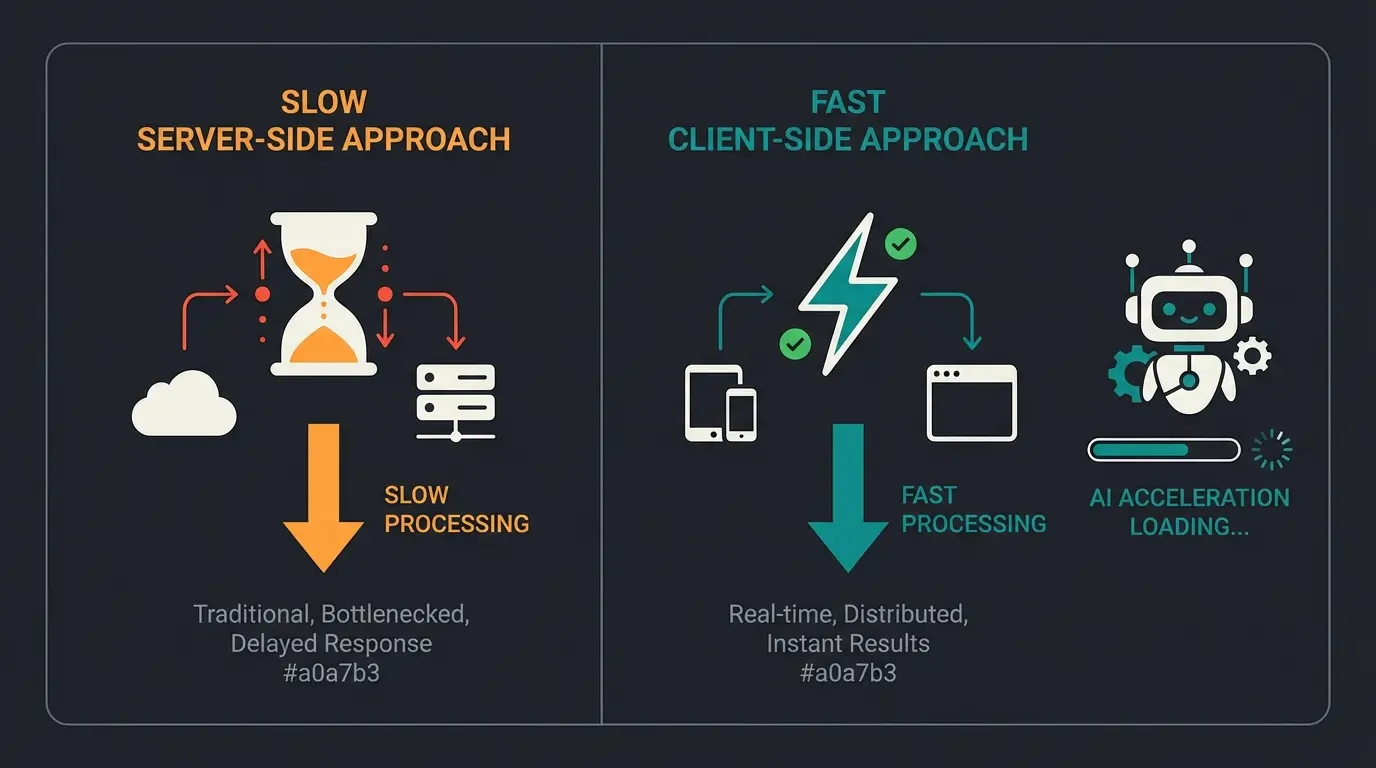
This is the most modern method and crucial for using AI tools. The page is loaded completely static (and super fast) from the cache. Only after the page is in the customer's browser does a JavaScript snippet load the dynamic data.
Why is this important for your AI strategy? Imagine using an AI consultant that suggests products to customers based on their behavior.
- Server-Side (Bad): The server calculates AI suggestions before delivering the page. Result: The page loads 2 seconds slower. The cache is useless.
- Client-Side (Good): The page is there immediately (0.3s). The AI bot loads asynchronously and appears smoothly in the corner.
This is exactly how modern AI Chatbots are designed to work—loading independently without blocking page performance.
Cache Invalidation: Why Tags Matter
A common problem: "I changed the price, but the shop still shows the old one."
Shopware uses a sophisticated Cache Tagging System. Each page gets invisible labels (tags):
- Product page "Sneaker X" has tags like: `product-123`, `category-shoes`, `manufacturer-nike`
When you save the product "Sneaker X," Shopware sends a signal: "Delete everything with the tag `product-123`."
Plugin Compatibility Challenges
The Problem: If you use plugins that display their own data, these plugins must tell the cache which tags they use. If they don't, the cache won't be cleared when changes are made. This is particularly important when implementing Shopware AI features that require real-time data accuracy.
Delayed Invalidation in Shopware 6.7
Shopware 6.7 Change: There's now delayed invalidation. Cache deletions no longer happen immediately when saving (which made the admin slow) but are collected and processed via the message queue (default: every 5 minutes).
Troubleshooting and Best Practices
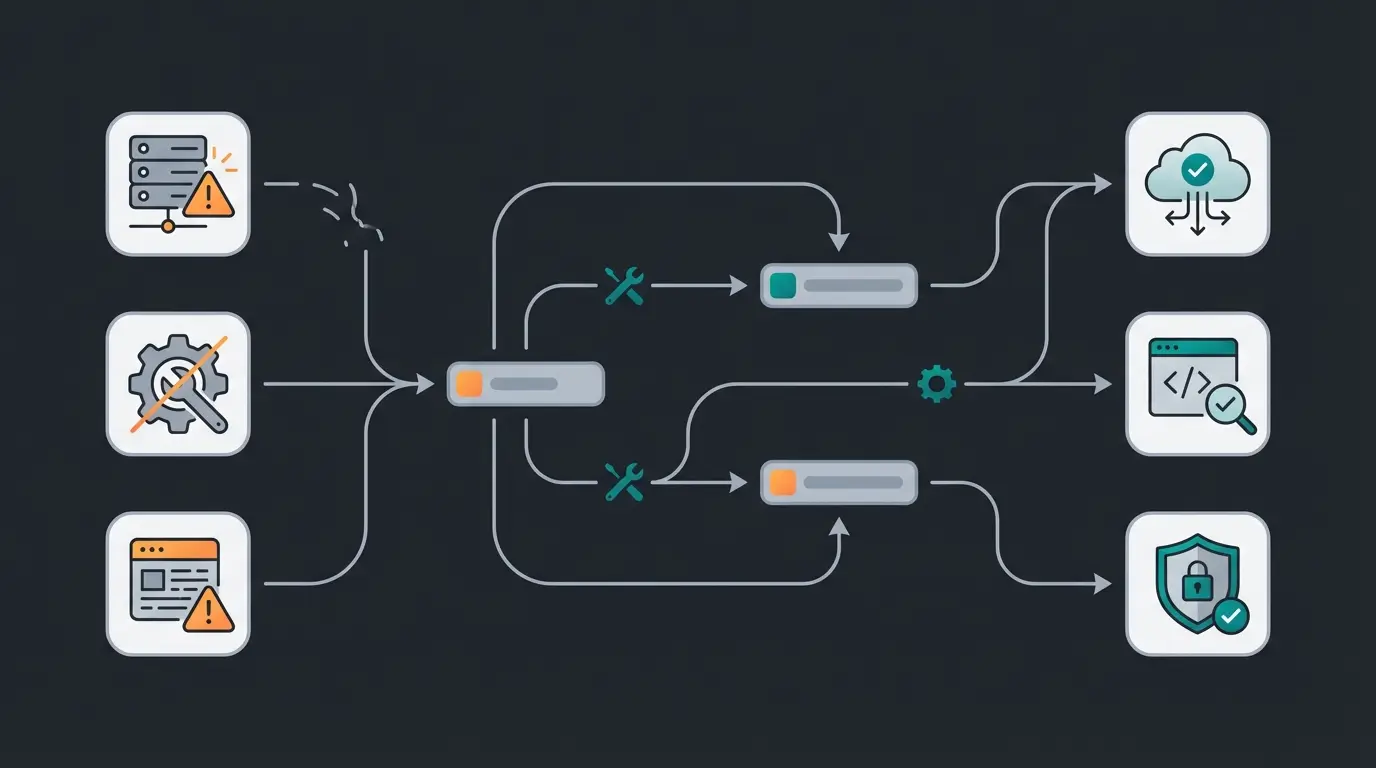
When things go wrong, it's usually due to one of these points. Here's your first-aid list.
Scenario A: Shop Extremely Slow After Cache Clear
Cause: The "Cold Cache" effect. Shopware must recalculate every page.
Solution:
- Never clear the cache during prime business hours
- Use a warmup script immediately after clearing (see Chapter 2)
- Check whether your indexes are current (`bin/console dal:refresh:index`)
Scenario B: Template Changes Not Visible
Cause: Shopware compiles Twig templates into PHP files.
Solution: Run `bin/console theme:compile`. A simple `cache:clear` is often not enough for theme changes.
Scenario C: Shopping Cart Loads Forever
Cause: Often a problem with session locking in the file system.
Solution: Switch sessions to Redis (see Chapter 3). This is the most effective performance boost for the checkout process and crucial for implementing AI product recommendations that don't slow down the shopping experience.
Monday Morning Checklist for Your Team
Copy this list for your team's weekly maintenance routine:
- Check Error Logs: Review `var/log/prod-*.log` for critical errors
- Message Queue Status: Are workers running? (`bin/console messenger:stats`)
- Validate Indexes: Run `bin/console dal:refresh:index` weekly (preferably at night)
- Cache Hit Rate: Check in Varnish or Redis Monitor that your hit rate is above 80-90%
- Outdated Files: `bin/console media:delete-unused` (Caution: Make backup first!) to save storage space
This maintenance routine becomes even more critical when running AI Customer Service tools that depend on accurate, real-time data from your Shopware installation.
Speed vs. Personalization: The Modern Balance
The e-commerce landscape has evolved. As AI Chatbots continue evolving, the technical infrastructure must support both blazing speed and intelligent personalization. When evaluating platforms like Shopware vs Shopify, caching capabilities and dynamic content handling should be key decision factors.
Modern Shopware AI product consultation tools are specifically designed with client-side architecture in mind. They load independently of your cached pages, ensuring that your Time to First Byte stays green in Google's Core Web Vitals while still offering rich, personalized features.
The key insight is this: Caching makes your shop fast; AI makes it smart. The best implementations use both without compromise. Through proper AI Chatbot integration, you can transform passive visitors into engaged buyers without sacrificing the performance gains you've worked so hard to achieve.
Conclusion: Speed Is the Foundation, Intelligence Is the House
Shopware caching is not a "set-it-and-forget-it" topic. It's an ongoing process. With the changes in Shopware 6.6 and 6.7 (ESI, Delayed Invalidation), Shopware has delivered powerful tools to keep even massive catalogs performant.
Strategy Summary
- Foundation: Set `.env` to `prod` and activate HTTP cache
- Scaling: Use Redis for sessions and object cache as soon as traffic increases
- Workflow: Let cache invalidation run via message queue (default in 6.7)
- Dynamics: Use client-side loading (AJAX) for personalization without endangering the cache
The Next Step
Now that your shop loads in under 0.5 seconds, you've captured your customers' attention. But what do you do with it? A fast shop that leaves customers alone sells below its potential.
This is where modern AI comes into play. Since you now know how to load dynamic content via JavaScript without slowing down the cache, the path is clear for intelligent user engagement tools. Our AI solution uses exactly this architecture: it sits lightweight "on top" of your optimized Shopware shop and transforms fast traffic into active sales conversations—without risking the load time by even a millisecond.
Use the command 'bin/console cache:clear' in your Shopware root directory. This clears both HTTP and Object cache. For theme changes, also run 'bin/console theme:compile' to recompile CSS and JavaScript files.
This is the 'Cold Cache' effect. After clearing, Shopware must recalculate every page on first request. Always use a warmup script after clearing (crawl your sitemap) and never clear cache during peak business hours.
Switch to Redis when your shop exceeds 10,000 products or experiences high traffic spikes. Redis handles in-memory caching significantly faster than file-based systems and eliminates session locking issues that slow down checkout processes.
Modern AI tools use client-side loading via JavaScript. The cached page loads instantly (0.3s), then the AI component loads asynchronously afterward. This maintains your Core Web Vitals scores while enabling personalization.
The 'bin/console http:cache:warm:up' command is deprecated in Shopware 6.5.x/6.6. Instead, use external crawlers or scripts that process your sitemap. This prevents server overload and provides more accurate cache warming.
Your Shopware shop now loads in under 0.5 seconds. Don't let that traffic bounce. Our AI solution integrates seamlessly with your caching strategy—engaging users instantly without impacting performance.
Get Started Free