
Why Manual Accounting Slows Down Your Shop
Let's be honest: How much time do you spend each week manually transferring invoices from your WooCommerce shop to your accounting software? If your answer is "more than zero minutes," then this article is written specifically for you.
In 2025, manual accounting in e-commerce isn't just a time drain—it's a genuine business risk. The introduction of mandatory e-invoicing for B2B transactions, complex OSS tax rules (One Stop Shop), and the constant threat of transfer errors make an automated interface absolutely essential. According to eszet.com and Lexware, these regulatory changes affect every German online retailer.
In this comprehensive guide, we'll clarify once and for all how to perfectly connect WooCommerce and Lexoffice (now often called "Lexware Office"). We'll compare the top solutions objectively, walk you through the technical setup, and show you how to use the time you save to massively increase your revenue through AI-powered consultation. If you're comparing platforms, our Shopware vs WooCommerce comparison provides additional insights.
A clean WooCommerce Lexoffice connection solves three critical problems:
- Legal Compliance (GoBD & E-Invoicing): Germany has strict regulations. Invoices must be unalterable, have sequential numbers, and from 2025, often need to exist as structured data files (XML/ZUGFeRD) for B2B transactions. Manual processes are extremely error-prone here.
- Tax Complexity (OSS): Do you sell to other EU countries? Then you need to calculate the destination country's VAT rate depending on the delivery threshold (€10,000)—for example, 20% in Austria, 21% in Spain. A good interface automatically maps these tax rates to the correct revenue accounts in Lexoffice. As Billbee and pictibe explain, this automation is crucial for compliance.
- Scalability: If you spend 4 hours every Monday on bookkeeping, that's 4 hours missing from marketing, product development, or customer consultation.
Time recovered through automation
Automated data transfer eliminates copy errors
EU delivery threshold triggering destination VAT
The Fundamental Decision: Direct Plugin vs. Middleware
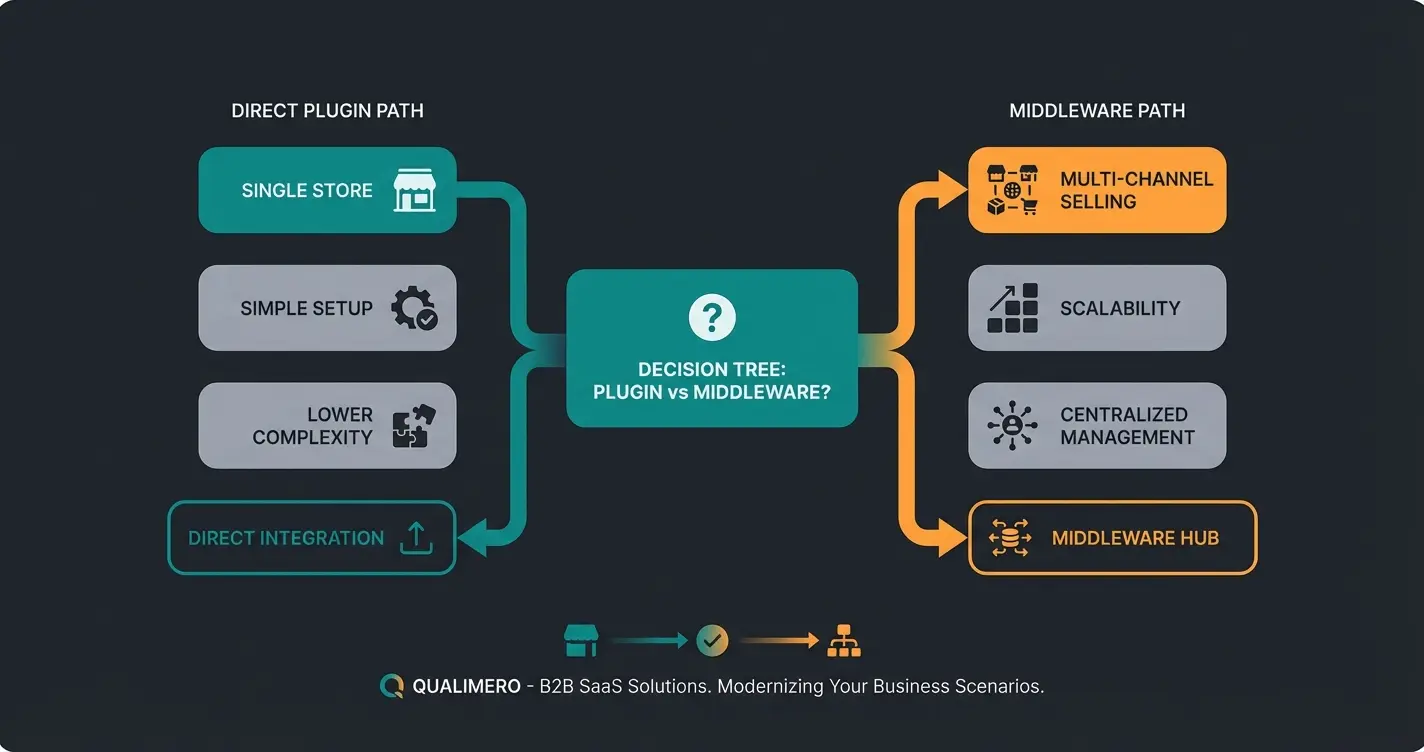
Before you purchase a plugin, you need to make a strategic decision. There are two ways to get data from WooCommerce to Lexoffice, and understanding this choice is essential for your WooCommerce Lexoffice integration:
Path 1: The Direct Interface (Plugin)
Here you install a plugin in WordPress (e.g., Germanized, Woolex) that communicates directly with the Lexoffice API.
- Advantage: Cheaper, full control in the WordPress backend, no third-party database.
- Disadvantage: Places (minimal) load on your server, typically only works for your WooCommerce shop (not for eBay/Amazon sales).
Path 2: The Middleware (Inventory Management)
You use a service like Billbee or Xentral that sits between your systems. WooCommerce sends data to Billbee -> Billbee sends to Lexoffice. This approach mirrors what we discuss in German accounting Billbee for Shopify merchants.
- Advantage: Perfect for multichannel retailers. If you also sell on Amazon, eBay, or Etsy, the middleware collects all orders and sends them bundled to Lexoffice.
- Disadvantage: Monthly fixed costs, another tool to manage.
The Big Comparison: Top 3 Integration Methods
The market for WooCommerce Lexoffice plugins is confusing. We'll focus on the three most relevant solutions dominating the market in 2025.
Option A: Germanized Pro (The Standard)
Germanized is already mandatory for many German shops to make WooCommerce legally compliant (terms and conditions, checkboxes, delivery times). The Pro version offers deep Lexoffice integration.
- How it works: Creates invoices in WooCommerce and automatically synchronizes them (including receipt image) with Lexoffice.
- Supports ZUGFeRD / XRechnung (important for 2025) from version 4.0, as confirmed by Vendidero.
- Excellent OSS support (One Stop Shop) according to Vendidero's documentation.
- Automatically synchronizes refunds.
- No additional plugin needed if you're already using Germanized.
Cost: Approximately €69/year (including support & updates), as noted by Plugintheme and Themecanal.
Option B: German Market (The All-in-One Solution)
The direct competitor to Germanized from MarketPress. Here too, the Lexoffice interface is part of a large legal compliance package.
- How it works: Similar to Germanized. Offers add-ons for Lexoffice that are included in the price.
- Very clean user interface.
- Good integration of cancellations and credit notes, as documented by MarketPress.
- Also offers ZUGFeRD support for e-invoices.
Cost: Approximately €75/year (renewals often cheaper), according to MarketPress pricing.
Option C: Billbee (The Multichannel Weapon)
Billbee is not a plugin but cloud software connected to WooCommerce via API.
- How it works: Billbee pulls the order from WooCommerce, creates the invoice there (and the shipping label!), then pushes the data record to Lexoffice.
- Multichannel: Can route orders from Amazon, eBay, Etsy, and WooCommerce into one Lexoffice account, as explained by wiedenroth.tech and Lexware.
- Automation: Can also print shipping labels (DHL, DPD) and send tracking codes back to the shop.
- Supports ZUGFeRD format for e-invoices, as detailed by Billbee.
Cost: Usage-based, starting at €9/month (base fee). With many orders, costs increase, but the price-performance ratio is excellent for multichannel retailers according to trusted.de.
Option D: Woolex (The Specialist)
A dedicated plugin solely for the connection.
- Strengths: Lightweight if you don't use Germanized/German Market (which is rare in Germany).
- Cost: €69/year.
- Verdict: Solid, but since most shops already need Germanized or German Market for legal compliance, the added value is often less than with the all-in-one solutions.
Feature Comparison Table: All Integration Methods
| Feature | Germanized Pro | German Market | Billbee | Woolex |
|---|---|---|---|---|
| Type | WordPress Plugin | WordPress Plugin | Cloud Middleware | WordPress Plugin |
| Cost (approx.) | €69/year | €75/year | from €9/month | €69/year |
| Multichannel (Amazon/eBay) | No | No | Yes (Core feature) | No |
| E-Invoice (ZUGFeRD) | Yes (from v4.0) | Yes | Yes | No (sends data only) |
| OSS Support (EU Tax) | Very good | Very good | Very good | Good |
| Refund Sync | Automatic | Automatic | Automatic | Manual (often) |
| Setup Effort | Medium | Medium | High (external tool) | Low |
| Recommended for: | Pure Woo shops | Pure Woo shops | Marketplace sellers | Minimalists |
Order created in WooCommerce with all customer and product data
Integration detects new order and prepares data transfer
PDF with embedded XML (ZUGFeRD) created automatically
Invoice appears in Lexoffice under Income with correct tax mapping
Tax consultant can export data for year-end accounting
2025 E-Invoicing Mandate: What Shop Owners Must Know
A topic missing from many older guides is the e-invoicing mandate that takes effect in Germany from January 1, 2025. Understanding this is crucial for any WooCommerce Lexoffice connection you implement.
What's Changing?
In the B2B sector (business-to-business transactions), electronic invoicing becomes mandatory. A simple PDF file will no longer be sufficient in the long term. It must be a structured data record (XML) that is machine-readable. The common formats are XRechnung (pure XML) and ZUGFeRD (PDF with embedded XML), as explained by Lexware.
What Does This Mean for Your Lexoffice Integration?
- Receiving: From January 2025, you must be able to receive e-invoices. Lexoffice can already do this.
- Sending: If you sell B2B (e.g., office supplies to companies), you will need to be able to issue e-invoices in the medium term.
Germanized Pro 4.0 and German Market have already rolled out updates that create ZUGFeRD-compliant invoices, as documented by Vendidero. The plugin generates the PDF/A-3 (with XML), sends it to the customer, and transfers it cleanly to Lexoffice. Billbee also supports the creation of ZUGFeRD invoices according to their official documentation. For a deeper dive into accounting compliance, check our Shopware accounting guide.
Step-by-Step Tutorial: Setting Up the Integration
We'll walk through the setup using Germanized Pro as an example, since this is the most common solution for pure WooCommerce shops. However, the principle (generating an API key) is similar for all providers.
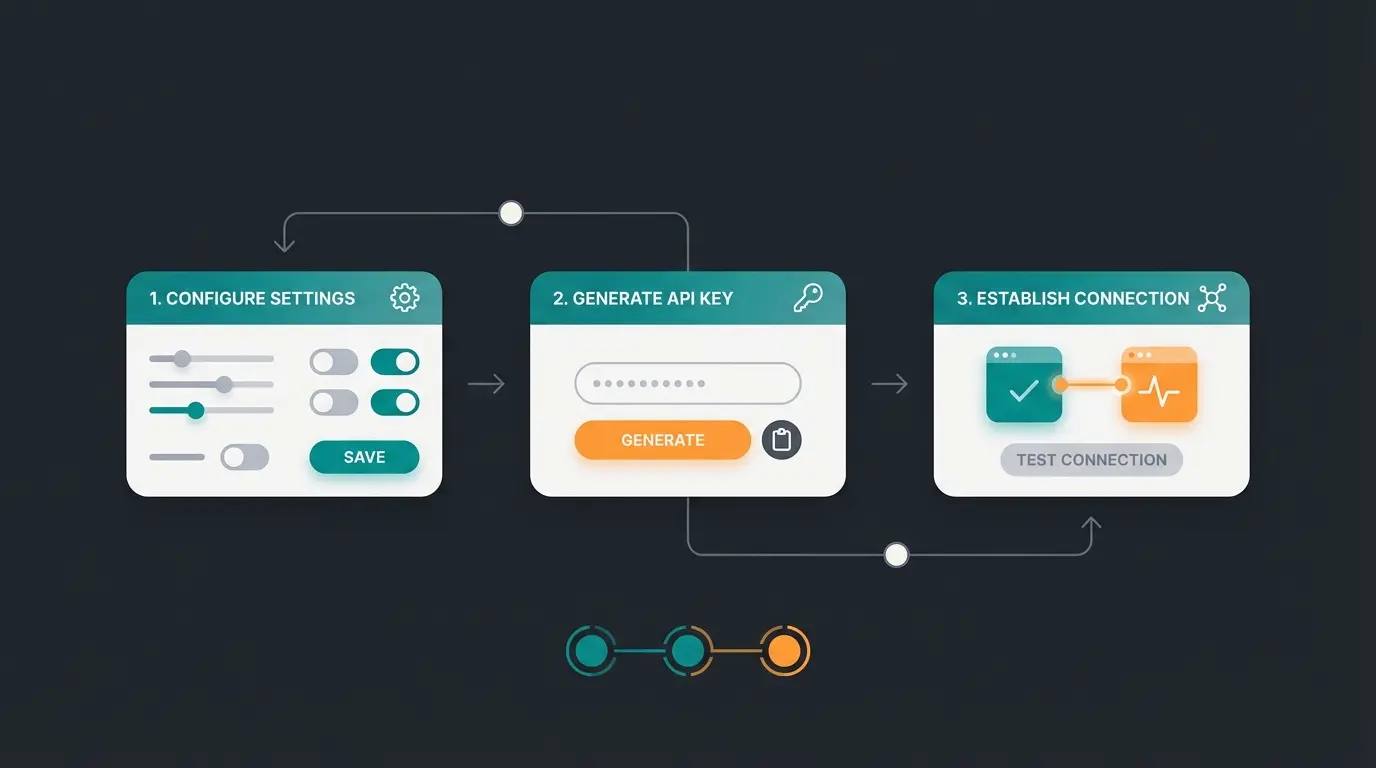
Step 1: Generate API Key in Lexoffice
Lexoffice (now "Lexware Office") slightly updated their interface in 2024/2025.
- Log into your Lexware Office account.
- Go to Settings (gear icon) > Extensions.
- Search for "Public API" or "API Access".
- Click "Create new API key".
- Give the key a name (e.g., "WooCommerce Shop").
- Important: Copy the key immediately. For security reasons, it's often only displayed once, as noted in bnbills documentation and Lexware's API guide.
Step 2: Activate the Interface in WooCommerce
- Go to your WordPress backend: WooCommerce > Settings > Germanized > External Services.
- Enable the toggle for Lexoffice.
- Paste the API Key into the corresponding field.
- Click "Connect" or "Authorize".
- The status should now change to "Connected" (green).
Step 3: Tax Mapping (The Most Important Step!)
For the accounting to be correct, the plugin needs to know which WooCommerce tax rate corresponds to which Lexoffice account.
- Standard (19%): Map to "VAT 19%".
- Reduced (7%): Map to "VAT 7%".
- OSS (EU Countries): Here you often need to activate "Distance Selling" or "OSS Procedure" in the plugin settings. Lexoffice usually automatically recognizes that it's an OSS transaction based on the customer's country setting, provided the plugin correctly passes the data as "gross" or with the appropriate country code, according to Vendidero's OSS documentation.
Step 4: Perform a Test Order
Never go live without testing!
- Create an order in the shop (e.g., via bank transfer/prepayment).
- Complete the order ("Processing" or "Completed").
- Check in WooCommerce: Was an invoice number assigned?
- Check in Lexoffice: Did the receipt appear under "Receipts" > "Income"? Is the total correct? Is the tax correct?
You've mastered accounting automation. Now discover how AI-powered product consultation can boost your conversions while you focus on growth.
Explore AI ConsultationTroubleshooting Guide: Common Errors and Solutions
Even with the best software, things sometimes get stuck. Here are solutions to the most common problems discussed in forums. Understanding these issues helps ensure your WooCommerce Lexoffice integration runs smoothly.
Problem 1: Refunds Not Transferring
- Symptom: You refund an order in WooCommerce, but the full revenue remains in Lexoffice.
- Cause: Many plugins only transfer refunds when they're "finalized" or when inventory is restored ("Restock").
- Solution: Check in the plugin settings (e.g., Germanized) whether "Automatic transfer of refunds" is active. Often you need to explicitly create the refund in WooCommerce as a "credit note" (generate PDF) for the trigger to be sent to Lexoffice, as discussed in WordPress forums. For broader return management strategies, see our guide on AI prevention strategies.
Problem 2: OSS Tax Rates Incorrectly Booked
- Symptom: A sale to Austria (20% VAT) lands in Lexoffice as tax-free or with 19%.
- Solution: (1) Check in Lexoffice under Settings > General Settings whether you have activated participation in the OSS procedure, as explained by Billbee's OSS guide. (2) Make sure the "OSS / One Stop Shop" option is also active in the plugin (Germanized/Billbee). The plugin must tell the API call that it's a distance sale.
Problem 3: "Rate Limit Exceeded" Error
- Symptom: During a bulk import or many simultaneous orders, the synchronization breaks off.
- Cause: The Lexoffice API only allows a certain number of requests per minute (rate limiting), as documented by shopsoftware.com and Lexware API docs.
- Solution: Use plugins that utilize a "queue" or WooCommerce's "Action Scheduler" (Germanized does this). This spreads out the transfer. If errors occur, manually restart the sync for the affected receipts.
Problem 4: Invoice Number Chaos
- Symptom: Lexoffice assigns its own numbers that don't match WooCommerce.
- Solution: Decide on a "leading system". Recommendation: Let WooCommerce (via Germanized) create the invoice numbers and PDF. Transfer this PDF as a "receipt" to Lexoffice. Don't let Lexoffice create new invoices; use it only for posting the receipt. This keeps the number ranges synchronized.
Accounting Automated – Now What? (The AI Leverage)
Congratulations! If you've followed the steps above, your accounting now runs on autopilot. You're probably saving 5 to 10 hours per week that you previously spent on CSV exports and receipt sorting.
The crucial question is: What do you do with this time?
Most merchants make the mistake of simply putting the saved time into "more work." The smart approach in 2025 is to automate not only the back office (accounting) but also the front office (sales & consultation). This is where AI Customer Service becomes essential.
From Automated Accountant to Automated Salesperson
Just as Lexoffice handles your accounting, modern AI product consultants can take over your customer consultation. Learn more about how AI Chatbots transform customer service in today's e-commerce landscape.
Imagine this:
- A customer comes to your site and doesn't know which product fits.
- Instead of bouncing (bounce rate), an AI chatbot guides them through targeted questions to the perfect product.
- The result: Higher conversion rate, fewer returns (because the product fits), and—ironically—more invoices that Lexoffice then processes fully automatically.
The AI product consultation approach represents the future of e-commerce. See how it works in practice with our AI Product Consultation success story. Our AI sales agents are transforming how online stores engage with customers.
Connect Lexoffice to WooCommerce, reduce costs, eliminate errors
Implement AI consultation to increase sales and provide 24/7 support
Use freed time to analyze data and scale strategically
Use the freedom that the Lexoffice integration gives you to work on your business, not just in it. For more insights on optimization, explore our Shopware SEO guide or discover how AI consultation boosts mobile conversions.
Conclusion & Implementation Checklist
Connecting WooCommerce and Lexoffice in 2025 is no longer technical wizardry but a business necessity. Whether you choose Germanized Pro (the integrated solution) or Billbee (the multichannel solution) depends on your business model. What matters is: Do it. And do it GoBD-compliant.
Your Checklist for Implementation
- ☐ Choose strategy: Shop only (Plugin) or Multichannel (Billbee)?
- ☐ Purchase software: License for Germanized Pro, German Market, or create Billbee account.
- ☐ API Key: Generate in Lexoffice and copy.
- ☐ Connection: Enter key in plugin and connect.
- ☐ Tax mapping: Check 19%, 7%, and OSS settings.
- ☐ E-invoicing: Activate ZUGFeRD/XRechnung format in settings (for B2B from 2025).
- ☐ Test: Run a complete order including cancellation test.
- ☐ Next Level: Invest saved time in growth automation (AI).
Start your automation journey today. Your accounting should run in the background—so you can shine in the foreground.
Frequently Asked Questions
Yes, with proper configuration. Germanized Pro and Billbee both support automatic refund synchronization, but you typically need to enable this feature in the plugin settings. The refund must often be "finalized" in WooCommerce—meaning you need to generate the credit note PDF—for the trigger to be sent to Lexoffice.
Absolutely. The integration works for all product types including digital downloads. The key consideration is proper VAT handling—digital products sold to EU consumers may trigger OSS obligations at different thresholds. Ensure your plugin correctly identifies digital products and applies the destination country's VAT rate.
For multichannel sellers using Amazon, eBay, or Etsy alongside WooCommerce, Billbee is the recommended solution. It aggregates orders from all channels into one unified system before pushing to Lexoffice. Direct plugins like Germanized only work for WooCommerce orders, meaning you'd need separate solutions for marketplace sales.
For B2B transactions (selling to other businesses), yes. From January 2025, German businesses must be able to receive e-invoices, and the ability to send ZUGFeRD/XRechnung format invoices will become increasingly expected. For B2C (consumer) sales, traditional PDF invoices remain acceptable, but implementing e-invoicing now future-proofs your business.
First, ensure you've registered for the OSS procedure in Germany if you exceed the €10,000 EU distance selling threshold. In Lexoffice, activate OSS participation under General Settings. In your WooCommerce plugin (Germanized/German Market/Billbee), enable the OSS option. The plugin will then pass the correct destination country VAT rate to Lexoffice, which books it to the appropriate OSS account.
You've automated your accounting—now take the next step. Our AI-powered product consultation helps customers find exactly what they need, boosting conversions and reducing returns.
Start Your Free Trial
Kevin is CTO and co-founder of Qualimero. As an AI architect with over 15 years of experience as CTO and CPO in the tech industry, he designs the AI systems that automate tens of thousands of customer interactions daily for Qualimero's clients — reliably, securely, and at scale.