Why Contact Forms Are Killing Your Conversions
Imagine a potential customer standing in your physical store. They have a question about a product. Would you hand them a clipboard, ask them to fill out a form, and tell them: "We'll get back to you by mail in 24 to 48 hours"?
Probably not. Yet this is exactly what happens daily on thousands of B2B and B2C websites in Germany, Austria, and Switzerland. The classic contact form is a conversion killer. It requires patience, trust, and effort from the user. Every field is friction. Every required input is a potential exit point.
The solution is sitting in the pocket of over 80% of Germans: WhatsApp. According to Superchat, the messaging app has become the primary communication channel for both personal and business interactions across all age groups.
A WhatsApp button on your website is more than just a nice gimmick. It's a direct line into your customers' living rooms. It signals: "We're reachable. We're uncomplicated." But implementation raises questions: How do I technically integrate the button? How do I make it GDPR-compliant? And how do I prevent my support team from being flooded with messages at 11 PM when everyone has gone home?
This guide is not a superficial tutorial. We go deep into the subject matter—from copy-paste HTML snippets to Google Analytics 4 tracking to AI-powered sales strategies that transform it into AI and turn simple buttons into revenue-generating assets.
Why a WhatsApp Website Button Is Essential in DACH
Before we look at the code, we need to understand the "why." The decision for a WhatsApp contact button is not a technical one, but a strategic business decision that affects your entire customer communication approach.
WhatsApp Market Dominance in Germany
The numbers speak a clear language. According to current surveys, approximately 60 million people use WhatsApp daily in Germany alone. This places the messenger far ahead of Instagram, Facebook, or TikTok in terms of active daily engagement. Lime Technologies reports that WhatsApp has become the de facto standard for business-customer communication.
- Market Penetration: Almost every smartphone owner in Germany has the app installed and actively uses it multiple times per day
- Cross-Generational: Unlike TikTok (Gen Z) or Facebook (Boomers), WhatsApp reaches all age groups equally effectively
- Open Rates: While emails often land in spam or get ignored, WhatsApp messages are read almost immediately—with open rates exceeding 90%
WhatsApp users in Germany alone
Messages read within minutes
German smartphone users with WhatsApp
Conversational Commerce: Eliminating Friction
In e-commerce and lead generation, we often talk about "friction." Every step between interest and action is a potential dropout point. The difference between traditional contact methods and WhatsApp is stark:
- High Friction (Contact Form): Find contact page → Enter name → Enter email → Choose subject → Formulate message → Solve captcha → Submit → Wait 24-48 hours for response
- Low Friction (WhatsApp Button): Click → Chat opens → Voice message or short text → Send → Instant conversation
By integrating a WhatsApp website button, you drastically lower the barrier to first contact. The result is often an immediate increase in lead volume. Understanding how AI Chatbots transform customer experiences makes it clear why this channel has become essential for modern businesses.
Three Ways to Integrate WhatsApp (Simple to Smart)
There is not "one way" to integrate WhatsApp. We distinguish three evolution stages. Choose the one that fits your resources, technical capabilities, and business goals.
Level 1: The Basic Link Using wa.me
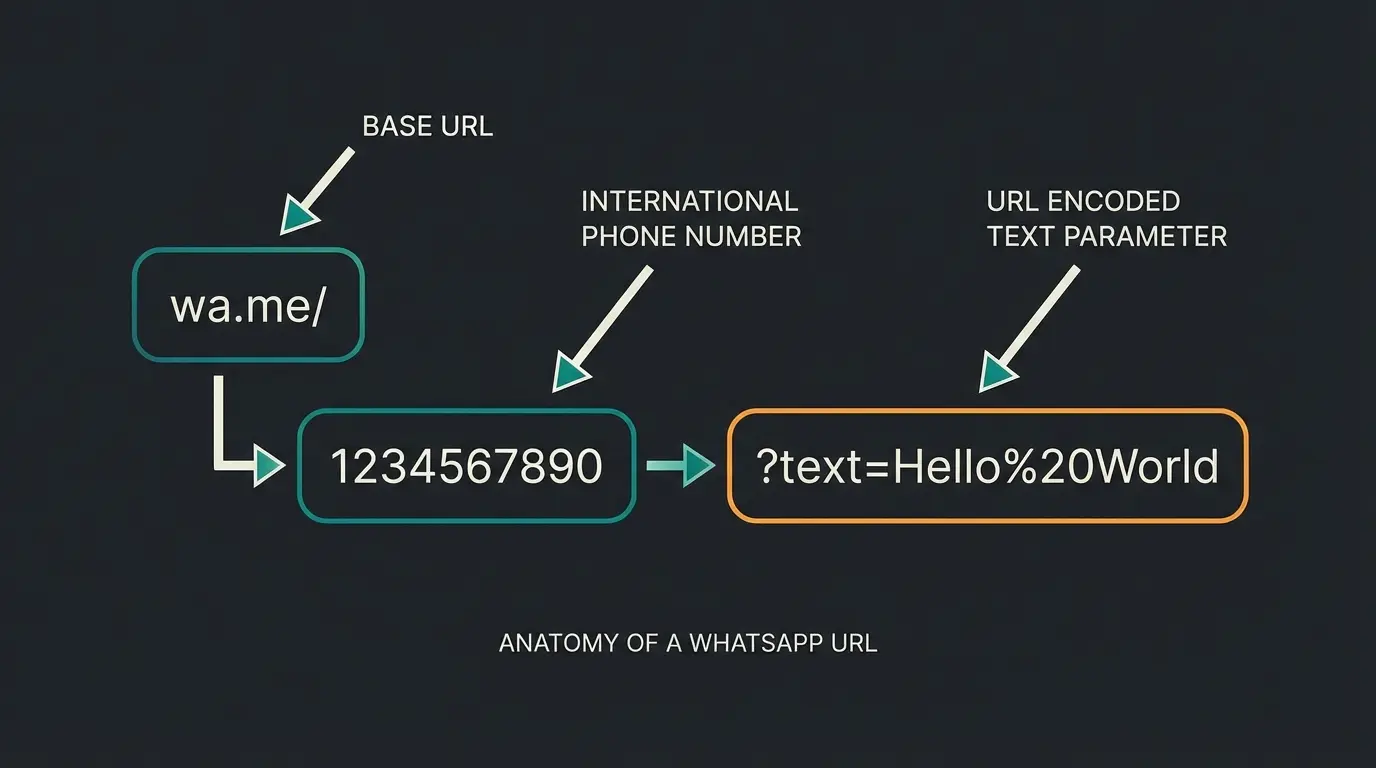
The simplest method requires no programming knowledge whatsoever. WhatsApp offers an official API interface for links: `wa.me`. This is the foundation that all other methods build upon, and understanding it is essential.
The Format: `https://wa.me/<PhoneNumber>`
Important: The phone number must be specified in international format without leading zeros, parentheses, or hyphens. According to WhatsApp's official documentation, the format must be precise for the link to work correctly:
- Correct: `491711234567` (for +49 171...)
- Incorrect: `0049171...` or `+49(0)171...`
Code Example for a pre-filled message link:
```html <a href="https://wa.me/491711234567?text=Hello%2C%20I%27m%20interested%20in%20your%20offer"> Message us on WhatsApp </a> ```
As Wati explains in their documentation, the `?text=` parameter is incredibly powerful for directing conversations from the very first message, setting context before your team even responds.
Level 2: The Floating WhatsApp Button (HTML/CSS)
This is the most popular variant. A round, green button that "floats" at the bottom right of the website (sticky positioning), no matter how far the user scrolls. It's always visible, always accessible, and universally recognized as a WhatsApp chat entry point.
Here is a copy-paste snippet that you can insert directly into your website's footer (before the closing `</body>` tag). It requires no external plugins and is extremely performant because it loads no external resources.
HTML Code for Floating WhatsApp Button
```html <!-- WhatsApp Button Container --> <a href="https://wa.me/491711234567?text=Hello%2C%20I%20have%20a%20question" class="whatsapp-float" target="_blank" rel="noopener noreferrer" aria-label="Chat on WhatsApp"> <!-- SVG Icon for crisp display at any size --> <svg viewBox="0 0 32 32" class="whatsapp-icon" role="img" aria-label="WhatsApp Logo"> <path d="M16,2A13,13,0,0,0,8,25.23L2.92,27.33a.9.9,0,0,0-.28,1.68l.56.23L6.5,28a13,13,0,1,0,9.5-26Z" fill="#25D366"/> <path d="M25.66,20.54c-.53,1.49-2.24,2.7-3.79,2.94a5.63,5.63,0,0,1-2.6-.18,17.47,17.47,0,0,1-8.3-5.22,18.3,18.3,0,0,1-4.2-6.64,4.76,4.76,0,0,1,.88-4.8,1.86,1.86,0,0,1,1.46-.68,1.2,1.2,0,0,1,1,.53c.4.92,1.36,3.34,1.48,3.58a.92.92,0,0,1,.06.84,2.66,2.66,0,0,1-.46.78c-.24.28-.5.48-.72.74a.49.49,0,0,0-.06.62,10.68,10.68,0,0,0,2,2.48,9.56,9.56,0,0,0,2.88,1.78.5.5,0,0,0,.66-.1c.3-.38.72-1,1-1.32a.94.94,0,0,1,1.2-.32c.44.18,2.82,1.34,3.3,1.58S26.2,17.7,26.1,18.3Z" fill="#FFF"/> </svg> </a> ```
CSS Styling for the Floating Button
Add this to your style.css file or within a `<style>` tag:
```css .whatsapp-float { position: fixed; width: 60px; height: 60px; bottom: 40px; right: 40px; background-color: #25d366; color: #FFF; border-radius: 50px; text-align: center; font-size: 30px; box-shadow: 2px 2px 3px #999; z-index: 1000; / Ensures button stays above other elements / transition: all 0.3s ease; display: flex; align-items: center; justify-content: center; } .whatsapp-float:hover { background-color: #128C7E; / Darker green on hover / transform: scale(1.1); / Slight zoom effect / } .whatsapp-icon { width: 35px; height: 35px; } / Mobile Optimization / @media screen and (max-width: 767px) { .whatsapp-float { width: 50px; height: 50px; bottom: 20px; right: 20px; } .whatsapp-icon { width: 28px; height: 28px; } } ```
This code creates a responsive button that works perfectly on both desktop and mobile devices. The hover effects provide visual feedback, and the z-index ensures the button remains clickable above all other page content.
Level 3: The AI-Powered Consultant (Strategic Solution)
Level 1 and Level 2 have a fundamental problem: they are "dumb." They simply redirect the user to the app without any intelligence or automation. If a user clicks at 3 AM, nothing happens—or they wait until the next morning for a response, by which time they may have moved on to a competitor.
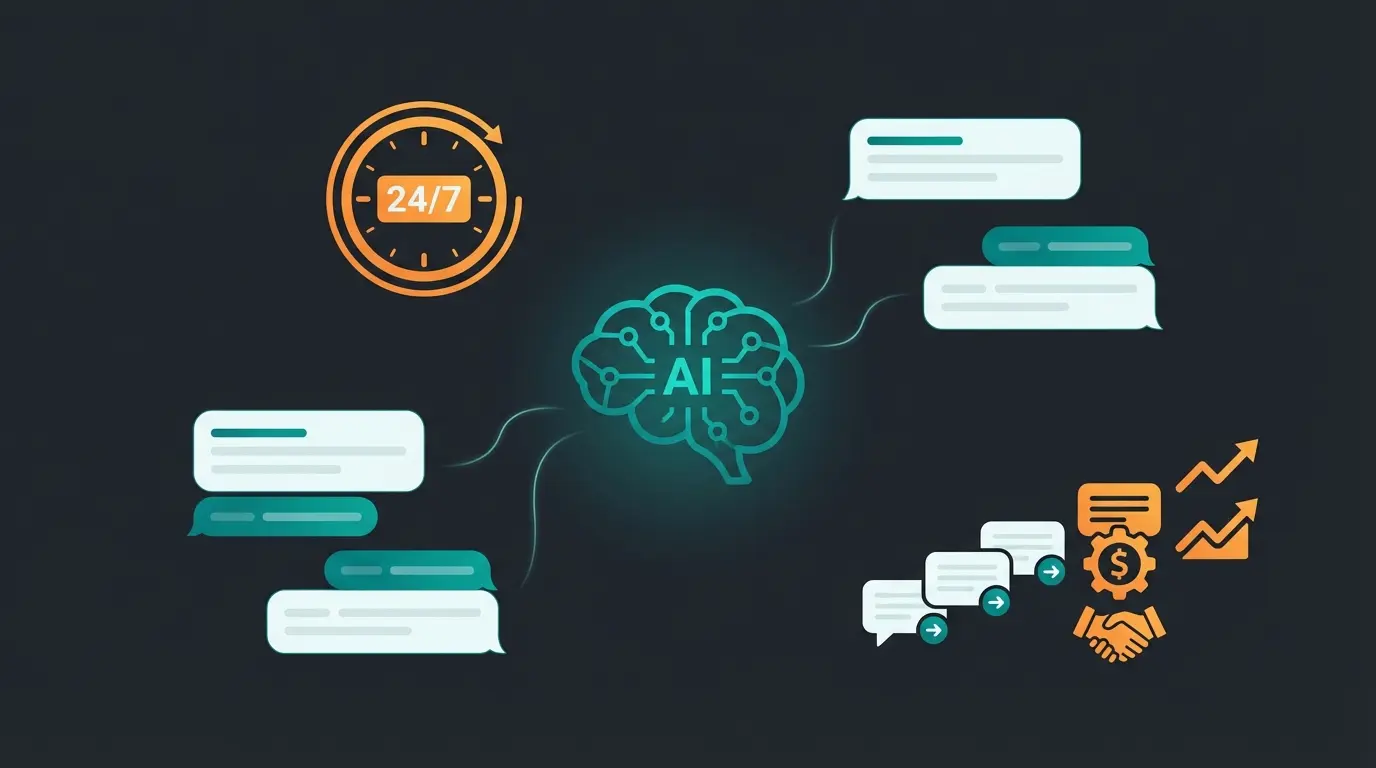
This is where the WhatsApp Business API comes into play. Instead of just linking the button to a phone number, you connect it to a chatbot system. This approach transforms passive contact channels into active sales tools.
Understanding how AI Sales Consultants outperform traditional support methods reveals the true potential of this integration.
WhatsApp opens with pre-filled text contextual to the page they were viewing
24/7 automated response within seconds, no waiting for human availability
AI asks qualifying questions: Budget? Timeline? Specific needs?
Only qualified leads get routed to human sales representatives
This workflow transforms the WhatsApp button from a pure contact channel into an automated sales representative. The AI chatbot for E-Commerce becomes your tireless first responder, handling initial inquiries and qualifying prospects around the clock.
With WhatsApp AI bots handling the initial conversation, your human team can focus on high-value interactions with pre-qualified leads rather than answering the same basic questions repeatedly.
Advanced Strategy: Optimizing for Sales & Tracking
Many companies integrate the button and hope for the best. Professionals measure and optimize every aspect of the customer journey. The difference between a button that generates leads and one that generates revenue lies in strategic implementation.
Context-Sensitive Pre-filled Messages
Why show the same button on every page? Different pages represent different stages of the buyer journey and different intent signals. Your messaging should reflect this context:
- On the Pricing Page: Pre-filled text: "I have a question about your pricing plans."
- On the Blog: Pre-filled text: "I read your article about X and have a question."
- In the Shopping Cart: Pre-filled text: "I'm having trouble completing my checkout."
- On Product Pages: Pre-filled text: "I'd like more information about [Product Name]."
This can be easily implemented with JavaScript by dynamically adjusting the `href` of the link based on the current URL (`window.location.href`) or page-specific data attributes. The approach enables AI product consultation that feels personalized from the very first message.
Tracking with Google Analytics 4 (GA4)
A click on the WhatsApp button is a valuable signal—it represents high-intent engagement that should be tracked as a conversion. Since the click leaves your site (outbound link), you must explicitly track it to capture this data.
Instructions for Google Tag Manager (GTM):
Step 1: Create Trigger
- Type: Just Links (Click - Just Links)
- Condition: Click URL contains `wa.me` (or `api.whatsapp.com`)
- Trigger fires on: Some Link Clicks
- Name: "WhatsApp Click Trigger"
Step 2: Create Tag
- Type: GA4 Event
- Event Name: `whatsapp_click` (or `generate_lead` if you prefer standard events)
- Parameters: Add `page_location` to see which page generated the click
- Add `button_context` parameter if using different pre-filled messages
Step 3: Publish and Test
- Test in Preview mode—when you click the button, the tag should show as "fired"
- Verify the event appears in GA4 Realtime reports
- Check that parameters are being captured correctly
Resources from YouTube tutorials and Sanoopbalan provide detailed walkthroughs for GTM setup. Additionally, Jotform's analytics guide offers insights into conversion tracking best practices.
In GA4, you can then mark this event as a "Key Event" (formerly Conversion) and import it into your Google Ads campaigns to optimize for WhatsApp leads specifically. This closes the loop between ad spend and actual customer conversations.
GDPR & Data Privacy: The German Compliance Factor
This is the most important section for companies operating in Germany, Austria, and Switzerland. A WhatsApp button HTML code that is carelessly integrated can lead to warnings, fines, and legal complications. Understanding the regulatory landscape is not optional—it's essential.
The Problem with Third-Party Scripts
Many generators and plugins load scripts directly from WhatsApp or Facebook servers as soon as the website is opened. In this process, the visitor's IP address is transmitted to Meta (USA)—even before they click on the button. According to Sinch and Superchat's compliance documentation, under current law and following the invalidation of Privacy Shield, this is problematic without explicit consent.
The core issue is simple: data transfer to US servers requires either explicit user consent or a valid legal basis. Loading tracking scripts on page load provides neither, as noted by Chatarmin's GDPR analysis.
The Solutions for GDPR-Compliant Implementation
Solution 1: The Static Link (Recommended)
The HTML/CSS code shown above in Level 2 is more privacy-compliant because it loads no external scripts. It's a pure link (`<a href>`). Data only flows to WhatsApp when the user actively clicks and leaves the website. According to Lime Technologies' legal analysis, this is generally considered "implied consent" through the user's action.
Solution 2: The Two-Click Solution (For Widgets)
If you want to use a fancy chat widget that looks like a real chat window on the website, it may only load after the user has consented in the cookie banner (Consent Manager).
- Scenario: The button is grayed out or shows a placeholder initially
- Action Required: User clicks "Activate Chat" to establish the connection
- Result: Only then is the connection to WhatsApp established, with full user awareness
Solution 3: Privacy Policy Documentation
You must mention the WhatsApp channel in your privacy policy. According to Händlerbund's legal guidance, inform users that metadata is transmitted to Meta when using the service. This transparency is both a legal requirement and a trust-building measure.
Stop losing leads at 3 AM. Our AI-powered solution handles customer inquiries 24/7, qualifies prospects, and routes hot leads to your team automatically.
Start Your Free TrialTools & Generators vs. Custom Code Comparison
Should you use a plugin or code it yourself? The answer depends on your technical resources, business requirements, and scale. Here's a comprehensive decision matrix to help you choose the right approach for your specific situation.
| Feature | Custom HTML/CSS | WordPress Plugins | SaaS Solutions |
|---|---|---|---|
| Cost | Free forever | Freemium (subscription for Pro features) | Monthly fee (from ~€50) |
| Performance | Extremely fast (no JS required) | Medium (often loads additional assets) | Can impact load time |
| GDPR Compliance | High (when static) | Variable (must be verified) | Often includes consent management |
| Features | Link only | CTA bubbles, page targeting | Chatbots, CRM sync, multi-agent |
| Setup Time | 30 minutes | 15 minutes | 2-4 hours |
| Sales Potential | Low (no automation) | Medium (limited triggers) | High (full automation) |
| Best For | Developers, SEOs, small businesses | WordPress users without coding skills | Mid-market & enterprise companies |
Understanding what WhatsApp Business is helps clarify which solution tier matches your business needs and growth trajectory.
Recommendations by Business Type
For Small Businesses (craftsmen, local service providers): Use the HTML code from this article. It's free, fast, secure, and requires no ongoing maintenance or subscription fees.
For E-Commerce & Support Teams: Use a SaaS solution with API integration to manage messages as a team and not be trapped on a single phone. The investment pays off quickly through improved response times and AI sales consultants handling routine inquiries.
For Growing Companies: Start with custom code, measure results, then graduate to API solutions once volume justifies the investment. This staged approach minimizes risk while maximizing learning.
Mobile vs. Desktop Behavior Explained
Understanding how the WhatsApp button behaves across devices is crucial for setting user expectations and designing optimal experiences. The behavior differs significantly based on the user's device and installed applications.
On Mobile Devices (iOS & Android):
- Clicking the link opens the native WhatsApp app directly
- Pre-filled text appears in the message composer automatically
- User simply needs to tap "Send" to initiate the conversation
- If WhatsApp isn't installed, user is redirected to app store
On Desktop Computers:
- If WhatsApp Desktop app is installed, it opens directly
- Otherwise, `web.whatsapp.com` opens in a new browser tab
- User must be logged into WhatsApp Web for the chat to work
- Pre-filled text appears but requires phone connection to WhatsApp
This dual behavior means your button works universally, but user experience varies. Consider adding a subtle tooltip or hover text that says "Opens WhatsApp" to set clear expectations for first-time users.
Building Your AI-Powered Sales Engine
The real transformation happens when you move beyond simple contact buttons to intelligent conversation systems. Modern AI sales consultation capabilities enable sophisticated workflows that were previously impossible without large support teams.
The concept of active product consultation represents a fundamental shift in how businesses engage with website visitors. Instead of passive waiting for inquiries, AI systems proactively guide conversations toward purchase decisions.
Consider the AI Employee Kira case study, which demonstrates how automated consultation can handle thousands of customer interactions while maintaining personalized, helpful responses around the clock.
With AI-powered guided selling, your WhatsApp channel transforms from a support cost center into a revenue-generating asset. The button becomes an entry point to a sophisticated sales process, not just a contact method.
Conclusion: From Button to Business Revenue
A WhatsApp button on your website is no longer a "nice-to-have"—it's standard in the DACH region and increasingly expected worldwide. Users expect this channel. They're already using WhatsApp for everything from family chats to booking appointments. Your business should meet them where they already are.
But the mere existence of the button doesn't guarantee revenue. Success lies in thoughtful implementation across multiple dimensions:
- Visibility: Use a floating button (floating widget) that's always accessible without being intrusive
- Context: Use pre-filled messages to save users typing time and provide conversation context
- Measurability: Set up GA4 tracking to understand ROI and optimize based on data
- Legal Compliance: Avoid scripts that send data to the USA without consent—static links are your safest option
- Automation: Graduate to AI-powered solutions as volume grows to maintain quality at scale
Start today with the HTML snippet provided in this guide. When inquiries increase and you're ready to scale, upgrade to an API solution with automation capabilities. But don't let your visitors search for contact forms any longer—every second of friction is a potential lost customer.
The businesses winning in 2025 understand that customer communication has fundamentally changed. The question isn't whether to add a WhatsApp button—it's how quickly you can transform that button into an intelligent, always-on sales channel that serves customers while you sleep.
Frequently Asked Questions
Yes, integrating a simple "click-to-chat" link or HTML button is completely free. There are no costs from WhatsApp for basic linking functionality. Costs only arise when you use professional API tools for newsletters, chatbots, or multi-agent management. According to Respond.io and Brevo, basic implementation requires zero investment, while advanced features scale with usage and feature requirements.
Yes, absolutely. On smartphones, the native WhatsApp app opens directly. On desktop computers, either the WhatsApp Desktop application opens (if installed) or the browser redirects to web.whatsapp.com. Users need to be logged into WhatsApp Web or have the desktop app installed for full functionality. The button works universally across all devices and operating systems.
Technically, the link works with any WhatsApp number—personal or business. However, for legal and organizational reasons, companies should absolutely use the WhatsApp Business App or API. This ensures GDPR-compliant operation and provides essential business features like business hours display, quick replies, catalog integration, and verified business profiles that build customer trust.
The safest approach is using a static HTML link (like the code provided in this guide) rather than third-party widgets that load external scripts. Static links only transfer data to WhatsApp when users actively click and leave your site. Additionally, document the WhatsApp channel in your privacy policy, informing users that metadata is transmitted to Meta when they use the service.
Yes, using Google Tag Manager (GTM), you can create a trigger for outbound link clicks containing 'wa.me' in the URL. Configure a GA4 event tag to fire on this trigger, capturing valuable conversion data. You can then mark this event as a Key Event in GA4 and import it into Google Ads for campaign optimization targeting WhatsApp lead generation specifically.
Don't just add a button—add a digital sales consultant. Our AI handles inquiries 24/7, qualifies leads automatically, and ensures no customer question goes unanswered. Start converting more visitors today.
Get Started Free
Kevin is CTO and co-founder of Qualimero. As an AI architect with over 15 years of experience as CTO and CPO in the tech industry, he designs the AI systems that automate tens of thousands of customer interactions daily for Qualimero's clients — reliably, securely, and at scale.