Introduction: Why Automation Is Your Biggest Growth Lever
Imagine having an employee who monitors your store 24 hours a day, 7 days a week. They check every inventory level, categorize every customer immediately after purchase, and—here's the crucial part—proactively advise customers when they're uncertain. This employee costs you nothing in salary. Their name is Shopify Flow.
In the world of e-commerce, automation is no longer a "nice-to-have"—it's standard. However, most merchants use Shopify Flow merely as a digital janitor: they hide products when sold out or receive an email when an order exceeds €500. That saves time, yes. But it doesn't bring new money into the register.
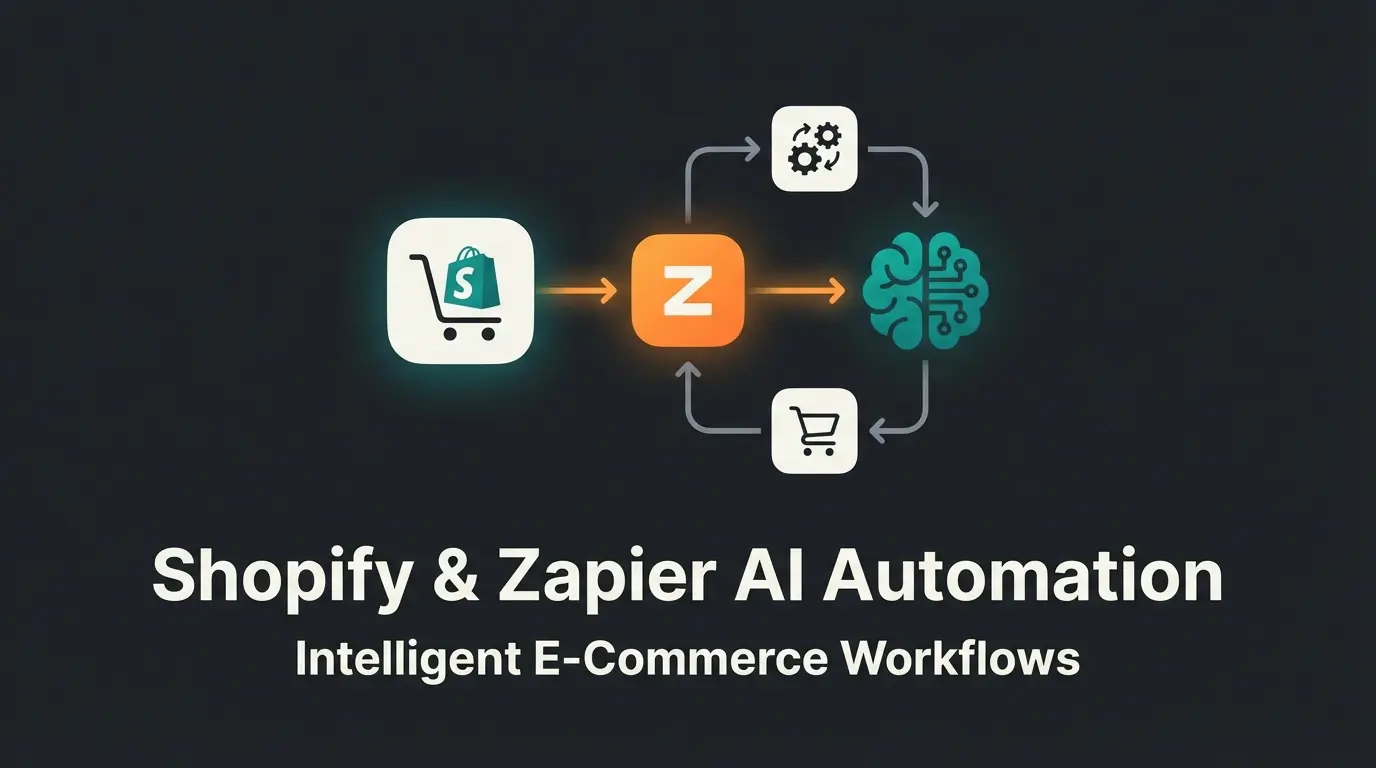
In this comprehensive Shopify Flow tutorial, we go a step further. We bridge the gap between mere administration and active selling. Based on current analyses and best practices for 2025, we'll show you not only the Shopify Flow examples everyone knows, but how to use Flow as the "nervous system" of your store—connecting artificial intelligence (the "brain") with your storefront. This approach to creating effective Shopify Flow workflows will transform how you think about automation.
While platforms like Shopware Flow Builder offer similar capabilities, Shopify Flow stands out for its accessibility and growing AI integration options. Whether you're looking to implement AI product consultation or simply streamline operations, this guide covers everything you need.
What Is Shopify Flow & Who Can Use It?
Before we dive into complex strategies, we need to lay the foundation. Many merchants still ignore Flow because they believe it's only available for expensive "Shopify Plus" subscriptions. That's a costly mistake.
Availability and Costs
Since mid-2023, and increasingly in 2024, Shopify has opened the floodgates. Shopify Flow is now available on the "Basic" plan as confirmed by Shopify and Avada. This means even if you're using the smallest package, you have access to enterprise-level automation.
- Cost: Free (included in your Shopify plan)
- Requirement: A Shopify plan (Basic, Shopify, Advanced, or Plus)
- App: Must be installed separately via the Shopify App Store
Available on all Shopify plans including Basic
Completely free with your subscription
Only use Flow for basic admin tasks
The Core Logic: How Flow "Thinks"
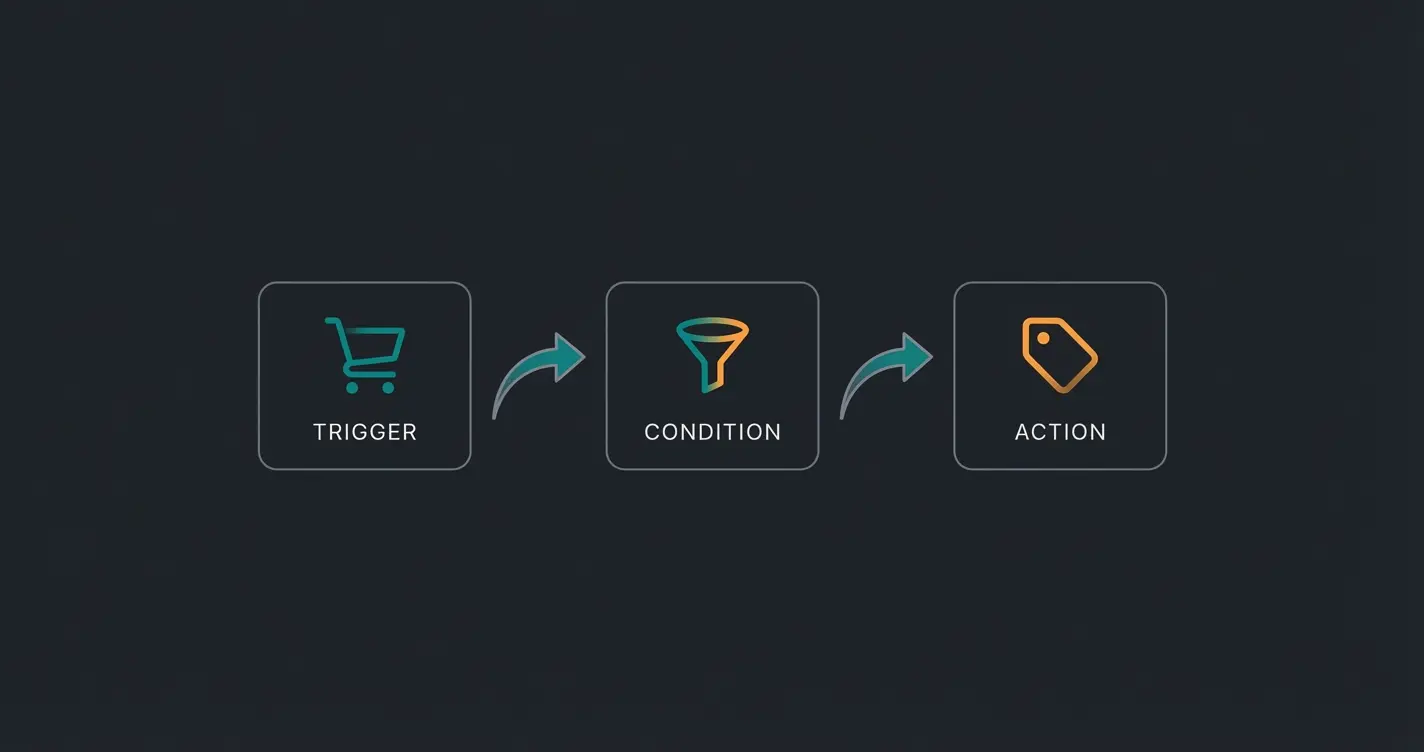
Shopify Flow is based on a visual "no-code" logic. You don't need to know how to program. You just need to understand how an if-then chain works. Every automation (workflow) consists of three building blocks:
- Trigger (Initiator): The event that sets things in motion. Example: "Order was created" or "Inventory is low."
- Condition (Filter): The filter that decides whether to proceed. Example: "Is the order value over €100?" or "Is the customer from Germany?"
- Action (Execution): What Flow should do when the condition is met. Example: "Add the 'VIP' tag to the customer" or "Send an email to the warehouse."
Step-by-Step Guide: Your First Workflow
Let's put theory into practice. We'll create a classic "Hello World" workflow that every store should have: Tagging VIP customers.
Step 1: Installation
Go to the Shopify App Store, search for "Shopify Flow," and install the app. It will now appear in your admin area under "Apps."
Step 2: Create Workflow
- Click on "Create workflow" in the app
- Click on "Select a trigger"
Step 3: Define the Trigger
Search in the right menu for Order created. This means: Every time money flows, this workflow wakes up.
Step 4: Set the Condition (The Filter)
Click on the plus symbol next to the trigger and select Condition. We want to filter only high shopping carts.
- Select from the menu: `Order` -> `totalPriceSet` -> `shopMoney` -> `amount`
- Set the logic to: "Greater than"
- Value: `150` (or whatever represents a high value for your store)
Step 5: The Action (The Reward)
If the order is over €150, what should happen? Click on "Then" and select Action.
- Search for Add customer tags
- Enter the tag: `VIP-Customer`
Result: From now on, every customer who spends more than €150 will be automatically tagged. You can later use this tag in your email marketing (e.g., Klaviyo) to send these customers special offers. This basic example demonstrates how Shopify Flow examples can immediately add value to your store operations.
The Classics: 5 Standard Shopify Flow Examples
Before we get to the revenue-boosting AI workflows, here are the five Shopify Flow examples that form the foundation of any efficient store. These workflows primarily save you time and prevent errors. Mastering these basics is essential before advancing to more sophisticated Shopify Flow workflows.
1. Low Stock Alert (Inventory Management)
Prevent selling products you don't have, or bestsellers running out unnoticed.
- Trigger: Inventory quantity changed
- Condition: Product variant inventory quantity < 10 AND Product status is Active
- Action: Send internal email (to your purchasing department) OR Slack message to the team "Reorder!"
2. High Risk Order Stop (Fraud Prevention)
Protect yourself from chargebacks, especially with expensive products.
- Trigger: Order risk analyzed
- Condition: Risk level is HIGH
- Action: Cancel order OR Hold fulfillment order & Tag Order "Fraud-Check"
3. The "Win-Back" Tagging (Marketing Preparation)
Identify customers who haven't purchased in a long time for your win-back campaigns.
- Trigger: Order created
- Condition: Customer `ordersCount` equals 1
- Action: Wait 60 days
- Condition (Check after 60 days): Customer `lastOrder` date is older than 59 days
- Action: Add customer tag "Inactive"
Note: This then triggers a "We miss you" campaign in your email tool (e.g., Klaviyo). Combining Flow with AI Chatbots can further personalize these win-back efforts.
4. Hiding "Out of Stock" Products (SEO & UX)
Empty product pages frustrate customers and hurt your AI rankings 2025 potential.
- Trigger: Inventory quantity changed
- Condition: Product total inventory <= 0
- Action: Hide product (hide product in online store)
5. Notification for Negative Reviews (Customer Service)
If you use a review app (e.g., Yotpo, Judge.me, Reviews.io) that has a Flow connector:
- Trigger: Review created
- Condition: Rating < 3 stars
- Action: Create a ticket in Gorgias/Zendesk OR send email to support team "Urgent: Dissatisfied Customer"
Next Level: Boosting Revenue with AI & Shopify Flow
This is where the wheat separates from the chaff. Most stores use Flow only reactively (administration). We now use it proactively (sales). Understanding how to build advanced Shopify Flow workflows with AI integration is your competitive advantage for 2025.
The problem with standard flows is that they're "dumb." They only know yes/no. By integrating Artificial Intelligence (e.g., OpenAI/ChatGPT), we make Flow intelligent. This approach aligns with the growing trend of AI e-commerce solutions transforming online retail.
Hide out-of-stock products, fraud detection, basic tagging - where 80% of shops stop
VIP customer tagging, email flow triggers, review management integration
Personalized product consultation, dynamic recommendations, intelligent upsells - your competitive advantage
The Technical Hurdle (Important for Basic Users)
To connect Shopify Flow with OpenAI, there are two paths according to Shopify's documentation and StoreCensus:
- Shopify Advanced/Plus: You can use the Send HTTP Request action to send data directly to the OpenAI API.
- Shopify Basic/Shopify: The native "Send HTTP Request" action is often restricted to higher plans or limited. Solution: Use a "connector app" like MESA or Flow Companion. These apps act as a bridge. Flow sends data to MESA, MESA communicates with OpenAI and sends the result back.
Workflow A: The Automated Return Saver (Post-Sales)
Returns are revenue killers. Often only the size doesn't fit. This is where AI product consultation principles can transform a refund into an exchange.
- Scenario: A customer initiates a return (via return app or form), Reason: "Doesn't fit."
- Standard Flow: Sends return label. Revenue gone.
AI-Enhanced Flow:
- Trigger: Return created (Reason: Fit)
- Action (via Connector): Send product name + customer size + return reason to OpenAI
- Prompt to AI: "The customer is returning [Pants X] in size M because they're too small. Create a friendly email recommending size L and explain that this model runs small. Offer a direct exchange link."
- Action: Send this personalized email via Shopify Email or Klaviyo to the customer
Result: You convert a refund into an exchange. This exemplifies how Consultative AI can directly impact your bottom line.
Workflow B: The "Smart Tagger" for Complex Customer Interests
Tags like "Bought Pants" are rough. AI can understand nuances—a capability that AI sales agents leverage for personalized interactions.
- Trigger: Review created (Customer writes review)
- Action: Send review text to AI for "Sentiment Analysis" and keyword extraction
- Prompt: "Analyze this review. Is the customer a 'Price-Sensitive Buyer,' a 'Quality Lover,' or a 'Sustainability Fan'? Answer only with the term."
- Action: Add Customer Tag [AI result]
Added Value: You can now send campaigns like: "For our Quality Lovers: The new Premium Collection"—with much higher conversion rates than blanket marketing.
Workflow C: Automatic Product Description Optimization
When products perform poorly, it's often due to the copy. This workflow demonstrates how AI employees can enhance your content at scale.
- Trigger: Product was created (or manually triggered)
- Action: Send product title and features to AI
- Prompt: "Write an SEO-optimized, sales-psychology-strong product description for [Product] with features [Features]. Use storytelling."
- Action: Update Product Description (via `Update product` Action)

Discover how intelligent product consultation can boost conversions and reduce returns. Our AI solution integrates seamlessly with Shopify Flow workflows.
Start Free TrialGerman-Specific Considerations: Flow in the DACH Region
Those selling in Germany have different concerns than US merchants. GDPR, accounting obligations, and specific logistics partners are crucial here. Understanding these nuances is essential for AI powered product consultation in European markets.
1. Lexoffice & Shopify Flow
Accounting is both mandatory and painful in Germany. The Lexware Office (from Eshop Guide) app offers deep integration into Shopify Flow, as documented by Shopify and Eshop Guide.
Use Case: Control invoice creation.
Workflow:
- Trigger: Order created
- Condition: Payment method is "Prepayment" AND Payment Status is "Pending"
- Action (Lexoffice App): Do not create invoice (wait until money arrives)
- Condition 2: Payment method is "PayPal"
- Action 2: Immediately create invoice and send via email
This prevents you from having to pay VAT for money you haven't yet received (cash vs. accrual accounting issue).
2. Billbee Integration
Many German merchants use Billbee for multi-channel operations.
Integration: Billbee doesn't have a direct "native Flow App" in the Shopify Admin as deep as others, but there are workarounds through apps like Synchron.io or Zoho Flow that serve as middleware, according to Zoho Flow and Synchron.io.
Workflow: When an order in Shopify is marked as "Fraud Risk" (through Flow), send a tag to Billbee "Shipping Stop" so the warehouse doesn't accidentally ship.
3. GDPR and Automation
Caution with data sharing! As Latori and Globeria Datenschutz emphasize, compliance is non-negotiable.
- Server Location: When you use Flow to send customer data to external tools (e.g., Trello, Slack, OpenAI), this data often leaves the EU.
Solutions:
- Ensure you have a Data Processing Agreement (DPA) with all third-party providers (including Shopify itself)
- Data Minimization: Send to OpenAI, for example, only the product ID and first name, not the full address or email, if not absolutely necessary
- Use Flow to implement customer data deletion requests (Trigger: "Customer requests data deletion" -> Action: Notify Data Protection Officer)
The rise of AI Guided Selling makes GDPR compliance even more critical as these systems process significant customer data.
Assets for Your Success
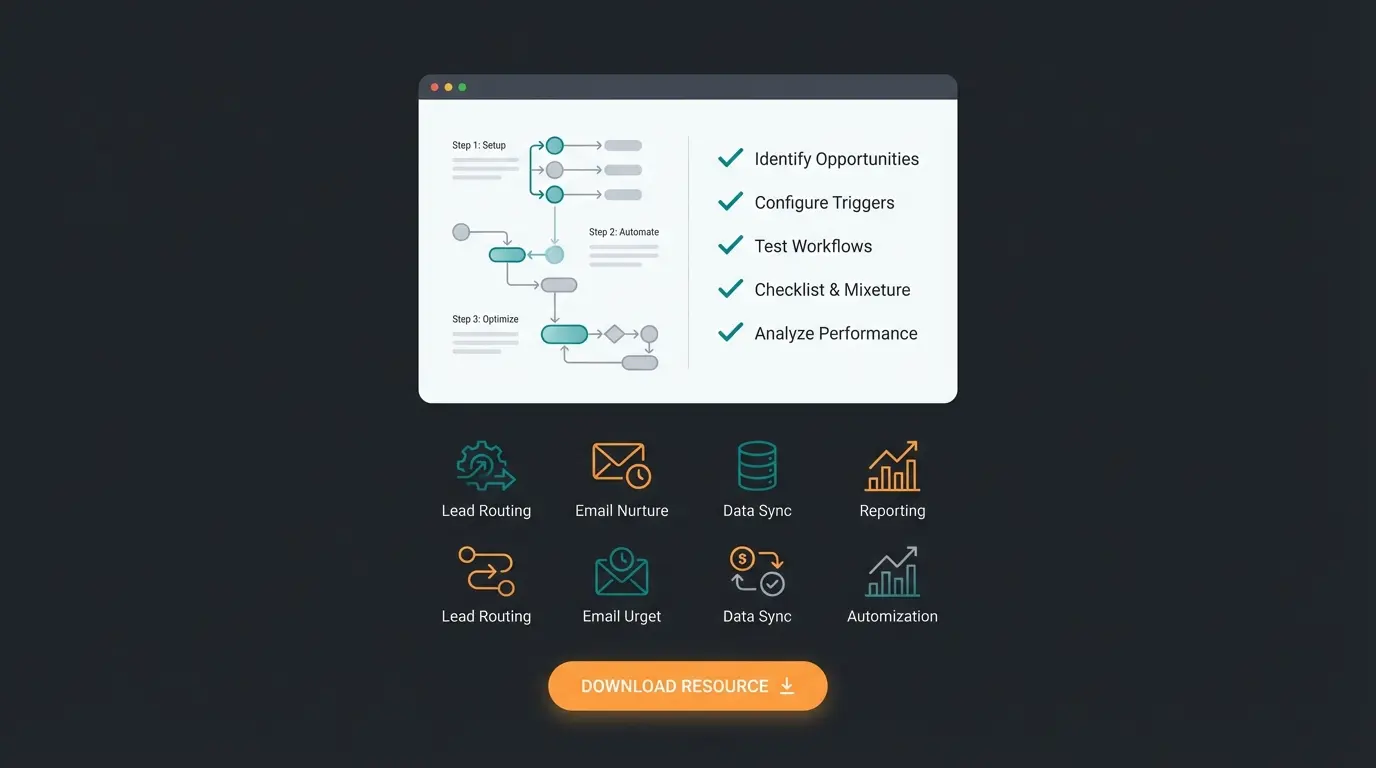
To get the maximum out of this article, we've designed three resources you can use directly.
Comparison Table: Standard vs. AI-Enhanced Flow
| Scenario | Standard Shopify Flow | AI-Enhanced Flow (Your Advantage) |
|---|---|---|
| Customer asks about size | Nothing happens (or link to size chart) | AI analyzes purchase history & size chart, recommends size M |
| Product out of stock | Product is hidden | AI recommends similar in-stock alternative via chat using an intelligent AI product consultant |
| Negative review received | Ticket to support | AI drafts apology email & offers appropriate discount code |
| Customer initiates return | Sends return label, revenue lost | AI suggests alternative size/product, converts return to exchange |
| New product added | Manual description writing required | AI generates SEO-optimized, conversion-focused copy automatically |
Download: The Workflow Cheat Sheet
We've compiled a list of the 10 most important logic building blocks that you can simply copy. From "Cart value > X" to "Customer from Country Y." This resource helps you implement Shopify Flow examples quickly without starting from scratch.
Conclusion: Start Small, But Think Big
Shopify Flow is the most powerful tool that Shopify provides you for free. Anyone using it in 2025 only to hide products is leaving real money on the table.
Your Roadmap for Today:
- Install Shopify Flow (if you haven't already)
- Implement the "VIP Customer" workflow (Duration: 5 minutes)
- Think of one area where you could better advise customers, and sketch out how AI could help
Automation doesn't just create time for what matters—it creates experiences that bind customers. The integration of AI product consultation with Flow represents the future of e-commerce personalization.
As you advance your automation strategy, consider how these Shopify Flow workflows can work in concert with broader initiatives. Whether you're implementing AI product consultant solutions or optimizing your entire customer journey, Flow serves as the essential connecting tissue between your tools and your customer experience.
FAQ: Common Questions About Shopify Flow
Yes, it's included in all Shopify plans (Basic, Shopify, Advanced, Plus) at no additional cost. This changed in mid-2023 when Shopify expanded access beyond Plus merchants.
No, Flow works on a building block principle. If you can think logically ("If this happens, then do that"), you can use Flow. The visual interface makes it accessible to non-technical users.
Yes, many German apps like Lexoffice (Eshop Guide), Klaviyo, or Reviews.io have connectors for Flow. For others, there are bridge apps like MESA or Zoho Flow that enable integration.
Flow itself doesn't create invoices, but it can give apps like Lexoffice or Billbee the command to create an invoice (or to refrain from doing so based on conditions like payment status).
For Advanced/Plus plans, use the native 'Send HTTP Request' action. For Basic/Shopify plans, use connector apps like MESA or Flow Companion that serve as middleware between Flow and external APIs.
Join thousands of merchants using AI-powered product consultation to increase conversions and deliver exceptional customer experiences.
Get Started Today