WooCommerce sevDesk Integration: Ultimate Guide for Automated Shops 2025
Learn how to connect WooCommerce with sevDesk for automated invoicing. Complete plugin comparison, setup guide & 2025 e-invoicing compliance tips.

Why Manual Accounting is Killing Your E-Commerce Growth
Did you start your WooCommerce shop to sell your passion—or to spend evenings typing up invoices and maintaining Excel spreadsheets for the tax office?
If you're like most shop owners, the answer is probably the former. But e-commerce reality catches up quickly: with every sale, the bureaucratic mountain grows. An order comes in, the goods need to ship, the invoice needs to be written, the payment needs to be assigned, and at the end of the month, the VAT return is waiting.
This is where the connection between WooCommerce and sevDesk comes into play. It's one of the most popular combinations in the German-speaking market for putting accounting almost completely on autopilot. But beware: the integration isn't plug-and-play. Anyone who blindly installs a plugin risks duplicate invoice numbers, chaos with OSS tax calculations, or problems with the new e-invoicing requirement starting in 2025.
In this comprehensive guide, you'll learn not only how to connect sevDesk with WooCommerce, but we'll dive deep into the details that other guides leave out: We analyze the pitfalls of OSS procedures, compare the best plugins (Germanized, German Market, WooRechnung), and show you how to take the next logical step after automating your accounting: automating your customer consultation through AI. For a detailed comparison of e-commerce platforms, check out our guide on Shopware vs WooCommerce.
Table of Contents
- Why WooCommerce and sevDesk Are the Perfect Match (And What's Changing in 2025)
- The Big Comparison: 3 Best Ways to Connect
- Step-by-Step Guide: Technical Setup
- Reality in the Trenches: Common Errors & Solutions (OSS, Refunds)
- Beyond Accounting: The Path to the Self-Running Shop
- Conclusion & Checklist
- FAQ – Frequently Asked Questions
Why WooCommerce and sevDesk Are the Perfect Match
Before we dive into the technical details of the WooCommerce sevDesk connection, we need to clarify the "why." Many shop owners initially use sevDesk only to write invoices manually. But the true potential only unfolds through synchronization.
Classic Benefits of Automation
- Error Prevention: Typos when transferring customer data or order totals become a thing of the past.
- GoBD Compliance: Through the fixed linking and finalization of documents, you more easily meet Germany's strict bookkeeping rules.
- Liquidity Overview: Since sevDesk can also connect your bank account, you immediately see which WooCommerce order has actually been paid (important for prepayment or invoice purchases).
The Game Changer: Germany's 2025 E-Invoicing Mandate
One aspect that many older blog articles ignore is the massive legal change that has been in effect since January 1, 2025 in Germany: The e-invoicing requirement (E-Rechnungspflicht) in the B2B sector. According to addigo.de and steuertipps.de, this represents a significant shift in German tax compliance requirements.
If you sell to other businesses (B2B) in your WooCommerce shop, a simple PDF invoice via email is no longer sufficient once the transition periods expire. You must be able to receive structured data sets (such as XRechnung or ZUGFeRD) and eventually send them as well. This is further confirmed by Haufe.de.
The plugin transfers the data, sevDesk generates the legally compliant format. According to sevDesk's official documentation, this is your insurance policy against warnings and trouble with the tax office under the new 2025 legal situation. If you're exploring other platform options, our Shopify alternatives Germany guide provides additional insights.
E-invoicing requirement starts January 1, 2025 for B2B transactions
All business-to-business invoices must comply with new format requirements
XRechnung and ZUGFeRD are the accepted structured data formats
The Big Comparison: 3 Best Ways for Connection
There's no "official" button in WooCommerce that says "Connect with sevDesk." You need a bridge. The market is dominated by three main players, which we'll compare here neutrally and in detail. For similar integration approaches with other platforms, check out our Shopware accounting guide.
Option A: All-in-One Solutions (Germanized Pro & German Market)
For 90% of German shops, these plugins are already installed to make the shop legally compliant (terms and conditions, withdrawal rights, delivery times). Both offer a direct sevDesk WooCommerce interface in their premium versions.
1. Germanized Pro (Vendidero)
Germanized is the market leader for legal compliance. The Pro version offers deep integration. According to Vendidero's documentation:
- How it works: You can decide whether Germanized creates the invoice (PDF) and uploads it as a "document" to sevDesk, or whether sevDesk should generate the invoice from the raw data.
- Advantage: Very good handling of cancellations and refunds. When you trigger a refund in Woo, the corresponding document is automatically created in sevDesk.
- Disadvantage: Requires the Pro license (annual subscription).
2. German Market (MarketPress)
The direct competitor. Here too, the sevDesk connection is part of the feature set. As detailed by MarketPress:
- How it works: Similar to Germanized. It synchronizes orders and creates the corresponding bookings in sevDesk.
- Advantage: Also supports uploading documents and synchronizing customer data. Additionally offers features for the Food Information Regulation if you sell food products, as noted by MarketPress.de.
- Special feature: Allows sending orders as a draft or finalized invoice.
Option B: The Specialist (Faktur Pro / formerly WooRechnung)
Faktur Pro (formerly WooRechnung) is not a legal compliance plugin, but a pure connector. According to WooRechnung.com and WordPress.org:
- Focus: It specializes in pushing data from Woo to various accounting tools (including sevDesk).
- Advantage: Very flexible design options for invoices if the standard designs aren't enough. It can also be used if you're not using Germanized or German Market (e.g., international shops).
- Costs: Monthly fee based on the number of invoices, which can become more expensive for large shops than the flat-rate plugin prices.
Option C: The Multichannel Hub (Billbee)
If you sell not only on WooCommerce but also on Amazon, eBay, and Etsy, a direct Woo -> sevDesk connection is often too short-sighted.
- How it works: WooCommerce -> Billbee -> sevDesk.
- Advantage: Billbee collects all orders from all channels and transfers them bundled to sevDesk.
- Disadvantage: Another potential point of failure in the chain. Users occasionally report problems with correct tax rate transfers (OSS) when Billbee and sevDesk aren't perfectly synchronized, as discussed on Shopify.com community forums and Wiedenroth.tech.
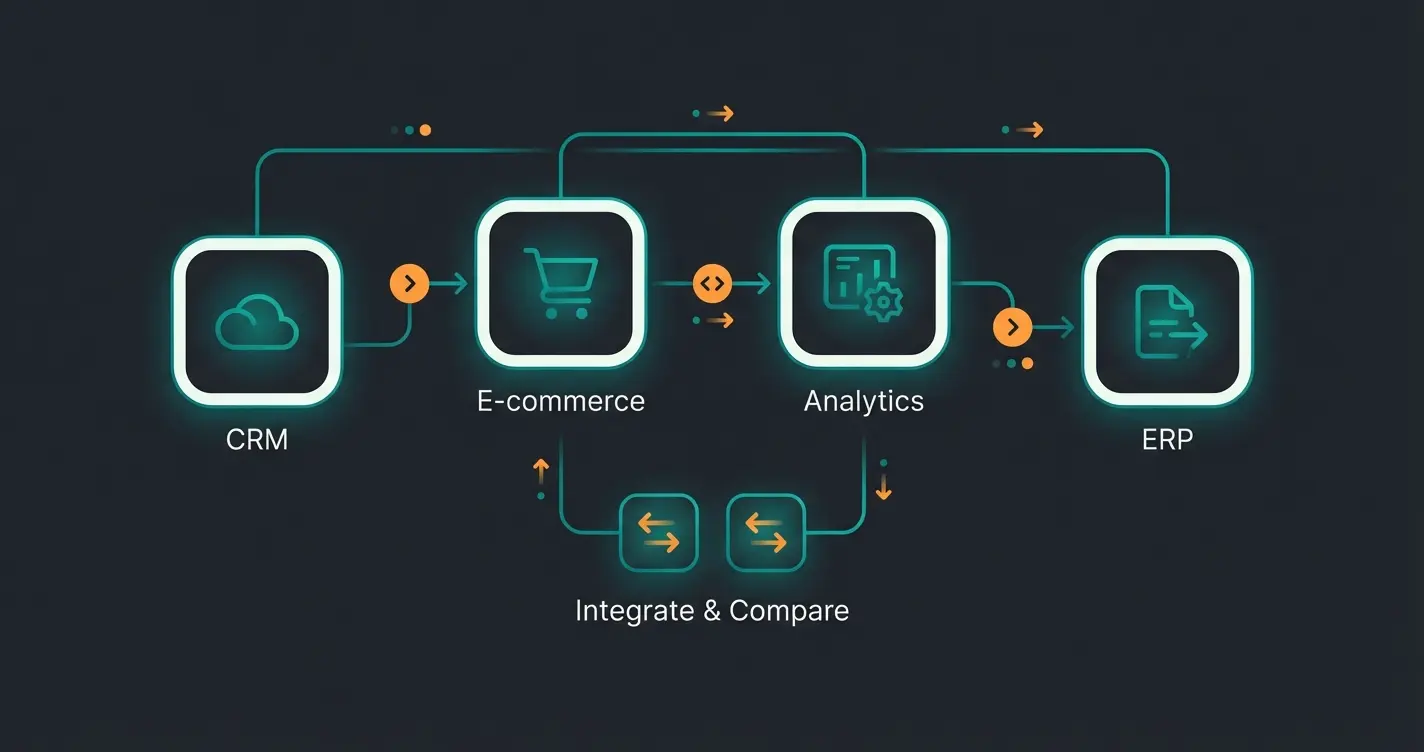
Comparison Table: Which Plugin Fits Your Needs?
| Feature | Germanized Pro | German Market | Faktur Pro (WooRechnung) | Billbee (Middleware) |
|---|---|---|---|---|
| Cost Model | Annual subscription (part of plugin) | Annual subscription (part of plugin) | Monthly fee / Package | Monthly fee + Transactions |
| Setup Difficulty | Easy (in WP Backend) | Easy (in WP Backend) | Medium (External Dashboard) | Complex (Middleware Setup) |
| Invoice Creation | By plugin or sevDesk | By plugin or sevDesk | By plugin or sevDesk | By Billbee (export to sevDesk) |
| Refund Sync | Yes, very reliable | Yes | Yes | Yes, but configuration-intensive |
| Best Choice For... | Standard DE shops needing legal compliance | Standard DE shops, Food shops | Shops with special design requirements | Multichannel sellers (Amazon + Woo) |
For shops also interested in ERP solutions, our comprehensive Shopware ERP integration guide covers similar automation principles.
Step-by-Step Guide: Technical Setup
Regardless of which plugin you choose, the core process of the sevDesk WooCommerce connection remains similar. You need to give the plugin permission to "talk" with your sevDesk account. This happens via the API token.
Step 1: Finding the sevDesk API Token
This is the most common hurdle since sevDesk occasionally rearranges its menu. According to eshop-guide.de and meetadam.io, as of 2025 you can find the token like this:
- Log in to your sevDesk account.
- Navigate to Settings (gear icon) in the lower left.
- Click on Users.
- Click on the username with which the connection should be established (ideally the admin).
- Important: You only see the token if you're also logged in as this user.
- Look for the "API Token" field and click Show.
- Copy the long character string.
Step 2: Enter Token in WooCommerce
Now go to your WordPress backend. According to YouTube tutorials:
- For Germanized: `WooCommerce` -> `Settings` -> `Germanized` -> `Invoices & Packing Slips` -> `External Services` -> `sevDesk`. Paste the token there.
- For German Market: `WooCommerce` -> `German Market` -> `Add-ons` -> Activate `sevDesk` -> Enter token in the settings.
Step 3: Tax Mapping (The Stumbling Block)
For the accounting to be correct, tax rates must be mapped properly.
- Standard: 19% in Woo corresponds to the "VAT 19%" account in sevDesk (usually account 8400 in SKR03 or 4400 in SKR04).
- Reduced: 7% corresponds to "VAT 7%".
- OSS (EU Foreign): This is where it gets complicated (see next section). Make sure your plugin has the "Use OSS procedure" option activated so sevDesk doesn't incorrectly book the revenues as domestic sales.
Log into sevDesk, navigate to Settings > Users, and reveal your API token
Choose and install Germanized Pro, German Market, or Faktur Pro in WordPress
Enter the API token and configure invoice creation preferences
Ensure 19%, 7%, and OSS rates are correctly mapped to sevDesk accounts
Create test orders for domestic and EU destinations to verify sync works
For professional WooCommerce email templates, ensuring your invoice emails match your brand identity is equally important.
Reality in the Trenches: Common Errors & Solutions
Most guides end after setup. But as an experienced researcher, I've analyzed the forums and support tickets. Here are the real problems you might encounter.
The OSS Dilemma (One Stop Shop)
Since July 2021, B2C sales to other EU countries often must be taxed at the destination country's rate (e.g., 20% for Austria).
The Problem: sevDesk had difficulties in the past (especially when switching to version 2.0) correctly displaying foreign tax rates on its own invoices when triggered via API, as noted by sevify.app, sevDesk community forums, and various YouTube explanations.
This is often the safest way to avoid rounding differences and tax errors. If you want sevDesk to write the invoice, you must activate the OSS regulations in sevDesk and ensure the plugin correctly passes the delivery country as a variable. After the first order to Austria, definitely check whether the sevDesk invoice shows "20% VAT" or incorrectly "19% VAT." According to eshop-guide.de, this is one of the most common setup errors.
Synchronization Errors with Refunds
A customer returns goods. You click "Refund" in WooCommerce.
The Problem: Often this information isn't transferred to sevDesk, or a credit note is created that isn't linked to the original invoice.
The Solution: Use plugins like Germanized Pro that explicitly support "Sync Refunds." Test the process completely: Create a test order, pay for it, then refund it. Check in sevDesk whether a "cancellation invoice" or "credit note" was created that balances the open receivable. YouTube tutorials demonstrate this testing process in detail.
Duplicate Invoice Numbers
When both WooCommerce and sevDesk try to assign invoice numbers, chaos ensues.
The Solution: Decide on one leading system.
- Scenario A: WooCommerce assigns the number (e.g., "INV-2025-1001"). The plugin passes this number to sevDesk. sevDesk must be set to accept external numbers.
- Scenario B: WooCommerce only passes the draft, sevDesk assigns the number from its own number range. This is cleaner for accounting but can mean the number appears delayed or not at all in the "My Account" page of the customer in the shop.
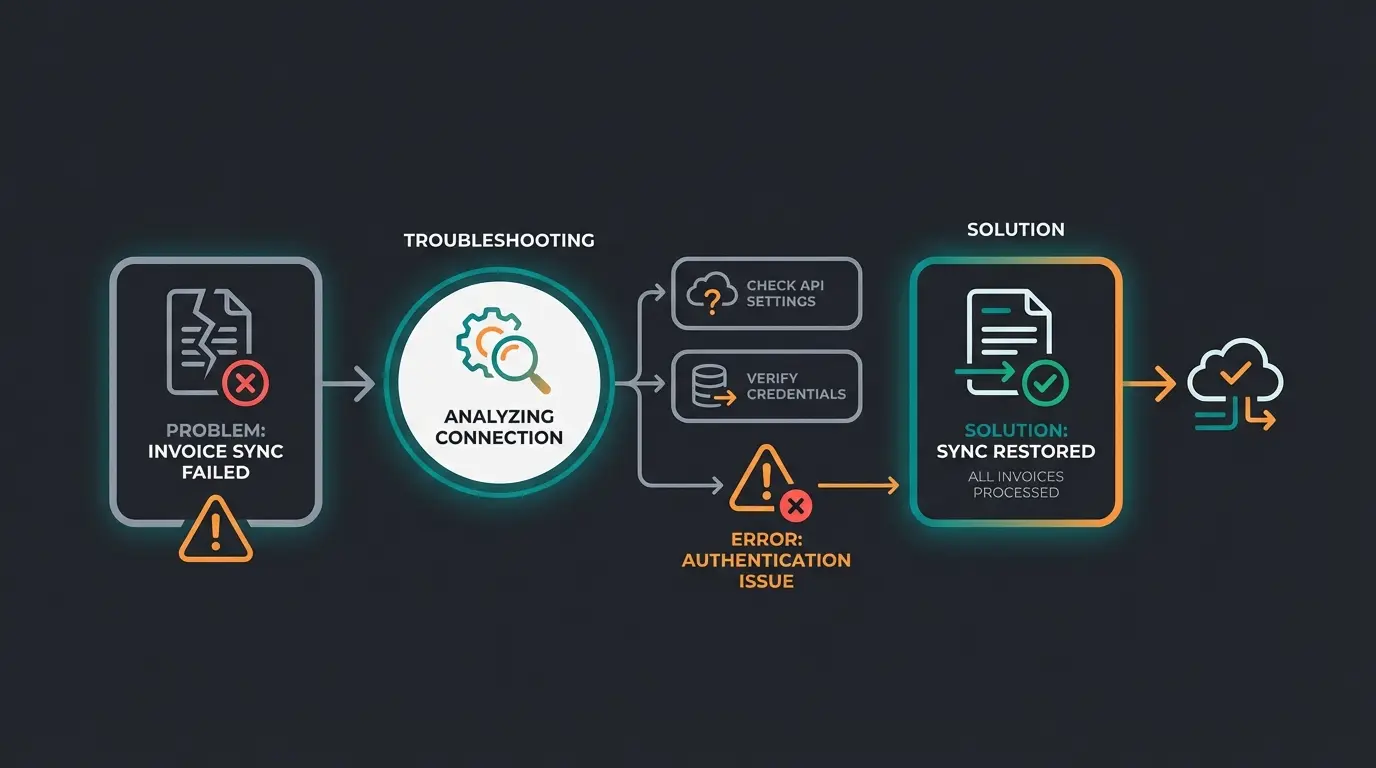
While you're setting up your WooCommerce sevDesk integration, discover how AI can handle your customer inquiries 24/7 and boost your conversion rates.
Start Free TrialBeyond Accounting: The Path to the Self-Running Shop
Congratulations! If you've followed along this far, you've automated your "back office." Orders flow in, invoices flow out, the tax office is happy. You've saved time.
But what do you do with that saved time?
Most shop owners make the mistake of simply putting the saved time into more manual work—for example, answering the same customer inquiries over and over:
- "Which coffee is suitable for my espresso machine?"
- "Is this spare part compatible with model XY?"
This is where the true opportunity of automation lies. A "self-running shop" automates not only administration (sevDesk) but also sales. Our guide on AI customer service explores how modern businesses are handling this transformation.
From Bookkeeper to Advisor: The Role of AI
Imagine you could bring the same precision that sevDesk brings to your accounting into your sales consultation. While the sevDesk WooCommerce connection handles the follow-up of a purchase, modern AI tools can handle the preparation.
A Practical Example: The Organic Coffee Shop
Status Quo (Partial Automation): Customer buys coffee -> Woo sends data to sevDesk -> Invoice arrives automatically. Problem: The customer doesn't buy at all because they don't know which variety to choose, and you're not in the chat at 11 PM.
The Vision (Full Automation):
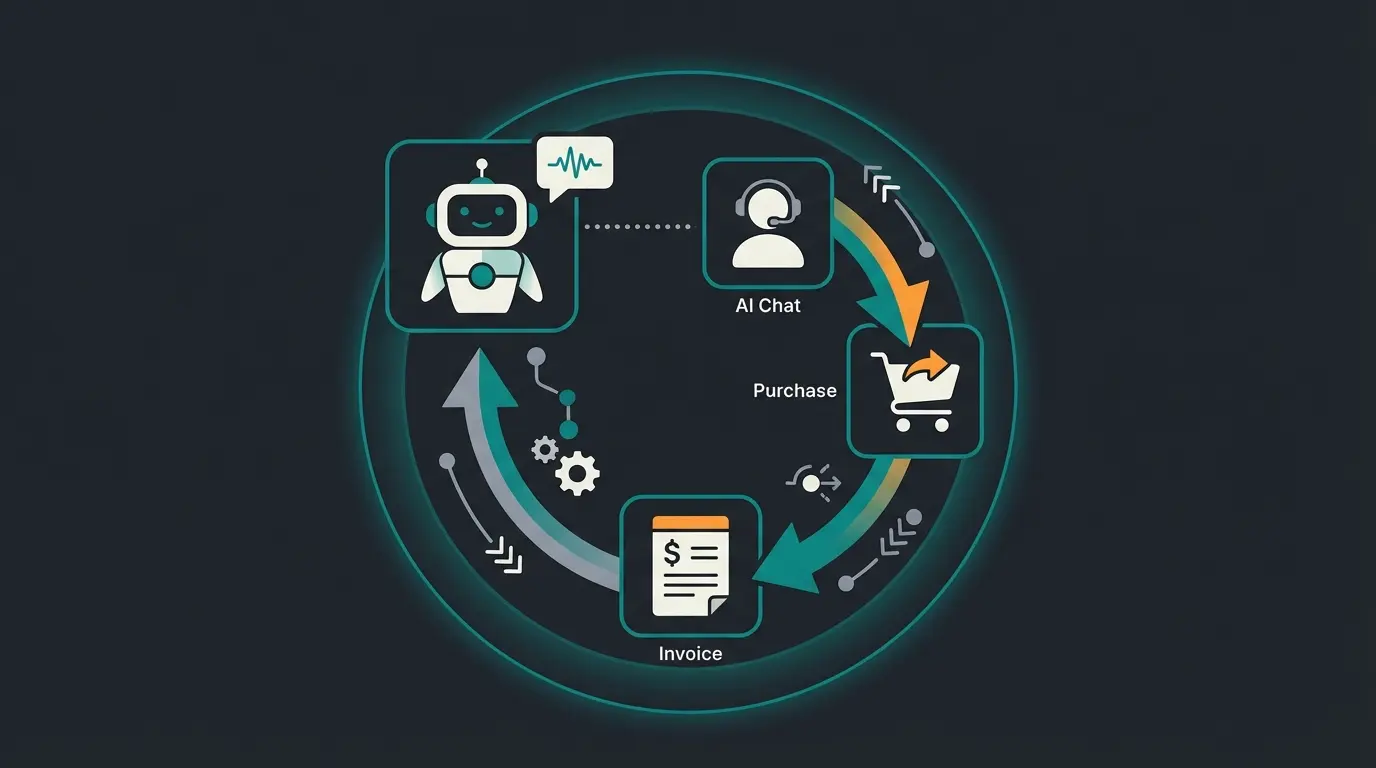
- Step 1 (Front Office): An AI product consultation solution on your website asks the customer: "How do you prepare your coffee?" and "Do you prefer fruity or nutty flavors?"
- Step 2 (Conversion): The AI immediately recommends the perfect product (e.g., "Ethiopia Yirgacheffe"). The customer adds it to the cart.
- Step 3 (Back Office): Now your sevDesk integration kicks in. The purchase is completed, the invoice is created, the booking is done.
AI Product Consultant engages the customer and identifies needs through conversation
AI analyzes preferences and recommends the perfect product from your catalog
Customer adds the recommended product to their WooCommerce shopping cart
WooCommerce processes the order and payment securely
sevDesk receives order data and generates compliant e-invoice automatically
Invoice is sent to customer and booked in your ledger without manual intervention
The Result: The shop sells and manages itself. You only intervene when physical goods need to be moved (or a fulfillment service provider handles that too). By automating accounting (sevDesk) and consultation (AI), you close the circle. You transform your shop from a workplace that consumes your time into an asset that works for you.
An AI product finder can dramatically increase your conversion rates by guiding customers to exactly what they need. Combined with AI e-commerce strategies, you create a truly autonomous selling machine. For communication automation, consider exploring WhatsApp business setup to extend your automated customer touchpoints.
Conclusion & Checklist
The connection of WooCommerce and sevDesk in 2025 is no longer a "nice-to-have" but almost mandatory for professional shops—simply because of e-invoicing and the complexity of OSS.
Strategy Summary
- Choose the right plugin: Use Germanized Pro or German Market if you run a standard shop and want to handle legal compliance + accounting in one go. Use Faktur Pro or Billbee if you have complex setups or multiple sales channels.
- Pay attention to details: Read the API token correctly (be logged in as the right user!). Test OSS settings meticulously (make a test order to Austria!). Decide who creates the invoice (plugin vs. sevDesk) to avoid tax errors.
- Think ahead: Don't use the saved time for emails—instead install an AI solution for product consultation.
For those also running Shopify stores, our Shopify automation AI guide covers similar automation strategies. And if you're considering expanding to print-on-demand, check out our WooCommerce print on demand comprehensive guide.
Your Checklist for Today
- ☐ Check sevDesk account: Is the plan e-invoicing capable?
- ☐ Install plugin (Germanized/German Market/Faktur Pro).
- ☐ Generate API token in sevDesk and enter in plugin.
- ☐ Perform test purchase (domestic).
- ☐ Perform test purchase (EU abroad / OSS).
- ☐ Test cancellation/refund.
- ☐ Consider: What part of customer consultation can I automate next?
FAQ – Frequently Asked Questions
By default, most plugins (like Germanized or German Market) only transfer new orders or those edited after installation. However, there's often a "Batch Processing" or "Bulk Actions" function in WooCommerce's order overview. You can mark old orders and manually trigger the "Sync to sevDesk." Caution: Do this in blocks to avoid timeouts.
This is the most critical point. If you set the plugin to upload only the document (the PDF) to sevDesk, sevDesk simply takes over the tax amounts that WooCommerce calculated. That's the safest way. If sevDesk should write the invoice itself, you must activate the OSS regulations in sevDesk and ensure the plugin correctly passes the delivery country as a variable.
Yes, that's possible. Since WooCommerce Subscriptions technically generates a new "order" (Renewal Order) with each renewal, the sevDesk plugin also applies here and creates a new invoice for each subscription renewal. Make sure invoice numbers remain sequential.
In plugins like Germanized, there are logs. If an order doesn't appear in sevDesk, first check under `WooCommerce` -> `Status` -> `Logs` whether there are error messages about the sevDesk API. Common cause: The API token has expired or been changed, or a product has no assigned tax rate.
sevDesk can handle multiple currencies, but the mapping depends on your plugin configuration. Most connector plugins transfer the order currency to sevDesk. Ensure your sevDesk account is set up to accept the currencies you sell in, and verify that exchange rates are handled according to your accounting requirements.
For businesses looking to enhance their WooCommerce email template design alongside their accounting automation, maintaining brand consistency across all customer touchpoints is essential.
Complete Your Shop Automation Journey
Have you already automated your accounting? The next step is automating your sales. Take a look at our AI solutions to finally put your shop on autopilot. True automation means the shop sells and bills without you intervening.
You've mastered the WooCommerce sevDesk integration. Now complete the automation circle with AI-powered product consultation that guides customers to purchase—24/7, without your intervention.
Discover AI Consultation
Kevin is CTO and co-founder of Qualimero. As an AI architect with over 15 years of experience as CTO and CPO in the tech industry, he designs the AI systems that automate tens of thousands of customer interactions daily for Qualimero's clients — reliably, securely, and at scale.