
Why Shipping Is More Than Just Sticking Labels
In e-commerce, clicking the "Buy" button isn't the end of the customer journey—it's the beginning of the most critical phase: logistics. For Shopware merchants, the Shopware DHL integration is often the heart of this operation. However, many store operators view this connection as merely a technical necessity—install a plugin, enter credentials, done.
That's wasted potential. A strategically optimized DHL integration determines whether your warehouse team works efficiently or drowns in error messages. It determines whether customers are satisfied because they can redirect their package to a Packstation, or whether they frustratingly contact support. And it affects your margins when return processes aren't automated. According to Shopware, the official plugin supports all essential DHL services while remaining cost-free.
In this comprehensive guide, we go far beyond standard documentation. We cover not only the technical setup of the official Pickware plugin but also provide a detailed "first aid table" for the most cryptic error messages and show you how to use AI (Artificial Intelligence) to transform shipping from a cost factor into a service experience. Whether you're looking to optimize your Shopware automation workflows or improve overall customer satisfaction, this guide has you covered.
The 3 Ways to Connect DHL with Shopware
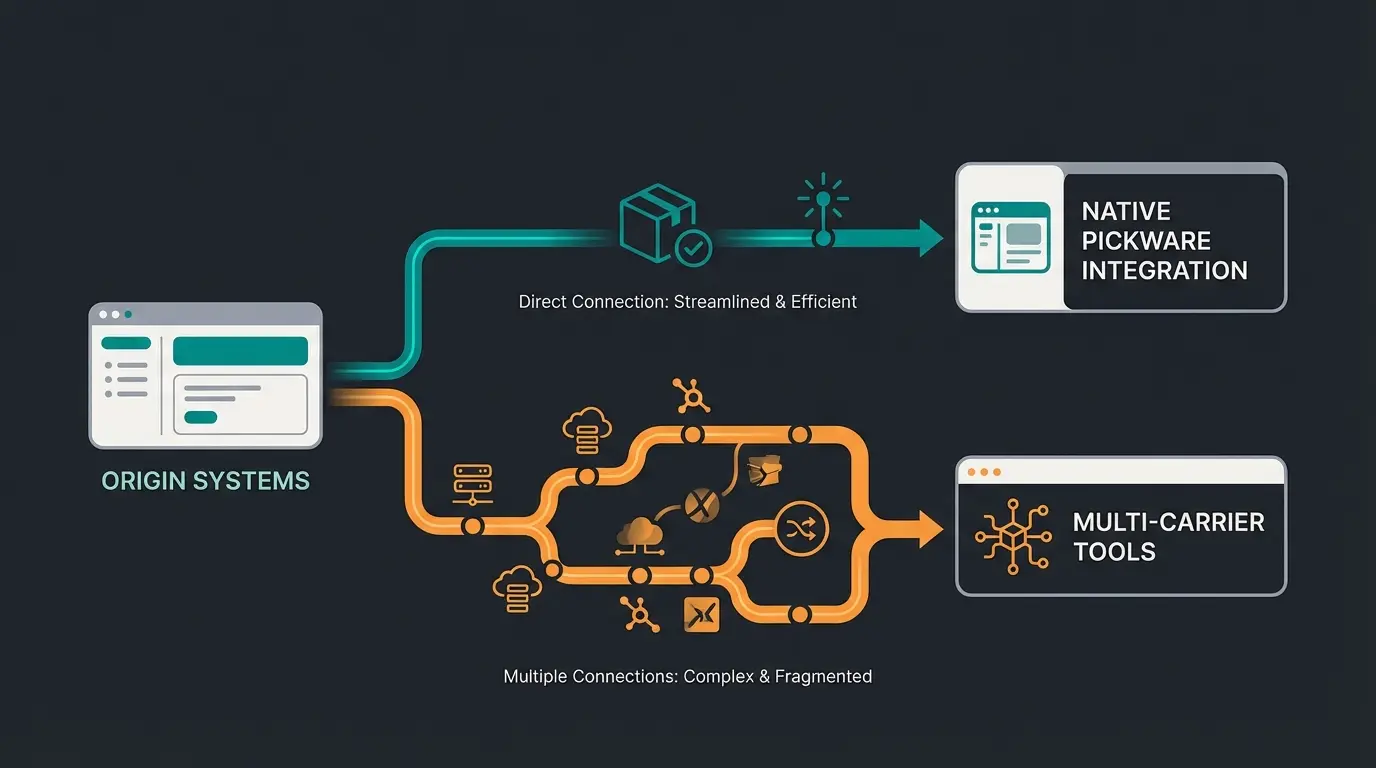
Before diving deep, we need to choose the right strategy for your store. There are essentially three ways to implement Shopware DHL processes. The choice depends heavily on your shipping volume and multi-carrier strategy.
Option A: The Official Plugin (Powered by Pickware)
This is the "gold standard" for Shopware users. Pickware is a premium Shopware partner and develops the official DHL adapter. The plugin connects your store directly with the DHL Business Customer Portal (GK-API). Labels are generated directly in the Shopware backend. According to Pickware, the plugin itself is free—you only pay your negotiated shipping fees to DHL.
- Cost: Free plugin—you only pay DHL shipping fees
- Advantage: Seamless integration into the Shopware interface, no third-party fees per label, support for all DHL services (Preferred Delivery, age verification, etc.)
- Disadvantage: Focuses purely on DHL (and Deutsche Post). If you want to use DPD or UPS in parallel, you need separate plugins
Option B: Multi-Carrier Tools (Sendcloud, Shipcloud, etc.)
These providers act as middleware between your store and shipping carriers. Orders are transferred to the provider's platform, where labels are created. According to Shipcloud, these tools offer monthly base fees plus often a per-label charge or package rates through their framework agreements.
- Cost: From ~€30/month + label fees
- Advantage: One interface for all carriers (DHL, DPD, Hermes, UPS). Mix & match shipping providers easily. Automated return portals often included
- Disadvantage: Additional monthly fixed costs; data temporarily leaves your Shopware system
Option C: Direct API Integration (Custom)
This involves a custom-programmed interface. In 99% of cases, this is economically not sensible, as maintaining DHL API updates (which occur frequently) requires enormous developer resources. Unless you have very specific requirements that no plugin can fulfill, avoid this route.
Decision Guide: Comparison Table
| Feature | Official Plugin (Pickware) | Multi-Carrier (e.g., Shipcloud/Sendcloud) |
|---|---|---|
| Software Cost | Free | From ~€30/month + label fees |
| Integration | Native in Shopware backend | External dashboard (usually) |
| Contract | Own DHL business customer contract required | Own contract OR use provider's framework agreement |
| Complexity | Medium (setup in store) | Low (Plug & Play) |
| Support | Via Pickware/Shopware | Via SaaS provider |
| Ideal For | Stores focused on DHL & cost-conscious | Stores with many different carriers |
Step-by-Step: Setting Up the DHL Plugin in Shopware 6
The setup appears simple at first glance, but the devil is in the details. Many "bugs" that occur later are actually configuration errors. This detailed guide will help you avoid common pitfalls and ensure a smooth Shopware ERP integration alongside your shipping setup.
Step 1: Verify Prerequisites
Before installing, ensure you have access to the DHL Business Customer Portal (Geschäftskundenportal). You will need your EKP (Unified Customer Number, 10 digits), your Participation Numbers (2 digits, e.g., `01` for DHL Parcel national, `53` for World Parcel), and a System User (Important! Don't use your personal login). According to Zendesk's documentation, proper user configuration is essential for API stability.
Step 2: Installation and Basic Configuration
Download the "DHL Shipping" plugin (free) from the Shopware Store. Then navigate to `Settings` > `Extensions` > `DHL Shipping` in Shopware 6. Enter your system user credentials and click "Test Connection." If a green checkmark appears, the connection to DHL is established. This process is similar to setting up other integrations as described in our Shopware migration guide.
Step 3: Mapping Shipping Methods (The Most Common Error)
Shopware needs to know: "When the customer selects 'Standard Shipping', which DHL product is that?" Navigate to `Settings` > `Shop` > `Shipping`. Select your shipping method (e.g., "Standard"). Scroll to the "DHL Shipping" section and assign the DHL product (e.g., "DHL Parcel V01PAK"). As noted in Shopware's documentation, repeat this for Express or international shipping methods. For more details on DHL shipping options, check our dedicated guide.
Step 4: Avoiding the "Weight Trap"
A classic error that prevents label printing: Shopware calculates package weight based on item weights. The problem is that if you have items without weight specifications (0 kg), the DHL API returns an error because a package cannot weigh 0 kg. According to Shopware community forums, this is one of the most frequently encountered issues.
Ensure you have EKP number, participation numbers, and create a dedicated system user
Download free Pickware DHL plugin from Shopware Store and activate it
Configure system user credentials in Shopware DHL settings and test connection
Assign each Shopware shipping method to the correct DHL product code
Set default packaging weight to avoid 0 kg errors
Beyond the Label: Strategic DHL Features for More Sales
Now that the technical setup is complete, let's look at how you can use the Shopware DHL integration to sell more and retain customers. These features go beyond basic shipping functionality and can significantly impact your conversion rates.
Preferred Delivery & Packstation: Conversion Boosters
Customers abandon purchases when they're unsure whether they can receive the package. The plugin supports the services "Preferred Day," "Preferred Location," and "Packstation." According to Pickware's feature documentation, enabling these services is straightforward and highly effective.
Strategy: Activate the Packstation search in checkout. The plugin offers an integrated map where customers can select their nearest station. This drastically reduces the rate of "undeliverable" packages and increases the first-delivery success rate. This directly contributes to better Shopware customer service outcomes.
GoGreen: Sustainability as a Selling Point
Sustainability is a decision factor for many consumers. If you have booked GoGreen in your DHL contract, activate the option in the plugin. Then communicate this in checkout! A small note like "We ship carbon-neutral with DHL GoGreen" can tip the scales for environmentally conscious customers.
Returns: Enclosed vs. On-Demand Labels
Returns are expensive, but a complicated return process costs customers. There are two main approaches to consider:
Enclosed Return Label: The return label is printed immediately with the shipping label and placed in the package. According to Zendesk, this offers maximum convenience for the customer but means you print (and potentially pay for paper/toner) labels that are often not used.
On-Demand (Recommended): Use the DHL return portal or let customers generate the label via their Shopware customer account ("Create Return"). This saves resources and gives you data about why items are being returned before the package arrives. Learn more about how to effectively prevent returns through better consultation.
Stores offering Packstation delivery see increased checkout completion
Preferred delivery options reduce undeliverable packages
Consumers prefer shops with sustainable shipping options
Troubleshooting Guide: Common Shopware DHL Errors
Even with perfect setup, errors occur. Instead of spending hours searching forums, use this "cheat sheet" for the most common API messages from the Pickware plugin. This comprehensive error code reference is one of the most valuable resources for any Shopware DHL administrator.
| Error Code / Message | Meaning | Solution |
|---|---|---|
| Unknown group profile | The API user doesn't have permission for the selected billing number. | In the DHL Business Customer Portal under Settings > User Groups, assign the 'Default Group Profile' to the user. |
| Hard validation error | A field doesn't meet DHL requirements (often too long). | Check company names or address additions. DHL often only allows 35 characters. Shorten entries like 'Müller GmbH & Co KG (Limited Liability)'. |
| Invalid printer settings | Printer settings in the DHL portal conflict with the plugin. | In the DHL portal under Ship > Settings > General Settings, deactivate 'local printer settings'. |
| Login failed | Credentials incorrect or password expired. | Check if the system user's password has expired (DHL enforces regular changes). Update it in the plugin. |
| Product not available for this country | Wrong DHL product selected for the destination country. | You're trying to send a domestic 'DHL Parcel' to Austria, for example. Use 'DHL Parcel International' or 'Warenpost International'. |
| Unexpected client error | Often a problem with new terms of service. | Log into the DHL portal. Often a pop-up with new terms of use must be confirmed before the API works again. |
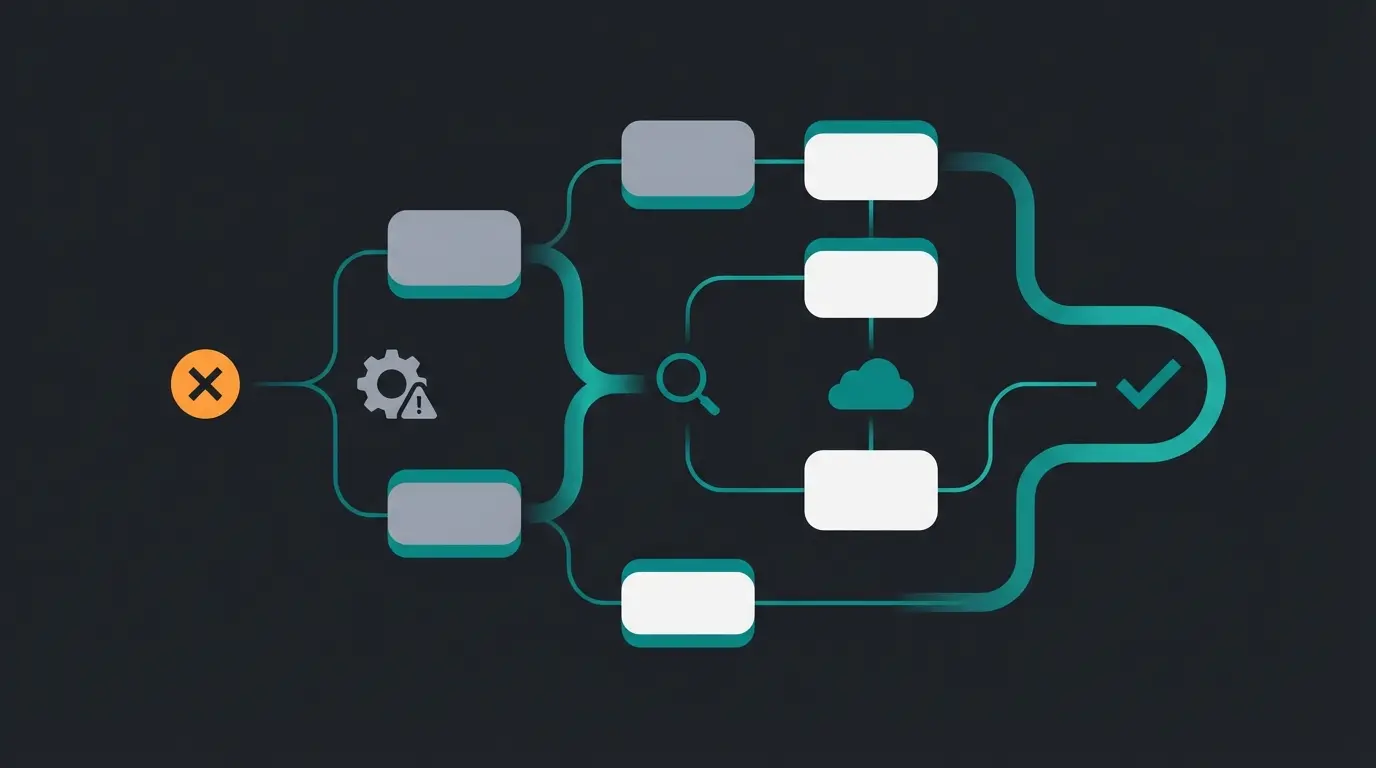
The Hidden Cost of Shipping: Support Inquiries (WISMO)
We've talked about technology, but let's talk about money. Did you know that 30% to 50% of all support inquiries in e-commerce belong to the "WISMO" category? According to Shiprocket, these inquiries represent a massive operational burden for online retailers.
WISMO = Where Is My Order?
Every time a customer calls or emails to ask "Where's my package?" or "Do you ship to Austria?" or "How much for heavy items?", it costs you money. With a manual ticket price of approximately €5-10, these inquiries quickly add up. Research from 1point1 confirms that WISMO inquiries are among the most resource-intensive customer service interactions.
The Problem: Static Information
You may have an FAQ page and tracking links, but customers are impatient. They don't read shipping tables to figure out whether a 40kg sofa ships via DHL or freight forwarding. They write an email. This creates bottlenecks in your Shopware customer service operations.
The Solution: AI-Powered Product & Shipping Consultation
Here's where the modern approach comes in: AI product consultation. Instead of viewing shipping as an isolated process, integrate it into product consultation. This transforms how customers interact with your store before and after purchase.
Scenario 1: Pre-Purchase (Before Buying)
A customer is looking at a heavy garden table. They're uncertain about shipping. Without AI: They abandon or send an email. With AI: A chatbot that knows your product data and shipping rules responds immediately: "This table weighs 45kg. It will be shipped via freight forwarding (not DHL). We'll arrange a delivery appointment by phone. Shipping is free." The result: Conversion saved, support ticket avoided. This is exactly how AI sales consultants can transform your customer experience.
Scenario 2: Post-Purchase (After Buying)
The package is stuck at the sorting center. Without AI: The customer gets nervous and writes an angry email. With AI: Your system detects the "Delayed" status via the DHL interface. The AI proactively sends a WhatsApp or email: "Hello [Name], DHL is reporting high volume right now. Your package is delayed by 1 day. Don't worry, we're keeping an eye on it." The result: Trust built, WISMO inquiry eliminated. See how companies like Gartenfreunde achieved this with their AI employee 'Kira'.
Data Comparison: Manual vs. Plugin vs. AI
| Process | Manual / Standard | Plugin Only (Pickware) | Plugin + AI Support |
|---|---|---|---|
| Label Creation | 2-5 min per order | < 10 seconds (batch) | < 10 seconds |
| Address Verification | Manual (error-prone) | Automatic (DHL routing code) | Automatic + AI correction suggestions for typos |
| Customer Inquiry 'Where is package?' | 10-15 min processing time | Customer must find link | Instant answer (0 min staff time) |
| Return Rate | High (wrong expectations) | Medium | Lower (better consultation before purchase) |
Stop wasting hours on repetitive WISMO inquiries. Our AI-powered consultation handles shipping questions instantly, 24/7—freeing your team for complex issues while boosting customer satisfaction.
Start Free TrialThe Perfect Post-Purchase Flow with AI Integration
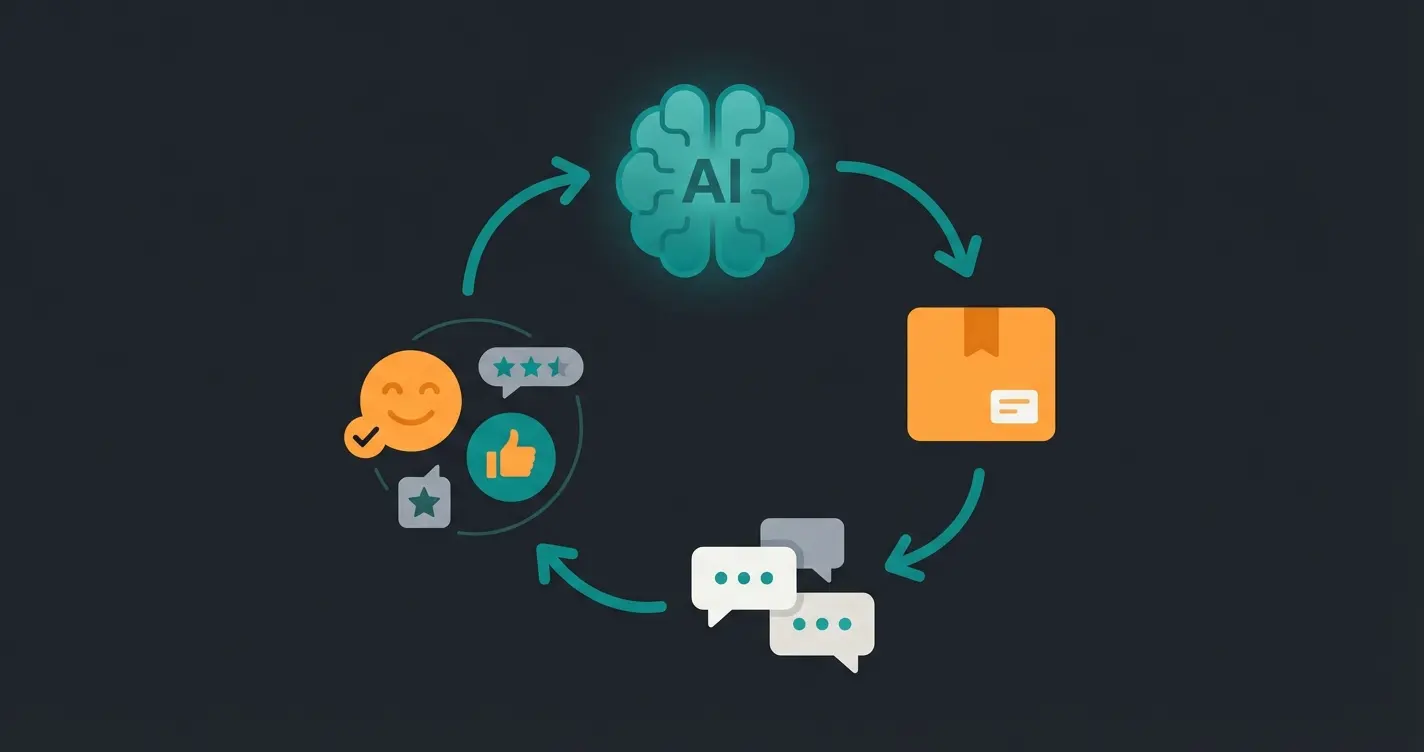
Understanding how AI fits into your existing DHL logistics chain is crucial for maximizing efficiency. The modern e-commerce fulfillment process should seamlessly blend technical automation with intelligent customer communication. This approach is particularly powerful when combined with AI-powered consultation strategies.
Customer completes checkout with preferred shipping method selected
Automated confirmation with delivery timeline and shipping method explanation
Pickware plugin generates shipping label automatically in Shopware backend
Customer receives tracking information via email and/or WhatsApp
System proactively detects delays and notifies customers before they ask
AI sends delivery confirmation and requests feedback
This integrated approach demonstrates the power of combining technical shipping automation with Shopware product recommendations and intelligent communication. According to Chatarmin, proactive communication about shipping status is one of the most effective ways to build customer loyalty.
Shopware 5 vs. Shopware 6: Key Differences
If you're still running Shopware 5 or considering a migration, understanding the differences in DHL integration is essential. The Pickware plugin is available for both versions, but there are important distinctions to be aware of.
- Shopware 6: Uses the modern API-first architecture, making DHL integration more straightforward and future-proof. The plugin takes full advantage of the new extension system.
- Shopware 5: Still supported by Pickware but runs on the older architecture. Fewer new features are being developed for this version.
- Migration Path: If you're on Shopware 5, consider migrating to 6 before investing heavily in shipping optimization. The newer platform offers better long-term support.
For detailed guidance on transitioning between versions, consult our comprehensive Shopware migration guide which covers data migration and plugin compatibility.
Conclusion & Success Checklist
Integrating Shopware DHL isn't rocket science, but it requires diligence. Those who only install the plugin are using only 50% of the potential. The true competitive advantage emerges when you combine Pickware's technical excellence with an intelligent communication strategy.
Your Checklist for Perfect Integration
- Foundation: Verify DHL Business Customer Portal access & create system user
- Installation: Install Pickware DHL plugin & connect with system user
- Mapping: Correctly map all Shopware shipping methods to DHL products (National/International)
- Weights: Set default weight for packaging to avoid the "0kg trap"
- Features: Activate Preferred Delivery & Packstation finder in checkout
- Troubleshooting: Save the error code table from this article for quick reference
- Optimization: Evaluate using an AI solution to intercept WISMO inquiries and proactively inform customers
Shipping is the last mile to the customer—make it one of your strengths. Start optimizing your configuration today and consider how AI can relieve your support team while improving customer satisfaction.
Frequently Asked Questions
Yes, the Pickware DHL plugin is completely free to download and use from the Shopware Store. You only pay the shipping fees according to your DHL business customer contract. There are no per-label fees or monthly subscription costs for the plugin itself.
Pickware is the official DHL adapter that integrates directly into Shopware's backend and focuses exclusively on DHL/Deutsche Post. Multi-carrier tools like Sendcloud or Shipcloud act as middleware and support multiple carriers (DHL, DPD, Hermes, UPS) from one interface, but typically charge monthly fees plus per-label costs.
This error means your API user doesn't have the correct permissions in the DHL Business Customer Portal. Navigate to Settings > User Groups and assign the 'Default Group Profile' to your system user. Make sure the user has API access rights for all the participation numbers you're using.
Absolutely. AI-powered product consultation can answer shipping questions instantly (availability, delivery times, shipping methods for heavy items) before purchase, and proactively notify customers about delays after purchase. This can reduce WISMO (Where Is My Order) inquiries by 30-50%, saving significant support costs.
On-demand returns are generally recommended. While enclosed return labels offer maximum customer convenience, they waste resources since many are never used. On-demand returns through your customer account or DHL's return portal save printing costs and give you valuable data about return reasons before packages arrive.
Combine technical DHL integration excellence with AI-powered customer communication. Reduce support tickets, increase conversions, and turn shipping into a competitive advantage for your Shopware store.
Get Started Today
Kevin is CTO and co-founder of Qualimero. As an AI architect with over 15 years of experience as CTO and CPO in the tech industry, he designs the AI systems that automate tens of thousands of customer interactions daily for Qualimero's clients — reliably, securely, and at scale.