
Why Your Standard Customer Account Falls Short
Let's be honest: When was the last time you logged into the customer account of your own online store?
For most store operators, the Shopware customer account is a necessary evil – a technical mandatory area where invoices are archived and delivery addresses are changed. It's the dusty filing cabinet of e-commerce. But this perspective wastes massive revenue potential.
In an era where the average cart abandonment rate sits at nearly 70% according to wpbeginner.com and 15.5% of users abandon their purchase solely because they have to register as mycodelesswebsite.com reports, the customer area is no sideshow. It's the place where a one-time buyer becomes a repeat customer – or doesn't.
This article isn't an ordinary manual. We'll walk you through the essential technical settings of Shopware 6 (because those need to be right), but we'll go a decisive step further. We'll show you how to transform the Shopware customer account from a passive data archive into an active consultation hub – supported by modern AI strategies and E-Commerce Personalization techniques.
Market size projection according to cimulate.ai
Average across all e-commerce stores
Users who leave due to forced account creation
The Current Reality of Customer Accounts
When we look at the current search results and discussions around the topic "Shopware customer account," one theme dominates: technology. It's about checkboxes, password hashes, and backend settings. That's important, but it ignores the human being in front of the screen.
Current data shows that the e-commerce market will grow to 7.5 trillion dollars by 2025 according to cimulate.ai. The competition isn't sleeping. Customers today expect more than just an order history. They expect personalization and convenience.
A standard Shopware account offers out-of-the-box:
- Order overview
- Address management
- Payment methods
- Wishlist
That's functional, but emotionally dead. There's no reason to voluntarily log in when you're not buying or making a complaint. Your opportunity lies in upgrading this area into a service center. But before we run, we need to learn to walk. Let's first look at the technical foundation.
Configuring Your Shopware 6 Customer Account
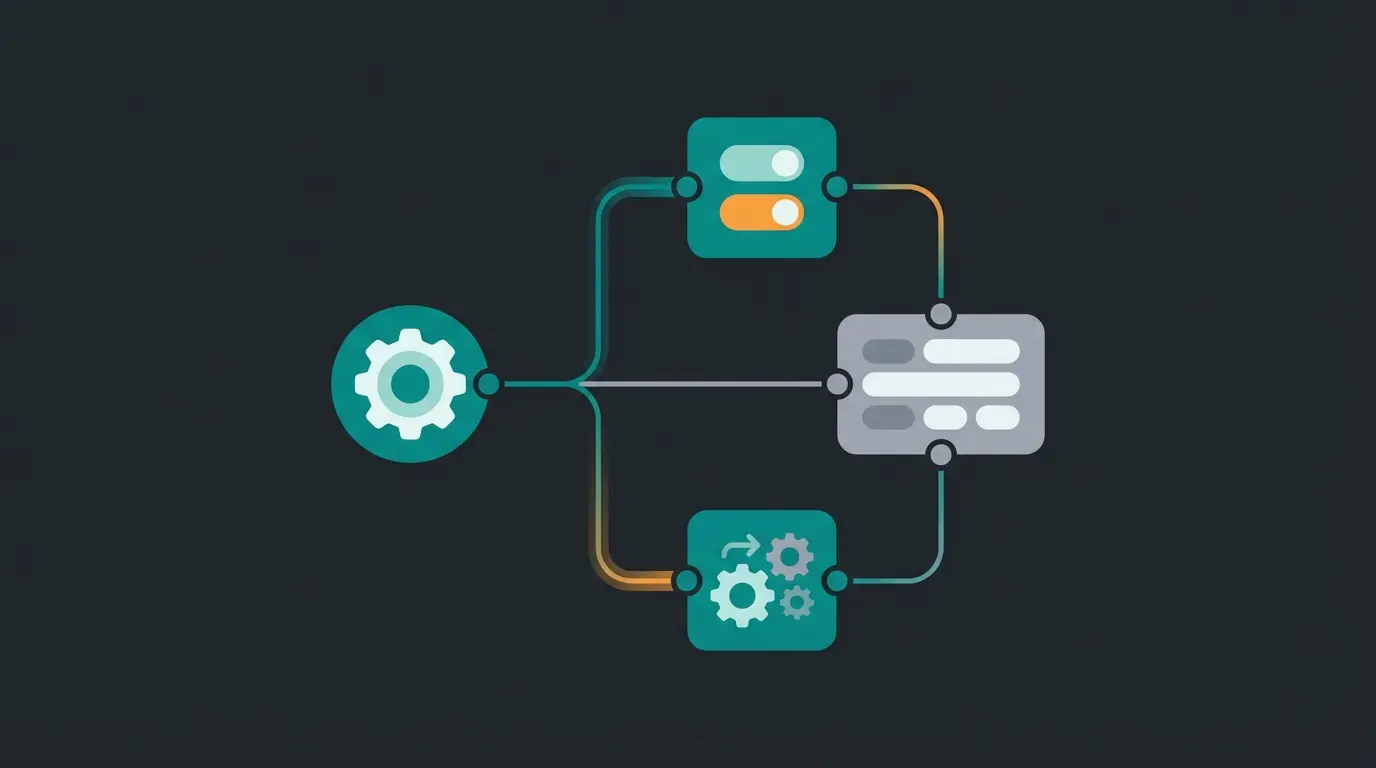
For the Shopware customer account to function properly and be legally compliant (keyword: GDPR), the basic settings in the backend must be correct. Many checkout problems arise from incorrectly set options in this area.
Finding the Settings
In the Shopware 6 Administration, you'll find the central configurations under: `Settings > Shop > Login/Registration` as documented by Shopware.
Essential Configuration Options
Here you decide on the hurdles you place in front of your customers (or remove from their path).
Guest Checkout vs. Forced Registration
This is one of the most critical settings for your conversion rate.
- Setting: "Create customer account by default"
- Recommendation: Disable the requirement if possible. Studies show that forced registration is one of the main reasons for cart abandonment.
- The Logic: If the option is inactive, the customer is treated as a guest. They must actively check a box ("I want to create a customer account") to register. If the option is active, the customer account is the default.
Double Opt-In for Legal Compliance
In Germany, the double opt-in procedure (confirmation of the email address by clicking a link) is standard for newsletters and often for registrations to avoid fake sign-ups.
- Setting: "Double opt-in for registrations" and "Double opt-in for guest orders"
- Function: After submitting the form, the customer receives an email with a confirmation link. Only after clicking does the account become active.
- Caution: If this option is active, make sure your email templates (`Double opt-in registration`) are correctly configured and warmly worded. Nothing is worse than a technical system email as the first point of contact.
For more information about password requirements, Shopware's documentation provides detailed guidance on security settings.
Password Policies
Security is important, but excessive complexity kills user experience (UX).
- Setting: "Minimum password length"
- Default: Often set to 8 characters.
- Discussion: There are ongoing debates about maximum password lengths or forced special characters as discussed in Shopware community forums.
- Recommendation: Stick to standards (min. 8 characters). Don't force customers to use complex patterns (e.g., "One uppercase letter, one number, one special character") unless absolutely necessary. Use tools that visually display password strength instead of blocking input.
Address Data and Title Fields
Do you really need the "Title" (Dr., Prof.) or date of birth?
- Setting: "Show title," "Show birthday"
- UX Rule: Only request data that you absolutely need to fulfill the order. Every additional field increases the abandonment probability. Disable "Show title" unless you're in the academic textbook business.
As demonstrated in this eBakery tutorial, removing unnecessary form fields can significantly improve registration completion rates.
UX Best Practices for Friction Reduction
A technically functioning Shopware customer account is the bare minimum; excellent user experience (UX) is what sets you apart. This is where the wheat separates from the chaff.
Social Login: The Registration Turbo
Nobody likes memorizing new passwords. Integrating social logins (Google, Facebook, Apple) can significantly increase your registration rate.
- Why? It reduces the process to a few clicks.
- Implementation: There are various plugins in the Shopware Store (e.g., from Webshop Extension or cidaas) that use OAuth 2.0 standards.
- Advantage: You receive verified email addresses and reduce typos.
To further enhance your store's customer experience, consider implementing Shopware AI features that can provide personalized recommendations directly within the customer account area.
Login as Customer: The Support Supertool
An often underestimated feature for customer service is the ability to log into a customer's frontend account as an administrator.
- Scenario: A customer calls: "I can't find my invoice" or "The coupon doesn't work."
- Solution: With plugins like "Login as Customer" available in the Shopware Store, you can click a button in the backend and see the shop exactly as the customer sees it.
- Benefit: Faster debugging and more empathetic support ("Ah, I see you're currently in the 'Orders' section...").
This capability to automate Shopware support processes can dramatically improve your customer service efficiency and response times.
Dashboard Design: Clarity Over Chaos
The first glance after login decides everything. By default, customers often only see a greeting.
- Optimization: Use Shopware Shopping Experiences to customize the "My Account" area (if your theme allows or via plugin).
- What belongs "Above the Fold"? Current status of the last order (with tracking link), a "Reorder" button for consumables, and personal recommendations (more on this shortly).
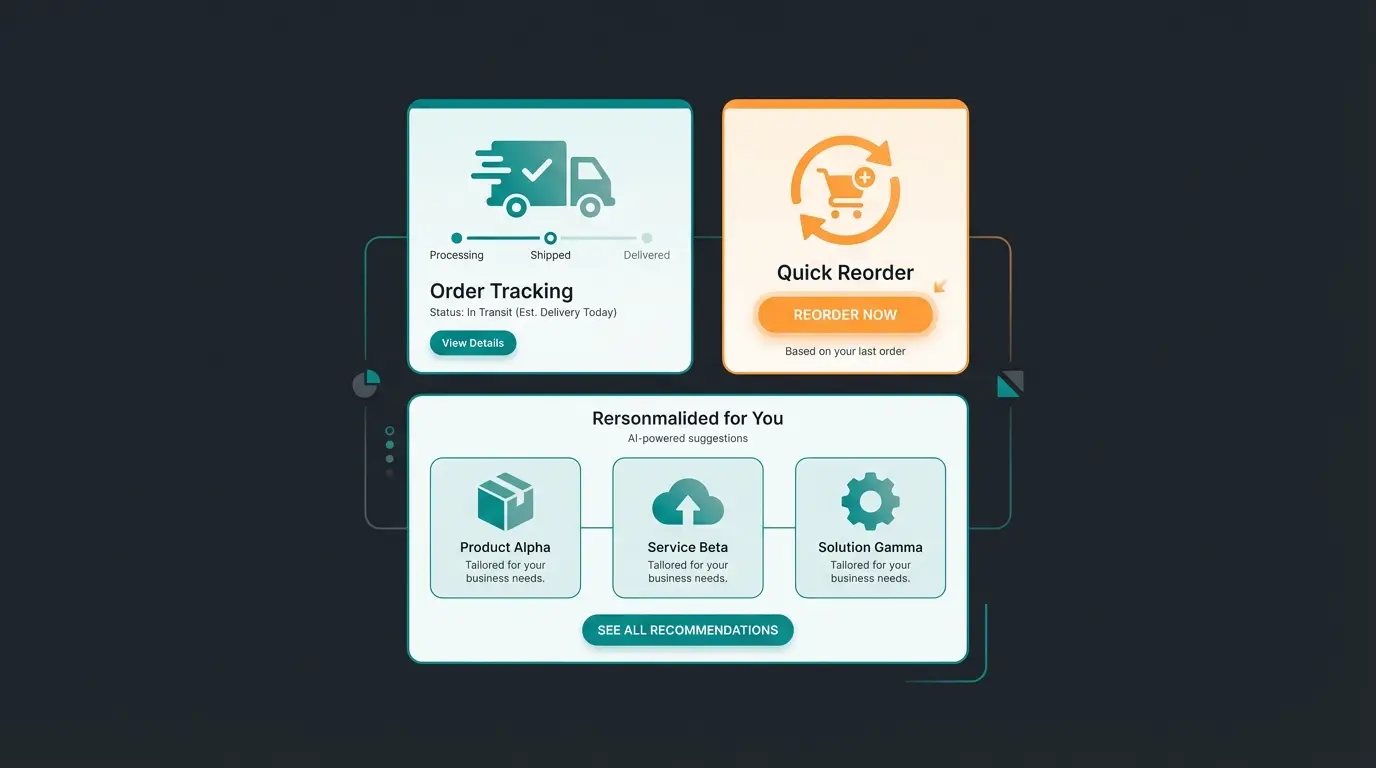
Discover how AI-powered consultation can turn your customer account into a revenue-generating personal shopping hub that builds lasting customer relationships.
Start Your Free TrialThe Strategy Gap: Your Personal Shopping Hub
Here we leave the terrain of standard documentation and enter your "Blue Ocean" strategy. Most store operators use the Shopware customer account as an archive for the past (order history). Successful brands use it as a hub for the future (consultation & inspiration).
The Problem: Transaction vs. Interaction
The standard account stores: "Customer bought product X." It does not store: "Customer has dry skin, prefers organic materials, and is looking for gifts for children."
This is where AI Product Consultation technology can bridge the gap between anonymous online browsing and the personalized advice you'd receive in a physical store.
The Solution: AI-Powered Consultation Account
Imagine the customer account wasn't just a folder, but a personal assistant. By integrating AI tools (like the Shopware AI Copilot or external chatbots), you can upgrade the account significantly.
The Shopware AI Copilot features demonstrate how modern e-commerce platforms are evolving beyond simple transaction management.
Strategy Example: Consultation History
Instead of a consultation conversation in a chatbot evaporating as soon as the window closes, this information should be stored in the customer account. This approach transforms your digital product consultants into persistent advisors that remember customer preferences.
| Feature | Standard Shopware Account | AI-Enhanced Consultation Hub |
|---|---|---|
| Data Basis | Only hard transaction data (purchase, return) | Soft preference data (skin type, style, occasion) |
| User Experience | Static ("Here's your invoice") | Interactive ("Here's your care plan") |
| Personalization | "Customers who bought X also bought Y" | "Because you said you don't like polyester..." |
| Customer Loyalty | Low (Only when needed) | High (Due to added value/knowledge) |
Implementation Ideas for Shopware 6
1. The "My Profile" Section 2.0: Extend the account with fields for preferences (e.g., via Custom Fields in Shopware). Let customers maintain this data themselves or populate it through quiz plugins ("Find your style"). This creates opportunities for proactive product consultation based on stored preferences.
2. AI Chatbot Integration: Use tools that assign chat histories to the customer account. When the customer returns next week, the bot (and the customer in the dashboard) knows: "We talked about running shoes for asphalt." This is where AI chatbots marketing strategies can significantly improve customer engagement.
3. Dynamic Product Lists: Instead of just a wishlist, offer curated lists in the account created by AI based on consultations (e.g., "Your routine for winter"). Learn more about implementing AI product consultation in your Shopware store.
Why this works: You close the gap between anonymous online searching and personal in-store consultation. The customer account becomes the salesperson's memory. The integration of AI-powered customer consultation transforms your support team into proactive sales experts.
Streamlined sign-up with social login options and minimal required fields
Email verification for GDPR compliance and verified customer data
Data enrichment through intelligent product recommendations and preference gathering
Frictionless checkout with saved preferences and payment methods
Personalized recommendations and consultation history in the account dashboard
B2B Special: Roles, Rights, and Budgets
In the B2B (Business-to-Business) sector, the requirements for a Shopware customer account are fundamentally different. Here, it's not an individual person buying, but an organization. Shopware offers two solution paths for this: The classic B2B Suite and the newer B2B Components as detailed in their B2B documentation.
B2B Suite vs. B2B Components
Shopware is moving away from the monolithic "Suite" toward modular "Components."
- B2B Suite: A comprehensive complete solution. It offers complex hierarchies, budgets, and approval processes. It's powerful but often "overkill" for smaller B2B scenarios and harder to customize as noted by Into Commerce.
- B2B Components: The modern approach (from Shopware Evolve Plan). They are modular, API-first, and directly integrated into the core. You can activate features like "Quick Order" or "Employee Management" individually per customer according to Shopware's B2B Components guide.
Must-Have Features for B2B Accounts
If you sell to business customers, your customer account must offer the following functions to be competitive:
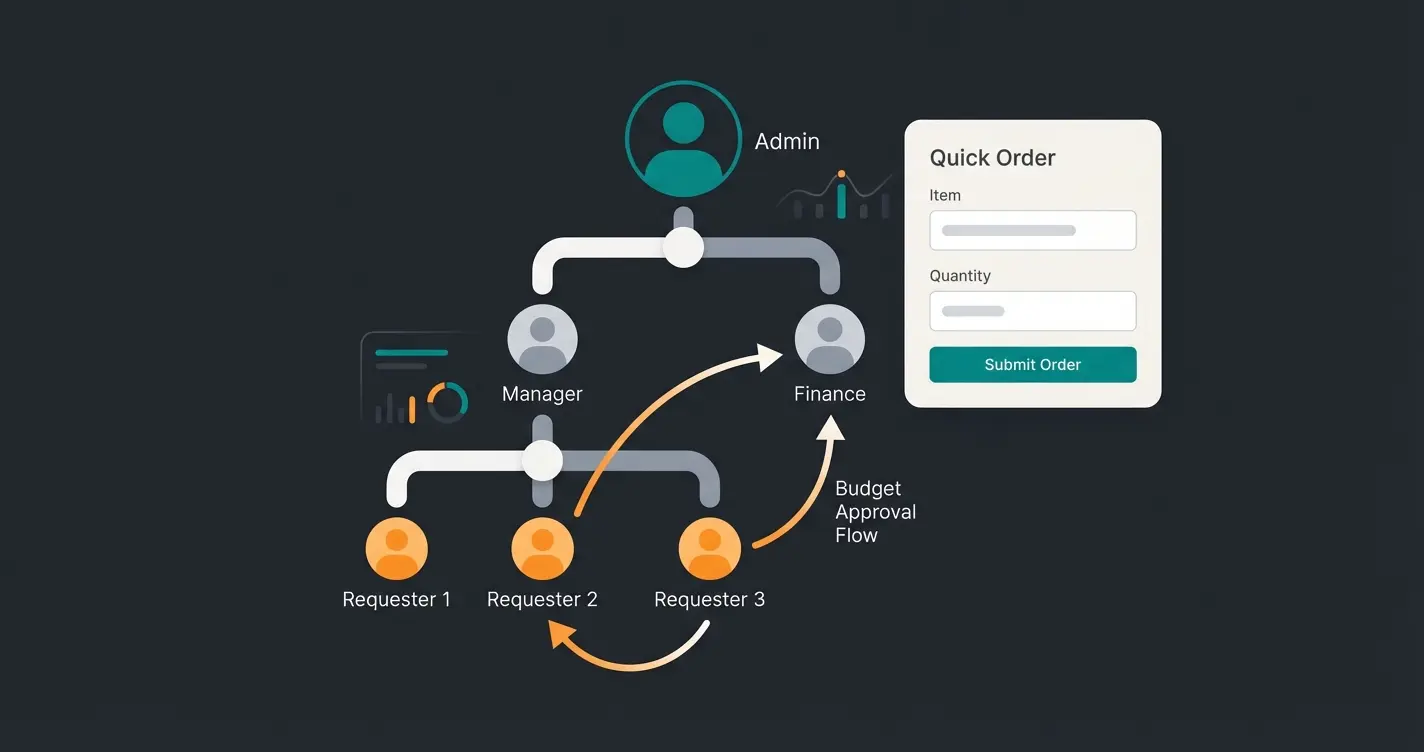
- Company Structure & Roles: A main customer (debitor) can create employee accounts and assign them rights (e.g., "Can order" vs. "Can only fill cart") as explained in the Shopware B2B Suite documentation.
- Budgeting & Approvals: Employees may, for example, order independently up to €500. Everything above triggers an approval workflow in the supervisor's customer account as detailed by Shopware.
- Quick Order: B2B customers don't want to browse; they want to process. A field for entering item numbers or uploading a CSV file directly in the account is essential as shown in Shopware's quick order features.
- Quote Management: The customer clicks "Request quote" in the cart. The merchant creates an individual price in the backend, which then appears in the customer account for confirmation.
For B2B environments, integrating Shopware customer support systems with your customer account functionality creates a seamless experience for business buyers.
Troubleshooting Common Account Problems
Even with the best configuration, problems occur. Here are the most common error sources around the Shopware customer account, based on forum analyses and support tickets.
Problem 1: Missing Guest Checkout Checkbox
A classic. You've enabled guest ordering, but the selection doesn't appear in the frontend.
- Cause: Often it's a theme customization or an outdated template override (`register.html.twig`). Sometimes the logic in the backend is misunderstood: The option is often called "Disable no customer account" – a double negation that confuses, as discussed on exwe.de.
- Solution: Check under `Settings > Shop > Login/Registration` whether "Create customer account by default" is active. If so, the customer must actively remove (or set, depending on the text) the checkmark to remain a guest. Also check your text snippets.
Problem 2: Login Loop Issues
Customers log in but immediately land back on the login page.
- Cause: Often a problem with session cookies or the cache. Timezone differences between the database and PHP server can also cause sessions to be considered "expired" immediately, as noted on Stack Overflow.
- Solution: Clear the cache (`bin/console cache:clear`), check cookie settings in the browser, and ensure server time and DB time are synchronized.
Problem 3: Registration Fails Despite Correct Data
The customer fills everything out, clicks "Continue," and receives a generic error message ("Please fill in all red-marked fields"), although nothing is red.
- Cause: Often these are hidden required fields. A frequent culprit is the "State" field, which is defined as required in the backend but hidden in the frontend form (e.g., by a theme update) as documented by Shopware.
- Solution: Check under `Settings > Shop > Countries` whether the state requirement is active for the respective country.
Problem 4: Email Delivery Failures
Customers register but don't receive a confirmation link.
- Cause: SMTP settings faulty or the email lands in spam.
- Solution: Check the `Mailer` in the settings. Use tools like Mail-Tester. Ensure the Flow Builder is correctly configured for the "Customer Registration" event and the mail template is assigned according to Shopware's email configuration guide.
Understanding KI E-Commerce principles can help you implement smarter diagnostic tools that automatically identify and resolve these common issues through active product consultation features.
FAQ: Common Questions About Shopware Accounts
Navigate to Settings > Shop > Login/Registration in your Shopware 6 administration panel. Ensure that "Create customer account by default" is set to inactive. This allows customers to choose whether they want to create an account or checkout as a guest. The checkbox will then appear on your registration/checkout page.
This login loop issue is typically caused by session cookie problems, cache issues, or timezone mismatches between your server and database. Try clearing the cache using `bin/console cache:clear`, verify your cookie settings, and ensure your server time is synchronized with your database time.
The B2B Suite is a comprehensive, monolithic solution offering complex hierarchies and features, while B2B Components are the newer, modular approach that integrates directly into Shopware's core. Components are API-first and allow you to activate specific features individually. Note that B2B Suite support ends with Shopware 6.8, so new projects should use B2B Components.
You can integrate social logins (Google, Facebook, Apple) using plugins available in the Shopware Store from providers like Webshop Extension or cidaas. These plugins use OAuth 2.0 standards and significantly reduce registration friction while providing verified email addresses.
Extend your account using Shopware Custom Fields to store customer preferences. Integrate AI chatbot tools that save consultation histories to customer profiles. Create dynamic product lists based on AI recommendations. This transforms your account from a static archive into an interactive personal shopping hub that remembers customer preferences and provides personalized recommendations.
Conclusion and Action Checklist
The Shopware customer account is far more than an administrative necessity. Properly configured, it's a powerful tool for conversion optimization and customer retention. If you then dare to expand it into a "Personal Shopping Hub" through AI-powered consultation elements, you'll gain a real competitive advantage.
Your Checklist for Today
- Basic Check: Review your settings under `Settings > Shop > Login/Registration` for guest checkout and double opt-in.
- UX Audit: Try registering as a new customer in your own shop. How many clicks do you need? Where does it get stuck?
- Support Tool: Install a "Login as Customer" plugin to make life easier for your support team.
- Strategy Planning: Consider what data (besides the address) would help you better advise the customer – and how you can bring it into the customer account.
Disclaimer: This article is for general information purposes and does not constitute legal advice, particularly regarding GDPR compliance (double opt-in). Please consult your data protection officer for legally compliant settings.
Stop letting your customer account collect digital dust. Transform it into an AI-powered consultation hub that builds lasting relationships and drives repeat purchases. Start your journey to smarter e-commerce today.
Get Started Now