
Why Your Shopware Admin Is Your Most Important Asset
Many merchants view the Shopware admin as nothing more than a necessary evil for order processing. They log in, print shipping labels, change a price here and there, and log out again. But this perspective is dangerously outdated in 2025.
In an e-commerce world rapidly moving toward Agentic Commerce and AI-powered consultation, the admin panel is much more: it's the database that feeds your digital salespeople. When a customer asks on the frontend: "Which running shoe is waterproof and suitable for asphalt?" an AI can only answer this question if you've correctly structured the corresponding attributes ("Properties") in the backend.
The problem with many shops is "messy data"—unstructured information buried in free-text fields. This not only leads to poor search results but makes deploying modern sales AI impossible. Understanding Shopware AI features is essential for staying competitive in today's market.
This guide is different from standard documentation. We'll show you not just where the buttons are, but how to strategically use the Shopware admin to elevate your shop to the next level of automation.
Getting Started: Access, Login, and Basics
Before diving deep, the fundamentals must be solid. Access to the Shopware admin is the gateway to your business. Yet many shop managers fail right here due to technical hurdles like the notorious "White Screen of Death."
The Login and the White Screen of Death
The standard login occurs via `your-shop.com/admin`. But what do you do when only a white page appears after login, or the loading bar runs endlessly?
This is one of the most common problems in daily Shopware operations. The causes are usually trivial but appear threatening. According to Shopware's official documentation, most white screen issues stem from browser caching or server configuration.
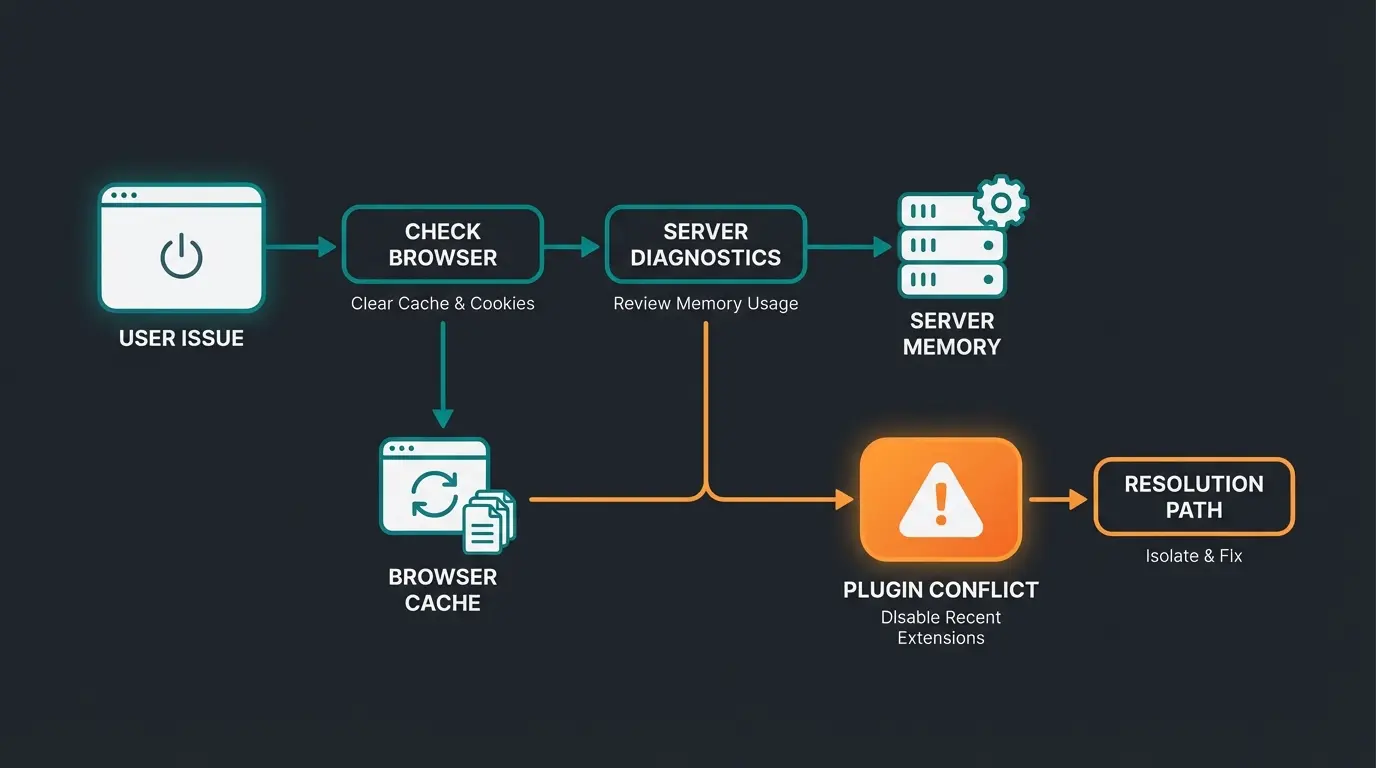
Dashboard Tour: The Most Important Metrics
After successful login, the dashboard welcomes you. Don't ignore it. It's your morning "pulse check" for understanding your business health at a glance.
- Revenue curve: Shows anomalies immediately (e.g., flat line = checkout broken?)
- Open orders: Your to-do stack for shipping
- Live visitors: An indicator of current server load
German Compliance Check: Legal Safety in the Admin
Since we're focusing on the DACH market, there are settings in the Shopware admin that are mandatory for German merchants but often missing from international guides.
Essential Characteristics (Wesentliche Merkmale): In German e-commerce, the essential characteristics of the product must be listed again at checkout (on the order completion page)—for example, "Duration: 12 months" or "Material: 100% Cotton." This requirement is detailed in Shopware's compliance documentation.
- Where to find: Settings > Shop > Essential Characteristics
- Setup: You must create templates here that define which properties are displayed at checkout. Without this configuration, you risk legal warnings.
- Tip: Create different templates for different product groups (e.g., one for textiles with size specifications, one for electronics with technical data).
Core Management: Catalog & Products (Data-First Strategy)
This is where it's decided whether your shop is AI-ready or not. The way you create products in the Shopware admin determines the quality of consultation on the frontend. When you implement AI-powered product consultation, the underlying data structure becomes mission-critical.
The Anatomy of a Perfect Product Page
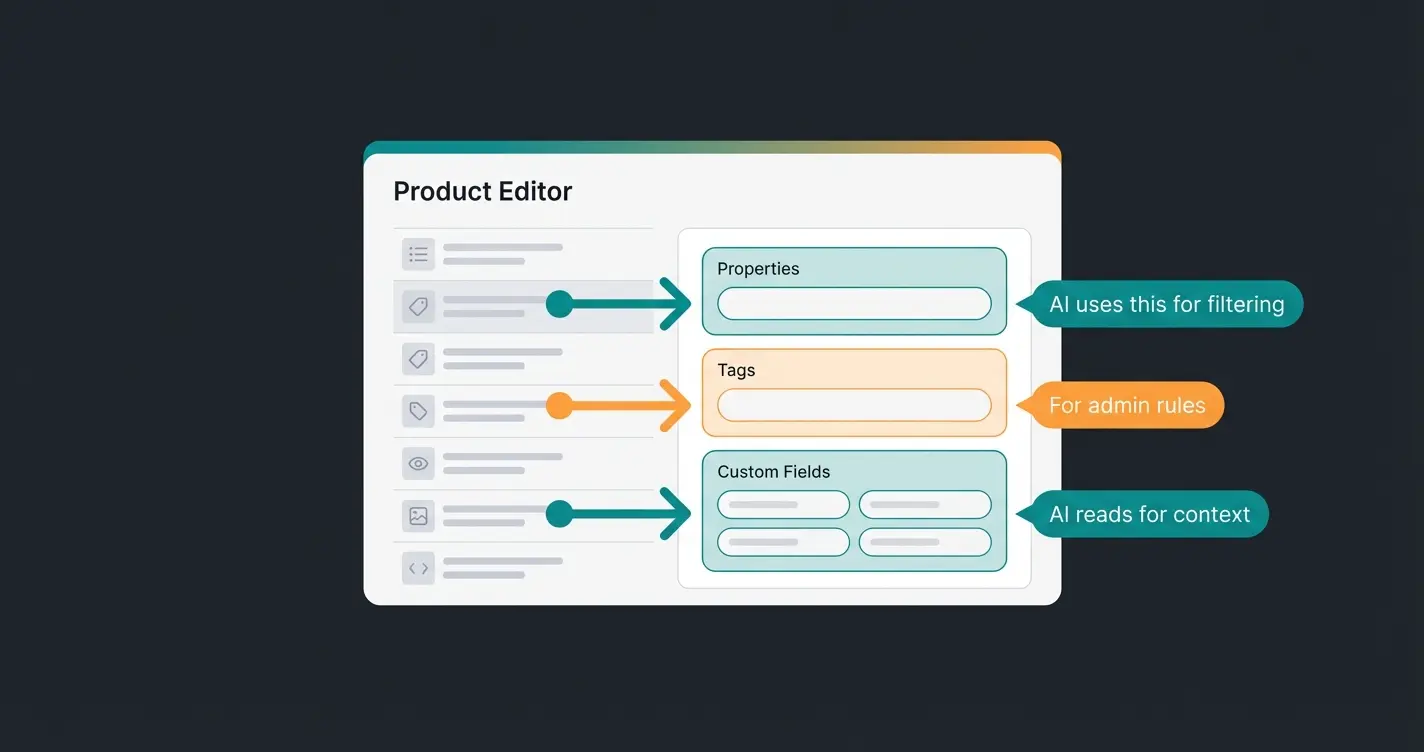
Standard fields like price, tax rate, and inventory are self-explanatory. The magic happens in the areas of Properties, Tags, and Custom Fields.
The Crucial Difference: Properties vs. Custom Fields
Many merchants use these fields incorrectly. For AI-powered consultation, however, the distinction is vital. Research from Firebear Studio confirms that proper attribute management is the foundation of effective e-commerce AI implementation.
| Feature | Purpose | AI Relevance | Example |
|---|---|---|---|
| Properties | Filterable attributes, variant creation | High: AI uses this to filter products ("Show only red shoes") | Color: Red, Size: XL, Material: Leather |
| Custom Fields | Specific info without filter logic | Medium: AI can read these to explain details | "Care instructions", "Internal stock number", "Supplier" |
| Tags | Internal organization | Low: More relevant for admin rules (Rule Builder) | "Sale2024", "B-Grade", "Top-Seller" |
You enter structured Properties in the Shopware admin (Color, Size, Material, Features)
Shopware indexes these properties for filtering and search functionality
AI consultation tools pull live data directly from your admin database
Customer asks: "Which jacket is waterproof and breathable?"
AI matches query to Properties, delivers personalized product recommendations
Strategy: Data Structuring for AI Sales Staff
Imagine you integrate an AI tomorrow that acts like a salesperson in a store. A customer asks: "I'm looking for a gift for my wife, she likes sustainable fashion."
- Scenario A (Poor Data): You've hidden the word "sustainable" somewhere in the product description's free text. The AI might find the product via full-text search but is uncertain.
- Scenario B (Admin-Optimized): You've created a property group "Sustainability" in the Shopware admin with the value "Recycled Material."
Advanced Admin Features: Automation & Permissions
Once the data is in place, it's about process optimization. Shopware 6 offers powerful tools here that many merchants leave unused. While AI consultation beats static flows in many scenarios, understanding the native automation tools remains essential.
Rule Builder: The Brain of Logic
The Rule Builder (Settings > Rule Builder) is the heart of Shopware 6. It allows you to build complex "if-then" logic without writing a single line of code.
- Example for sales: "Customer has > €500 total revenue" AND "Cart contains Product X"
- Application: These rules control prices, shipping costs, and even category visibility.
- AI context: You can create rules that define certain customer groups (e.g., "VIP Customers"). An AI can use this info to address VIPs differently.
Flow Builder: Automating Processes
While the Rule Builder defines the condition, the Flow Builder (Settings > Flow Builder) executes the action.
- Use case: When "Order received" AND "Payment method = Prepayment", THEN "Send email 'Payment reminder' after 3 days"
- Efficiency: Use this to relieve your team from manual emails.
According to Mageplaza's research, proper automation setup can reduce manual admin tasks by up to 60%.
User Management (ACL) & Customer Impersonation
In larger teams, not every intern should be able to delete products. Via Settings > System > Users & Permissions, you define granular roles (ACL - Access Control List).
New in Shopware 6.6.5+: Customer Impersonation A long-missed feature from Shopware 5 is back: the ability to log in as a customer. This feature is documented in the official Shopware 6.6 release notes.
- Why important? When a customer calls and says "I can't see my cart," you can log directly into their frontend view via admin ("Login as Customer").
- Prerequisite: The admin user needs the permission `api_proxy_imitate-customer`.
- Benefit: Enormous time savings in support and troubleshooting.
This capability transforms how your team handles customer service. When AI eliminates waiting times, combining it with direct customer account access creates an unbeatable support experience.
Discover how AI-powered product consultation can leverage your structured Shopware data to deliver personalized recommendations and boost conversions.
Start Your Free TrialTroubleshooting & Performance: Why Is My Admin Slow?
Nothing costs more nerves than a slow Shopware admin. When every click takes 3 seconds, your team loses hours of working time. Here are the most common causes and solutions.
The Admin Worker – Performance Brake #1
By default, Shopware uses the so-called "Admin Worker." This means: Whenever an admin is logged into the backend, the browser performs maintenance tasks in the background (sending emails, indexing, generating thumbnails).
The problem: As soon as you close the tab, the processes stop. When multiple employees are logged in, they block each other or overload the browser. This leads to an extremely sluggish admin panel. This issue is well-documented by TimmeHosting in their Shopware performance guides.
The solution: Disable the Admin Worker and set up server-side "CLI Workers."
- Step 1: Set the Admin Worker to `false` in the `shopware.yaml` (under `config/packages/`)
- Step 2: Set up process managers like `Supervisor` on the server (via host or SSH) that permanently execute the command `bin/console messenger:consume`
- Result: A noticeably faster backend and reliable email delivery
When Admin Worker handles background tasks in browser
With properly configured CLI workers vs. Admin Worker
Recommended PHP memory_limit for smooth admin operation
Of white screen problems solved by clearing browser cache
Caching & Redis for Professional Shops
For professional shops, using Redis is indispensable. Redis is an ultra-fast cache that relieves the database. According to Webiprog, Redis can improve backend response times by up to 300%.
- Use cases: Shopware uses Redis for sessions, shopping cart, and cache
- Configuration: As of Shopware 6.6, configuration has been simplified. In `shopware.yaml`, different Redis connections can now be defined for cache and sessions
- Tip: Ask your host if Redis is enabled. Without Redis, a shop with many products and visitors becomes sluggish in the admin.
Additional configuration details can be found in Shopware's Redis documentation and hosting guides from Hosted-Power.
Performing Updates Safely
Updates should never be "quickly clicked" in the live system. The Maxcluster documentation emphasizes the importance of proper update procedures.
- Backup: Always create a database and file backup
- Test system: Test update first in a staging environment (copy of the shop)
- Plugin check: Before updating to Shopware 6.6 or 6.7, check if all plugins are compatible (especially due to the Vue 3 transition)
The Vue 3 migration is particularly significant—according to Shopware's technical blog, this transition brings significant performance improvements but requires plugin compatibility verification.
The Future: Shopware Admin, AI & Consultation
E-commerce stands before a paradigm shift. Until now, the Shopware admin was a tool for management. Now it's becoming the knowledge base for AI. Exploring AI E-Commerce strategies is essential for forward-thinking merchants.
Status Quo: Shopware AI Copilot (Backend)
Shopware has already introduced strong native AI features with the "AI Copilot." As detailed in Qualimero's analysis, these focus primarily on merchant efficiency:
- Content generation: Create product texts with one click
- Image keywords: AI analyzes images and sets tags
- Export assistant: Request CSV exports via natural language ("Show all orders from yesterday")
This is helpful but doesn't solve the problem of the customer seeking advice. The official Shopware AI Copilot documentation outlines these backend-focused capabilities.
The Shift: From Management to Active Consultation
The Shopware AI Copilot helps you. But who helps your customer? Here's where external AI Sales Staff solutions come into play that you connect to your shop. Implementing AI-powered sales consultants represents the next evolution in customer experience.
- The problem: Conventional chatbots are often dumb FAQ machines. They only know pre-programmed answers.
- The solution: A real consultation AI accesses data in your Shopware admin live. It doesn't just read texts but understands the relationships you created in Chapter III.
This approach means the AI knows that "Gore-Tex" (Property) means the shoe is "waterproof." It can do cross-selling: "These chairs match this table (linked via Dynamic Product Group)." Understanding how AI Chatbots transform customer service helps you appreciate this technological leap.
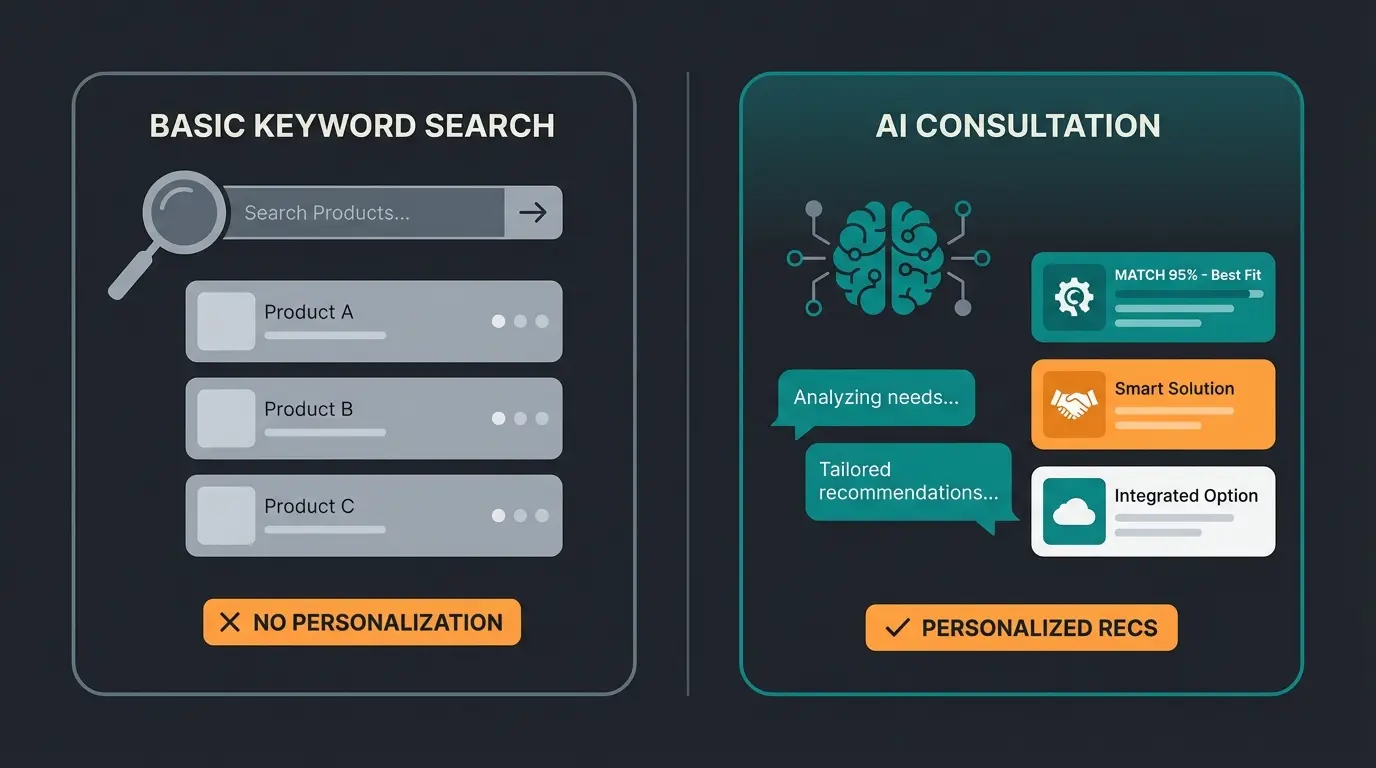
Comparison: Search vs. AI Consultation
| Feature | Standard Shopware Search | Simple Chatbot | AI Sales Consultation |
|---|---|---|---|
| Functionality | Keyword matching ("Red shoe") | Static answers (FAQ) | Context understanding & consulting |
| Data Source | Search index | Script / text modules | Live Shopware Admin Data (Properties, Variants) |
| Goal | Find product | Avoid support ticket | Bring about purchase decision |
| User Experience | Passive (customer must search) | Reactive | Proactive (like a salesperson) |
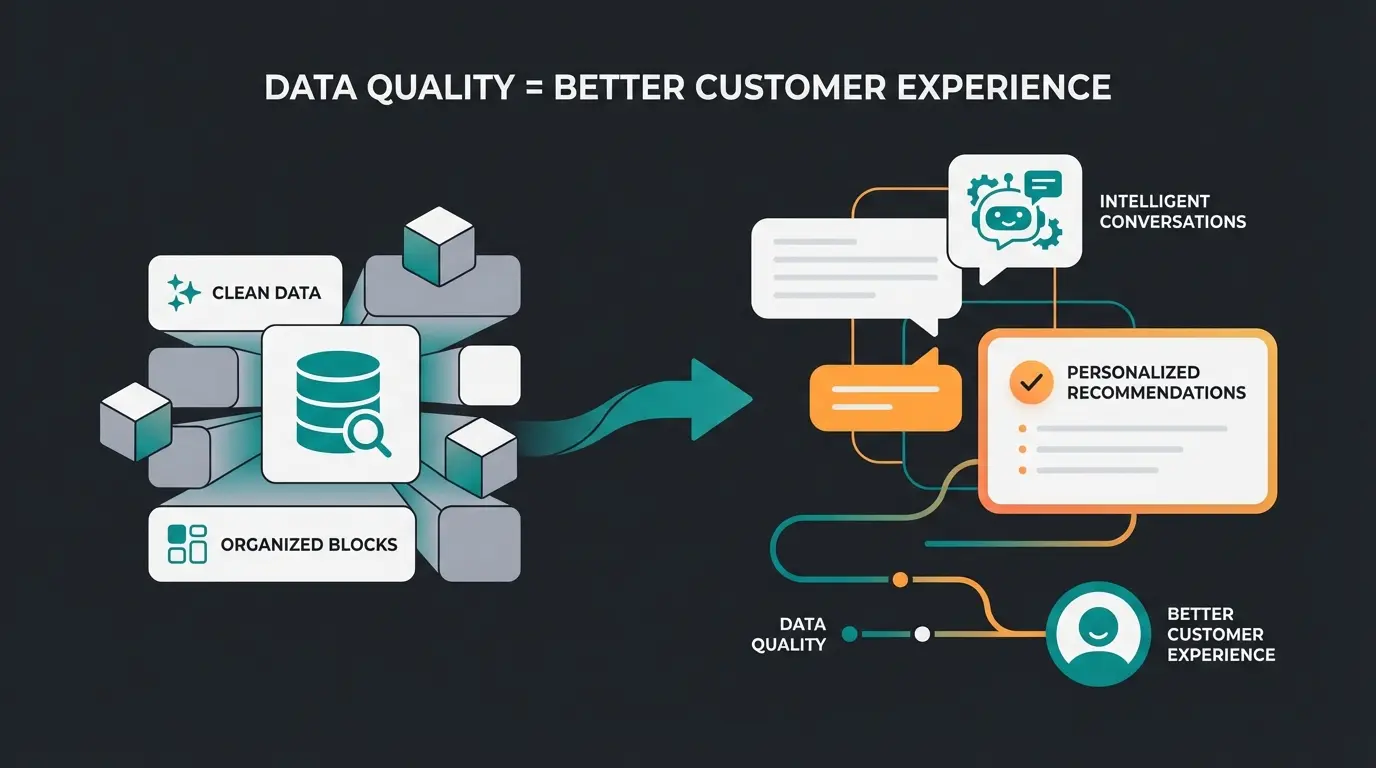
Conclusion for your strategy: Invest time in maintaining your Shopware admin data. The cleaner your attributes, properties, and rules are defined, the more powerful the AI you deploy on them will be. A "Data-First" approach in the admin is the best investment in the future of your revenue.
For merchants evaluating platform options, understanding your shop's AI readiness is crucial. Additionally, proper AI integration significantly impacts operational costs—learn more about how AI integration cuts costs for e-commerce businesses.
Implementing AI-Powered Product Consultation
The transition from basic admin management to AI-powered consultation requires a strategic approach. With AI-powered product consultation, you can transform how customers interact with your product catalog.
This approach extends beyond traditional e-commerce interactions. When you understand AI-powered product consultation in the context of conversion optimization, the value becomes clear: structured admin data directly translates to higher conversion rates.
Even technical SEO benefits from this approach. Proper admin data structuring supports AI product consultation strategies that improve both search visibility and user experience.
Building AI-Ready Digital Portals
For B2B merchants, the stakes are even higher. Creating AI-powered digital sales portals requires exceptional data quality in your Shopware admin. The relationships between products, customer groups, and pricing rules must be meticulously maintained.
Conclusion: Clean Admin Equals Better Sales
The Shopware admin is far more than just bookkeeping. It's the foundation for modern e-commerce. Those who neglect it not only lose time through slow loading times and bugs but also block their path to the future of AI-powered sales.
Summary of Action Items
- Secure performance: Disable Admin Worker, use Redis
- Legal compliance: Configure "Essential Characteristics" for DACH checkout
- Structure data: Away from free text, toward granular Properties
- Prepare for AI: View your admin as the database for your best digital employee
Quick-Fix Troubleshooting Flowchart
Problem: I cannot log into the Shopware admin.
Step 1: Is the Screen Completely White?
- YES: Clear browser cache (Ctrl+F5)
- YES: Check if a plugin update failed (check server logs)
- NO: Continue to Step 2
Step 2: Does the Loading Bar Run Endlessly (Loop)?
- YES: Delete cookies or use incognito mode
- YES: Check if `APP_URL` in the `.env` file is correctly set (http vs https)
Step 3: Is There an Error Message (500 Error)?
- YES: Check `memory_limit` in PHP (minimum 512MB)
- YES: Search the `var/log` folder on the server for the exact error message
Following Shopware's official troubleshooting guide can help resolve most common admin access issues.
Frequently Asked Questions
Navigate to the login page at your-shop.com/admin and click 'Forgot Password.' Enter your admin email address, and Shopware will send a password reset link. If you don't receive the email, check your spam folder or verify that your shop's email configuration is working properly. For shops with CLI access, you can also use the command `bin/console user:change-password admin` to reset directly.
The most common cause is the default Admin Worker being enabled. When multiple users are logged in, the browser handles background tasks, causing slowdowns. Disable the Admin Worker in shopware.yaml and configure CLI workers instead. Other causes include insufficient PHP memory_limit (recommended 512MB+), missing Redis cache configuration, or too many active plugins.
Properties are filterable attributes used for variant creation and frontend filtering (e.g., Color: Red, Size: XL). They're crucial for AI consultation tools. Custom Fields store specific information without filter logic—useful for internal data like care instructions or supplier information. For AI-ready shops, prioritize Properties for customer-facing product attributes.
Customer Impersonation allows admins to log into a customer's frontend session for troubleshooting. The feature requires the admin user to have the permission 'api_proxy_imitate-customer' enabled in Settings > System > Users & Permissions. Once enabled, you can click 'Login as Customer' from any customer's profile in the admin.
Essential Characteristics (Wesentliche Merkmale) are legally required product attributes that must be displayed in the German checkout process. Configure them in Settings > Shop > Essential Characteristics by creating templates that define which Properties appear at checkout. Without this configuration, German shops risk legal warnings and fines for non-compliance with consumer protection regulations.
When your data is cleanly structured, you can deploy tools today that massively increase your conversion rate through real consultation. Don't leave the field to the giants—use the power of your own data.
Try AI Product Consultation Free
Kevin is CTO and co-founder of Qualimero. As an AI architect with over 15 years of experience as CTO and CPO in the tech industry, he designs the AI systems that automate tens of thousands of customer interactions daily for Qualimero's clients — reliably, securely, and at scale.