
Why Your Impressum Is More Than Just Bureaucracy
Update 2025: This guide includes the new regulations from the Digital Services Act (DDG) and the Business Identification Number (W-IdNr.).
A missing or incorrect Impressum is every shop owner's nightmare—not just because of potential legal warnings, but because it undermines the foundation of your online business: customer trust.
In an e-commerce world increasingly shaped by AI and automation, customers seek human reassurance. Before a customer accepts advice from an AI or enters their credit card details, they often subconsciously check: "Does this shop really exist? Who's behind it?"
This guide differs from the dry technical manuals you've found before. We'll show you not only how to technically integrate the Shopware Impressum in Shopware 6 and 5, but also how to transform this legal requirement into a trust-building factor. Additionally, we'll bridge the gap between manual maintenance and modern automation—because anyone still typing their Impressum by hand is wasting valuable time that could be better invested in customer consultation. For deeper insights into building customer confidence, explore our guide on Shopware trust elements.
The E-Commerce Trust Stack
Most merchants view the Impressum as a tedious obligation. They copy some text, hide the link somewhere in the footer, and hope no lawyer ever reads it. That's a missed opportunity.
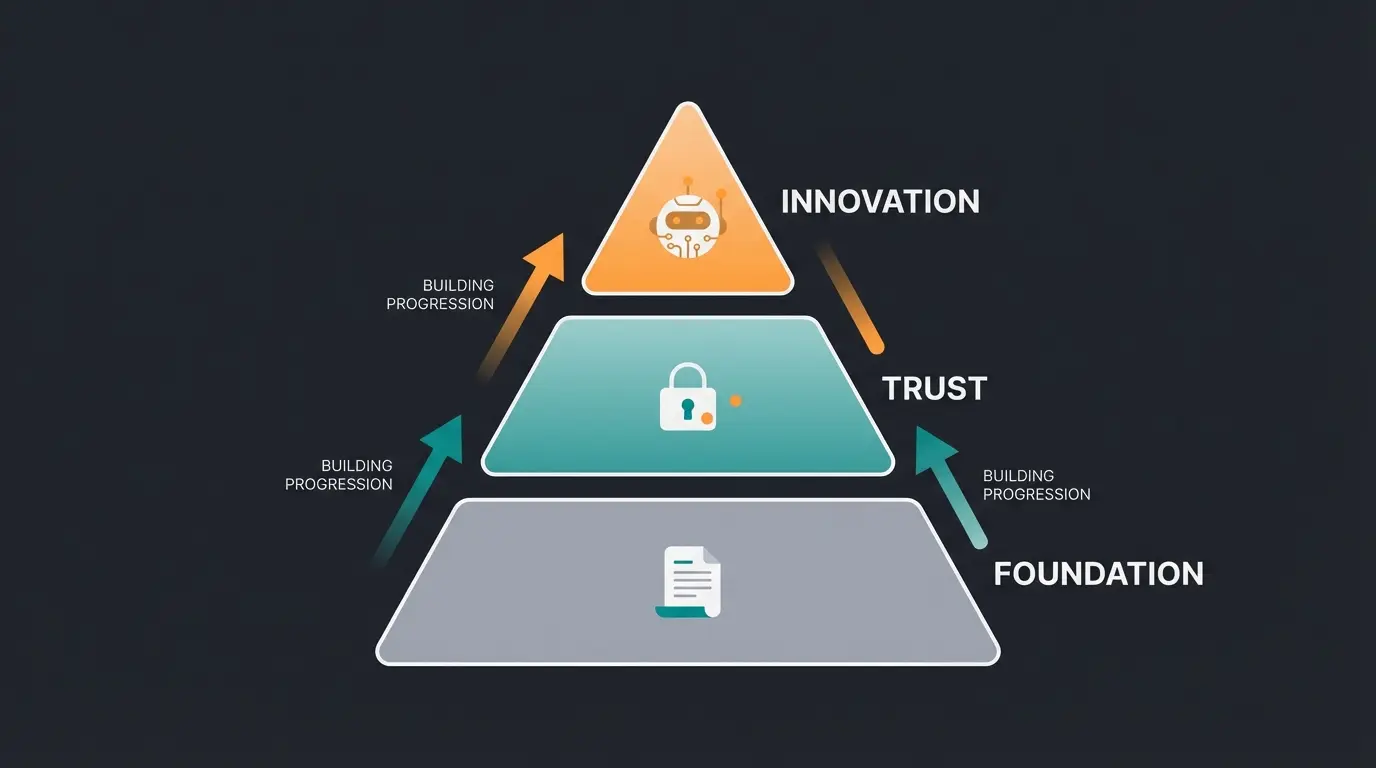
Think of customer trust as a pyramid with three essential layers:
- Foundation (Existence): The Impressum proves you're a tangible, legally accountable entity.
- Middle (Security): Privacy policy and terms & conditions clarify the rules of engagement.
- Top (Consultation & Service): This is where your products, support, and modern tools like AI product consultants operate.
If the foundation (the Impressum) is missing or appears unprofessional (e.g., outdated legal references), the entire top collapses. A customer won't trust an AI recommendation if they don't even know who owns the shop. Transparency is the first step toward conversion. This principle aligns with how Conversational AI is revolutionizing customer interactions in e-commerce.
The Checklist: Mandatory Information & New Laws 2024/2025
Before we dive into Shopware's technical aspects, we need to clarify the content. According to e-Recht24, significant changes occurred in 2024 and 2025 that many older tutorials fail to mention.
Important Legal Change: TMG Is Dead, Long Live DDG
Since May 14, 2024, the Telemedia Act (TMG) is no longer in force. It has been replaced by the Digital Services Act (DDG), as confirmed by the IHK Bonn and SEO-Küche.
- What you need to do: Check your Impressum immediately. Does it still say "Information according to § 5 TMG"?
- The solution: Change this to "Information according to § 5 DDG" or remove the paragraph reference entirely (stating the law is not mandatory, but the content is), as noted by Steuertipps.
New Since Late 2024: The Business Identification Number
Since November 2024, the Business ID (W-IdNr.) is being gradually introduced across Germany, according to Webeluno and JHP-Steuer.
- The rule: If you have no VAT ID, you must mandatorily provide the W-IdNr. as soon as you receive it.
- The exception: If you already have a VAT ID in your Impressum, that suffices for now, and the W-IdNr. is optional but recommended.
For businesses navigating these regulatory changes, understanding the broader EU AI Act 2024 implications is equally important for compliance.
The Classic Mandatory Information Checklist
A legally compliant Shopware Impressum must contain at least the following points (for Germany):
| Mandatory Information | Details & Notes |
|---|---|
| Company Name & Legal Form | Full company name (e.g., "Sample GmbH"), not just the shop name. |
| Authorized Representatives | Managing directors, board members (first and last name spelled out). |
| Address | Service address (No P.O. Box!). |
| Contact Details | Email (clickable) AND phone number. A contact form alone often isn't sufficient. |
| Registry Entry | Commercial register, association register, etc., including registration number and court. |
| VAT ID | (or Business ID, see above). |
| Professional Regulations | Only for regulated professions (pharmacists, brokers, etc.). |
| ODR Platform Link | Link to the EU Online Dispute Resolution platform. Important: The link must be clickable! |
| Editorially Responsible | For blogs/journalistic content (according to § 18 Para. 2 MStV). |
Shopware 6 Impressum Setup: Step-by-Step Guide
Shopware 6 strictly separates Content (Shopping Experiences) from Structure (Categories). This confuses many users transitioning from Shopware 5. Here's the definitive workflow to properly integrate the Impressum. For a comprehensive understanding of the platform, check out What is Shopware? and our detailed Shopware 6 guide.
Step 1: Creating the Content (Shopping Experiences)
First, we need to design the page and add the text, as documented by Shopware and IT-Recht Kanzlei.
- Navigate in the admin area to Content > Shopping Experiences.
- Click on Create new layout.
- Important: Select Shop page as the layout type (not Landing page or Category). This ensures the layout is optimized for legal texts (full width, no sidebar distracting from the text).
- Choose a section type (e.g., "Full width").
- Assign a name, e.g., "Impressum Layout".
- Add a Text block.
- Insert your legally compliant Impressum text here (including clickable ODR link!).
- Save the layout.
Step 2: Creating the Structure (The Category Tree)
This is where 80% of users fail. In Shopware 6, there's no separate "Shop pages management" like in SW5. The footer is simply part of the category tree, as explained by 8mylez and Atloss.
- Go to Catalog > Categories.
- Create a new category on the first level (parallel to your "Home" category). Name it something like "Footer Navigation". Note: This category serves only as a container and won't be displayed directly in the shop.
- Create a subcategory below this "Footer Navigation" called "Legal" or "Information".
- Create the actual "Impressum" category below "Legal".
- Configuration of the "Impressum" category: Set the status to Active. Switch to the Layout tab. Click Assign layout and select your newly created "Impressum Layout" from Shopping Experiences, according to Web-Grips. Save.
The structure should look like this:
``` Catalog ├── Home (Your Shop) └── Footer Navigation (Container) ├── Service └── Legal ├── Terms & Conditions ├── Privacy Policy └── Impressum (Layout assigned here) ```
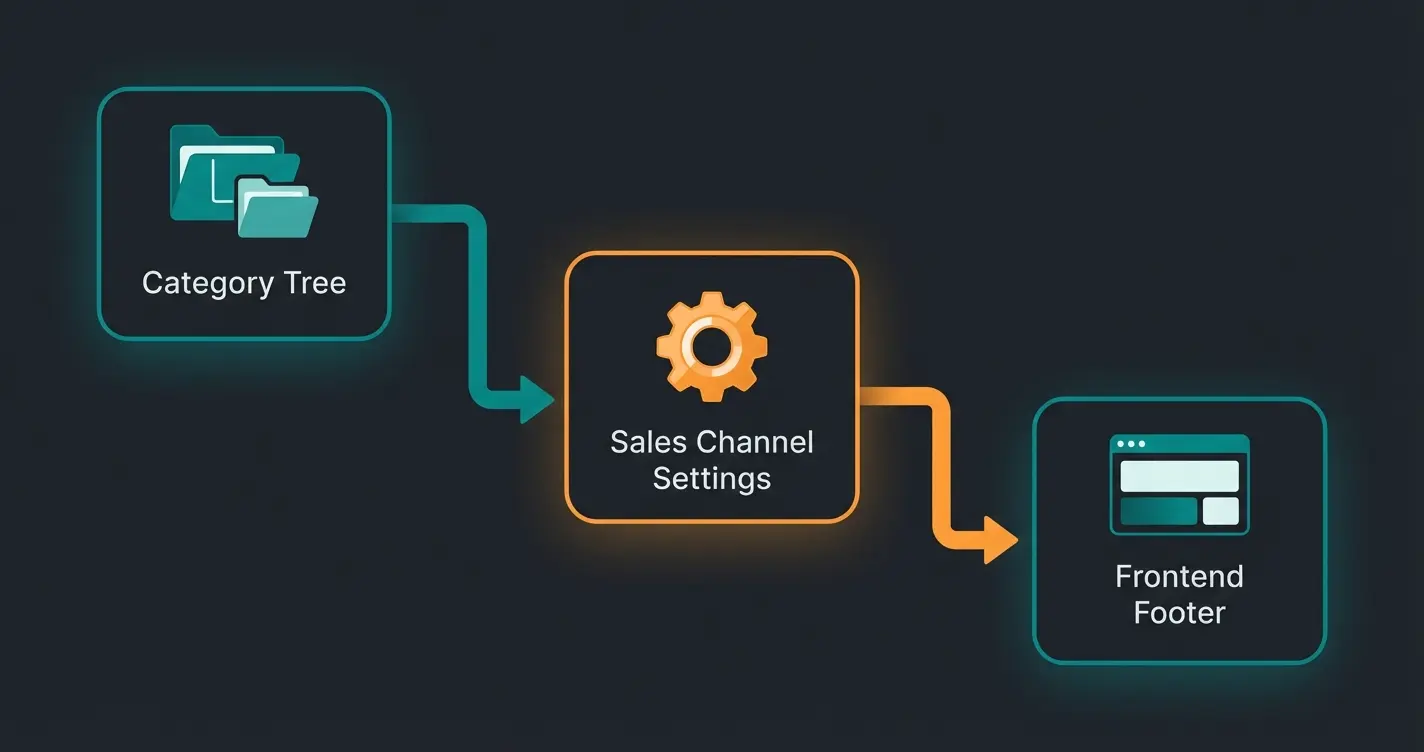
Step 3: Activating the Footer in the Sales Channel
Now Shopware knows there's an Impressum page, but not yet where it should be displayed, as noted by Themeware.
- Click on your Sales Channel (e.g., "Storefront") in the left sidebar.
- Scroll to the Basic settings section.
- Find the field Entry point for footer navigation.
- Select your parent category "Footer Navigation" here, which we created in Step 2.
- Save.
Result: Shopware now loads all subcategories of your "Footer Navigation" into the shop's footer area. Your Impressum is visible.
Design the Impressum page in Shopping Experiences using the Shop page layout type
Set up Footer Navigation category tree with Legal subcategory containing Impressum
Connect your Shopping Experience layout to the Impressum category
Set Footer Navigation as entry point in your Sales Channel settings
Shopware 5 Impressum Setup (Legacy Support)
Many successful shops still run on Shopware 5. Here the process is significantly different and somewhat more static.
The Path to Success
According to Splendid Internet and official Shopware documentation:
- In the backend, go to Settings > Basic settings.
- Select Shop settings > Shop pages.
- Here you'll find groups like "Links" (for the header) or "Bottom (Column 1)" (for the footer).
- Find the Impressum entry in the "Bottom (Column 1)" list (or create it new).
- Fill in the fields: Description: "Impressum" (This is the link text). Content: This is where your HTML Impressum text goes.
- Save and clear cache (Settings > Caches / Performance > Clear shop cache). Without clearing the cache, the change often won't be visible in the frontend.
Strategic Note for Shopware 5 Users
If you're still using Shopware 5, you're in the "end-of-life" phase. While the Impressum is still easy to maintain here, you're missing modern automation features from Shopware 6.
Strategic pivot: Use the time until migration to automate processes that don't depend on the shop system—for example, customer service through Shopware 6 chatbots that work independently of the Shopware version and build trust. Working with a Shopware 6 agency can help you plan this transition effectively.
While your Impressum builds trust, AI-powered product consultation converts visitors into buyers. Discover how our intelligent sales assistant answers product questions 24/7.
Start Your Free TrialCommon Mistakes & Troubleshooting
Even with correct setup, there are pitfalls that cost rankings or risk legal warnings. According to Ultra-Media, these issues are frequently encountered.
1. The Mobile Footer Problem
In many Shopware themes, footer columns are collapsed by default on mobile devices (smartphones) (accordion menu) or hidden for space reasons.
- The risk: According to case law, the Impressum must be "easily recognizable and directly accessible" (max. 2 clicks). A hidden menu can be borderline.
- Solution: Check your theme. Ensure the "Impressum" link is immediately visible on mobile or that the "Legal" menu is expanded by default.
2. The 404 Error in the Footer
Sometimes the footer disappears on special pages (e.g., in checkout or on 404 error pages) because the layout is defined differently there.
- Solution: Check the layouts for "Checkout" and "System pages" in Shopping Experiences. Ensure the footer block is included there as well. An Impressum must be accessible from every page.
3. The Missing ODR Link (OS Platform)
A classic reason for legal warnings: The link to Online Dispute Resolution appears in the text but isn't clickable.
- Fix: In the Shopping Experiences editor (SW6) or Shop pages (SW5), highlight the link and use the "chain symbol" to add `https://ec.europa.eu/consumers/odr` as a hyperlink.
Manual vs. Automated: Why Copy & Paste Is Dangerous
This is where professionals separate from amateurs. In the analysis of search results, we see many guides for manually inserting texts. As providers of AI solutions and advocates of automation, we strongly advise against this approach.
Comparison: Manual Maintenance vs. Automation
| Feature | Manual Maintenance (Copy & Paste) | Automation (Interfaces/Plugins) |
|---|---|---|
| Currency | High risk. You must notice legal changes (like DDG) yourself. | Automatic. When laws change, the text in your shop is updated via API. |
| Liability | You're fully liable for outdated texts. | The provider (e.g., IT-Recht, Händlerbund) often assumes liability. |
| Time Investment | High (research + implementation). | One-time setup (approx. 30 min), then zero. |
| Costs | "Free" (but time is money). | Monthly fee (approx. €10-30). |
Our recommendation: Use plugins like those from IT-Recht Kanzlei or Händlerbund. These integrate seamlessly into Shopware 6 and 5.
The strategic advantage: When you automate the "boring" legal work, you free your mind for the "exciting" work: optimizing user experience and integrating Sales AI. This automation principle extends to all aspects of your shop—consider exploring Shopware API automation for broader efficiency gains.
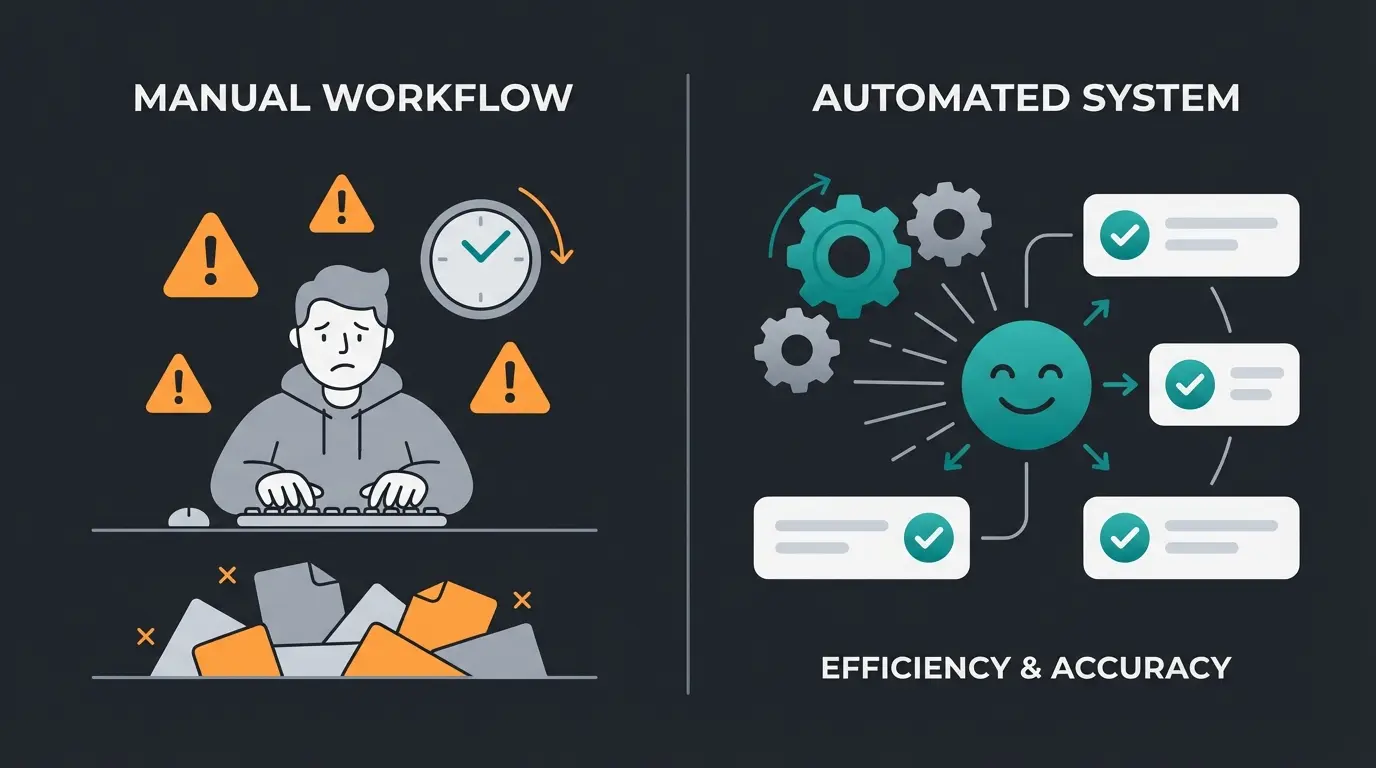
Average time to configure legal text plugins vs. hours of manual research
Legal changes pushed to your shop without any action required
Small cost that eliminates liability risks and saves countless hours
From Impressum to AI Consultation: The Trust Stack
We spoke about trust at the beginning. A clean, DDG-compliant Impressum is the mandatory requirement. But the real excellence comes from what follows.
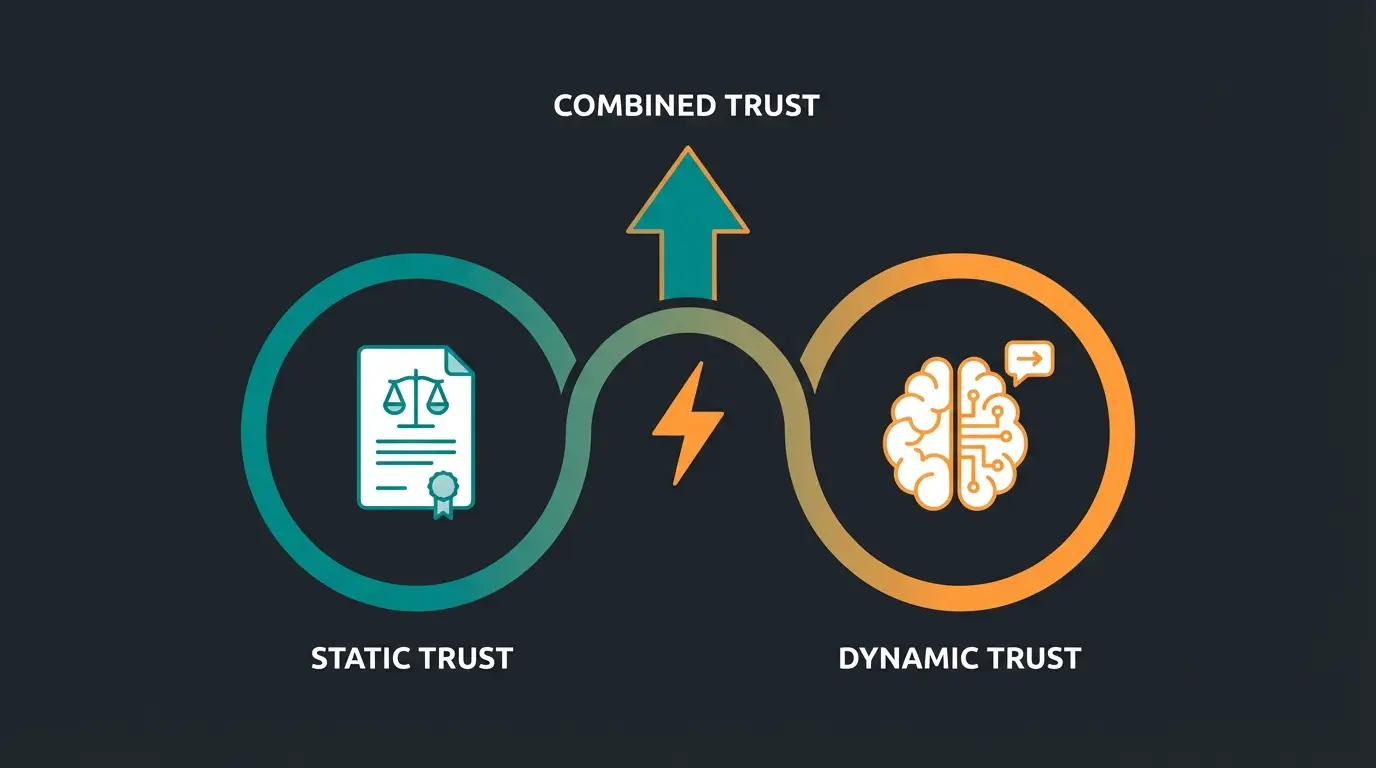
Static vs. Dynamic Trust
- The Impressum (Static): It tells the customer: "I'm legally here." It's passive. The customer must search for it.
- AI Consultation (Dynamic): It tells the customer: "I'm here for you." It's active. It engages the customer directly.
Why You Need Both
A shop with a perfect Impressum but poor consultation is like a lawyer with a beautiful office who never returns calls. A shop with great AI but no Impressum appears fraudulent.
The synergy: Use your Impressum's transparency as a springboard for deeper engagement.
- Automate the legal aspects: Use interfaces for terms & conditions and Impressum.
- Automate the consultation: Implement an AI solution that answers product questions. AI product consultation can transform how customers interact with your shop.
- Connect both: Train your AI to proactively reference transparency data (Impressum, trust seals) when questions about security arise ("Is this legitimate?").
Understanding Shopware data protection requirements is equally essential when implementing AI consultation, ensuring your entire customer experience remains compliant.
FAQ: Common Questions About Shopware Impressum
Many Shopware themes collapse footer columns into accordion menus on mobile devices for space reasons. Check your theme settings and ensure the "Legal" section is either expanded by default or the Impressum link remains visible. Legal requirements state the Impressum must be accessible within maximum 2 clicks from any page.
The ODR link (https://ec.europa.eu/consumers/odr) must be clickable, not just displayed as text. In Shopware 6's Shopping Experiences editor, highlight the URL text and use the chain/link icon to make it a proper hyperlink. A non-clickable link is a common reason for legal warnings.
Yes, this is recommended. Since May 14, 2024, the Telemedia Act (TMG) has been replaced by the Digital Services Act (DDG). If your Impressum still says "according to § 5 TMG," update it to "according to § 5 DDG" or remove the legal reference entirely—the content requirements remain the same.
Shopware 5 uses a dedicated Shop Pages section under Settings > Basic settings > Shop pages. Shopware 6 requires creating content in Shopping Experiences, building a category structure for the footer, and connecting them through Sales Channel settings. SW6's approach is more flexible but initially more complex.
We strongly recommend using plugins from legal providers like IT-Recht Kanzlei or Händlerbund. They automatically update your texts when laws change, often include liability coverage, and free your time for more valuable activities like customer experience optimization.
Conclusion: Your Impressum Is Just the Beginning
Creating a Shopware Impressum isn't rocket science, but it requires diligence—especially with the new changes through the Digital Services Act (DDG) and the Business ID (W-IdNr.).
Summary of Key Steps
- Check content: TMG out, DDG in. Add W-IdNr. if applicable.
- Master the technology: In Shopware 6, work through Shopping Experiences (content) and Categories (structure). In Shopware 5, use Basic settings.
- Automate: Use legal text interfaces instead of copy & paste to eliminate liability risks.
- Expand trust: Use the legal foundation to build upon it with excellent service and AI-powered consultation.
A legally compliant shop is the starting point. An intelligent, helpful shop is the destination. Ensure your Impressum stands solid—and then focus on how you can offer your customers the best shopping experience with modern technology.
Your Impressum proves you exist. Our AI consultation proves you care. Combine legal trust with intelligent, 24/7 product guidance that converts browsers into buyers.
Discover AI Consultation
Lasse is CEO and co-founder of Qualimero. After completing his MBA at WHU and scaling a company to seven-figure revenue, he founded Qualimero to build AI-powered digital employees for e-commerce. His focus: helping businesses measurably improve customer interaction through intelligent automation.