What you need before installing Shopware
Shopware 6 needs PHP 8.2 or higher, MySQL 8.0+ or MariaDB 10.11+, Composer 2.2+, Node.js 20 LTS, and at least 4 GB of RAM. As of Q3 2026 the current release is 6.7.12.1. A Composer-based server install suits developers, while shared hosting works only with the manual installer.
Shopware 6 runs on a standard LAMP or LEMP stack, but the version requirements are strict: install with the wrong PHP release or an unsupported MySQL build and the setup fails silently or throws cryptic errors. According to the official Shopware system requirements, the platform is supported on Unix systems only, and Windows runs solely inside WSL 2 or Docker. For the full platform picture, see the complete Shopware reference, and to match hardware to load, our Best Shopware Hosting Comparison.
| Component | Minimum | Recommended |
|---|---|---|
| PHP | 8.2 | 8.3 (8.4 supported since Shopware 6.7) |
| MySQL | 8.0 (avoid 8.0.20 and 8.0.21) | 8.0.28+ |
| MariaDB | 10.11 (LTS) | 10.11+ |
| Composer | 2.2 | Latest stable |
| Node.js | 20 (LTS) | 20 LTS |
| RAM | 4 GB | 8 GB+ (especially with Docker or Elasticsearch) |
| Storage | SSD required | NVMe SSD |
| CPU | 2 cores | 4+ cores (faster indexing) |
| Redis | 7.0 | 7.0+ |
8.4 supported since Shopware 6.7
8 GB+ recommended for production
Composer or Docker, before configuration
Required PHP extensions: ctype, curl, dom, fileinfo, gd, iconv, intl, json, libxml, mbstring, openssl, pcre, pdo, pdo_mysql, phar, simplexml, xml, zip, and zlib. Set `memory_limit` to at least 512M in php.ini. For theme compilation and asset indexing, 1024M is the safer floor.
Choosing your installation method
Choose Composer for production developer setups, Docker for local development, the manual installer for shared hosting or non-technical users, and Shopware Cloud when you want a fully managed store with no server maintenance. Your decision comes down to three factors: technical skill, deployment target, and how much control you need.
There is no single best way to install Shopware. Each method serves a different use case, and picking the wrong one creates friction you will feel for months. Composer gives you version-controlled, reproducible builds, while the manual installer locks you into slower, error-prone manual upgrades. Your hosting choice matters just as much as the method, so weigh the options in our Shopware Hosting Guide before you commit. If you would rather skip server maintenance altogether, Shopware Cloud hands the stack to Shopware.
| Method | Best for | Technical skill | Production-ready | Update path |
|---|---|---|---|---|
| Composer | Production servers, agencies, CI/CD pipelines | High | Yes | Clean, version-controlled |
| Docker | Local development, testing, staging | Medium-High | Possible, not typical | Container rebuild |
| Manual installer | Shared hosting, quick demos | Low | Limited | Manual, error-prone |
| Shopware Cloud | Non-technical merchants, fast start | None | Managed | Automatic |
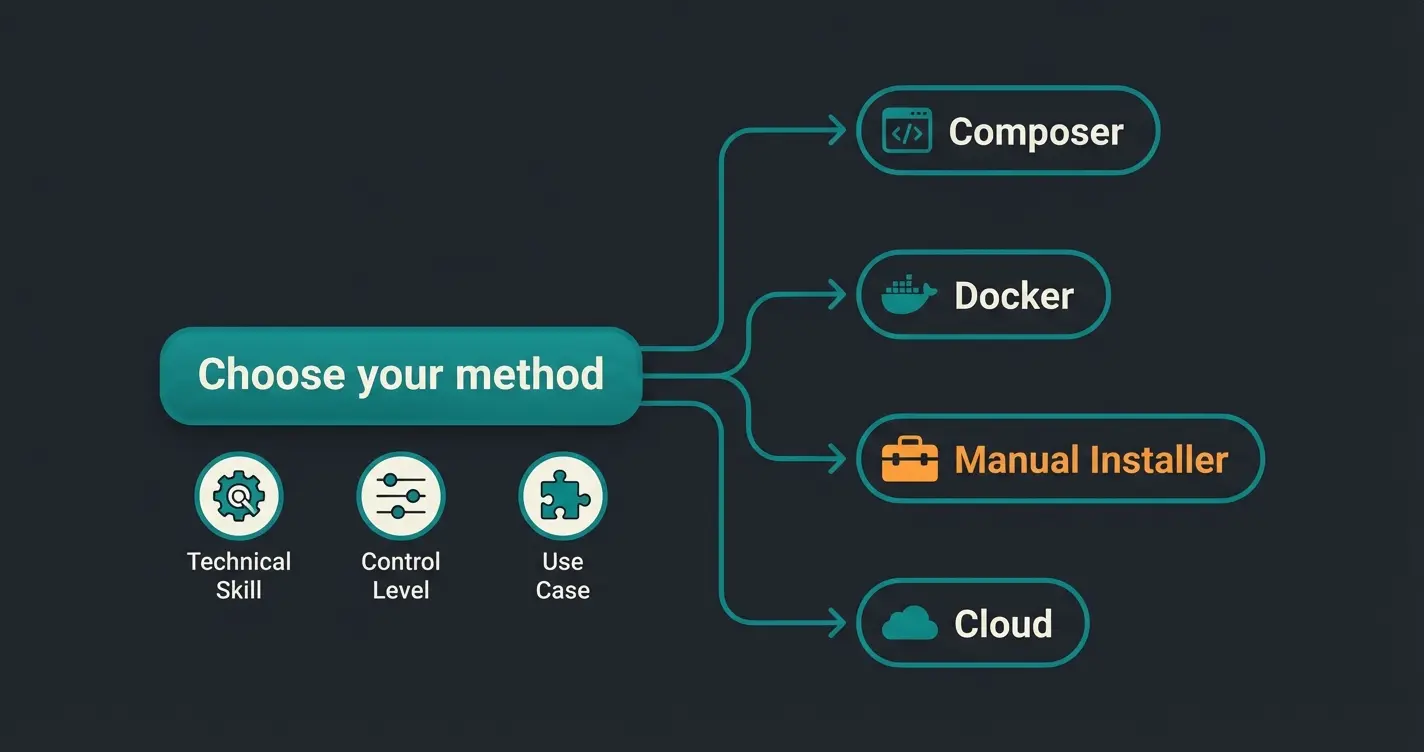
Docker isolates the full stack in containers, whereas a Composer install runs directly against your server's PHP and MySQL. Shopware Cloud removes server maintenance entirely, while a self-hosted install keeps full control over the stack and your data. And the manual installer needs no terminal, whereas Composer and Docker both assume command-line access.
Installation via Composer (recommended)
Install Shopware 6 with Composer by running `composer create-project shopware/production your-shop`, editing the database credentials in `.env`, then running `bin/console system:install --create-database`. This Symfony Flex based method is Shopware's recommended path for production and developer environments, and it is the setup used in current 6.7.12.1 projects.
The official Shopware documentation is explicit about the approach: for new Shopware 6.5 or later projects, it encourages 'the use of the Symfony Flex approach whenever possible.' Composer integrates with Git and CI/CD pipelines, which is why every serious production deployment relies on it rather than a manual upload.
Step-by-step Composer installation
- Verify your PHP version and extensions: `php -v` and `php -m`
- Create the project: `composer create-project shopware/production your-shop-name`
- Navigate to the project directory: `cd your-shop-name`
- Copy and configure environment variables: `cp .env.example .env` and edit the database credentials
- Run the installer script: `./bin/console system:install --create-database --basic-setup`
- Set up the web server (Apache or Nginx) to point to the `/public` directory
- Access the admin panel at `https://your-domain.com/admin` with the default credentials
# Create a new Shopware project
composer create-project shopware/production your-shop-name

# Navigate to the project
cd your-shop-name

# Configure environment
cp .env.example .env
# Edit .env: set DATABASE_URL, APP_URL, APP_SECRET

# Install Shopware
./bin/console system:install --create-database --basic-setup

# Build the storefront and admin assets
./bin/build-js.shInstallation via Docker
For local development, run Shopware 6 in Docker with the official dev image: pull `ghcr.io/shopware/docker-dev`, start the stack with `docker compose up -d`, and open `localhost:8000`. PHP, MySQL, and Node.js all run isolated in containers, so you need no local PHP install. The first build takes two to five minutes.
Docker is the fastest route to a working Shopware environment on your machine. For a deeper look at container configuration, volumes, and port mapping, see our Shopware Docker setup guide. The official image on Shopware Docker Hub bundles PHP, Composer, Node.js, and a Caddy web server, and it scaffolds a full project with a compose file and Makefile so you can drive the environment with `make` commands.
- Install Docker Desktop (macOS/Windows) or Docker Engine (Linux)
- Run the setup command to create a new project with all dependencies included
- Wait for the containers to build and start (first run takes 2-5 minutes)
- Access the storefront at `http://localhost:8000` and admin at `http://localhost:8000/admin`
# Create a new Shopware project using the official dev image
docker run --rm -it \
  -v "$PWD":/var/www/html \
  ghcr.io/shopware/docker-dev:latest \
  new-shopware-setup 6.7.12.1

# Navigate to the created directory
cd new-shopware-setup

# Start the containers
docker compose up -d

# Storefront: http://localhost:8000
# Admin: http://localhost:8000/adminInstallation via manual installer
The manual installer is the simplest method for shared hosting: download `shopware-installer.phar.php` from shopware.com, upload it via FTP, open your domain in a browser, and follow the web-based wizard. No command line is required. That makes it the right choice for non-technical users and quick demos.
Grab the installer from the Shopware download page, drop it in your web root, and the wizard walks you through language, license, and database credentials. It works well for proof-of-concept setups and environments without CLI access. For a production shop that needs regular updates, Composer remains the better long-term choice because it manages dependencies cleanly.
- Download `shopware-installer.phar.php` from shopware.com/download
- Upload the file to your web server root directory via FTP or file manager
- Open `https://your-domain.com/shopware-installer.phar.php` in your browser
- Follow the wizard: select language, accept license, enter database credentials
- Wait for the installation to complete (5-15 minutes depending on server speed)
- Delete the installer file after successful installation for security
Post-installation steps
After installing Shopware, complete five first-run tasks: create an admin user, configure your first sales channel, install a theme, enable HTTP caching, and set up SSL. Then schedule regular backups and updates before you send real traffic to the store. These steps apply no matter which install method you used.
- Configure your sales channel: Set up your storefront domain, languages, currencies, and payment/shipping methods in the admin panel
- Install and activate a theme: The default theme works, but most shops need a custom or third-party theme
- Set up SSL: Configure HTTPS and force SSL redirects. Update `APP_URL` in `.env` to use `https://`
- Configure caching: Enable HTTP cache and configure Redis for session and cache storage for better performance optimization
- Set up scheduled tasks: Configure a cron job for `bin/console scheduled-task:run` and `bin/console messenger:consume` to process background jobs
- Create a backup strategy: Set up regular database and file backups before going live. A reliable Shopware backup process protects against data loss during updates and plugin installations
- Update to the latest patch version: Run `composer update` to stay on current security patches. See our Shopware update guide for details
If this install is part of a larger move from another platform, treat it as one piece of a full Shopware relaunch that also covers data migration, redirects, and SEO. And once the store is live, an AI customer service employee can answer order, shipping, and product questions in under 10 seconds, which keeps your team out of the inbox from day one.
Troubleshooting common installation errors
The most common Shopware install failures are PHP version mismatches, an exhausted `memory_limit`, wrong file permissions on `var/` and `public/`, and database connection errors in `.env`. Each is fixable by aligning the server config with the requirements table above. Setting `memory_limit` to 512M alone prevents the single most frequent failure.
| Error | Cause | Solution |
|---|---|---|
| Allowed memory size exhausted | PHP memory_limit too low | Set `memory_limit = 512M` in php.ini (1024M for theme compilation) |
| Class not found or extension missing | Required PHP extension not installed | Run `php -m` to check. Install missing extensions via `apt install php8.3-[ext]` |
| SQLSTATE connection refused | Database not running or wrong credentials | Verify `DATABASE_URL` in `.env`. Test connection with `mysql -u user -p` |
| Permission denied on var/cache | Web server cannot write to cache directory | Run `chmod -R 775 var/ public/` and set correct ownership for the web-server user |
| Node.js version mismatch | Wrong Node.js version installed | Install Node.js 20 LTS via nvm: `nvm install 20 && nvm use 20` |
| Composer out of date | Composer version below 2.2 | Run `composer self-update` to get the latest stable version |
When to hire a developer
Hire a Shopware developer when you need custom plugins, a headless or API-driven frontend, multi-channel setups, or ERP integrations. A standard single-store install rarely needs one. Complex product catalogs, custom checkout logic, and third-party integrations are the point where a DIY setup stops paying off.
A standard install is straightforward. But once you need custom plugins, ERP integrations, or a headless Shopware architecture with Shopware Frontends built on the Shopware API, the complexity jumps. At that point an experienced Shopware developer or Shopware programmer saves time and prevents costly rework. If your catalog is consultation-heavy, AI product consultation can turn that product data into real-time advice: lawn-care retailer Rasendoktor reached 16x ROI with fully automated advice after connecting its shop.
FAQ
Yes. Shopware's open-source Community Edition installs and runs with no license cost. The commercial editions (Rise, Evolve, Beyond) require a subscription and add features like advanced search, extended CMS tools, and the AI Copilot.
Shopware 6 requires PHP 8.2 as the minimum, with 8.3 recommended. PHP 8.4 is supported since Shopware 6.7 (May 2025), and the current 6.7.12.1 release runs on all three. Check the official Shopware system requirements before installing.
Yes, using the manual web installer. Shared hosting often caps memory and restricts PHP config, though, so for a production shop with real traffic a VPS or dedicated server with at least 4 GB RAM is the safer baseline.
The install itself takes 5 to 15 minutes depending on method and server speed. Composer and Docker are faster because they automate dependency resolution; the manual installer adds upload time. Post-install configuration (sales channels, theme, caching) adds another 30 to 60 minutes.
Composer is the standard for production. It integrates with Git, supports reproducible builds, and makes updates predictable, while Docker is best for development and staging and needs extra hardening for production use.
Once your shop is running, an AI employee uses your product data to advise customers in real time, lift cart values by up to 35%, and handle support around the clock. No coding required, it connects via the Shopware API.
Book a free demo
Kevin is CTO and co-founder of Qualimero. As an AI architect with over 15 years of experience as CTO and CPO in the tech industry, he designs the AI systems that automate tens of thousands of customer interactions daily for Qualimero's clients — reliably, securely, and at scale.