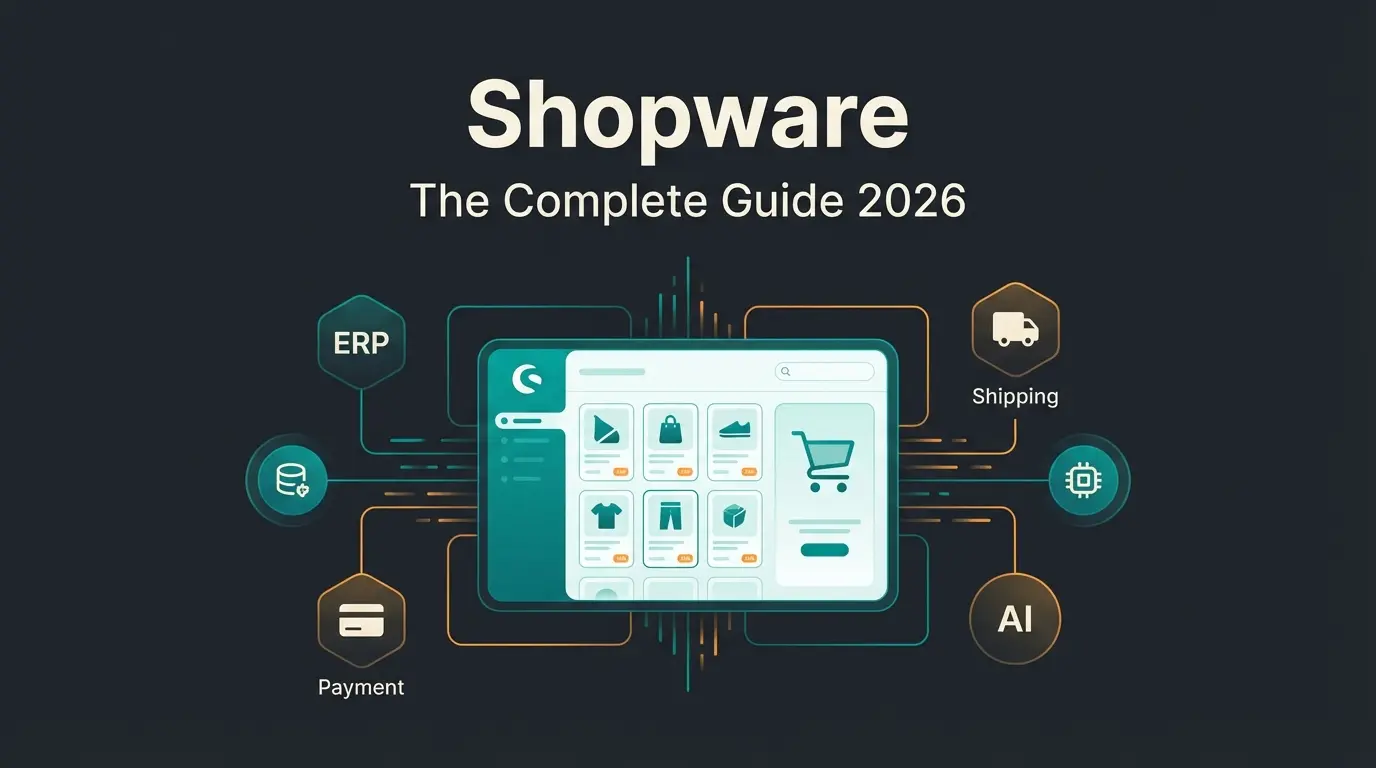
If you are evaluating ecommerce platforms, Shopware keeps showing up on comparison lists next to Shopify, WooCommerce, and Magento. Most of what you find online comes from two sources: Shopware's own marketing, or Wikipedia. Neither gives you an honest picture of where the platform excels and where it falls short. I have worked with dozens of Shopware merchants over the past years. This is the guide I wish had existed when I started. For the broader ecosystem and related guides, see our complete Shopware guide.
What is Shopware?
Shopware is an open-source ecommerce platform built on PHP and the Symfony framework, developed in Germany and used by over 100,000 merchants worldwide for B2C and B2B online stores. It offers full source code access, an API-first architecture, and a built-in content management system called Shopping Experiences that lets merchants create storefronts without a separate CMS.
The company was founded in 2000 in Schoppingen, a small town in North Rhine-Westphalia. The current major version, Shopware 6, launched in 2019 as a complete rewrite on Symfony and Vue.js. That rewrite was not cosmetic. It replaced the entire codebase, introduced an API-first architecture, and added the Flow Builder for workflow automation. You can find the full technical documentation on the official Shopware website.
Globally, Shopware is a niche player. According to 6sense, roughly 30,600 live stores run on the platform, and 80.7% of those are in Germany. But in the DACH region, the picture changes completely. Shopware's own press data shows that 11.5% of Germany's top 1,000 highest-revenue B2C online shops use Shopware, making it the market leader for the fourth consecutive year as of 2026.
What sets Shopware apart from other open-source options is its focus on content-driven commerce. WooCommerce is a plugin bolted onto WordPress. Magento is a powerful but heavy enterprise system. Shopware sits between them: purpose-built for ecommerce, with a native CMS that handles marketing content, product storytelling, and landing pages without external tools.
Key features and capabilities
Shopware 6 offers a drag-and-drop CMS called Shopping Experiences for building storefronts without code, workflow automation through Flow Builder, flexible rule-based pricing, native B2B components, and an API-first architecture that supports headless commerce. Design customization goes deep, from theme-level changes to individual CMS block layouts.
Rather than listing every function, here are the capabilities that matter when you are deciding whether to build on this platform.
| Feature | What it does | Why it matters |
|---|---|---|
| Shopping Experiences (CMS) | Drag-and-drop page builder for storefronts, landing pages, and product layouts. Sections, blocks, and elements are fully customizable. | Create marketing content without developers. Comparable to standalone page builders, but natively integrated with your product catalog. |
| Flow Builder | Visual automation engine for order processing, stock alerts, customer tagging, email triggers, and custom workflows. | Replace manual processes. One merchant automated 23 post-order steps that previously required two full-time employees. |
| Rule Builder | Define business rules for pricing, shipping, promotions, customer groups, and display logic. | Handle complex B2B pricing natively. Tiered discounts, customer-specific prices, quantity breaks, all without plugins. |
| API-first architecture | Store API (frontend) and Admin API (backend) for headless commerce, ERP connections, and third-party integrations. | Connect to any frontend framework, ERP, CRM, or external service. As Shopware's developer documentation states: Shopware is an API-first, open-source ecommerce platform. |
| AI Copilot | AI-powered tools for product descriptions, image alt text generation, review summaries, and content translation. | Backend efficiency for content creation tasks. Available in Rise, Evolve, and Beyond editions. |
| B2B Components | Quick orders, quote requests, budgets, approval workflows, employee management, customer-specific catalogs. | Native B2B without third-party plugins. Available in Evolve and Beyond editions. |
| Design customization | Theme manager, template inheritance, custom CSS/SCSS, drag-and-drop layout builder, CMS block library. | Full storefront control. Merchants customize without touching code. Developers extend without overwriting core files. |
Shopping Experiences: the CMS that sells
Shopping Experiences is not just a page builder. It is the core of how Shopware approaches content-driven commerce. The system uses a three-level hierarchy: pages contain sections, sections contain blocks, and blocks contain elements. A product detail page, a category listing, a seasonal landing page, and your homepage all use the same system.
What makes this practically useful: a marketing team can create a Black Friday campaign page with product grids, countdown timers, image galleries, and embedded video without filing a development ticket. The CMS blocks are pre-built and drag-and-drop. Custom blocks can be developed once and reused across the entire store. According to Shopware, the platform ships with over 40 native CMS element types, and the extension store adds hundreds more.
Design customization beyond themes
Shopware's theme system uses template inheritance. You start with a base theme, create a child theme, and override only the parts you want to change. This matters because Shopware updates do not break your customizations, as they would in a system where you modify core templates directly.
For non-developers, the Shopping Experiences CMS handles most visual changes. For developers, the combination of Twig templates, SCSS variables, and the plugin system allows deep customization without forking the core. Shopware 6.7 (released May 2026) added Vite as the build tool, replacing Webpack. Build times dropped from minutes to seconds, which matters when you are iterating on storefront designs.
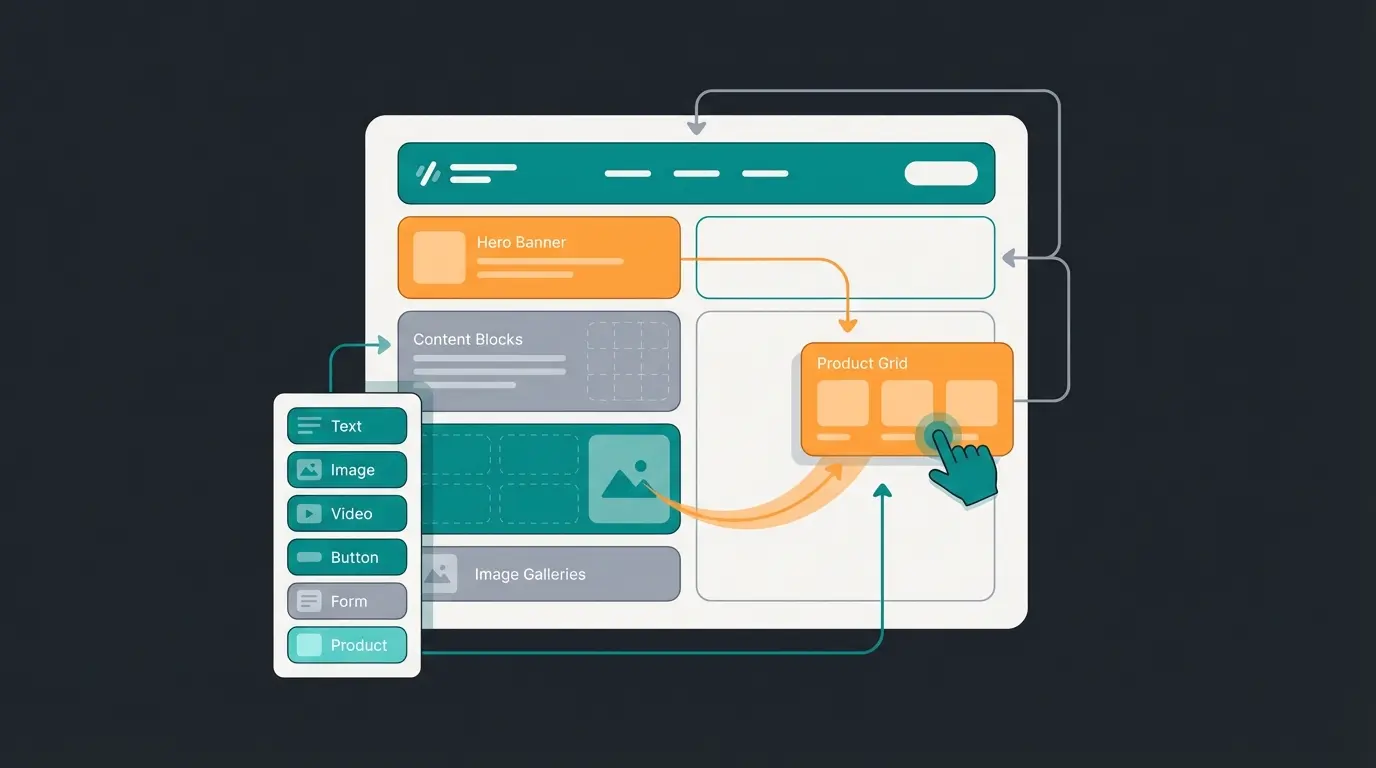
The honest assessment: Shopware's design flexibility sits between Shopify (limited but easy) and Magento (unlimited but complex). You can accomplish most storefront changes without a developer. But if you want a truly custom frontend, the headless API approach gives you full freedom at the cost of building your own presentation layer.
Agencies, integrators, and solution providers globally
Market leader in Germany for four consecutive years. Source: Shopware press release
Product management in Shopware
Shopware provides a comprehensive product management system supporting simple products, variant products, digital goods, and subscription models, all manageable through the admin panel or the Admin API. The system handles everything from single-item listings to complex variant matrices with hundreds of combinations.
Product creation starts in the admin panel under Catalogues > Products. You fill in the basics: name, product number, price, tax rate, stock. Save once, and additional tabs appear for specifications, variants, cross-selling, SEO settings, and layout assignment. The workflow is sequential and logical, though the number of options can feel overwhelming if you are coming from a simpler platform like Shopify.
Variants are where Shopware gets interesting. You define property groups (size, color, material) and generate variant combinations automatically. Each variant can have its own price, stock level, product number, and images. Bulk editing lets you update hundreds of variants at once, which saves hours when managing a catalog with, say, 50 products in 4 sizes and 6 colors. That is 1,200 individual SKUs.
- Simple products with individual pricing, stock tracking, and media
- Variant products with automatic combination generation from property groups
- Digital products like eBooks, software licenses, and downloads, delivered automatically after purchase
- Product streams that auto-populate category pages based on rules (price range, tags, properties)
- Cross-selling groups for upselling and related product recommendations
- Bulk import/export via CSV or API for large catalog migrations
One detail that matters in practice: Shopware's product properties are separate from variant-generating properties. You can attach filterable properties (weight, wattage, compatibility) without creating new variants. This distinction sounds minor but prevents the variant explosion that plagues merchants on platforms where every attribute creates a new SKU.

Shopware editions and pricing
Shopware offers four editions: Community (free and open-source), Rise, Evolve, and Beyond. Each adds enterprise features like advanced B2B tools, AI capabilities, and higher support tiers. The right edition depends on your revenue, your technical team, and whether you need native B2B functionality.
| Edition | Price | Best for | Key additions |
|---|---|---|---|
| Community | Free (up to EUR 1M GMV) | Startups, developers, small shops | Full platform, self-hosted, community support only |
| Rise | From EUR 600/month | Growing B2C merchants | AI Copilot, Flow Builder Pro, official support (8h response) |
| Evolve | From EUR 2,400/month | B2B merchants, mid-market | B2B Components, Advanced Search, phone support (4h response) |
| Beyond | From EUR 6,500/month | Enterprise, multi-brand | Digital Sales Rooms, Multi-Inventory, 24/7 support (1h response) |
A significant change in 2026: the Fair Usage Policy now caps the Community Edition at EUR 1 million GMV per year. Shops exceeding that threshold must upgrade to Rise. This effectively ends the model where large merchants could run entirely for free. If you are starting small, the Community Edition remains genuinely free and fully functional. For a detailed breakdown, see our guide on the Shopware free edition.
For most B2C merchants doing under EUR 5 million annually, Rise offers the best value. The jump to Evolve only makes sense when you need B2B Components or Elasticsearch-powered search. Beyond is for enterprises requiring 24/7 SLA support or Digital Sales Rooms. For licensing specifics, our Shopware License Models guide covers every detail.
Data privacy and GDPR compliance
Shopware is built with GDPR compliance as a core design principle, offering native cookie consent management, customer data export and deletion tools, and privacy-by-design architecture that meets European data protection requirements without third-party plugins. For DACH-region merchants, this is not a nice-to-have. It is a legal requirement with real financial consequences.
The numbers make the stakes clear. The DLA Piper GDPR Fines and Data Breach Survey (January 2026) found that European data protection authorities issued EUR 1.2 billion in GDPR fines during 2025 alone. As the report notes: "For the first time since the GDPR came into force, average daily breach notifications have exceeded 400, with an increase of 22% year-over-year." Cumulative fines since May 2018 now exceed EUR 7.1 billion.
Shopware addresses compliance at multiple levels. The platform includes a native cookie consent banner that meets EU ePrivacy requirements. Customer accounts support data export (Article 15 GDPR) and data deletion (Article 17 GDPR) directly from the admin panel. Newsletter signups use double opt-in by default. Order data can be anonymized after configurable retention periods. For deeper cookie management customization, our guide on Shopware cookie consent covers the implementation details.
- Cookie consent banner built into the core, configurable without plugins
- Customer data export/deletion for GDPR Articles 15 and 17 compliance
- Double opt-in for newsletters and marketing communication
- Order data anonymization with configurable retention periods
- Data processing agreements (Auftragsverarbeitungsvertrge) available for commercial editions
- EU hosting options through Shopware Cloud or self-hosted on European infrastructure

Who should use Shopware?
Shopware is ideal for mid-market merchants in the DACH region, B2B companies needing complex pricing and approval workflows, and businesses wanting open-source flexibility with full data ownership. It is not the right choice for everyone, and pretending otherwise would waste your time.
After years of working with merchants on the platform, the pattern is clear. Shopware works best when you have at least some technical resources, either in-house or through an agency. It works best when your business needs cannot be met by a fully hosted solution like Shopify. And it works best when you operate in or sell to the European market, where GDPR compliance, German-language support, and local payment methods matter.
| Shopware is ideal for | Shopware is not ideal for |
|---|---|
| DACH-region merchants wanting a German platform with local support and native compliance | Very small shops that need to launch in a day (Shopify is simpler and faster) |
| B2B companies needing native quote requests, budgets, and multi-level approval workflows | Merchants with zero technical resources and no budget for an agency |
| Mid-market businesses (EUR 500K to EUR 50M revenue) wanting open-source flexibility | Massive global enterprises already running SAP Commerce or Salesforce Commerce Cloud |
| Companies needing deep customization, headless architecture, or full data ownership | Dropshipping businesses looking for plug-and-play simplicity |
| Businesses with consulting-intensive products requiring rich product content | Merchants who prefer fully managed SaaS with zero hosting decisions |
One pattern I see repeatedly: merchants with consulting-intensive products, think garden supplies, technical equipment, specialty food, get the most value from Shopware's content capabilities. The Shopping Experiences CMS lets them build product guides, comparison pages, and educational content directly in the shop. When you add an AI-powered product advisor on top of that content, the combination is powerful. Our client Rasendoktor, an online lawn care specialist on Shopware, achieved a 16x return on investment by combining rich product content with AI-driven consultation.
Shopware vs other platforms
Compared to Shopify, WooCommerce, and Magento, Shopware stands out for its native B2B capabilities, DACH-market optimization, and the balance between open-source flexibility and built-in features. Every platform involves trade-offs. Here is how Shopware compares on the dimensions that actually matter for your decision.
| Dimension | Shopware | Shopify | WooCommerce | Magento/Adobe Commerce |
|---|---|---|---|---|
| Type | Open source + commercial | SaaS (fully hosted) | Open source (WordPress plugin) | Open source + commercial |
| Hosting | Self-hosted or Shopware Cloud | Fully managed by Shopify | Self-hosted | Self-hosted or Adobe Cloud |
| Starting price | Free (Community) | USD 39/month | Free (plugin cost) | Free (Open Source) |
| Native B2B | Yes (Evolve and Beyond) | Limited (Shopify Plus only) | Via plugins only | Yes (Adobe Commerce) |
| Built-in CMS | Shopping Experiences (full page builder) | Basic pages and blog | WordPress CMS (separate) | Page Builder (separate module) |
| API/Headless | API-first (Store API + Admin API) | Storefront API + Admin API | REST API | GraphQL + REST API |
| DACH optimization | Native (German company, EU compliance) | Limited (US-centric) | Via plugins | Via configuration |
| Learning curve | Medium-high | Low | Medium | High |
| Best for | DACH mid-market, B2B | Global B2C, fast launch | Small shops, content sites | Large enterprise, complex B2B |
Choose Shopware over Shopify when you need source code access, European data residency, or native B2B features without paying for Shopify Plus. Choose Shopware over WooCommerce when you need a purpose-built ecommerce platform rather than a WordPress plugin that can break with theme updates. Choose Shopware over Magento when you want similar flexibility with lower implementation complexity and stronger community support in the DACH region. For a deeper comparison with specific benchmarks, see our ecommerce platform comparison.
Shopware extensions and ecosystem
The Shopware Store offers over 3,000 extensions covering payments, shipping, marketing, analytics, ERP integration, and specialized functionality. The ecosystem is supported by more than 1,200 certified agencies and technology partners, with the strongest concentration in Germany, Austria, and the Netherlands.
As Ben Marks, Shopware's Director of Global Market Development, explained at EVOLVE Summit 2024: "Shopware is effectively a turnkey solution that provides the ease of a SaaS platform but with enterprise extensibility." That description captures the positioning well. The extension store is where that extensibility becomes practical.
Extensions come in two architectures. Classic plugins run as PHP code on your server, integrating deeply with Shopware's internals. Apps run externally as cloud services communicating via API. The distinction matters for performance: plugins can slow down your store if poorly coded, while apps run on their own infrastructure. Shopware is pushing merchants toward the app model, and for good reason.
The partner ecosystem is where Shopware's DACH dominance shows. Finding a certified Shopware agency in Germany is easy. Finding one in the US or Asia is harder. This geographic concentration is both a strength (deep local expertise, German-language support) and a limitation (global projects may struggle to find qualified partners). The annual Shopware Community Day brings several thousand developers and merchants together, and the open-source contribution model keeps the platform evolving through community input.
One gap worth acknowledging: Shopware's AI capabilities are currently backend-focused. The AI Copilot helps merchants write product descriptions and generate alt text. For frontend AI, like intelligent product consultation that guides customers to the right product in real time, merchants rely on specialized solutions. That is where platforms like Qualimero come in, turning product data into automated, personalized advice that works 24/7.
Getting started with Shopware
Getting started with Shopware takes three steps: create a free Shopware account, choose your edition (Community or commercial), and either use Shopware Cloud or set up self-hosting on your own infrastructure. The process is straightforward but involves more decisions than a hosted platform like Shopify.
- Create your Shopware account. Register at shopware.com. This is your central hub for licenses, downloads, extensions, and support. Our Shopware account setup guide walks through the details.
- Try the demo first. Before committing to hosting and configuration, explore the admin panel and storefront in a Shopware 6 demo environment. No installation required.
- Choose your edition. Start with Community for testing and small projects. Move to Rise when you need official support and AI Copilot. The edition decision can change later, so do not overthink it at the start.
- Set up hosting. Shopware 6 requires PHP 8.2+, MySQL 8.0+ or MariaDB 10.11+, and a web server (Apache or Nginx). Self-host, use Shopware Cloud, or pick a specialized hosting provider like maxcluster or Hetzner.
- Install and configure. Download from shopware.com or install via Composer. The setup wizard handles database connection, admin account creation, and basic settings. Our guide on building your online shop with Shopware covers the full configuration process.
- Build your store. Set up products, categories, payment methods, shipping rules, and storefront design using Shopping Experiences. For agency support during setup, see our overview of Shopware development services.
If you want to explore the setup process in more detail, our guide on creating a Shopware store covers every step from installation to first sale.

Shopware history and background
Shopware was founded in 2000 in Schoppingen, Germany by Stefan Hamann, evolving from a small regional ecommerce solution to a platform serving over 100,000 merchants across Europe. For the full historical record, Wikipedia's Shopware entry covers the corporate timeline.
The platform went through several transformative versions. Shopware 4 and 5 established it as the DACH ecommerce leader, competing directly with Magento and OXID. Shopware 5 introduced the Emotion shopping worlds concept. Official Shopware 5 support ended in July 2024, pushing the remaining merchants to migrate.
Shopware 6 (2019) was the biggest bet in the company's history. A complete rewrite. New framework (Symfony), new admin (Vue.js), new API-first philosophy. The migration from 5 to 6 required full data and template migrations, not simple updates. As of 2026, Shopware 6.7 delivered the next major technical shift: Vue 3 replaced Vue 2, Vite replaced Webpack, state management moved from Vuex to Pinia, and European Accessibility Act compliance was built into the default theme. Shopware 6.8 is planned for 2027, with a focus on agentic AI capabilities.
Stefan Hamann starts the company in Schoppingen, North Rhine-Westphalia.
Establishes significant market share in the DACH ecommerce market.
Emotion shopping worlds, solidified as DACH market leader.
Complete rewrite on Symfony/Vue.js. API-first architecture introduced.
Official support ends July 2024. AI Copilot launched in Shopware 6.5.
Vue 3, Vite, EAA compliance. Biggest technical update since the 6.0 launch.
FAQ
The Community Edition is free and open source. Since 2026, Shopware's Fair Usage Policy limits free usage to EUR 1 million GMV per year. Shops exceeding this must upgrade to a commercial plan starting at EUR 600/month (Rise edition).
No. Shopify is a fully hosted SaaS platform where Shopify manages everything. Shopware is open-source, giving you full control over code, hosting, and data. Shopware offers deeper customization and native B2B features, while Shopify offers simplicity and faster setup.
Shopware is used to build and run online stores for both B2C and B2B commerce. It handles product catalogs, payment processing, shipping, content marketing, and multi-channel selling. It is especially popular among mid-market merchants and B2B companies in the DACH region.
Shopware includes a built-in CMS called Shopping Experiences, but it is primarily an ecommerce platform. The CMS component lets merchants create landing pages, product storytelling, and marketing content without a separate system like WordPress.
Yes. Shopware 6 fully supports English for both the admin panel and the storefront. The platform, documentation, and developer community all operate in English alongside German. Multi-language storefronts are supported natively.
Shopware provides native GDPR tools including cookie consent management, customer data export (Article 15), data deletion (Article 17), double opt-in for newsletters, and order data anonymization. However, compliance also depends on your specific configuration, hosting, and third-party plugins.
Go to Catalogues > Products in the admin panel, click 'Add product,' and enter the required fields (name, product number, price, tax rate). After saving, additional tabs appear for variants, specifications, cross-selling, SEO, and layout. Bulk import via CSV or API is available for large catalogs.
Yes, at multiple levels. The Shopping Experiences CMS offers drag-and-drop page building without code. Theme inheritance lets developers customize templates without modifying core files. For full control, the headless API supports completely custom frontends built in any framework.
The verdict
Shopware is a serious ecommerce platform for merchants who want control. Not the easiest to set up. Not the cheapest to run. But for businesses that need open-source flexibility, native B2B capabilities, GDPR compliance out of the box, and a strong ecosystem in the DACH region, it is one of the best options available in 2026.
The platform keeps evolving. Shopware 6.7 brought the biggest technical overhaul since the 6.0 launch. Version 6.8 promises agentic AI. The investment in Shopware today is an investment in a platform that is actively building for the next generation of commerce.
Shopware handles the platform. But converting visitors into buyers requires intelligent product consultation. Our merchants see 7x higher conversion rates and +35% cart value when an AI employee advises customers in real time.
Book a free demo
Lasse is CEO and co-founder of Qualimero. After completing his MBA at WHU and scaling a company to seven-figure revenue, he founded Qualimero to build AI-powered digital employees for e-commerce. His focus: helping businesses measurably improve customer interaction through intelligent automation.