
Why This Shopware Update Is Different: Performance & AI
A Shopware update is a double-edged sword for many e-commerce managers and store operators. On one side, there are enticing promises: new features, closed security gaps, and performance boosts. On the other side lurks the fear of the "White Screen of Death," incompatible plugins, and revenue losses from downtime.
However, in 2025, the perspective has shifted. An update is no longer just a tedious maintenance chore—it's a decisive step toward Performance Enablement. Particularly with the jump to Shopware 6.6, massive changes have occurred under the hood: the architecture has been streamlined, JavaScript loads asynchronously, and the administration is significantly more reactive thanks to Vue 3, according to Shopware.
Why does this matter? Because modern e-commerce tools—especially AI-powered product consultants and chatbots—require a performant, API-first infrastructure. An outdated shop is like a sports car with the handbrake engaged: it can't bring the horsepower of modern AI tools to the road. Understanding these Shopware AI features becomes essential for maximizing your store's potential.
In this guide, we'll not only lead you safely through the technical update process but also show you how to use this process to make your shop fit for the era of "Smart Commerce."
The Technical Leap: What Shopware 6.6 Changes
Before we dive into the console, we need to clarify the "why." Many guides treat updates purely technically. But the update to Shopware 6.6 (and subsequent versions) is strategic.
Shopware 6.6 marks a hard cut in the technology base. Outdated dependencies have been removed:
- Vue 3 & Webpack 5: The administration is faster and more future-proof
- Asynchronous JavaScript: Previously, a massive `all.js` file was often loaded. Now Shopware loads JavaScript asynchronously and only where needed. This reduces JS load in the storefront by up to 20% as noted by HulkApps
- System Requirements: PHP 8.2 and Node 20 are now mandatory according to the official GitHub documentation
Less JS load in storefront through async loading
Mandatory for security and performance
Faster and more reactive administration
The Business Relevance: The AI Angle
Here lies your real opportunity. Modern AI tools (like intelligent search functions or automated product consultants) are extremely dependent on load times and clean API interfaces. When implementing AI-powered product consultation, this performance foundation becomes critical.
- Latency is the enemy of AI: If your shop is slowed down by old code, even the best AI chatbot feels sluggish. The performance improvements in Shopware 6.6 ensure that external scripts and widgets can initialize faster.
- API Stability: Newer Shopware versions offer more stable endpoints for connecting ERPs, PIMs, and AI services.
Preparation: The Do Not Skip Checklist
A successful Shopware update is 80% decided in the preparation phase. Those who cut corners here pay double later.
A. The Backup (Your Life Insurance)
It sounds trivial but is often done incorrectly. According to Shopware documentation, a "backup" means:
- File System: All files (`/public`, `/custom/plugins`, etc.)
- Database: A complete MySQL dump. Shopware itself does not create automatic backups before the update
Recommendation: Use server snapshots from your host (e.g., Timme Hosting, Profihost, or Creoline), as these can be restored in seconds in an emergency.
B. Check System Requirements (The Most Common Mistake)
With Shopware 6.6, requirements have been drastically raised. Check your server before starting the update. As ThemeWare emphasizes, older PHP versions will cause immediate crashes:
| Component | Minimum Requirement 6.6+ | Why Important? |
|---|---|---|
| PHP | 8.2 (up to 8.4 supported) | Performance & Security. Older versions lead to immediate crashes |
| Node.js | Version 20 (LTS) | Essential for building Storefront/Administration |
| MariaDB | 10.11 | Supports new JSON functions for performance |
| Redis | 7.0 | Optional but recommended for caching in large shops |
C. The Integrations Audit (Beyond Plugins)
Most guides say: "Check your plugins." We say: Check your integrations. Due to the new asynchronous JavaScript loading in Shopware 6.6, external scripts can break that rely on certain Shopware libraries being immediately available. This is especially critical for Shopware page speed optimization.
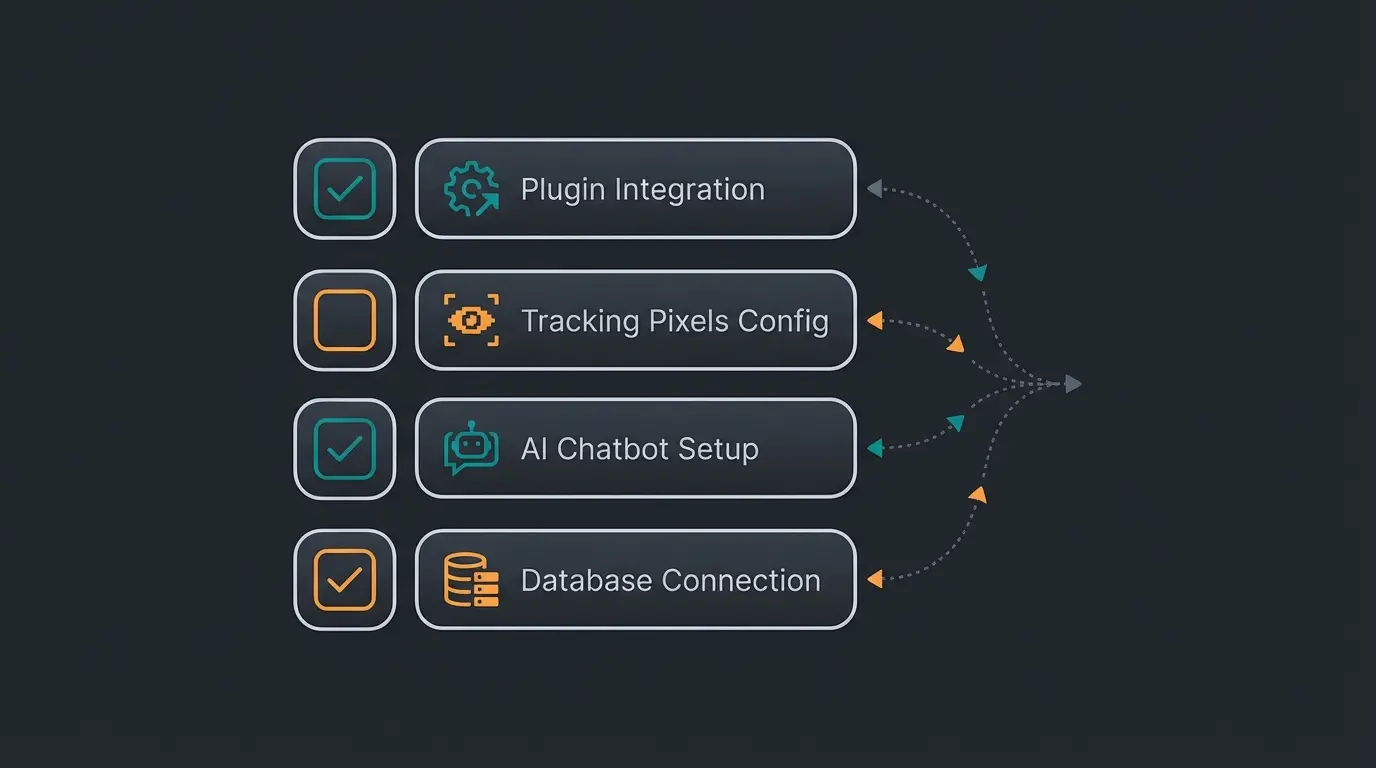
Checklist:
- Tracking Pixels (Google Ads, Meta)
- Consent Management Tools (Usercentrics, Cookiebot)
- AI Tools & Chatbots: Check if your provider officially supports Shopware 6.6
- Custom Theme adjustments in `main.js`
Update Methods Compared: Browser vs. Composer
There are three ways to perform the update. Which one is right for you? Understanding this decision is fundamental for any Shopware SEO guide implementation.
The Decision Matrix
| Method | Target Audience | Advantages | Disadvantages | Recommendation |
|---|---|---|---|---|
| Auto-Updater (Browser) | Beginners, small shops without custom code | Simple click interface in admin | Prone to timeouts (PHP max_execution_time); often problems with large databases | ⚠️ Only for very small shops |
| Shopware Installer (PHP) | Advanced users without SSH access | Bypasses some browser timeouts | Requires manual file upload; no versioning | 🆗 If SSH is not possible |
| Composer (CLI) | Professionals, agencies, large shops | Most stable method; full control; versioning via composer.lock | Requires SSH access and terminal knowledge | ✅ Gold standard |
Do you have custom plugins or theme modifications?
Use CLI for full control and stability
Large database with many products?
Browser updates often timeout
Simple shops can use browser method
Our clear recommendation: For production environments, always use Composer. The browser updater often crashes during larger database migrations, leaving the shop in an inconsistent state, as documented by Beamtic.
Step-by-Step: Shopware Update via Composer
This guide focuses on the Composer workflow as it offers the highest probability of success. This method is particularly important when you need to maintain Shopware customer support functionality throughout the process.
Prerequisite: You are logged into your server via SSH and are in the root directory of your Shopware installation.
Step 1: Preparation in Terminal
Ensure you prepare the standard files for the update. According to Werkstattl, this command prepares the database and deactivates plugins that might cause problems:
```bash # 1. Prepare system for update bin/console system:update:prepare ```
Step 2: Adjust Composer.json
Open your `composer.json` file. You need to adjust the version of `shopware/core`, `shopware/storefront`, `shopware/administration`, and `shopware/elasticsearch`.
Example for updating to 6.6: Change the versions from e.g., `6.5.*` to `6.6.0.0` (or the latest version).
Step 3: The Actual Update
Now perform the dependency update:
```bash # Update packages composer update --no-scripts ```
Note: The `--no-scripts` flag can help if scripts abort during the update due to memory errors. You'll need to trigger the scripts manually later.
Step 4: Migrations and Completion
After the files are updated, the database structure must be adjusted:
```bash # Run database migrations bin/console system:update:finish # Clear cache (Essential!) bin/console cache:clear # Compile theme bin/console theme:compile ```
Step 5: Asset Installation
Since the handling of assets has changed in Shopware 6.6, you should reinstall them:
```bash bin/console assets:install ```
Your Shopware store is now faster and more secure. Take the next step with AI-powered product consultation that converts visitors into buyers—without the wait times.
Start Free AI ConsultationThe Silent Killer: Plugin Compatibility Issues
The update has technically completed. The admin area loads. All good? Caution. Here lurks the greatest danger for your conversion rate.
The Problem with Incompatible Plugins
Shopware often deactivates plugins marked as "incompatible" during the update, as noted in the official Shopware documentation.
- The Risk: If your payment provider plugin or shipping plugin was deactivated, customers can no longer order.
- The Solution: Check `bin/console plugin:list` immediately after the update. Activate and update all plugins.
The JavaScript Trap (Async Loading)
As mentioned in Section 1, Shopware 6.6 loads JavaScript asynchronously. This is why AI Chatbots transform customer interactions need proper integration testing.
Symptom: The shop loads lightning fast, but when you click "Add to Cart" or want to open the AI consultant, nothing happens.
Cause: A plugin tries to access a function that hasn't loaded yet (Race Condition).
Verification Steps:
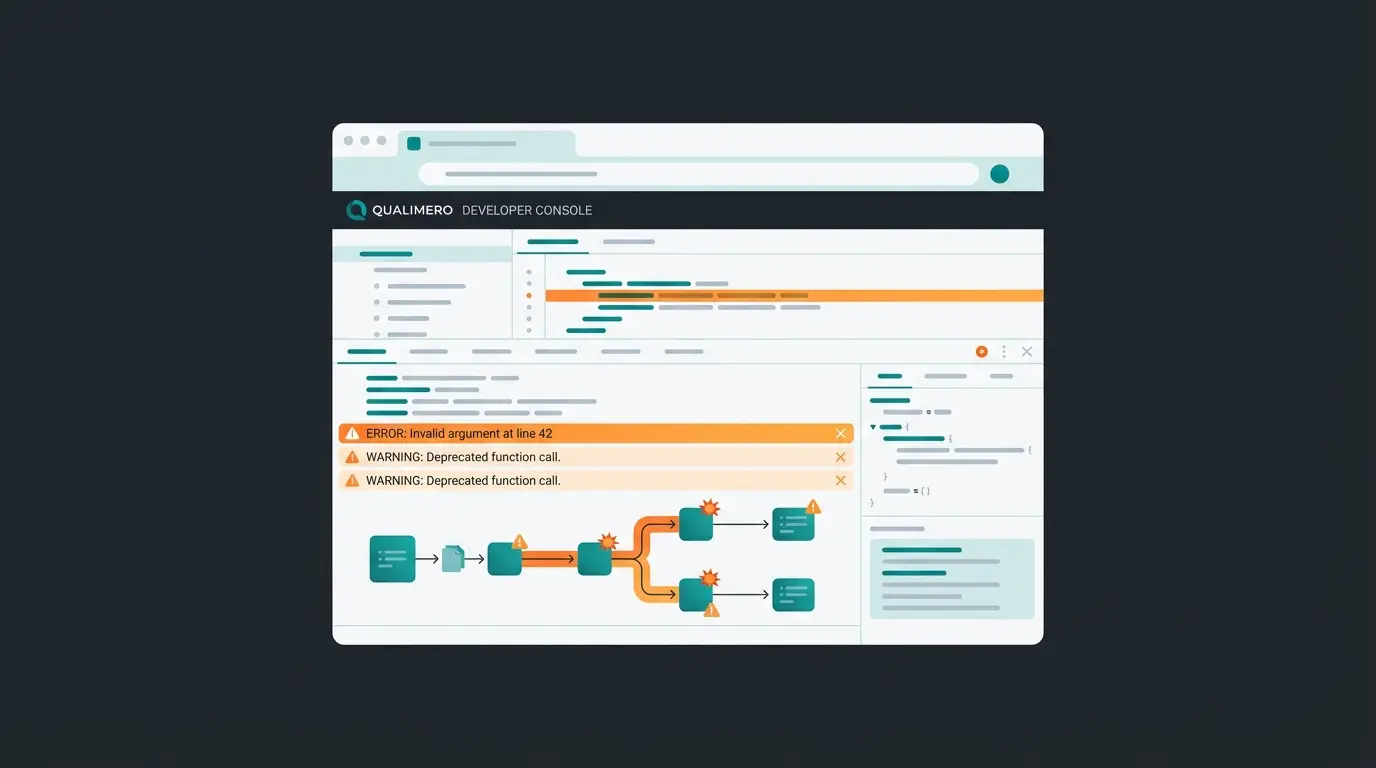
- Open the developer console in the browser (F12)
- Watch for red errors in the "Console" tab (e.g., `Uncaught ReferenceError: ... is not defined`)
- Pay special attention to errors related to `all.js` or missing Vue components, as documented by HungMac
Post-Update Health Check: Focus on User Journey
Most guides end with "clear cache." That's not enough. A technically "green" status says nothing about Business Continuity. Use this checklist for a real health check.
A. The Consultation-First Test
If you use modern tools, test these first. A broken checkout is bad, but a broken product consultant means the customer never even gets to checkout. Understanding how AI consultants boost conversions helps prioritize these tests.
- AI Widgets: Does the chat window load? Does the bot respond?
- Search: Does the search work? (Shopware 6.6 has made changes to Elasticsearch—check if the index has been rebuilt according to Shopware documentation)
- Filters: Can products be filtered on category pages? (This often relies on JavaScript)
B. The Transaction Test
Perform a real order (not a preview). This ensures AI eliminates waiting times for your customers during the actual purchase process.
- Add a product to the cart (Tests: AJAX/JS)
- Go to checkout (Tests: Login/Registration)
- Select a payment method (Tests: API connection to PayPal/Stripe etc.)
- Complete the purchase (Tests: Email sending and database write operations)
C. Visual Check (Theme)
Since Shopware 6.6 has removed outdated CSS classes and Twig blocks, design elements may have shifted:
- Check Header & Footer
- Check the Product Detail Page (PDP)—there have been changes to the gallery and buy boxes
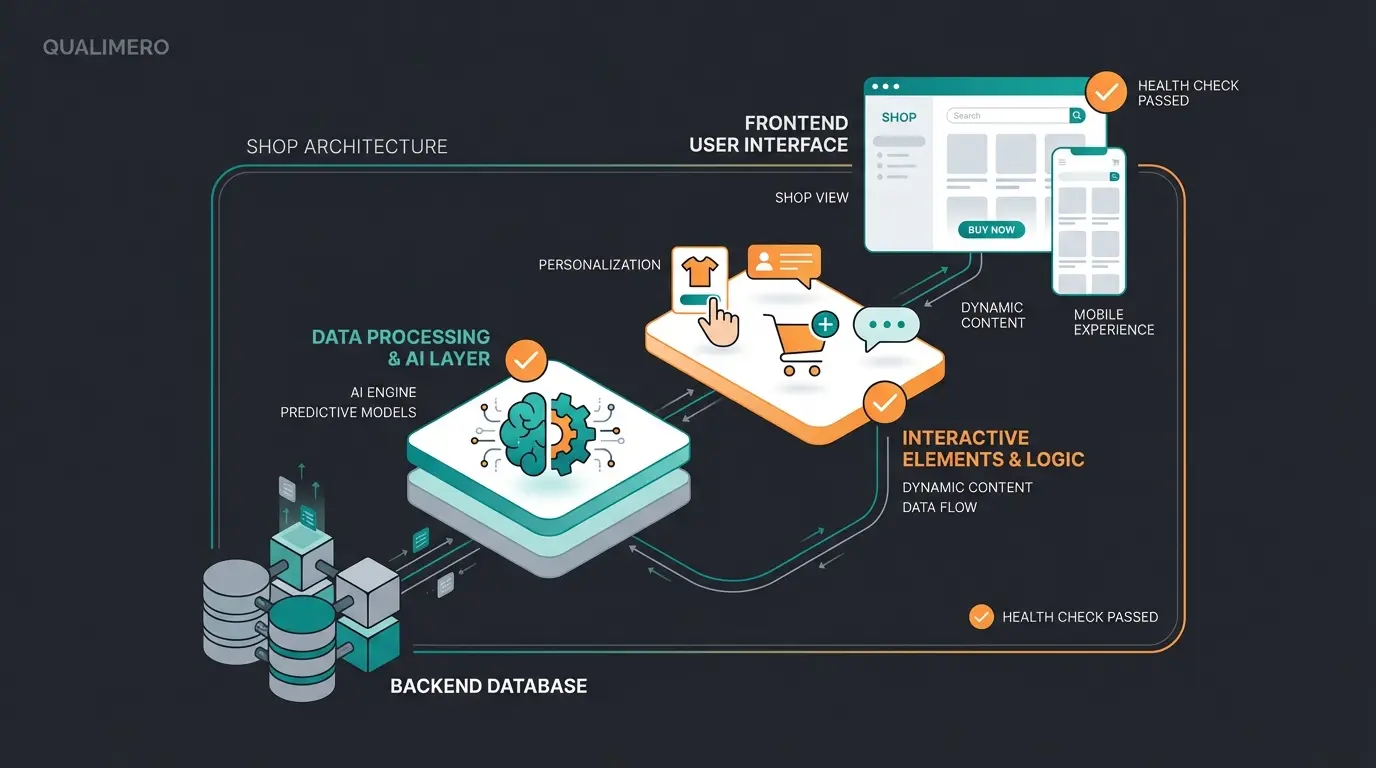
Admin access, database connections, plugin status
Visual elements, CSS, responsive design
AI chat, search, filters, add-to-cart
Full checkout process, payment, email confirmation
Shopware Update Troubleshooting: First Aid for Errors
Even with the best preparation, things can go wrong. Here are the solutions for the most common "panic moments."
Problem 1: Shop Stuck in Maintenance Mode
Symptom: After the update, you permanently see "We'll be right back" even though the update is finished.
Cause: The file or folder controlling maintenance mode wasn't deleted.
Solution: Delete the folder `/var/www/shopware/files/update/` via FTP or SSH, or look for an `update-assets` file in the root directory and remove it, as documented by Shopware support.
Alternative via CLI:
```bash bin/console sales-channel:maintenance:disable --all ```
Problem 2: 500 Internal Server Error
Symptom: White page after the update.
Cause: Usually incompatible PHP version or missing PHP extensions.
Solution:
- Check PHP version: `php -v`. For Shopware 6.6, it must be 8.2+ according to Shopware requirements
- Check the logs: `/var/log/php_errors.log` or in the Shopware folder `/var/log/prod-....log`
- Often the `memory_limit` is too low. Set it in `php.ini` to at least 512M (better 1GB for updates)
Problem 3: Class Not Found Error
Symptom: Errors like `Uncaught Error: Class "Shopware\Core\HttpKernel" not found`.
Cause: Outdated files in the `public` or `bin` folder that weren't overwritten.
Solution: Download the `public/index.php` and `bin/console` files from the official Shopware GitHub Repository (matching your version) and manually replace the files on your server.
| Error | Common Cause | Quick Fix |
|---|---|---|
| Maintenance Mode Loop | Update files not cleaned up | Delete /files/update/ folder |
| 500 Error | PHP version mismatch | Upgrade to PHP 8.2+ |
| Class Not Found | Outdated core files | Replace from GitHub |
| Memory Exhausted | Low memory_limit | Set to 1GB in php.ini |
| Plugin Errors | Incompatible versions | Update or deactivate plugins |
From Update to Upgrade: Next Steps
A Shopware update to version 6.6 or higher is more than just mandatory maintenance. It's the liberation from technical debt.
- Security: You close critical vulnerabilities
- Performance: Through asynchronous JS and PHP 8.2, your shop becomes noticeably faster—a direct lever for SEO and conversion
- Future: You create the technical foundation to seamlessly use AI tools and modern marketing integrations
Your shop is now fast and secure. But is it also smart? With AI-powered sales consultants and AI-powered product consultation, you can leverage the performance gains immediately.
After the technical foundation is in place, it's the perfect time to think about user experience. Use the gained performance to help your customers with AI-powered consultation exactly where they need it—without load time frustration.
Frequently Asked Questions About Shopware Updates
A straightforward update via Composer takes about 15-30 minutes for small to medium shops. However, factor in 2-4 hours total including preparation, backup creation, and post-update testing. Large shops with many plugins and custom code may need a full day with a staging environment.
Yes, you can update directly to the latest version without going through intermediate versions. However, read the changelogs for all skipped versions to understand breaking changes. Pay special attention to deprecated functions your plugins might use.
External AI tools may temporarily stop working during the update. After completion, verify they load correctly due to Shopware 6.6's async JavaScript loading. Contact your AI provider to confirm Shopware 6.6 compatibility and check for any required script updates.
Update the Shopware core first, then update plugins. Many plugins release compatibility updates after major Shopware releases. Running `bin/console plugin:list` after the core update shows which plugins need attention.
Restore your complete backup (files + database). This is why creating a proper backup is essential. If using server snapshots, restoration takes minutes. Without proper backups, recovery becomes extremely difficult or impossible.
You've invested in performance and security. Now invest in customer experience. Our AI-powered product consultants help customers find exactly what they need—increasing conversions and reducing support load.
Get Started With AI ConsultationAdditional Resources and Downloads
For further information on Shopware updates and best practices:
- Official Shopware Update Documentation
- Shopware 6.6 Changelog & Breaking Changes
- GitHub Shopware Repository for latest system requirements
Ready to take your shop to the next level? Explore how Automate Shopware support can reduce your team's workload while improving customer satisfaction.