
Why Your Shopware Account Is More Than Just Administration
For many shop owners, the Shopware account initially seems like nothing more than an administrative necessity—the place where invoices are stored and licenses are managed. However, this perspective fails to capture its true potential. In modern e-commerce architecture, your Shopware account serves as the central nervous system of your online business. It's not just the key to extensions and support, but the gateway to connected commerce.
Those who set up their account strategically and cleanly today are laying the foundation for tomorrow's scaling. Whether you want to connect external inventory management systems, control Shopware multi channel distribution, or—increasingly important—integrate AI-powered tools for process optimization: everything begins with a clean account structure and correct API permissions.
In this comprehensive guide, we'll take you far beyond standard documentation. We'll solve the most common technical blockers (like the notorious domain verification issue), address security questions, and show you how to make your Shopware account ready for the age of artificial intelligence. According to Shopware, proper account configuration is essential for accessing the full ecosystem of plugins and services.
Shopware ID vs. Shopware Account: Clearing the Confusion
Before we dive in, we need to clear up a common misunderstanding. In forums and older tutorials, the term "Shopware ID" still circulates frequently. Here's the definitive difference:
| Feature | Shopware ID (Legacy) | Shopware Account (Current) |
|---|---|---|
| Function | Was previously the central identifier (often username) | The central platform (SaaS) for all Shopware services |
| Login | Often done via a specific ID | Done via your email address (Shopware ID is now part of user management) |
| Scope | Limited to access only | Includes licenses, support, company master data, shop management & cloud services |
| Relevance | Outdated (but sometimes still used synonymously) | The standard for Shopware 6 and modern Shopware 5 environments |
Your Shopware account connects all services including plugins, support, and licensing
Shopware 6 is built API-first, enabling seamless external tool integration
All commercial plugins and subscriptions are managed through your account
Step-by-Step: Creating Your Shopware Account
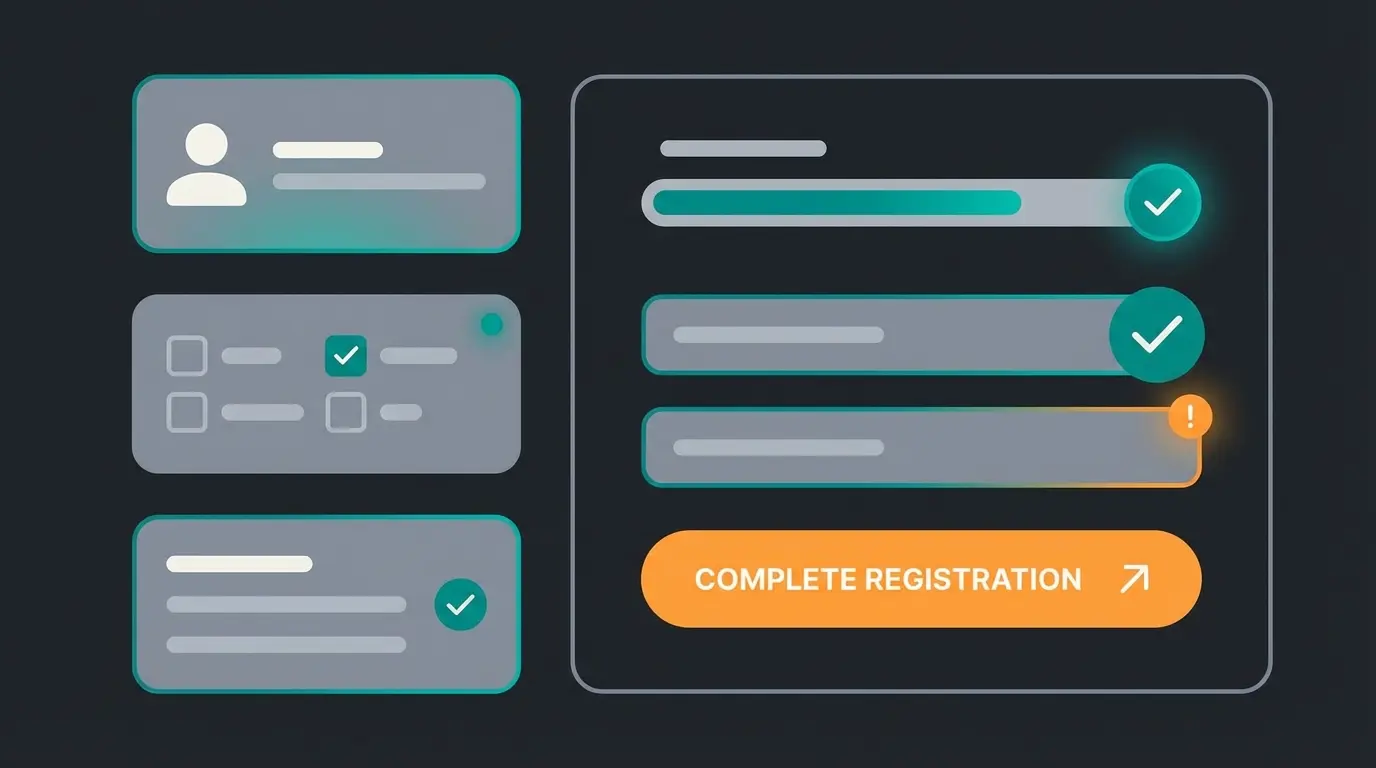
Getting started is simple, but errors in the master data can later lead to problems with billing or plugin validation. Taking a few extra minutes to ensure accuracy will save you hours of troubleshooting down the road.
The Registration Process
- Visit account.shopware.com/register
- Create Shopware ID: You'll be prompted to create a "Shopware ID." This is now effectively your personal user identifier within the ecosystem.
- Complete Master Data: Fill in all company information accurately
Pro Tip for Agencies: Never mix client data with agency data. Create a separate account for each client, which you can then be granted access to later. This keeps licensing clean and makes client handoffs seamless. For more insights on agency best practices, check out our guide on working with a Shopware agency Munich.
Why Clean Data Matters for AI Integration
When you later use AI tools for automation—such as automated tax calculations or customer support bots—these tools often pull their contextual information from your master data. An incorrect address or outdated support email in the account can cause an AI bot to direct customers to a dead mailbox. This is especially important when implementing AI sales assistants that rely on accurate business information.
According to themeware.design, many shops experience integration failures simply because their foundational account data is incomplete or inconsistent. Taking time to verify this information upfront prevents cascading errors when connecting external services.
Mastering the Biggest Hurdle: Shop Domain Verification
Analysis of search queries shows: this is where most users fail. The "Domain verification failed" status is frustrating, but usually easy to resolve once you understand the technical structure of Shopware 6.
The Verification Process in Detail
To purchase or rent plugins, Shopware needs to verify that the domain actually belongs to you. This verification ensures license compliance and prevents unauthorized plugin usage.
- Log into your Shopware Account
- Navigate to Merchant Area → Shops → Add New Shop
- Select "Register existing shop" (for self-hosted installations)
- Enter your domain (pay attention to `http` vs `https` and `www` vs `non-www`—it must match exactly!)
The Validation Method: sw-domain-hash.html
Shopware will ask you to upload an HTML file containing a hash value to your server. This file proves domain ownership and links your shop to your account.
Check if the file is accessible at your-domain.com/sw-domain-hash.html. If not, it's in the wrong folder—move it to /public
The domain was linked to another account. Contact Shopware Support at financial.services@shopware.com for release
Domain in Shopware Account doesn't exactly match shop settings (.env file or Sales Channel). Ensure exact match including www/non-www and http/https
As documented by Shopware's official troubleshooting guide, the license host verification requires exact domain matching. The system treats `https://www.shop.de` as completely different from `https://shop.de`. Check your `.env` file and Sales Channel settings to ensure consistency.
User Management & Security: Who Can Do What?
A modern Shopware account is rarely managed by just one person. You have developers, accountants, marketing managers, and external tools all requiring different levels of access.
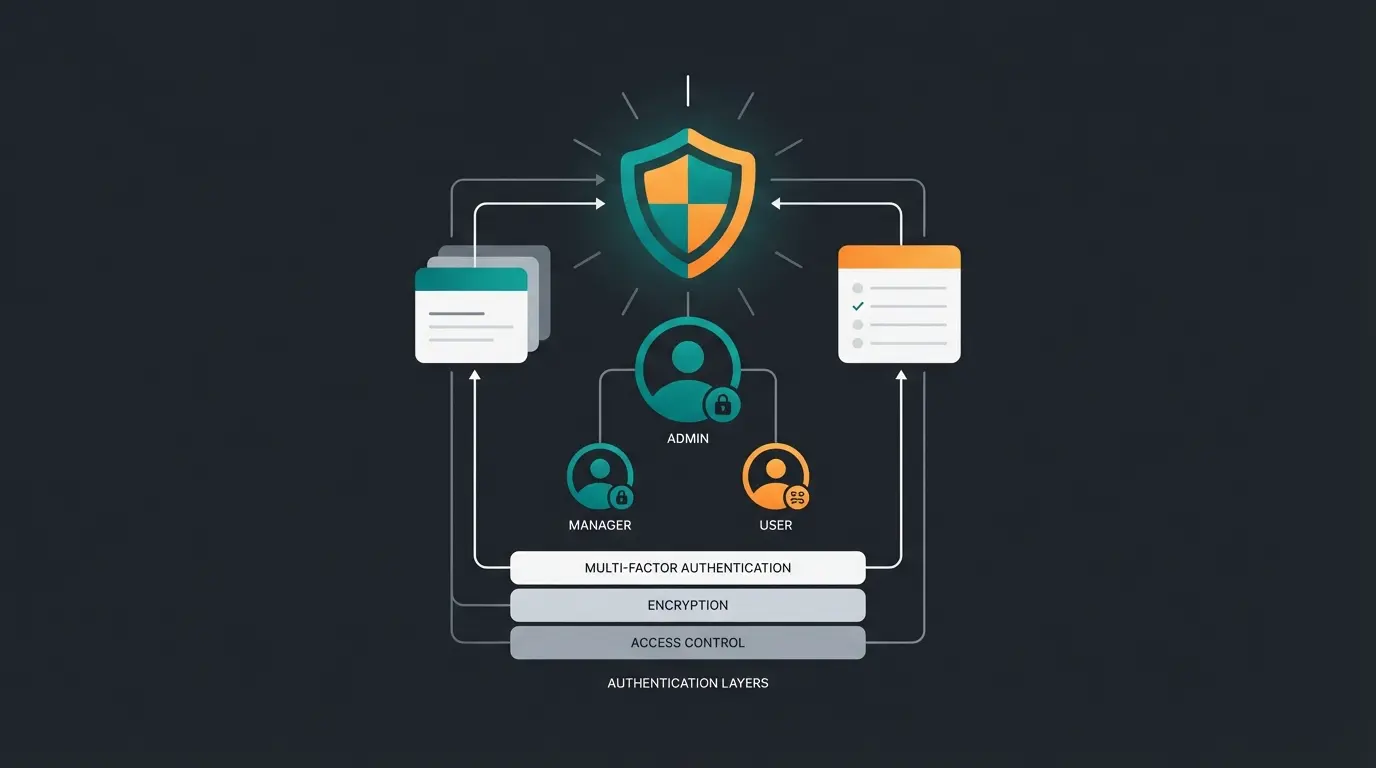
Role-Based Access Control (ACL)
Shopware offers a sophisticated system for user permissions. Use it! Never share your personal admin credentials with third parties. This is crucial for maintaining security and audit trails, especially when managing your Shopware customer account configurations.
In the Shopware Account (SaaS Level):
- Go to Settings → Users & Roles
- Invite employees via email
- Best Practice: Create roles like "Accounting" (can only view invoices) or "Developer" (can manage licenses but not cancel contracts)
In the Shop Backend (Administration):
- Here you manage who can edit products or view orders
- Important: This is separate from the Shopware Account login!
According to Shopware's user management documentation, separating these access levels is essential for both security and operational efficiency. When comparing platforms like Shopware vs Shopify, Shopware's granular permission system is often cited as a key advantage for larger teams.
Security: Two-Factor Authentication (2FA)
Security isn't a feature—it's a requirement. A hacked admin account can compromise your entire customer base, damage your reputation, and create legal liability.
- Shopware Account: Activate 2FA in your profile settings immediately
- Shop Backend (Administration): From newer Shopware versions (6.5+), 2FA is often better integrated natively or solvable via extensions
- For older versions or enhanced security (e.g., YubiKey support), plugins like the "Two-Factor Authenticator" protect both admin and customer logins
Beyond the Basics: Preparing for AI & Automation
This is where professionals distinguish themselves from amateurs. Your Shopware account and shop installation are the foundation for connected commerce. If you want to use AI tools—like chatbots, pricing engines, or AI product consultation solutions—they need access to your system.
The API-First Approach
Shopware 6 is built "API First." This means almost everything you can do in the admin area, software can do too. This architecture is what makes modern Shopware AI integrations possible and powerful.
Integrations Instead of User Accounts
Create no normal user accounts for external tools. Use Integrations instead. This approach is more secure, more maintainable, and more performant.
How to Set Up an Integration for AI Tools
- In the shop admin, go to Settings → System → Integrations
- Click Create Integration
- Name: Give it a clear name (e.g., "AI Product Advisor")
- Role: Assign the integration only the permissions it actually needs (e.g., "Read Catalog" for product consultation, but not "Delete Orders")
- Access Key & Secret Key: Copy these keys immediately. The Secret Key is only shown once!
Understanding Shopware hosting costs also plays into this decision, as API-first architectures can be more resource-efficient when properly configured. This ties directly into calculating your overall Shopware TCO in 2025.
Data Quality as AI Fuel
An AI is only as smart as the data it receives. Use your Shopware account to ensure your licenses for extensions (e.g., SEO plugins or custom field managers) are current. Outdated plugins often lead to API errors that then block data transmission to AI tools.
This is where Shopware chatbots transform the customer experience—but only when they have access to accurate, well-structured data. The same principle applies to all AI product consultation implementations.
Once your account is properly configured, connecting our AI product consultation tool takes just 5 minutes. Transform your customer experience with intelligent automation.
Get Started FreeTroubleshooting: Solutions for Common Problems
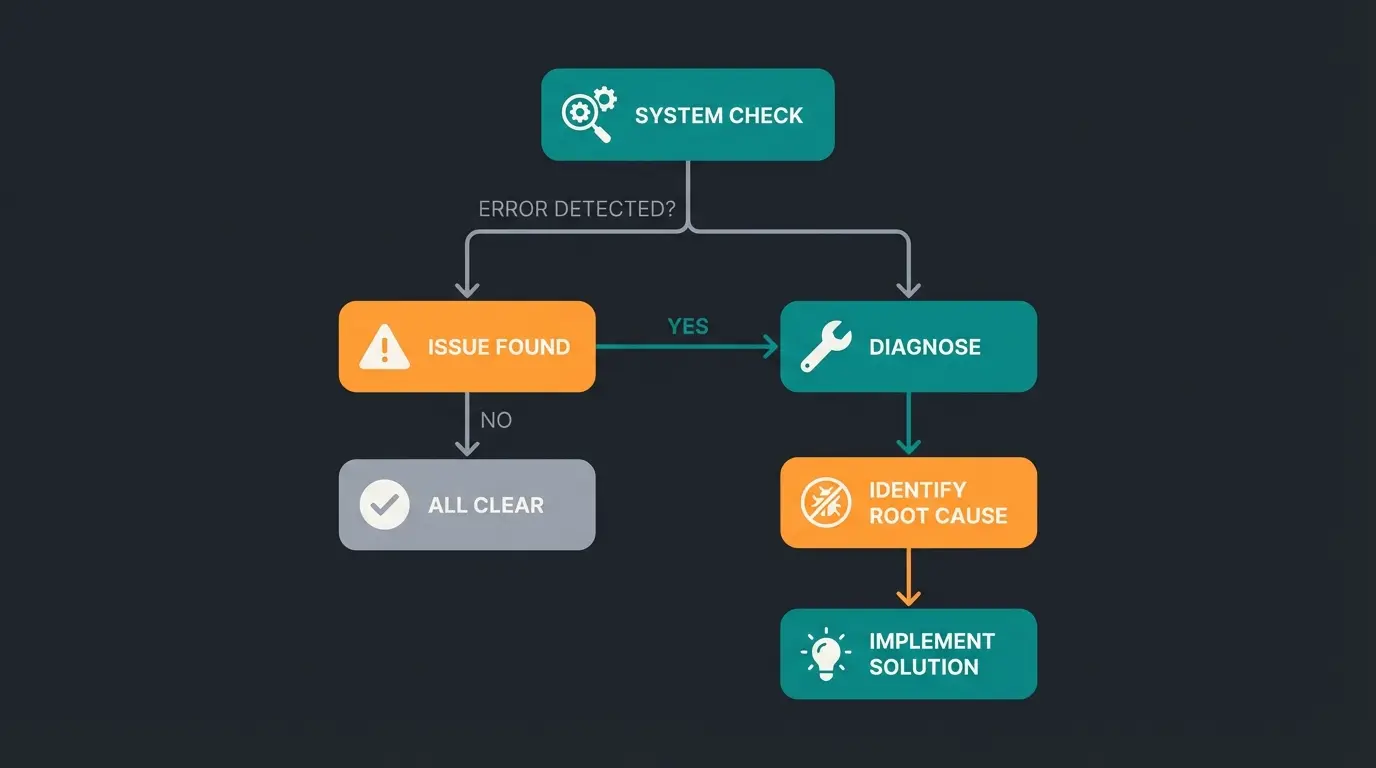
Even with the best preparation, errors occur. Here are solutions for the most common support tickets we've analyzed.
Problem 1: Cannot Log Into Admin Area (Loop or Error)
Symptom: You enter your credentials, the page reloads, and you're back at the login screen.
- Solution A (Cache): Clear your browser cache and cookies completely
- Solution B (Technical): Often caused by "session locks" on the server. A known fix is adjusting the `lock_dsn` in the `.env.local` file or deleting the `/var/cache` folder via FTP
- Solution C (Update): In versions like 6.6.x, there were specific bugs with login when "Delayed Cache Invalidation" was enabled. Updating to the latest patch version often fixes this
According to Shopware's community forums, the session lock issue is particularly common in shared hosting environments. If you're experiencing persistent login loops, check your server's file permission settings as well.
Problem 2: Forgot Shopware ID Password vs. Shop Login
Don't confuse the password for `account.shopware.com` with the one for `your-shop.de/admin`. These are completely separate authentication systems.
- If you can't get into the Account: Use the "Forgot Password" function on the Shopware website
- If you can't get into the Shop: Use the "Forgot Password" function in the admin login or reset the password via database (table `user`) if mail delivery isn't working
Problem 3: Duplicate Customer Accounts / Merge Needed
Customers often accidentally create multiple accounts (guest order vs. registration). This creates data fragmentation and poor customer experience.
Solution: Shopware doesn't offer a native "merge" function in the backend by default. You must either manually clean this up or use SQL scripts/plugins to merge guest accounts with registered accounts based on email address. As noted by zhtek.de and winkelwagen.de, several third-party plugins now offer automated merging capabilities.
The Shopware Ecosystem: Visual Overview
Understanding how your Shopware account connects to the broader ecosystem helps clarify why proper setup is so crucial. Your account sits at the center of a hub-and-spoke model, connecting to:
- Shop Storefront: Your live e-commerce site where customers browse and buy
- Plugin Store: Access to thousands of extensions that enhance functionality
- Support System: Direct access to Shopware's technical support channels
- External AI/Tools: Third-party integrations like product consultation AI, analytics platforms, and automation tools
- License Management: Control over all your commercial plugins and subscriptions
Each spoke requires proper authentication and permissions flowing from your central account. A misconfigured account creates friction at every connection point, while a well-organized account enables seamless data flow and integration.
Conclusion: The Account as Your Foundation
The Shopware account is far more than a bureaucratic necessity. It's the control center that determines whether your shop is secure, whether extensions run smoothly, and whether you're ready for the next stage of e-commerce: the integration of artificial intelligence.
Take 30 minutes today to optimize your setup:
- Check your master data in the account for accuracy
- Ensure your domain verification is clean (is the file in the `/public` folder?)
- Set up 2FA for all admins without exception
- Create clean API integrations for your external tools
A well-organized account saves you hours of troubleshooting in emergencies and opens the door for innovations that boost your revenue. Whether you're preparing for advanced AI implementations or simply want a more secure, efficient operation, it all starts with your Shopware account.
FAQ: Frequently Asked Questions About Shopware Account
Yes, creating and using the Shopware Account (formerly Shopware ID) is completely free. Costs only arise when purchasing licenses, subscriptions, or paid plugins. The account itself serves as your central hub for managing all Shopware services at no charge.
You cannot directly merge accounts yourself. If you need to transfer licenses from one company to another (e.g., during a company acquisition), use the "License Transfer Assistant" in your account or contact Shopware Support for a manual transfer. According to Shopware's official documentation, this process typically takes 2-3 business days.
A once-registered domain cannot simply be renamed since licenses are bound to it. You generally need to register the new shop as a "new shop" in your account and then have licenses transferred to the new domain via support or the Transfer Assistant. Plan for this during any domain migration project.
Previously, the Shopware ID was often a freely chosen name. Today, your email address is the central identifier (Shopware ID) for login. The legacy term persists in some older documentation and forums, but functionally, your email serves as your unique identifier across the Shopware ecosystem.
Instead of creating user accounts, navigate to Settings → System → Integrations in your shop admin. Create a new integration with a descriptive name, assign only the necessary permissions, and securely store the Access Key and Secret Key (the Secret Key is only shown once). This method is more secure and maintainable than sharing user credentials.
Your Shopware account is ready—now take the next step. Our AI product consultation seamlessly integrates via API to deliver personalized recommendations and boost conversions.
Start Your Free TrialDisclaimer: This article serves as guidance and does not replace official Shopware documentation. Technical details may change with updates.

Lasse is CEO and co-founder of Qualimero. After completing his MBA at WHU and scaling a company to seven-figure revenue, he founded Qualimero to build AI-powered digital employees for e-commerce. His focus: helping businesses measurably improve customer interaction through intelligent automation.