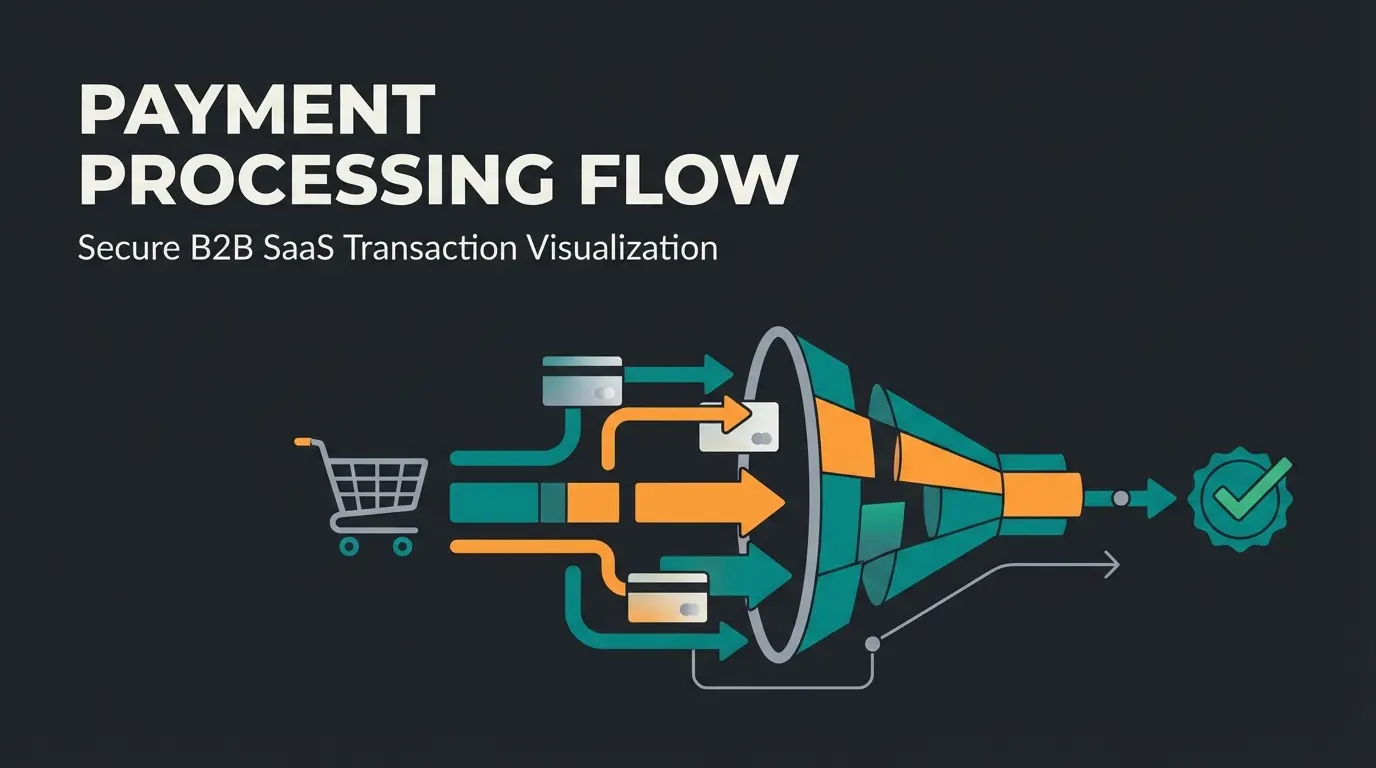
Why Shopware Stripe Is Both a Blessing and a Curse in 2025
In 2025, choosing your Payment Service Provider (PSP) is no longer a purely technical decision—it's a strategic choice that directly impacts your conversion rate. Shopware Stripe is one of the most searched combinations in German e-commerce, and for good reason: Stripe offers unparalleled developer-friendliness and global reach that local providers often lack.
However, anyone glancing at the Shopware Store sees the elephant in the room: the official Stripe app often has a mixed rating below 3 stars. Merchants report synchronization errors, missing support, and setup problems. According to user feedback on Shopware's marketplace, these issues stem primarily from configuration mistakes and legacy plugin conflicts.
This guide is different from standard documentation. We don't sugarcoat anything. We'll walk you through the correct installation, show you how to fix the most common errors (like webhook crashes) yourself, and—here's the crucial part—how to use Stripe not just as a "cashier" but as part of an AI-powered conversion strategy. Because the best checkout process generates zero revenue if customers never click "Buy" due to decision paralysis.
When comparing payment solutions, understanding Shopware payment plugins and their fee structures becomes essential for making informed decisions that affect your bottom line.
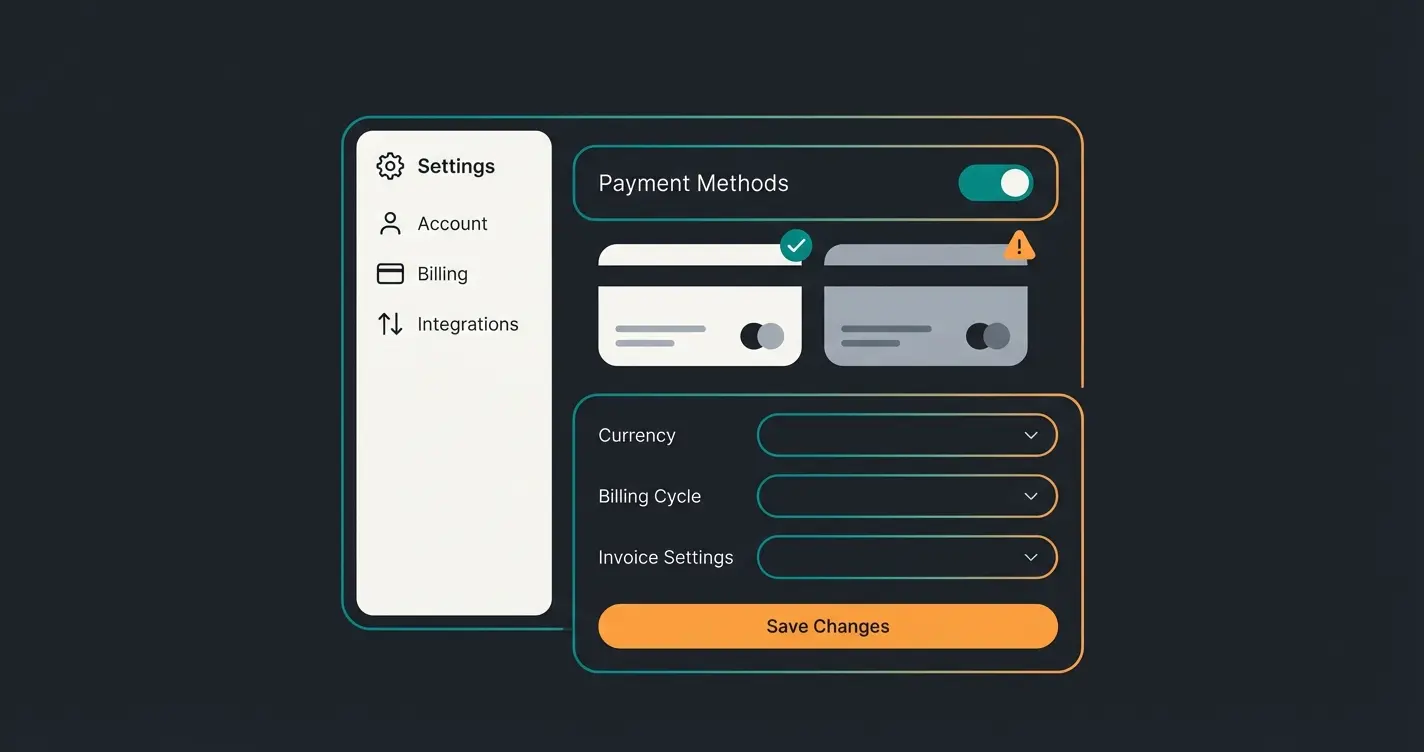
Prerequisites & Installation: The Stripe App Survival Guide
Before diving deep, we need to lay the foundation. Many problems later reported as "bugs" are actually configuration errors during the initial setup.
App vs. Plugin: A Crucial Distinction
There's often confusion between the old "plugin" and the new "app":
- The Legacy Plugin: Was manually installed and required manual webhook configuration. It's outdated and should no longer be used.
- The Shopware 6 App: This is the current standard. It runs via Shopware's App System infrastructure. Important: The app configures webhooks automatically. If you try to intervene manually here, you'll cause errors according to Stripe's documentation.
Pre-Installation Checklist
Ensure the following points are met to avoid conflicts:
- Shopware Version: At least 6.4.x, ideally the latest 6.7.x version for full compatibility with the newest AI features. Consider Shopware Cloud for optimal performance.
- PHP Version: Check your hosting compatibility (PHP 8.1 or higher recommended).
- Stripe Account: A fully verified Stripe account (KYC process completed).
- Deactivate Old Plugins: If switching from Mollie or the old Stripe plugin, deactivate these before activating the new app to avoid JavaScript conflicts in checkout.
Step-by-Step Installation (The Clean Method)
Instead of following dry documentation, here's the path that avoids most errors:
Download 'Stripe Payments for Shopware 6 App' from the Store and install it under Extensions > My Extensions
Open the app configuration, click 'Connect with Stripe in Live Mode' (or Test Mode for staging), log into Stripe, and select the correct sub-account
Go to Sales Channels > [Your Shop] > Payment Methods, add 'Stripe' and set it as default if needed
After app updates, check that the assignment hasn't been lost—this is a common issue noted in Stripe's documentation
The German Config: Legal & Conversion-Optimized Stripe Setup
Stripe is a US company. The default settings aren't always perfect for the German market (GDPR, Impressum requirements, local payment methods). Here's your blueprint for Germany and the DACH region.
The Right Payment Mix for Germany
Don't just turn "everything" on. An overloaded checkout confuses customers. German shoppers expect specific payment methods:
| Payment Method | Relevance in DE | Stripe Support | Setup Tip |
|---|---|---|---|
| Credit Card | Medium (rising) | Native | Enable Apple Pay/Google Pay (runs through the same channel) |
| PayPal | Very High | Via Stripe possible* | Warning: Stripe often charges higher fees for PayPal than PayPal direct. Consider integrating PayPal separately. |
| Klarna (Invoice) | Very High | Native | 'Pay later' is essential in Germany. Ensure email synchronization works smoothly. |
| SEPA Direct Debit | High (B2B/Older customers) | Native | Enable SEPA Direct Debit. Note the longer dispute resolution timeframes. |
| Giropay | Medium | Native | Good addition for customers who don't want to use online banking via Klarna. |
For a comprehensive comparison of payment solutions including Shopware PayPal integration, understanding the fee structures and customer preferences is crucial for maximizing your conversion rates.
Legal Pitfalls (GDPR & Impressum)
A common problem when using Stripe Elements (the embedded payment form) or Stripe Checkout (redirect) is displaying legal information:
- Impressum in Modal: When using Apple Pay, a native modal often opens. Ensure your Terms & Conditions and Impressum are linked there or confirmed in the checkout process before clicking the Apple Pay button.
- Privacy Policy: Explicitly mention Stripe in your privacy policy, as data (IP, transaction data) may be transferred to the USA.
Checkout Optimization
Use the Stripe Payment Element instead of the redirect. Why? The redirect to a `checkout.stripe.com` URL often lowers trust in Germany. In the app configuration under "Appearance," you can choose between "Redirect" and "Integrated Form." Choose the integrated form for a seamless UX according to Stripe's best practices.
For comprehensive strategies on improving your checkout flow, explore our guide on Shopware checkout optimization which covers everything from payment placement to reducing friction points.
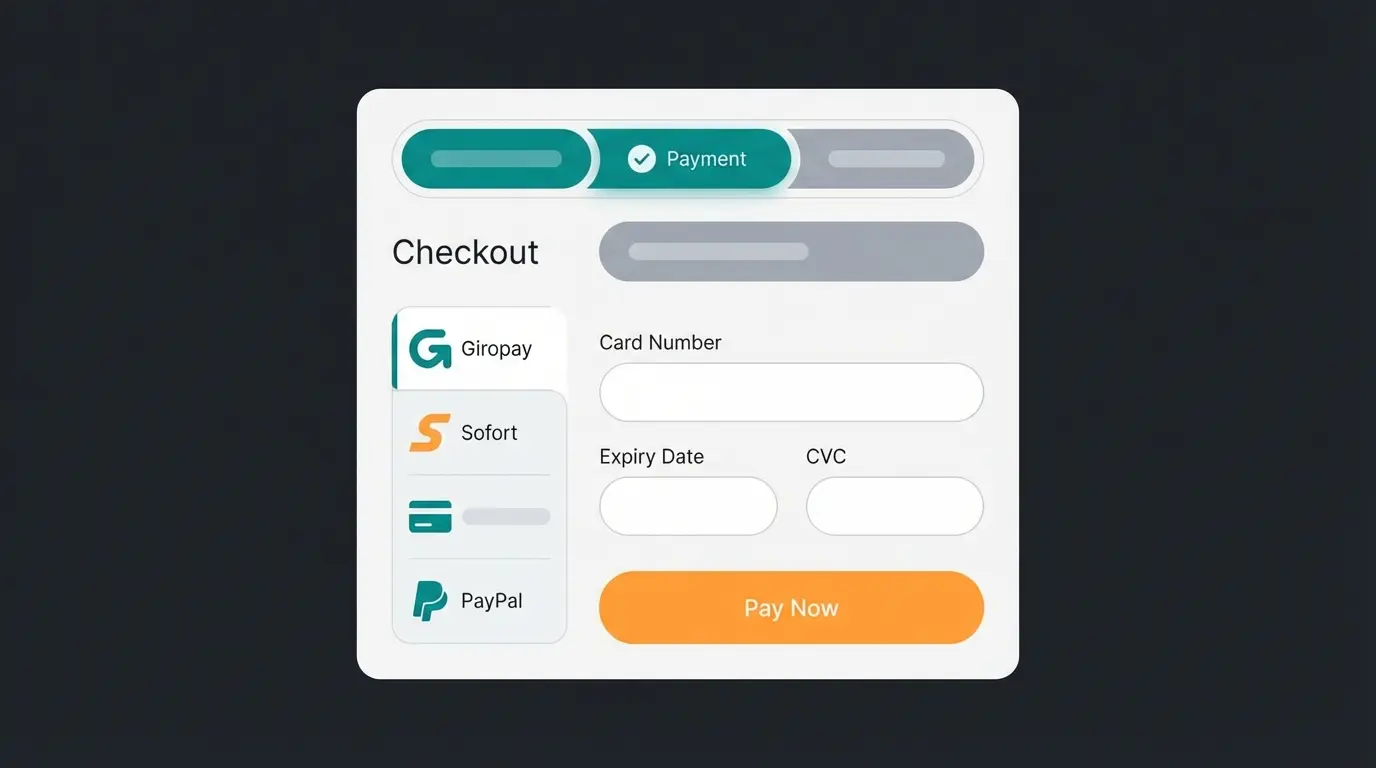
Troubleshooting: Why the App Has 2.5 Stars (And How to Get 5)
The poor ratings don't come from nowhere. Here are the three biggest problems and their solutions, based on current forum analyses and documentation.
Error #1: Webhook Failed Emails & 500 Errors
Merchants are often bombarded with emails from Stripe saying webhooks are failing.
The Cause: If you previously used the old plugin, the old webhook is still registered in your Stripe Dashboard. But the new app doesn't use this anymore since it uses internal API synchronization. The old webhook fires into nothing (404 or 500) as documented in Stripe's troubleshooting guides.
Error #2: Credit Card Field Not Loading (JavaScript Error)
Customers only see a loading bar or no input field at all.
The Cause: Often a conflict with cookie consent tools or other JavaScript minification plugins.
The Solution: Whitelist the Stripe script (`js.stripe.com`) in your cookie tool (as "Essential"). Test by temporarily disabling JS minification for the checkout area.
Error #3: 3D Secure (SCA) Problems
Payments are rejected even though the customer has sufficient funds.
The Cause: The 3D Secure process (two-factor authentication) is blocked by pop-up blockers or iFrame restrictions according to payment security research.
The Solution: Ensure "3D Secure when necessary" is enabled in Stripe Radar rules, not "always." Use the new Payment Element as it handles 3D Secure better in iFrames than old integrations. Check logs for `requires_action`—if this status hangs, the customer closed the bank window as noted in Stripe's API documentation.
Caused by legacy plugin webhook entries that should be deleted
Result from cookie consent tools blocking Stripe scripts
Due to popup blockers or improper iframe handling
Strategic Comparison: Stripe vs. PayPal vs. Mollie (2025 Edition)
Is Stripe even the right choice for your Shopware store? Here's a straightforward comparison of rates and features for the German market.
| Feature | Stripe | PayPal (Braintree/Plus) | Mollie |
|---|---|---|---|
| Transaction Fee (DE/EU) | ~1.4% + €0.25 | ~2.49% + €0.35 (variable) | ~1.8% + €0.25 (Blended) |
| Transaction Fee (Non-EU) | ~2.9% + €0.25 | High (often + currency conversion) | ~3.25% + €0.25 |
| Shopware Integration | App (Medium rated) | Plugin (Good, but complex) | Plugin (Highly rated, simple) |
| Focus | Tech-First, SaaS, Global | Trust, Consumer favorite | EU E-Commerce, Simplicity |
| Payout | 2-7 days (rolling) | Instant (to PayPal account) | Selectable (Daily/Weekly) |
| Special Feature | Best API, Apple Pay integration | Highest customer trust in DE | "Local Hero" for Europe |
Fee data sourced from Transaktionsgebuehren.com, Gebuehren-Rechner.info, Finexer, and Mollie's official pricing.
Conclusion: Use Stripe if you have international customers, want native Apple Pay, and are technically proficient. Use Mollie if you run a pure EU shop and want a "worry-free integration." Always use PayPal additionally—it's a must in Germany.
While payment setup is essential, the real conversion gains happen before checkout. Discover how AI-powered product consultation helps customers make confident buying decisions.
Explore AI ConsultationBeyond Payments: Optimizing the Pre-Checkout Phase (The AI Lever)
You've now technically perfected your Stripe setup. Fees are optimized, webhooks cleaned up. But one question remains: Why do 70% of visitors still abandon their shopping cart? according to e-commerce research by Envive.ai.
The uncomfortable truth is: Most customers don't fail at payment technology (Stripe works), they fail at the purchase decision.
The Problem: Decision Paralysis in E-Commerce
Customers face complex products and have questions:
- "Does this spare part fit my machine?"
- "Is this skin cream suitable for allergy sufferers?"
- "Which cable do I need for this monitor?"
In a physical store, customers ask a salesperson. In an online shop, they search static FAQs, find nothing, become uncertain—and leave. The best Stripe checkout in the world can't save this customer because they never reach it. This is where AI customer service becomes a game-changer.
The Solution: AI-Powered Product Consultation (Guided Selling)
This is where the real "game-changer" for 2025 comes in. Instead of just optimizing checkout, we need to pave the way to it.
How AI Secures Revenue Before Checkout:
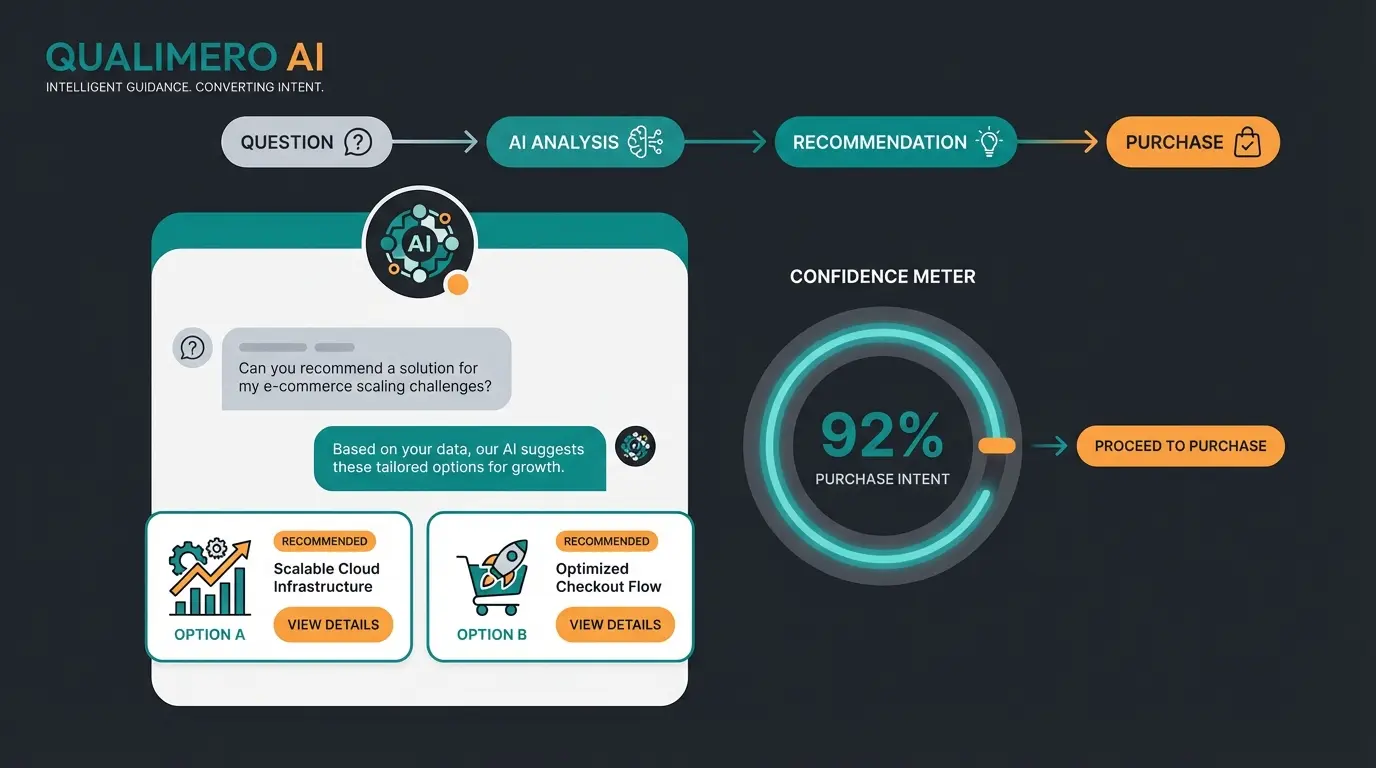
- Instant Answers: An AI consultant (not just a simple chatbot) understands complex product questions and answers them based on your product data in real-time through AI-powered product consultation.
- Trust Building: When customers know a product fits 100%, the dropout rate at checkout drops massively.
- Data-Driven Results: Studies from Couture.ai and SuperAGI show that AI-powered product recommendations and consultation can boost conversion rates by up to 25%. Customers who interact with consultation often have higher average order value (AOV).
Customer is unsure about product fit, specifications, or compatibility
Customer asks: 'Does this fit my Model X?' AI responds: 'Yes, and you'll also need Adapter Y'
Customer adds both products to cart (higher AOV through intelligent cross-selling)
Customer clicks 'Pay' with full confidence in their purchase decision
Payment processes smoothly thanks to your optimized Stripe configuration
Implementing AI product consultation transforms your store from a static catalog into an interactive shopping experience that guides customers confidently to checkout.
The Synergy: AI + Stripe
The Result: You're not using Stripe merely as a cost center for transactions, but as a closing tool for qualified, purchase-ready leads generated by AI. Learn more about how AI-powered product consultation integrates with your payment strategy.
For businesses leveraging KI E-Commerce solutions, the combination of intelligent pre-checkout assistance and streamlined payment processing creates a powerful conversion engine. See how AI Product Consultation has transformed real businesses.
Stripe Error Decoder: Quick Reference Cheat Sheet
For administrators troubleshooting Stripe issues in Shopware, here's a quick reference table for the most common error codes and their fixes:
| Error Code/Message | Cause | Solution |
|---|---|---|
| shopware.CRITICAL: Uncaught PHP Exception | Plugin version incompatibility or PHP version mismatch | Update Shopware and Stripe app to latest versions, verify PHP 8.1+ |
| Webhook endpoint returned 500 | Legacy webhook from old plugin still registered | Delete old webhooks ending in /stripe-payment/webhook/execute from Stripe Dashboard |
| requires_action status stuck | Customer closed 3D Secure bank verification window | Enable 'Retry payment' option, use Payment Element for better 3D Secure handling |
| Credit card field not rendering | JavaScript blocked by cookie consent or minification | Whitelist js.stripe.com as essential, disable JS minification for checkout |
| Payment intent creation failed | API key sync issues between environments | Verify correct API keys for Live/Test mode, reconnect Stripe in app settings |
Optimizing Response Times: Payment & Customer Service
A smooth payment experience extends beyond just Stripe configuration. Customer service response times play a crucial role in purchase completion. When customers encounter issues during checkout or have last-minute questions, fast support can save the sale.
Learn how to optimize Shopware customer service response times to complement your payment optimization efforts. Combined with proper Shopware SEO implementation, you create a complete ecosystem that attracts customers and converts them efficiently.
Conclusion & Checklist
Integrating Stripe into Shopware 6 is no longer rocket science in 2025 if you know the quirks of the new app and eliminate the legacy plugin's baggage. But technology alone doesn't sell.
Your To-Do List for Maximum Success
- ✅ Clean Install: Use the Shopware 6 App and delete old webhooks in the Stripe Dashboard.
- ✅ German Setup: Enable SEPA, Klarna, and Apple Pay; verify Impressum in checkout.
- ✅ Monitoring: Watch the logs in the first weeks (especially 3D Secure dropoffs).
- ✅ The Next Step: Optimize not just the end of the funnel (payment), but the beginning.
Frequently Asked Questions About Shopware Stripe Integration
Download the 'Stripe Payments for Shopware 6 App' from the Shopware Store, install it under Extensions > My Extensions, then connect to your Stripe account through the app configuration. The app handles webhook configuration automatically—no manual setup required.
Stripe supports credit cards (Visa, Mastercard, Amex), Apple Pay, Google Pay, Klarna (invoice/installments), SEPA Direct Debit, Giropay, and more. For the German market, prioritize Klarna, SEPA, and credit cards with Apple Pay/Google Pay enabled.
Stripe charges approximately 1.4% + €0.25 per transaction for European cards, making it often cheaper than PayPal's ~2.49% + €0.35. Non-EU cards incur higher fees around 2.9% + €0.25. There are no monthly fees.
This typically occurs when legacy webhooks from the old Stripe plugin remain active in your Stripe Dashboard. The new app manages webhooks automatically. Delete any webhooks ending in '/stripe-payment/webhook/execute' from Developers > Webhooks in your Stripe Dashboard.
For the German market, use the embedded Payment Element (integrated form) rather than redirect. German customers often distrust being redirected to external checkout.stripe.com URLs. Configure this under 'Appearance' in the Stripe app settings.
A smooth Stripe checkout is essential. Intelligent customer guidance is the competitive advantage. Help your customers find the right products so they actually use that optimized Stripe checkout. Turn uncertainty into revenue—before the credit card is even reached for.
Start Your AI Journey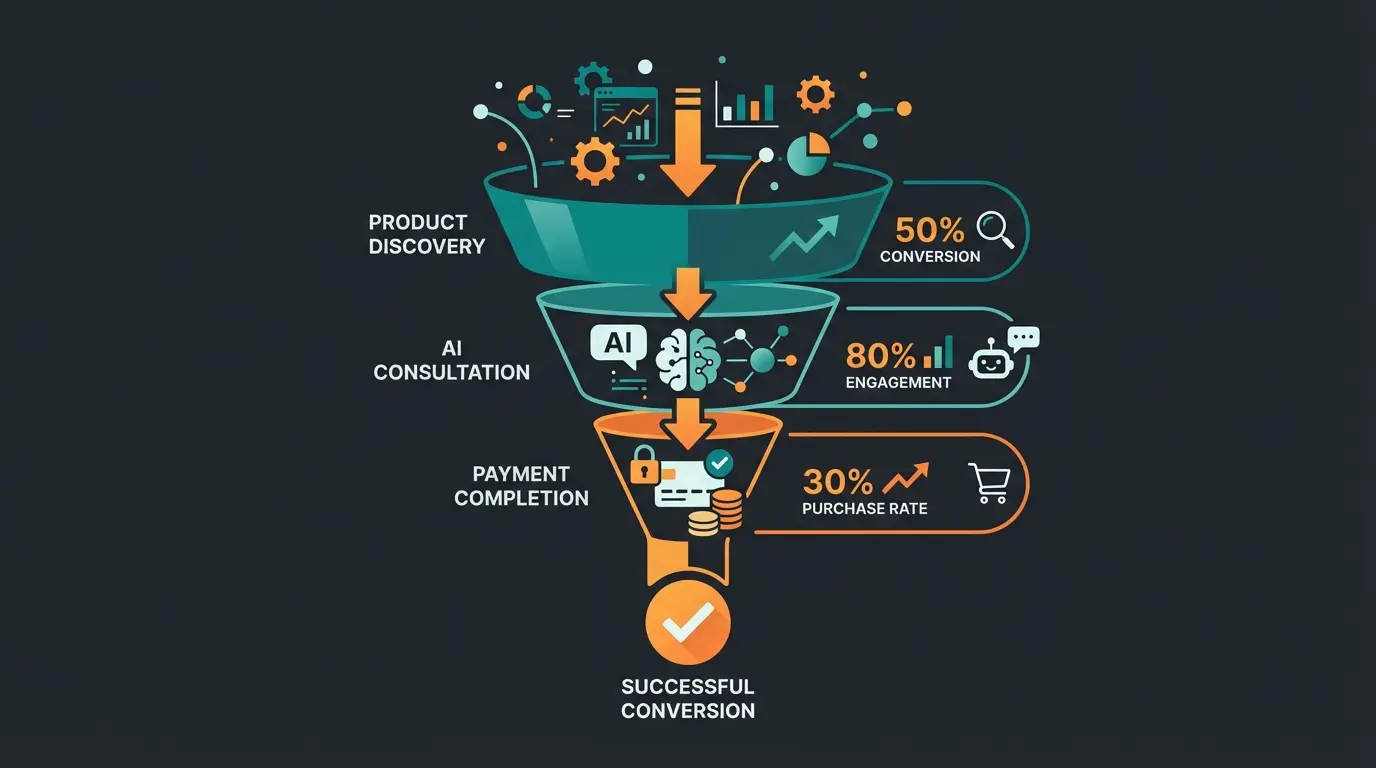

Kevin is CTO and co-founder of Qualimero. As an AI architect with over 15 years of experience as CTO and CPO in the tech industry, he designs the AI systems that automate tens of thousands of customer interactions daily for Qualimero's clients — reliably, securely, and at scale.