
Introduction: Why the Feed Is Just the Beginning
If you're running a Shopware 6 store, you're sitting on a goldmine for Google Shopping. The platform makes it technically easier than almost any other e-commerce system to get your products into the Google ecosystem – all without expensive monthly subscription costs for third-party plugins.
But here's the problem: Most shop owners confuse "integration" with "success."
A technical integration that lists your products in the Google Merchant Center is just your entry ticket in 2025. Competition has intensified. Click prices (CPCs) are rising. If you're simply sending standard data to Google and directing traffic to a standard product page, you're burning budget. According to netgrade.de, proper feed configuration is essential for visibility.
In this comprehensive guide, we go two steps further than typical tutorials. First, we'll show you the perfect technical integration (including copy-paste Twig templates) that avoids errors. Second, we'll illuminate the strategic level: how to generate real revenue from expensive traffic through AI optimization and onsite consultation. Understanding Shopware AI features can give you a significant competitive advantage in this landscape.
Most shops optimize feeds perfectly but lose customers on product pages
Users interacting with AI sales assistants convert significantly more
Google Shopping traffic often bounces more than organic traffic
The Basics: Native Integration in Shopware 6
Shopware 6 handles product export elegantly through Sales Channels and Dynamic Product Groups rather than a traditional export module. This is the "native way" that works for 90% of all shops and provides full control. As documented by sw-simplyworks.de, this approach offers flexibility without additional costs.
Step 1: Creating Dynamic Product Groups
Before creating the feed, we need to define which products should actually be sent to Google. Nothing hurts your Quality Score more than advertising products that aren't deliverable or don't have images.
- Navigate to Catalogs > Dynamic Product Groups in the Admin panel
- Click Create Product Group
- Name it something like "Google Shopping Feed (Active)"
- Set up your filter logic based on availability and data quality
Recommended filter logic:
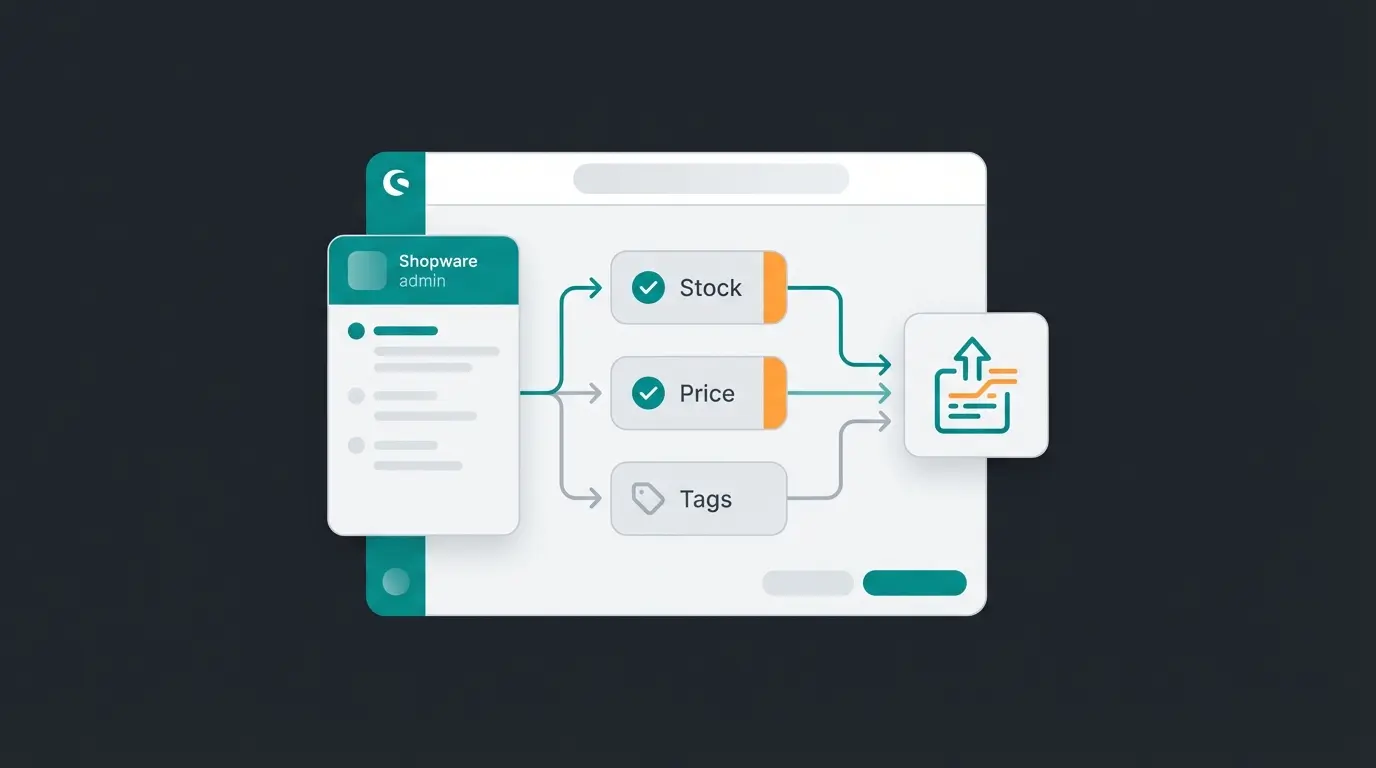
- `Active` equals `Yes`
- `Stock` is greater than `0` (or `Availability` is given)
- `Price` is greater than `0`
- Optional: Use Tags – create a "Google Shopping" tag and filter by it to manually control which products enter the feed
Step 2: Creating the Product Comparison Sales Channel
Now we create the actual feed following the documentation from Shopware.
- Click the Plus (+) next to "Sales Channels" in the left menu
- Select Product Comparison
- Configure the basic settings with a descriptive name like "Google Shopping XML"
- Select "Google Shopping (XML)" as the template – Shopware provides a base that we'll optimize shortly
- Set tax calculation to "Column-wise" typically
- Choose your main store as the Storefront Sales Channel
Product Export Settings:
- File format: XML
- Encoding: UTF-8
- Export variants as separate products: YES – This is crucial. Google Shopping operates at the variant level (e.g., Red T-Shirt in L is a different product than Blue T-Shirt in M)
- Interval: Live (for testing) or e.g., 86400 seconds (daily) for live operation via scheduler
Step 3: The Optimized Twig Template (The Crucial Part)
The standard Shopware template is good, but often lacks details like correct shipping cost logic or list prices that are essential for marketing campaigns. Here's an optimized template you can copy into the Template tab. It accounts for list prices (strike-through prices) and formats currency correctly.
Header:
```xml <?xml version="1.0" encoding="UTF-8" ?> <rss version="2.0" xmlns:g="http://base.google.com/ns/1.0"> <channel> <title>{{ salesChannel.name }}</title> <description>{{ salesChannel.description }}</description> <link>{{ salesChannel.domain.url }}</link> ```
Product Body – Optimized:
```xml <item> <g:id>{{ product.productNumber }}</g:id> <title>{{ product.translated.name|escape }}</title> <description>{{ product.translated.description|striptags|escape }}</description> <g:google_product_category>Insert your category ID or variable here</g:google_product_category> <g:product_type>{{ product.categories.first.getBreadCrumb|slice(1)|join(' > ')|escape }}</g:product_type> <link>{{ seoUrl('frontend.detail.page', {'productId': product.id}) }}</link> <g:image_link>{{ product.cover.media.url }}</g:image_link> <g:condition>new</g:condition> <g:availability> {%- if product.availableStock >= product.minPurchase and product.deliveryTime -%} in_stock {%- elseif product.availableStock < product.minPurchase and product.deliveryTime and product.restockTime -%} preorder {%- else -%} out_of_stock {%- endif -%} </g:availability> {# Price Logic: Shows sale price when available #} {% set price = product.calculatedPrice %} {% if product.calculatedPrices.count > 0 %} {% set price = product.calculatedPrices.last %} {% endif %} <g:price>{{ price.unitPrice|number_format(context.currency.itemRounding.decimals, '.', '') }} {{ context.currency.isoCode }}</g:price> {# List Price / Strike-through Price Logic #} {% if product.calculatedPrice.listPrice.price > price.unitPrice %} <g:sale_price>{{ price.unitPrice|number_format(context.currency.itemRounding.decimals, '.', '') }} {{ context.currency.isoCode }}</g:sale_price> <g:price>{{ product.calculatedPrice.listPrice.price|number_format(context.currency.itemRounding.decimals, '.', '') }} {{ context.currency.isoCode }}</g:price> {% endif %} <g:brand>{{ product.manufacturer.translated.name|escape }}</g:brand> <g:gtin>{{ product.ean }}</g:gtin> <g:mpn>{{ product.manufacturerNumber }}</g:mpn> {# Shipping Costs - Simple Logic (Adjustment required!) #} <g:shipping> <g:country>DE</g:country> <g:service>Standard</g:service> <g:price> {% if price.unitPrice > 50 %}0.00 EUR{% else %}4.95 EUR{% endif %} </g:price> </g:shipping> </item> ```
Note: The shipping cost logic in the template is often difficult to map statically if you have complex rules in your shop. Check the "Common Errors" section below for details on this. As noted in the Shopware community forums, shipping configuration is one of the most common pain points.
Footer:
```xml </channel> </rss> ```
Step 4: Google Merchant Center (GMC) Connection
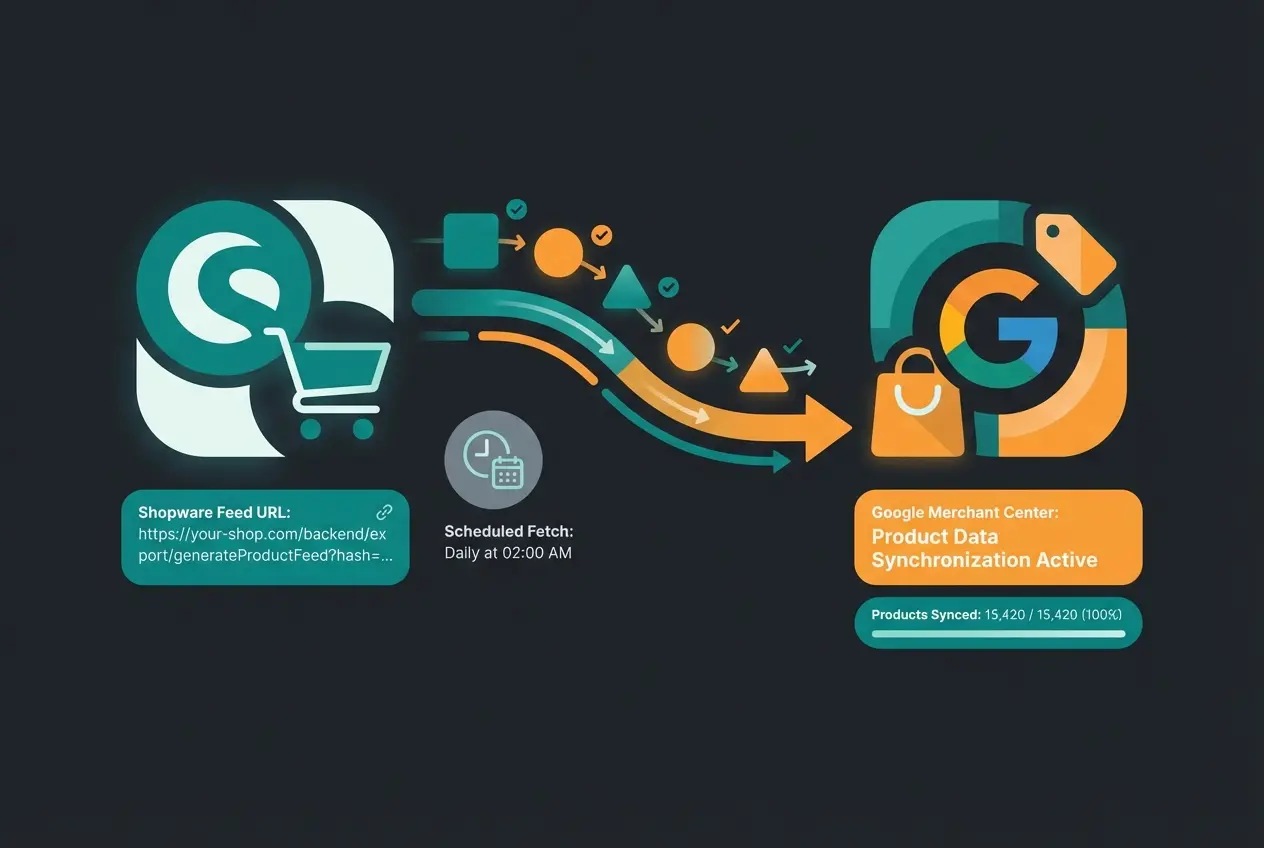
- Copy the Export URL from the Shopware Sales Channel ("API Access" section)
- Log in to Google Merchant Center
- Go to Products > Feeds (or in the new GMC Next under "Data Sources")
- Select "Add products from file" -> "Scheduled Fetch"
- Paste the URL and set the fetch time (e.g., daily at 3:00 AM)
Native Integration vs. Plugins vs. Feed Management
Should you stick with the native solution or spend money on tools? Here's the decision guide to help you choose the right approach for your specific needs.
| Feature | Native Shopware Integration | Shopware Plugin (e.g., official) | Feed Management Tool (e.g., Channable) |
|---|---|---|---|
| Cost | Free (included in SW6) | One-time or subscription (~€0-20/month) | Monthly (from ~€49/month) |
| Setup | Medium (requires Twig knowledge) | Easy (UI-based) | Easy to Medium |
| Flexibility | High (code access) | Medium | Very High (rule editors) |
| Data Optimization | Manual (in template) | Limited | Powerful (if-then rules without code) |
| Channel Variety | Must be created individually | Usually only Google | Hundreds of channels (Meta, Idealo, etc.) |
| Recommended for | Beginners & Tech-Savvy Shops | Shops with standard requirements | Shops with >1000 products & Multichannel |
Conclusion: Start native. If you find you need complex "if-then" rules for title adjustments (e.g., "If brand = Adidas, then add 'Sneaker' to the title"), switch to a feed management tool. For shops looking to optimize their overall online presence, our Shopware SEO guide provides additional strategies that complement your Google Shopping efforts.
Google Merchant Center Next: What's Changing in 2025
Google is currently rolling out Merchant Center Next, which replaces the classic Merchant Center. According to deepfootprints.co.uk, this transition brings several important changes for Shopware users. The official Google documentation provides detailed migration guidelines.
- Automated Feeds: Google is increasingly trying to pull product data directly from your website (crawling) rather than relying solely on the feed. This means your Structured Data (Schema.org) on the Shopware detail page must be perfect.
- Simplified Diagnostics: Error messages are less technical but often also less detailed. Looking at Shopware logs becomes more important.
- Product Studio (AI): Google offers AI tools in Merchant Center Next to improve product images or remove backgrounds. Use this if your Shopware images aren't properly isolated.
As reported by Search Engine Journal, these AI-powered features represent a significant evolution in how merchants can optimize their product listings.
The Secret Sauce: Feed Optimization for Maximum ROAS
A technically correct feed ensures you get listed. An optimized feed ensures you get clicked. This is where the real competitive advantage lies, and where many shops leave money on the table.
Title Optimization with AI
The product title is the most important ranking factor in Google Shopping. Getting this right can dramatically improve your click-through rates and overall campaign performance.
- Bad: "Running Shoe Model X"
- Good: "Nike Running Shoe Model X - Men's Size 42 - Breathable - Black"
Strategy: Since Shopware doesn't natively allow AI rewrites in the feed, you can use Custom Fields as documented in the Shopware custom fields guide.
- Create a custom field `google_shopping_title`
- Use ChatGPT or a Shopware AI extension to generate optimized titles for this field
- Adjust the Twig template accordingly
Here's the template adjustment:
```twig <title> {% if product.customFields.google_shopping_title %} {{ product.customFields.google_shopping_title|escape }} {% else %} {{ product.translated.name|escape }} {% endif %} </title> ```
This gives you full control over how products appear on Google without changing the product name in your store. Understanding how AI E-Commerce solutions work can help you leverage these optimization opportunities more effectively.
Set up google_shopping_title field in Shopware admin
Use ChatGPT or AI tools to create optimized product titles
Modify template to prioritize custom field titles
Check feed output and Merchant Center diagnostics
Track CTR improvements and adjust titles accordingly
Converting Traffic: Why Feeds Aren't Enough
This is where 80% of shops fail. They optimize the feed to perfection, pay Google for the click, and then lose the customer on the product detail page (PDP). This represents a massive leak in the conversion funnel that most merchants simply ignore.
The Bounce Problem with Google Shopping Traffic
A user searches for "gravel bike for beginners." They see your ad for the "Bike X500" and click. They land on the PDP. There they find: Technical specifications, price, delivery time. What they don't find: The answer to their implicit question: "Is this really good for beginners on gravel paths?"
The consequence: They're uncertain, click "Back," and buy from a competitor. The bounce rate for Google Shopping traffic is often significantly higher than for organic traffic. This is a fundamental problem that feed optimization alone cannot solve.

The Solution: AI Product Consultation on the PDP
To maximize ROAS, you need to close the gap between "search intent" and "product features." This is where modern AI product consultants come into play. Implementing Shopware chatbots can transform how visitors interact with your product pages.
The scenario with an AI consultant:
- User lands on the PDP for "Bike X500"
- They hesitate. An AI assistant (bottom right) proactively reaches out: "Hi! Looking for a bike for specific terrain?"
- User: "Yes, I ride a lot of forest paths, is this one okay?"
- AI (knows the product data): "The X500 is solid, but it has narrow tires. For forest paths, I'd recommend our Model Y700 – it has more grip and costs only €20 more. Want me to show you?"
This approach leverages AI-powered product consultation to guide uncertain visitors toward the right purchase decision.
Measurable Results from AI Consultation
Studies from amraandelma.com and hellorep.ai show that users who interact with AI sales assistants achieve up to 4x higher conversion rates than users who only browse.
- Reduced Bounce Rate: Users interact instead of leaving
- Upselling: The AI can suggest matching accessories (helmet, pedals) directly in the chat
- Data Feedback: You learn what Google Shopping users actually ask, allowing you to adjust your product descriptions accordingly
The integration of AI chatbots in marketing strategies has proven particularly effective for paid traffic channels like Google Shopping. This is where AI-powered consultation truly shines.
Transform expensive clicks into actual revenue with AI-powered product consultation. Our solution integrates seamlessly with Shopware to capture uncertain visitors and guide them to purchase.
Start Your Free TrialCommon Error Sources (Troubleshooting)
Even with the best preparation, errors occur. Here are the solutions for the top 3 Shopware problems that merchants encounter when setting up Google Shopping feeds.
1. Shipping Costs Mismatch Error
Google compares the shipping costs in the feed with those on your website (in checkout). If they differ, the item gets rejected. This is one of the most frustrating issues because it can cause entire product listings to be disapproved.
Problem: In Shopware, shipping costs are often complex (weight, zone, price tiers). The simple Twig template above doesn't cover this. According to the Shopware documentation, this requires careful configuration.
Solution: Manage shipping costs directly in Google Merchant Center under "Shipping and returns." Set the feed value for `<g:shipping>` to 0 or remove it entirely, and let Google calculate based on GMC settings. This is often more reliable than complex Twig logic. The Shopware community forums offer additional troubleshooting tips.
2. Missing GTIN / EAN Error
Google requires a GTIN for almost all branded products. Missing GTINs can result in limited visibility or outright rejection of your product listings.
Solution: Ensure that the EAN/GTIN field is populated for every product (and every variant!) in the Shopware backend. Use the "Bulk Edit" feature in Shopware to quickly identify missing EANs. As noted by ditegra.de, this is particularly important when exporting variants as separate products.
3. Gross vs. Net Price Issues
Shopware often stores prices as net, while Google Shopping (B2C) requires gross prices. This mismatch can cause significant pricing discrepancies that confuse customers and violate Google's policies.
Solution: Always use `product.calculatedPrice` in the Twig template, as this already has the sales channel's tax rules applied. Avoid `product.price`, as this is often the raw data record without tax calculations. Technical guidance from christian-wenzl.de provides additional context on handling this correctly.
Frequently Asked Questions
The most common reasons for feed rejection are shipping cost mismatches between your feed and checkout, missing GTIN/EAN numbers for branded products, and price discrepancies (gross vs. net). Check Google Merchant Center diagnostics for specific error messages and validate your Twig template against the requirements. Managing shipping costs directly in GMC rather than the feed often resolves the most persistent issues.
For most shops, a daily feed update (86400 seconds) is sufficient. However, if you have frequently changing inventory, prices, or run flash sales, consider more frequent updates. Use the 'Live' setting during testing and the scheduled interval for production. Google allows feeds to be fetched up to 4 times daily with scheduled fetches.
No, Shopware 6's native Sales Channels and Dynamic Product Groups functionality is sufficient for most shops. You only need a plugin or feed management tool if you have more than 1,000 products, require complex conditional rules for titles, or want to manage multiple sales channels (Google, Meta, Idealo) from one interface.
Focus on optimizing product titles with relevant keywords, use high-quality images with clean backgrounds, ensure competitive pricing is visible, and leverage sale prices with proper list price markup. Using custom fields for Google-specific titles gives you control without changing your store's product names.
Merchant Center Next is Google's updated interface that simplifies navigation and adds AI-powered features like Product Studio for image optimization. It emphasizes automated data collection through website crawling, making your structured data (Schema.org) more important than ever. Most accounts are being migrated automatically throughout 2024-2025.
Conclusion: Technology Is Essential, Consultation Is the Differentiator
Connecting Shopware 6 to Google Shopping is no longer technical wizardry thanks to native Sales Channels. With the right Twig template and clean Dynamic Product Groups, your feed can be up and running in less than an hour. The technical foundation is now accessible to any shop owner willing to invest a bit of time in configuration.
But the competition isn't won in the feed – it's won on the page. The shops that thrive with Google Shopping are those that understand the complete customer journey, from search query to purchase confirmation. Understanding how AI consultation fits into your overall AI Product Consultation strategy is crucial for staying competitive.
- Step 1: Use native integration for clean data flow and cost-effective feed management
- Step 2: Optimize titles and images for click-through rate (CTR) using custom fields and AI-generated content
- Step 3: Implement an AI solution on your landing pages to guide expensive traffic and drastically increase conversion rates
The key insight is this: every click you pay for represents an opportunity. An AI product finder can help ensure those opportunities don't slip away due to visitor uncertainty. The shops that win aren't just technically competent – they're strategically sophisticated in how they handle the traffic they've paid to acquire.
Don't rely solely on the click. Make sure the click converts. Our AI-powered consultation solution for Shopware shops turns uncertain visitors into confident buyers, dramatically improving your return on ad spend.
Get Started Free