Shopware Invoices: Setup, Automation & E-Invoice (Complete 2025 Guide)
Master Shopware invoices in 2025: Complete setup guide, Flow Builder automation, E-Invoice compliance (ZUGFeRD/XRechnung), and AI-powered support solutions.

Introduction: Why Invoices Are More Than Just a PDF
In e-commerce, we often focus on the shiny front end: conversion optimization, attractive shopping experiences, and personalized product consultation. But once the "Buy" button is clicked, administrative reality begins. The invoice is often the last touchpoint a customer has with your store – and if something goes wrong here, carefully built trust can be destroyed in seconds.
For Shopware merchants, the topic of Shopware invoices is more pressing than ever in 2025. Not only because customers expect immediate, correct delivery, but because legislators are fundamentally changing the rules with the E-Invoice mandate (ZUGFeRD, XRechnung). Understanding Shopware TCO now includes compliance costs that many merchants overlook.
This guide isn't a dry manual. It's your strategic roadmap. We'll take you from the absolute basics of setup in Shopware 6, through powerful automation with the Flow Builder, to the integration of AI-powered support that relieves your accounting and customer service teams. When comparing Shopware vs Shopify, invoice handling capabilities are a critical differentiator for B2B merchants.
Part 1: The Basics – Setting Up Shopware Invoices Correctly
Before we automate, the fundamentals must be right. Shopware 6 comes with a solid document creation engine out of the box, but it needs to be configured. Mistakes here lead not only to confused customers but, in the worst case, problems during tax audits.
Defining Basic Settings and Number Ranges
The heart of any proper accounting system is sequential, gap-free number ranges. In Shopware 6, these are defined globally but can be adjusted per sales channel. According to Shopware, proper number range configuration is essential for compliance.
Why is this important? Tax authorities require unique identification. An invoice number must never be assigned twice. This is one area where Shopware shop development expertise becomes crucial.
How to set it up: Navigate to Settings > Shop > Number Ranges in the admin area. Select the "Invoice" range. For formatting, you can define how the number appears. A simple approach uses `{n}` (resulting in: 1000, 1001, 1002...). An advanced approach (recommended) uses `{date_Y}-{n}` (resulting in: 2025-1000), which facilitates annual archiving.
Pro Tip: If you operate multiple sales channels (e.g., B2B shop and B2C shop) in one instance, you can create separate number ranges (e.g., `B2B-{n}` and `B2C-{n}`) to cleanly separate revenues. According to web-grips.de, this multi-channel approach is considered best practice for larger Shopware installations.
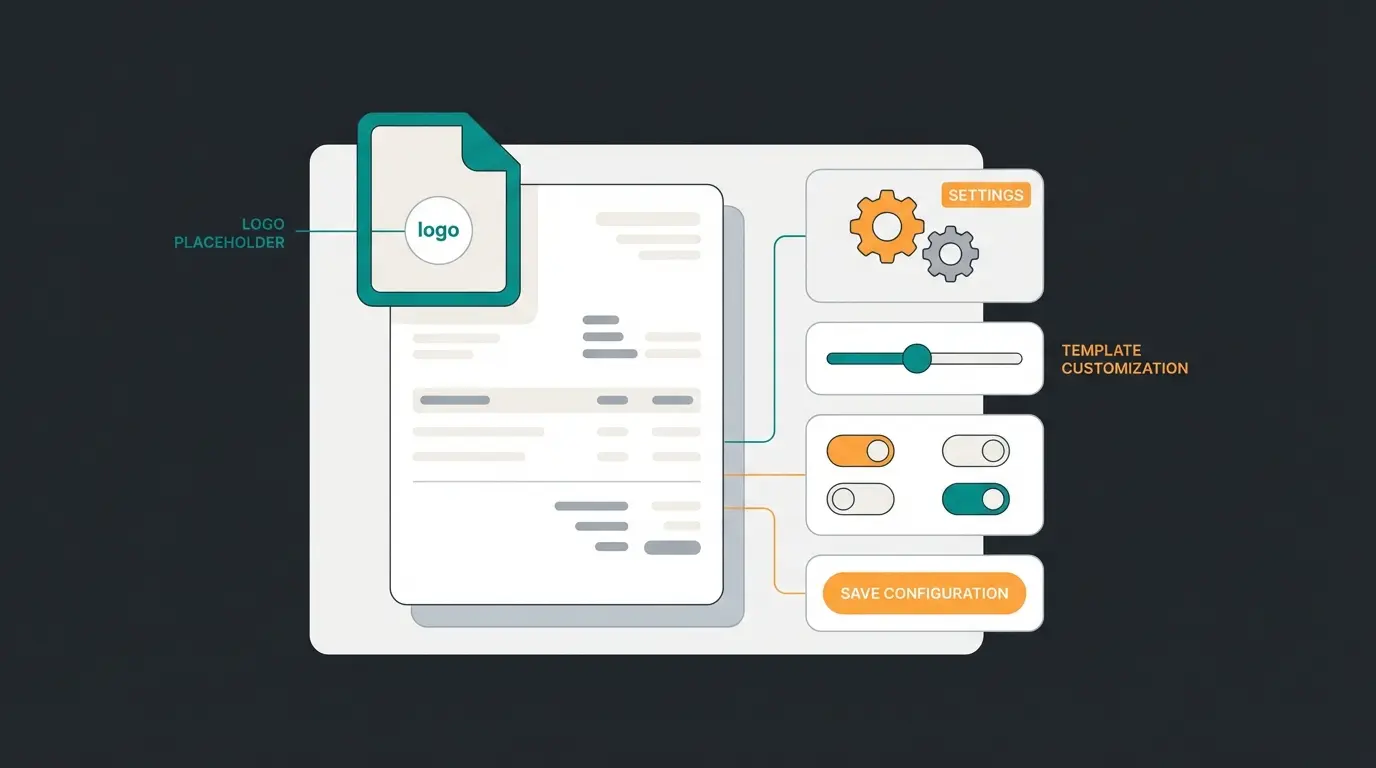
Design & Logo Customization: The Document Template
The standard invoice in Shopware 6 is functional but visually neutral. To appear professional, you need to customize the template to match your corporate design. This attention to detail is part of comprehensive Shopware customer service that builds brand trust.
- Path: Settings > Shop > Documents > Invoice
- Logo: Upload your company logo here. Ensure high resolution so prints (or PDFs on high-resolution screens) appear sharp
- Footer & Required Information: Ensure your VAT ID, commercial register number, and management details are correctly entered
- Shopware often pulls this data from master data, but verification in the document template is mandatory
Part 2: Automation with the Flow Builder (Instead of Plugins)
In the past (Shopware 5 era), automatic invoice sending often required paid plugins like "Automatic Invoice Creation." In Shopware 6, this is native functionality thanks to the Flow Builder (from version 6.4.6.0). Many merchants don't use this because the setup appears complex at first glance. Understanding the Shopware Flow Builder is essential for modern store automation.
Step-by-Step: The "Auto-Invoice" Workflow
Let's build a flow that automatically creates an invoice and sends it via email as soon as an order comes in. This type of Shopware automation can save hours of manual work weekly.
1. Define Trigger (When should it happen?) Go to Settings > Flow Builder > Create Flow. Set the trigger to `Checkout / Order / Placed` (order received). As an alternative for prepayment methods, use the trigger `State Machine / Order Transaction / State changed` to "Paid" so the invoice is only created when payment is received, as noted by rhiem-intermedia.de.
2. Set Conditions (Who gets an invoice?) It's advisable to insert a condition to avoid duplicates. Check whether a document of type "Invoice" already exists for the order. This prevents a second invoice from being accidentally generated during status updates, according to Shopware documentation.
3. Execute Actions (What should happen?) Here we need two actions in sequence: First, Create Document – select "Create Document" → "Invoice." Here you can also specify whether the document should be stored statically. Second, Send Email – select "Send Email," set recipient to Customer, and choose the template "Order Confirmation" (or a custom "Invoice Sending" template). Important: Check the box for "Attach Documents" and select document type "Invoice." Without this checkbox, the customer only receives the text email without a PDF attachment.
Trigger: Order Placed - Customer sees "Thank You" page
Flow Builder checks: Is payment method "Invoice"? Does invoice already exist?
System creates PDF (Invoice No. 2025-1001), stored in customer account
System sends confirmation email WITH PDF attachment
AI monitors incoming queries - instant response to "Where is my invoice?"
Part 3: The New Standard – E-Invoice & ZUGFeRD (Mandatory 2025)
The topic of "Shopware invoices" is experiencing the biggest legal change in years in 2025. The simple PDF invoice via email is no longer sufficient for B2B transactions. Ensuring AI Act compliance for automated invoice systems adds another layer of complexity.
What Shopware Merchants Need to Know Now
As of January 1, 2025, all companies in Germany must be able to receive electronic invoices (E-Invoices). There are transition periods for sending, but pressure is mounting. According to Hosono, this represents the most significant invoicing change for German businesses in decades. Haufe.de provides detailed guidance on the specific timeline and requirements.
What is an E-Invoice? A simple PDF is not an E-Invoice according to EU standard EN 16931. An E-Invoice must contain structured data that a machine (e.g., the recipient's accounting software) can automatically read.
- XRechnung: A pure XML format (barely readable by humans, standard for government agencies)
- ZUGFeRD (Factur-X): A hybrid format that looks like a normal PDF but contains an embedded invisible XML file with invoice data - this is the target format for most Shopware merchants
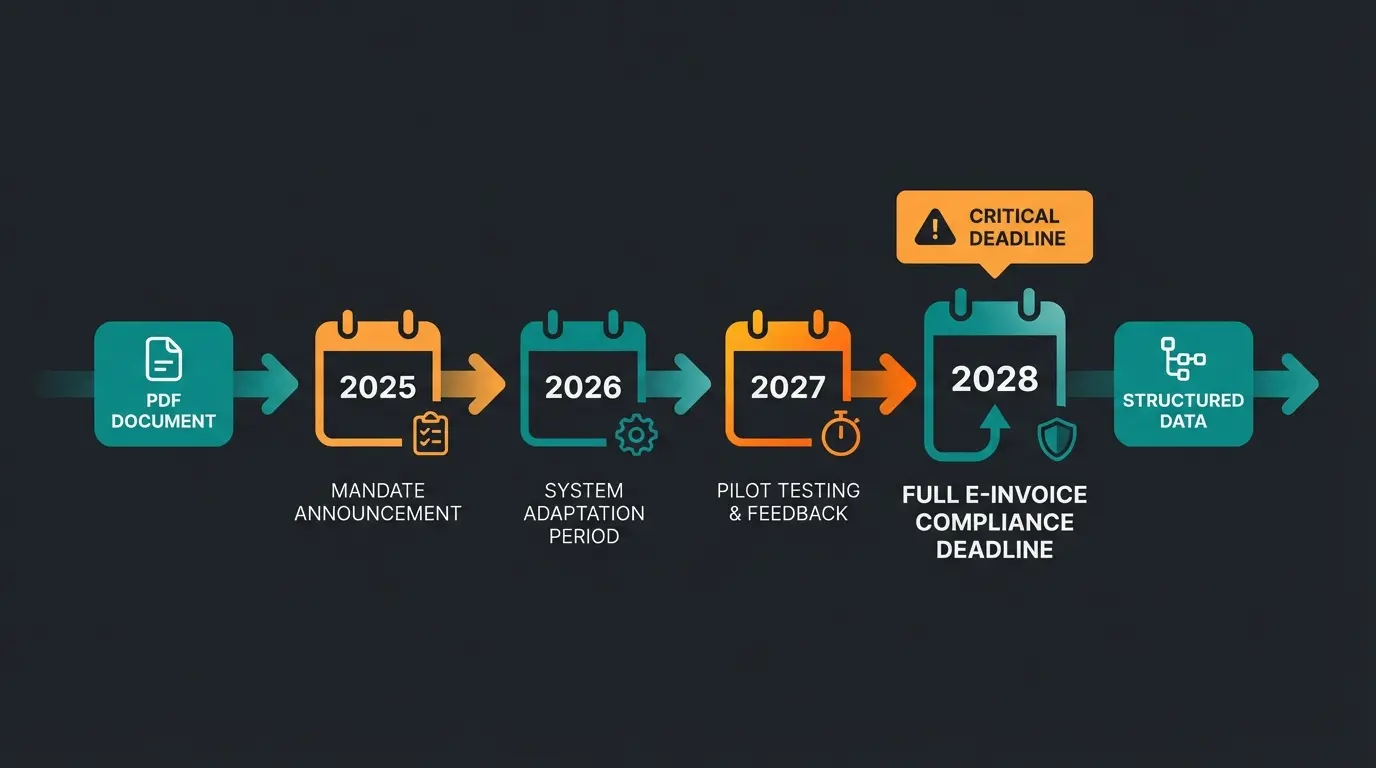
All B2B companies must be able to receive and archive E-Invoices
Paper & PDF still allowed for B2B revenues under €800k
E-Invoice required for all B2B transactions - PDF email no longer sufficient
Is Shopware 6 Ready for E-Invoices?
Here's where there's a gap between aspiration and reality. Native Support: As of late 2024/early 2025, Shopware 6's standard core doesn't yet offer complete native creation of valid ZUGFeRD or XRechnung profiles "out of the box," although it's on the roadmap, as confirmed by Shopware. The current status requires merchants to use additional solutions, as golle-it.de explains in their analysis.
The Solution: Currently, merchants rely on plugins. Extensions like those from Codebarista or available through the Shopware Store add ZUGFeRD functionality. They automatically generate the PDF/A-3 format in the background when an invoice is created. Xictron provides detailed technical specifications for these implementations.
Part 4: The Hidden Costs – Invoice Management & Support
Most guides end when the invoice is sent. But for you as a merchant, work often just begins. Invoices are one of the most common reasons for support tickets ("tickets of no value"). This directly impacts the effectiveness of your Shopware support automation efforts.
"Where Is My Invoice?" – The Support Killer
According to eDesk, statistics show that administrative inquiries (WISMO - "Where is my order," "Where is my invoice") can account for up to 30% of support volume. The problem often isn't that the invoice wasn't sent, but that it landed in spam, the customer overlooked it, or the customer's accounting department didn't receive it (because the purchaser placed the order).
This is where proper Shopware email marketing configuration becomes critical - ensuring invoices reach the right inbox with proper sender reputation. Reliable Shopware hosting also plays a role in email deliverability.
| Challenge | Native Shopware | Invoice Plugins | AI Support Solution |
|---|---|---|---|
| Creates PDF | ✓ | ✓ | ✓ |
| Sends Email | ✓ | ✓ | ✓ |
| Handles "Where is my invoice?" queries | ✗ | ✗ | ✓ |
| Updates address automatically | ✗ | Limited | ✓ |
| E-Invoice Compliance | Limited | ✓ | ✓ |
| Context-aware responses | ✗ | ✗ | ✓ |
The Address Change Problem
A classic scenario: The customer orders, receives the invoice, and then realizes: "Oh, I need the business address on the invoice, not my private one." This is one of the most common requests that Shopware technical support teams handle daily.
In Shopware 6, you cannot simply edit a created invoice. This isn't a bug but a feature to maintain GoBD compliance (German principles for proper bookkeeping). According to Zendesk, this type of administrative change request accounts for significant support workload. Pickware documentation confirms this limitation is intentional for legal compliance.
The correct way: First, create a cancellation invoice (reverses the old invoice). Then edit the order (change address). Finally, generate a new invoice. As exwe.de explains, this three-step process is required for legal compliance.
The mistake: Many merchants try to manually manipulate the PDF or change the address in customer master data and regenerate the document. This leads to database inconsistencies and problems during tax audits, as noted by lex-forum.net.
Stop spending hours on repetitive invoice queries. Our AI solution handles 'Where is my invoice?' requests instantly while you focus on growing your business.
Start Free TrialPart 5: Beyond PDFs – How AI Revolutionizes Invoice Management
Here the circle closes to your business model. We've seen that setup is complex, legal requirements (E-Invoice) are increasing, and manual support effort for errors is enormous. Implementing AI chatbots can fundamentally change how you handle invoice-related customer interactions.
Conventional plugins only solve points 1 and 2 (creation). They don't solve point 3 (communication). This is where AI-powered product and service consultation comes into play. Modern AI Customer Service solutions bridge this gap.
Proactive Service Instead of Reactive Administration
Imagine your "invoice department" wasn't a person but an AI that knows the customer's entire context – from the first product consultation to purchase.
Scenario: The Intelligent Support Agent. A customer writes: "Hey, I bought the red sneakers last week, but the invoice is made out to my name instead of my company. Please change it."
Without AI: A support employee must read the email, search for the order, check if the invoice is already finalized, manually perform the cancellation procedure (see above), and email the customer two PDFs. Duration: 10-15 minutes.
With an AI Solution: The AI recognizes the intent "invoice correction." It checks the order status in Shopware. It automatically responds to the customer: "I've checked that. Since the invoice was already created, I need to cancel it and reissue it for tax reasons. Please give me the correct business address." After the customer responds, the AI can initiate the process (via API connection) or hand off a prepared ticket to an employee.
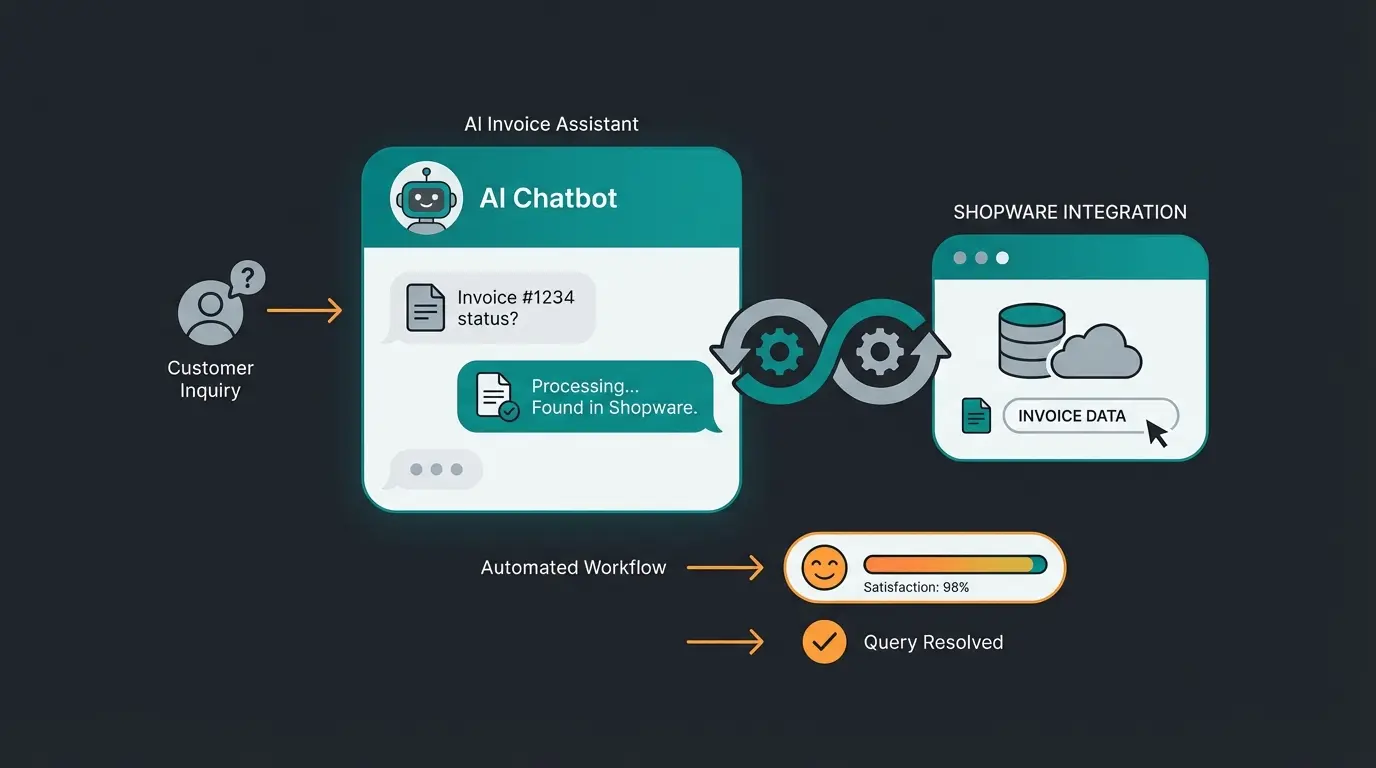
The Bridge Between Consultation and Administration
Your USP is product consultation. Why is this relevant for invoices? Because good consultation prevents misunderstandings that later lead to invoice corrections.
Example: A B2B customer asks in chat about "laptops for employees." Your AI advises them not only about the devices but proactively asks: "Should the order be invoiced directly to headquarters so the E-Invoice (ZUGFeRD) is correct for your accounting?" This prevents errors before they occur. That's the difference between an "invoice plugin" and an intelligent commerce solution.
Key Takeaways: Complete Invoice Lifecycle Management
The topic of "Shopware invoices" in 2025 is no longer just an admin topic. It's an interface between legal compliance (E-Invoice), process automation (Flow Builder), and customer experience (support).
Your Action Checklist for Today
- Check number ranges: Are they sequential and contain the year (e.g., 2025-xxxx)?
- Activate Flow Builder: Automate sending "order confirmation including invoice" to save manual clicks
- Prepare for E-Invoice: Install a plugin for ZUGFeRD/XRechnung to be B2B compliant from 2025
- Relieve support: Consider how much time your team spends on invoice questions
Frequently Asked Questions About Shopware Invoices
No, you cannot directly edit a created invoice in Shopware 6. This is intentional for GoBD compliance (German bookkeeping regulations). To correct an invoice, you must create a cancellation invoice first, then edit the order details, and finally generate a new invoice. This ensures a complete audit trail.
XRechnung is a pure XML format primarily used for government invoicing - it's machine-readable but not human-friendly. ZUGFeRD (Factur-X) is a hybrid format that appears as a normal PDF but contains embedded XML data. For most Shopware B2B merchants, ZUGFeRD is the recommended format as it satisfies both human and machine requirements.
As of early 2025, yes. Shopware 6's standard core doesn't yet offer complete native ZUGFeRD or XRechnung creation out of the box. Plugins from providers like Codebarista or Pickware add this functionality. Check Shopware's roadmap for native support updates.
Use the Flow Builder (available from version 6.4.6.0). Create a flow with trigger 'Order Placed' (or 'Payment State Changed to Paid' for prepayment). Add the action 'Create Document' for Invoice, then 'Send Email' with 'Attach Documents' enabled. This eliminates the need for third-party automation plugins.
Industry statistics show that administrative inquiries including 'Where is my invoice?' and address change requests can account for up to 30% of e-commerce support volume. These are often called 'tickets of no value' because they don't drive revenue but consume significant support resources.
Optimize Your Entire Customer Journey
From the first "Which product fits me?" to the final "Here's your corrected E-Invoice" – customers today expect real-time answers. Modern AI solutions connect excellent product consultation with intelligent service support, so you can focus on growing your store instead of chasing invoices.
From product consultation to invoice support – our AI solution handles the entire customer journey. Reduce support tickets by up to 60% and ensure E-Invoice compliance automatically.
Get Started Now
Lasse is CEO and co-founder of Qualimero. After completing his MBA at WHU and scaling a company to seven-figure revenue, he founded Qualimero to build AI-powered digital employees for e-commerce. His focus: helping businesses measurably improve customer interaction through intelligent automation.