Why PayPal Is Essential for Your German Online Shop
When it comes to e-commerce in Germany, trust is the hardest currency. While credit cards dominate in the USA, the German market operates differently. According to current statistics, PayPal remains one of the most popular payment methods in the DACH region. If the blue logo is missing from your checkout, many customers will immediately abandon their purchase.
But the landscape has changed dramatically. Anyone searching for "PayPal Plus" in 2025 or trying to activate the old "PayPal Standard" is heading into a dead end. PayPal has completely rebuilt its technical infrastructure. The result is more powerful but also more complex to set up.
This guide isn't a dry technical manual. It's a strategic blueprint for shop owners who want to use WooCommerce PayPal not just to "somehow get it working" but as a conversion engine. We'll clear up the confusion around the various plugin versions, walk you through the step-by-step setup of the new standard, and show you how to navigate legal pitfalls like GDPR compliance.
And we'll go one step further: Because even the most technically perfect PayPal setup is useless if the customer isn't sure whether they actually need the product. More on that in the AI optimization section later. If you're comparing platforms, our WooCommerce vs Shopify comparison offers deeper insights into platform selection.
The Plugin Jungle: Which PayPal Plugin Do You Need in 2025?
The confusion is massive. Anyone searching for "PayPal" in the WordPress repository gets overwhelmed with options. Here's the definitive classification for the German market that clears up the noise once and for all.
PayPal Standard (Legacy) – Don't Use This Anymore!
This used to be integrated directly into WooCommerce. You only had to enter an email address to get started.
- Status: Outdated and hidden by default in new WooCommerce installations
- Problem: It redirects the customer away from your site to PayPal. This lowers conversion rates and appears unprofessional. Modern features like "Pay Later" or local payment methods are completely missing
PayPal Plus (Deprecated) – The End of an Era
For years, "PayPal Plus" was the gold standard in Germany because it enabled the beloved invoice payment (Rechnungskauf) and direct debit, even without the customer having a PayPal account.
- Status: Deprecated. PayPal is actively migrating merchants to the new "PayPal Commerce Platform"
- Critical: If you're still using an old "PayPal Plus" plugin, you should migrate urgently. The interfaces are being successively shut down or are no longer maintained
WooCommerce PayPal Payments – The New Standard
This is the official plugin jointly developed by WooCommerce and PayPal. It's the only future-proof solution for the German market and represents the current best practice for WooCommerce payment plugins.
- All-in-One: Credit card, PayPal Wallet, "Pay Later" and invoice payment (via Ratepay) in one plugin
- On-Site Checkout: The customer doesn't leave your shop (Hosted Fields)
- Smart Buttons: Automatically displays the most relevant payment methods
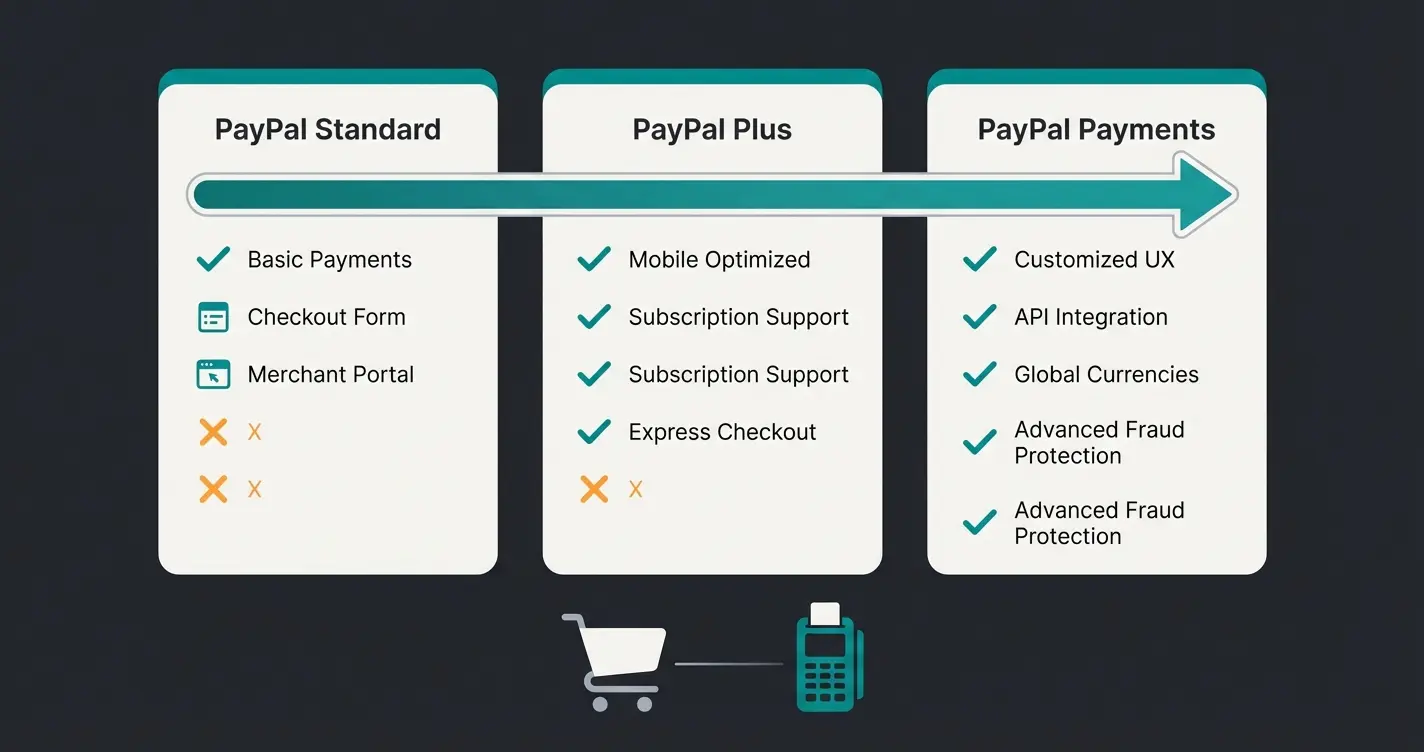
Comparison Table: Old vs. New PayPal Plugins
| Feature | PayPal Standard (Old) | PayPal Plus (Deprecated) | WooCommerce PayPal Payments (New) |
|---|---|---|---|
| Setup | Easy (email only) | Medium (API Keys) | Medium (Connect Wizard) |
| Invoice Payment | No | Yes (Native) | Yes (via Ratepay) |
| Checkout Experience | Redirect (leaves page) | iFrame (In-Context) | Smart Buttons / Hosted Fields |
| Installment Payments | No | Partial | Yes (Pay Later Integration) |
| Apple/Google Pay | No | No | Yes |
| Future-Proof | No | No | Yes |
Step-by-Step Setup: WooCommerce PayPal Payments
Let's set up the plugin so it runs stably and meets German customer needs. This process is similar to what we cover in our Shopware PayPal integration guide, but tailored specifically for WooCommerce.
Step 1: Installation
- Log into your WordPress dashboard
- Go to Plugins > Add New
- Search for "WooCommerce PayPal Payments" (Make sure the author is "WooCommerce")
- Click Install and then Activate
Step 2: Establishing the Connection (Wizard vs. Manual)
After activation, you'll find the settings under WooCommerce > Settings > Payments > PayPal. You have two options to connect your account.
A. The Automatic Way ("Connect to PayPal")
This is the recommended method. Click the blue "Connect to PayPal" button.
- A popup opens. Log into your PayPal Business Account
- Agree to the permissions requested
- WooCommerce automatically retrieves the necessary API credentials (Client ID, Secret Key, Merchant ID)
B. The Manual Way (When the Wizard Fails)
Sometimes firewalls or security plugins block the automatic process. In that case, you need to enter the data manually:
- Log into the PayPal Developer Dashboard
- Switch to "Live" in the top right corner
- Create a new "App" (call it something like "MyWooShop")
- Copy the Client ID and Secret Key
- Paste these into the WooCommerce settings under "Manual Credentials"
Download WooCommerce PayPal Payments from the official repository
Use the wizard or manually enter API credentials
Set transaction type, enable invoice payment, configure Pay Later
Test in sandbox mode, then switch to live
Step 3: Essential Settings for Germany
This is where many shop owners make mistakes that later lead to abandoned purchases. Pay close attention to these configurations for optimal checkout optimization.
1. Transaction Type: "Sale" vs. "Authorize"
- Select "Sale" (Immediate Capture)
- Why? With "Authorize," the money is only reserved. You have to manually "capture" it later in the backend. If you forget, the payment expires. "Sale" books the money immediately—this is the standard in e-commerce
2. Activate Invoice Payment (Ratepay)
German customers love invoice payment. In the new plugin, this runs through the partner Ratepay.
- Go to the "Payment Methods" tab in the plugin settings
- Activate "Pay upon Invoice" (Rechnungskauf)
- Requirement: Your shop must be set to Euro (EUR) and you need a German PayPal Business account
3. "Pay Later" Messaging
PayPal offers customers installment payments without you as the merchant bearing the risk (you receive the money immediately).
- Activate "Pay Later Messaging"
- This displays small banners on the product page: "Pay in 30 days or in installments"
- Pro Tip: This massively increases conversion for more expensive products (cart value > €100)
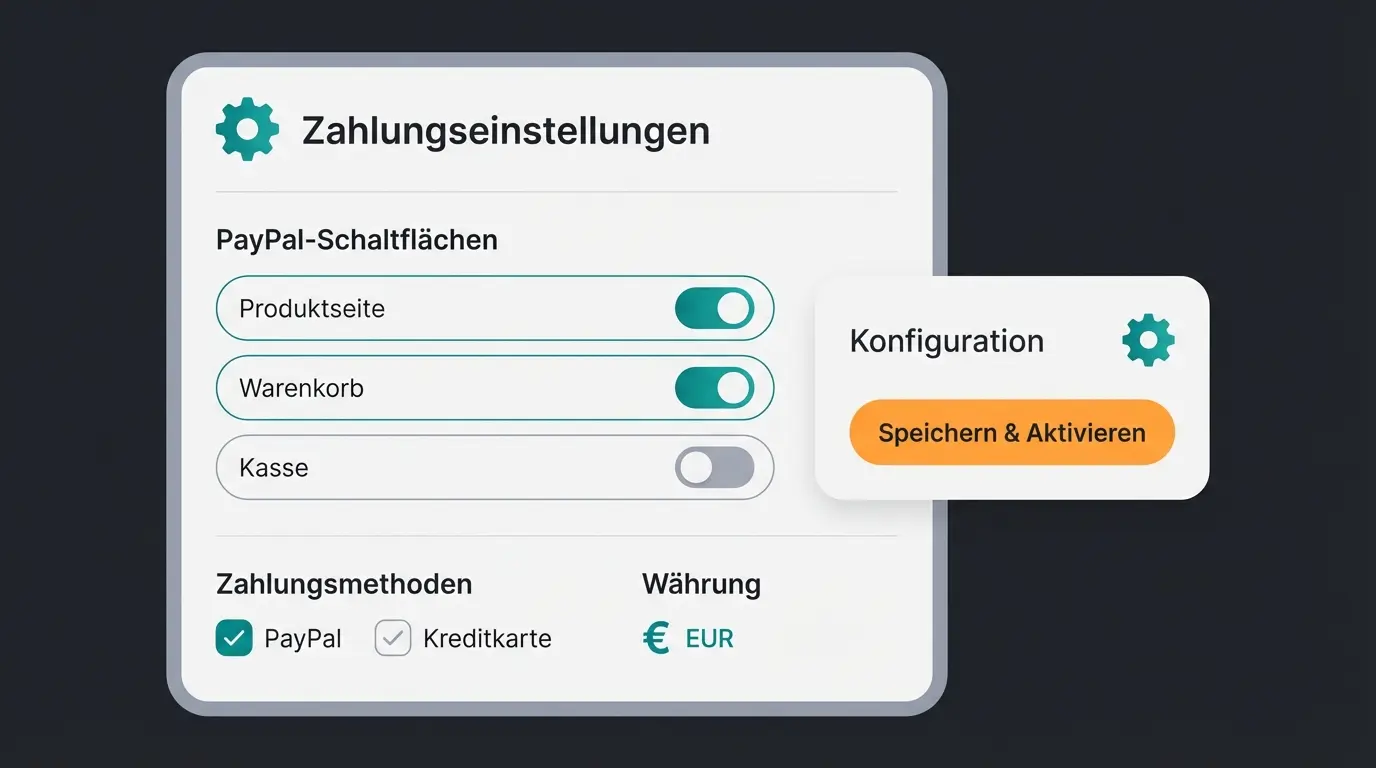
4. Configure Smart Buttons
You can decide where the PayPal buttons should appear:
- Checkout Page: Mandatory
- Cart: Recommended (speeds up purchase)
- Product Page: Caution. This leads to "Express Checkout." When customers click here, shipping costs are often calculated late or upsells are skipped. Test whether this disrupts your strategy
Legal & Trust: GDPR and German Requirements
Germany is the land of legal warnings (Abmahnungen). A technical setup isn't enough—it must also be legally compliant. Ensuring your shop is GDPR compliant is essential for operating in the German market.
1. GDPR and Cookies
PayPal loads scripts from external servers and sets cookies/local storage as soon as the checkout loads. Under strict GDPR interpretation, this may only happen after consent is given.
- The Problem: If you have PayPal buttons on the product page, data is sent to PayPal USA before the customer has even said "hello"
- The Solution with Borlabs Cookie / Complianz: Use a consent management plugin like Borlabs Cookie. Borlabs has a special "Script Blocker" for WooCommerce. Configure it so PayPal scripts only load when the user accepts "Marketing" or "Essential" (depending on your lawyer's interpretation) in the cookie banner
- Alternative: Skip Smart Buttons on product pages and only load PayPal at checkout
2. Guest Checkout
Don't force customers to create an account.
- Activate in WooCommerce under Accounts & Privacy: "Allow customers to place orders without an account"
- Ensure that "PayPal Guest Checkout" is activated in the PayPal plugin settings. This allows customers to pay by credit card via PayPal without logging into PayPal
3. Legal Texts
Update your privacy policy. You must explicitly mention that data is transmitted to PayPal (and Ratepay for invoice payment if applicable) for payment processing. Use generators like eRecht24 or Händlerbund for current German legal texts.
Troubleshooting: When Things Go Wrong
Even with the best setup, errors can occur. Here are the most common problems and their solutions that will save you hours of debugging.
Error 1: Error 10002 (Security Header is not valid)
This error often appears in the log and prevents payments.
- Cause: The API credentials (Username/Password/Signature) are incorrect or belong to a Sandbox account while the shop is set to "Live" (or vice versa)
- Solution: Completely delete the API data in the settings and re-enter it. Be meticulous about not copying spaces at the beginning or end
Error 2: Orders Stuck on "Pending Payment"
The customer has paid, money is gone, but WooCommerce doesn't show "Processing" status.
- Cause: Webhooks aren't working. PayPal isn't reporting the payment success back to your shop
- Solution: Check the "Webhook Status" in the plugin settings. Click "Simulate" or "Resubscribe." Use a plugin like "WP Activity Log" to see if PayPal can reach your site
- Important: Maintenance mode plugins often block webhooks! Deactivate maintenance mode during setup
Error 3: PayPal Window Closes Immediately
- Cause: Conflict with caching or optimization plugins (e.g., WP Rocket, Autoptimize)
- Solution: Completely exclude the "Cart," "Checkout," and "My Account" pages from caching. Don't minify any JS files that contain `paypal` in the name
Error 4: Giropay is Missing
Status: Giropay was officially discontinued on June 30, 2024 according to PayPal and confirmed by PC Welt. Don't look for it—it no longer exists. Remove references to it from your footer to avoid confusing customers.
Most common error—verify Live vs. Sandbox mode and re-enter credentials
Majority of 'Pending Payment' problems stem from blocked webhooks
Plugin conflicts cause popup closure—exclude checkout pages from cache
While you optimize your PayPal setup, discover how AI-powered product consultation can answer customer questions before they reach checkout—reducing abandonment and increasing completed PayPal transactions.
Try AI Consultation FreeBeyond the Checkout: Preventing Cart Abandonment with AI
You now have a technically perfect PayPal setup. Congratulations! But here's the hard truth: Most customers don't abandon because PayPal doesn't work—they abandon because they're uncertain.
The typical cart abandonment rate sits at approximately 70% according to Contentsquare research. Common reasons include:
- "Does this replacement part really fit?"
- "How does the return process work?"
- "Is the material high quality?"
A functioning PayPal button doesn't solve this psychological problem. It's only the tool for the decision, not the trigger. This is where AI customer service solutions come into play.
Closing the Gap: The AI Product Consultant
Imagine being able to take every uncertain customer by the hand at the moment of hesitation—fully automated, 24/7. This is exactly what AI product consultation delivers for modern e-commerce stores.
Here's where modern AI comes in. Instead of just hoping for a "Buy Now" click, innovative shops integrate an AI Product Consultant using intelligent AI chatbots.
- What it does: It answers specific product questions in real-time ("Can I also use this battery for model XY?")
- The effect: It transforms uncertainty into purchase confidence
- The connection to PayPal: When the customer knows the product fits, the PayPal button is no longer perceived as a hurdle ("spending money") but as a solution ("problem solved")
Strategy: Place the AI chatbot before checkout. Use it as "Pre-Checkout Insurance." The combination of product clarity (through AI) and payment convenience (through PayPal Payments) is the strongest lever for your conversion rate in 2025. This approach aligns with the principles of AI guided selling that leading e-commerce brands are adopting.
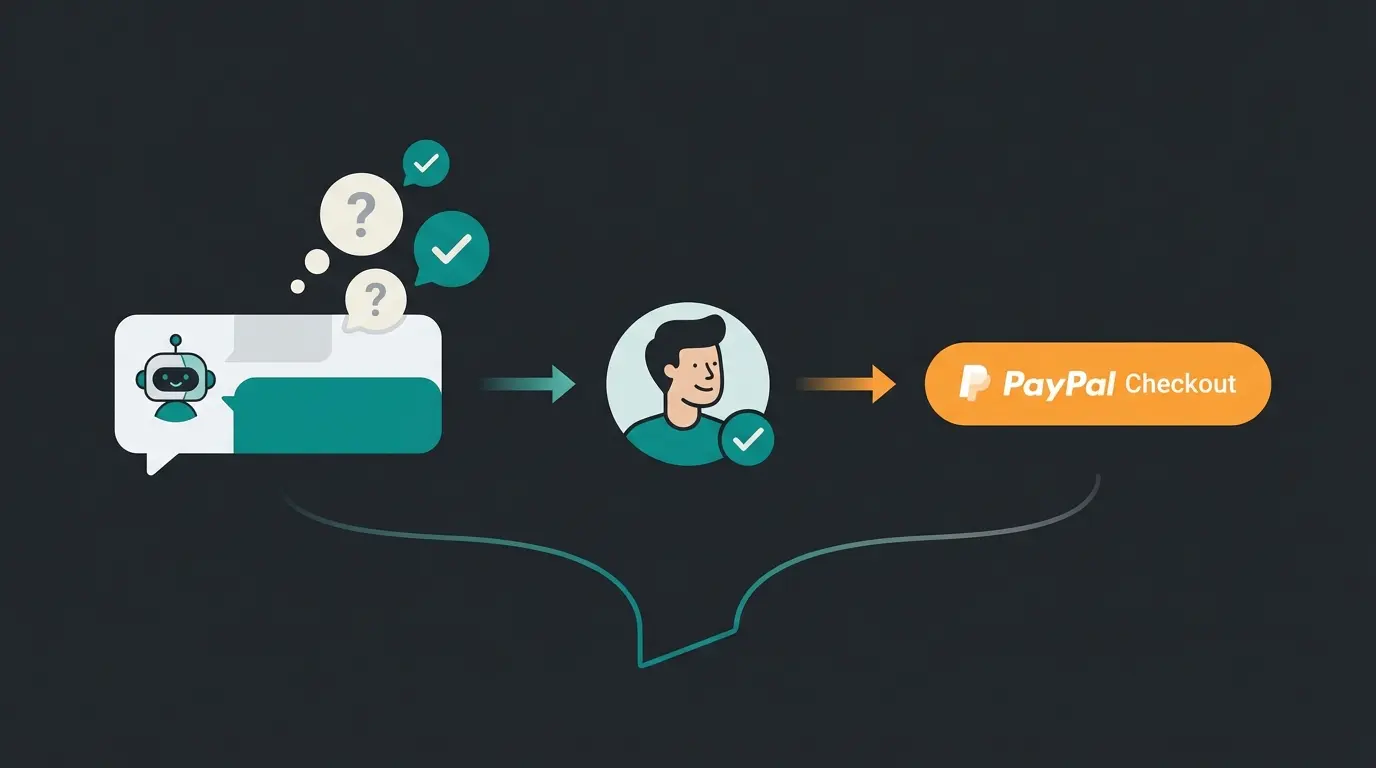
The Payment Success Flow
Understanding how AI consultation fits into your payment flow is crucial for maximizing conversions. Modern AI product consultation for Shopify and WooCommerce stores follows this pattern:
Visitor arrives with purchase intent but potential questions
Proactive AI answers product questions and builds confidence
Customer confident in purchase decision adds item
Streamlined payment with trusted PayPal
Higher completion rate and fewer returns
Success stories like the Rasendoktor AI Product Consultation case study demonstrate how this integration drives measurable results. The key insight from AI consultation in e-commerce is that answering questions before the cart leads to higher PayPal completion rates and significantly fewer returns.
FAQ: Common Questions About WooCommerce & PayPal
No, the plugin itself is free in the WordPress repository. However, transaction fees apply with PayPal (approximately 2.49% + €0.35 per transaction at the standard rate, depending on revenue) as noted by GoCardless and eBay Fees Calculator.
No. PayPal Plus is an end-of-life product. New integrations are no longer possible, and existing ones are being successively shut down. Use WooCommerce PayPal Payments for invoice payment functionality.
This is integrated into the WooCommerce PayPal Payments plugin. Activate "Pay Later." PayPal then decides in real-time (credit check) whether the customer is offered installment payment at checkout. You as the merchant receive the full amount immediately.
Yes, mandatory. PayPal (and also Stripe, etc.) refuse to work if your site doesn't run over HTTPS. It's also required for GDPR compliance.
PayPal often does not refund the fixed fee (the €0.35) when you refund a customer. The variable fee is usually refunded. Factor this into your calculations when pricing products.
Conclusion: Technology Is Required, Trust Is the Crown
Setting up WooCommerce PayPal Payments in 2025 isn't rocket science when you know the pitfalls. The switch from "Plus" to "Payments" is inevitable for German merchants to continue offering invoice payment and modern features like Apple Pay. For a comprehensive overview of plugin options, check out our guide to the best WooCommerce plugins.
Pay attention to the details:
- Use the official plugin
- Set the mode to "Sale"
- Secure yourself legally via Borlabs/Consent Manager
- Check your webhooks to avoid order chaos
But don't forget: The best checkout process is worthless if the shopping cart stays empty. Use technologies like AI consultation to clarify your customers' questions before they go to checkout. That's how you turn a visitor into a buyer—and PayPal handles the rest.
Your PayPal setup is ready—now maximize its potential. Our AI Product Consultant answers customer questions 24/7, building the confidence that leads to completed purchases and fewer returns.
Start Your Free Trial
Kevin is CTO and co-founder of Qualimero. As an AI architect with over 15 years of experience as CTO and CPO in the tech industry, he designs the AI systems that automate tens of thousands of customer interactions daily for Qualimero's clients — reliably, securely, and at scale.