
Why Your Category Tree Is Your Shop's Backbone
In the world of e-commerce, significant time is often invested in homepage design or Shopware product pages optimization. However, the actual backbone of your Shopware 6 store is the category tree. It fulfills a dual function: For search engines like Google, it provides the logical structure to index your content (crawlability). For your customers, it's the primary guide (navigation) to find products in your catalog.
Unlike older systems or Shopware 5, categories in Shopware 6 are extremely flexible. They serve not only as containers for products but also as structural elements for landing pages, service menus, and even as entry points for different sales channels. According to the official Shopware documentation, this flexibility is one of the platform's core strengths for complex e-commerce setups.
However, this flexibility brings complexity. Many store operators face questions like: "Why isn't my category showing?", "How deep should I nest?" or "How do I automate product assignment?"
This guide takes you from technical setup through advanced automation to strategic optimization with AI. We bridge the gap between technical documentation and real e-commerce strategy, helping you understand how categories work when comparing Shopware vs Shopify or other platforms.
Step-by-Step: Creating Categories in Shopware 6
Category management is found in Shopware Administration under Catalogs > Categories. Here you'll see the category tree on the left side, which represents your shop's hierarchy. As noted by Marcel Krippendorf, understanding this visual structure is essential before making any changes.
Understanding the Category Tree: Root vs. Sub
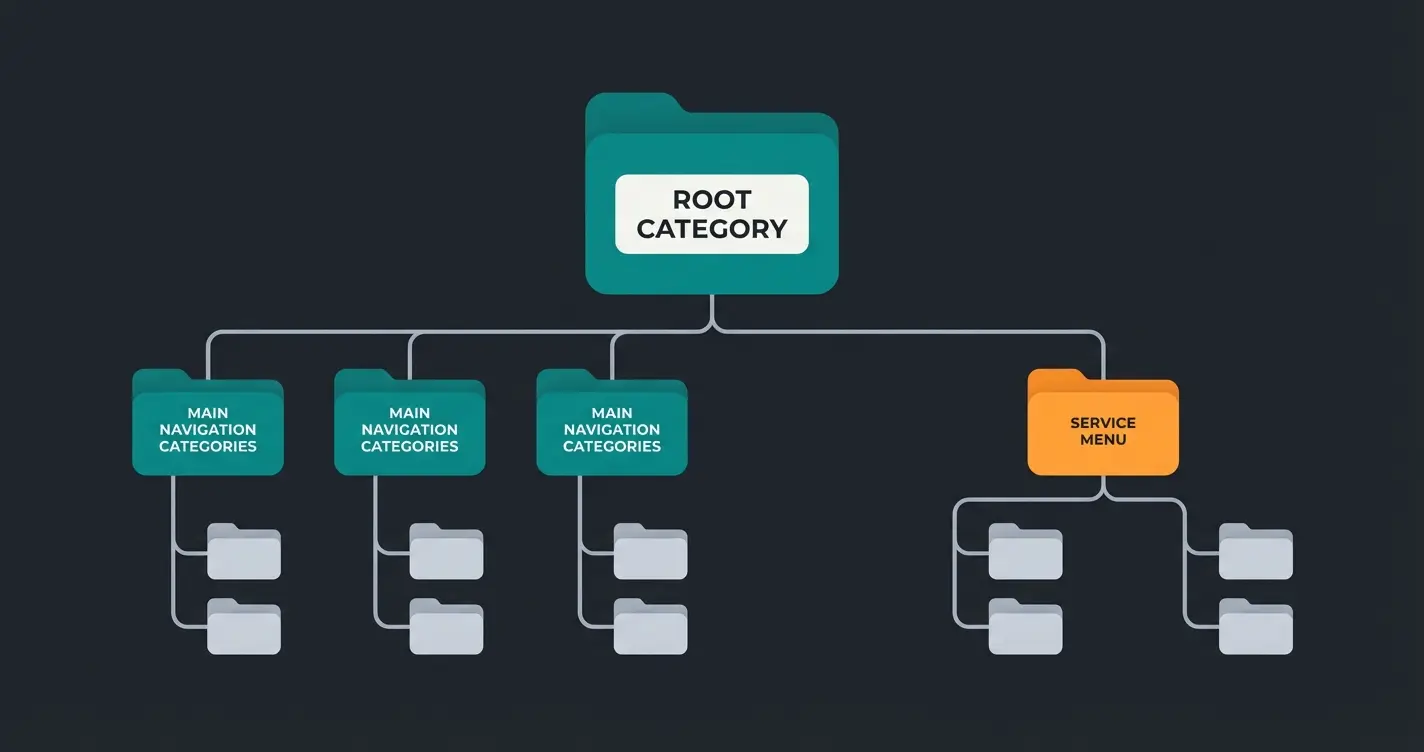
Before you start creating categories wildly, you must understand the concept of the "Root Category" (parent category).
- Root Category: This is the topmost folder (often "Home" or "Catalog"). It serves as the entry point for a sales channel (e.g., your main shop). Everything below this category forms your main navigation.
- Service Menus: You can create separate trees for footer or service menus that shouldn't appear in the main navigation.
Tutorial: Creating a New Category
Follow this process for clean category creation:
- Choose Position: Click on the level in the category tree where you want to create a new category below or beside. Use the context menu (the three dots `...`) to select "New Subcategory" or "New Category Before/After".
- Assign Name: Give the category a name (e.g., "Men's Clothing") and confirm with Enter.
- Activate: By default, a new category is inactive (gray dot). Toggle the switch at the top right to "Active".
The Critical Step: Assigning the Layout
This is where 80% of new Shopware users fail. In Shopware 6, a category has no default appearance until you define it. This information is crucial and often missed in basic tutorials, as highlighted by various YouTube tutorials covering Shopware basics.
How to assign the layout:
- Switch to the Layout tab in the category editor.
- Click Assign Layout.
- Select a layout from Shopping Experiences. For normal categories, the "Standard Category Layout" (often with sidebar and listing element) is the right choice.
- Save your changes.
Only through this assignment does Shopware know that products (the "listing") should be displayed at this location. According to Themeware, this is the single most common support request from Shopware beginners.
Menu Settings and Display Options
In the General tab, you'll find the "Menu Settings" block. Here you control the UX:
- Hide in Navigation: Useful for landing pages that should only be accessible via teasers but not through the main menu. As explained by Splendid Internet, this is perfect for campaign-specific pages.
- Category Image: This image is often displayed in mega menus or in the category page header.
- Description: An important text for users and SEO that usually appears above the product list.
Click where you want the category in the tree hierarchy
Enter category name and toggle to active status
Critical: Select Shopping Experience layout for display
Set menu visibility, images, and descriptions
Manually assign or use dynamic product groups
Advanced: Dynamic Product Groups (Automation)
Manually assigning products to categories ("Product X belongs in Category Y") is time-consuming and error-prone. Shopware 6 offers a powerful solution for this: Dynamic Product Groups. According to Orangebytes, this feature alone can save hours of weekly maintenance work.
What Are Dynamic Product Groups?
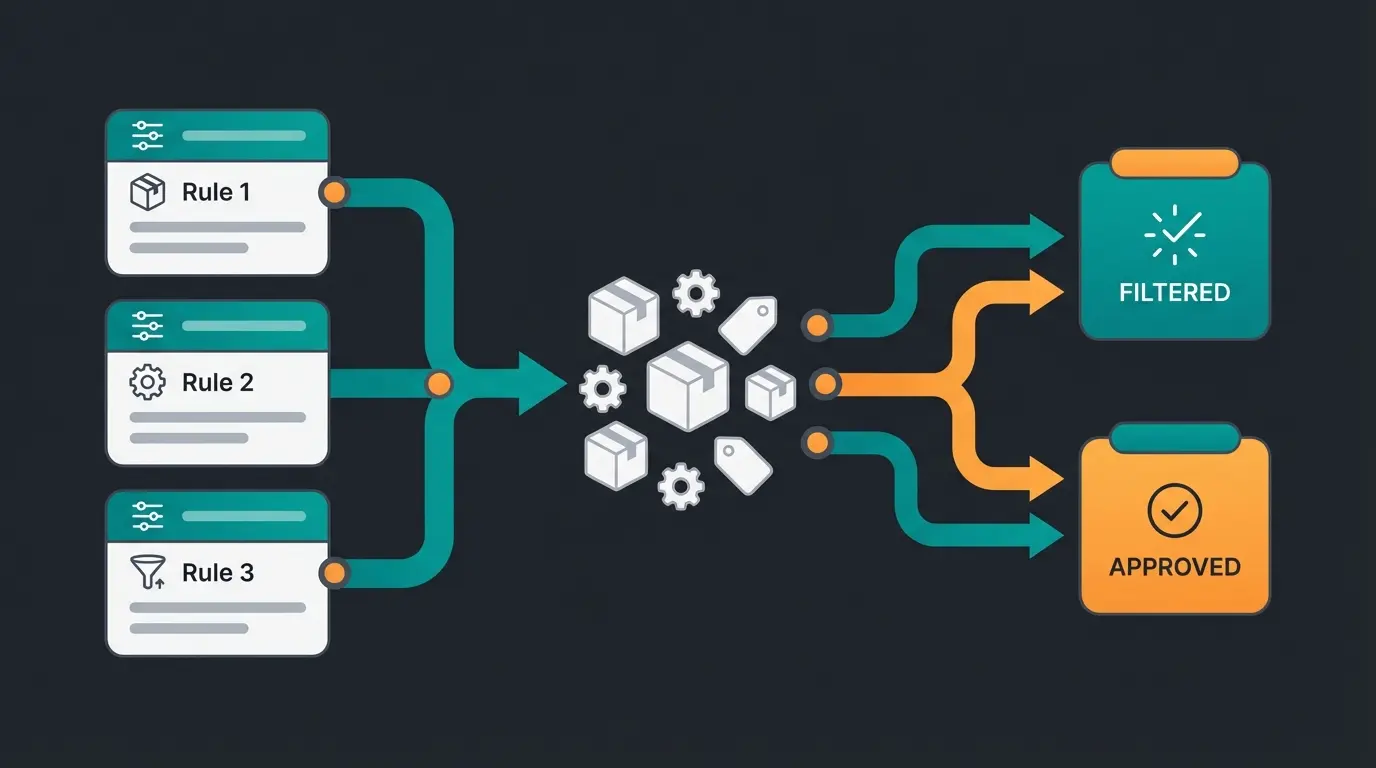
Instead of pushing products individually into a category, you define rules. All products that meet these rules automatically appear in the category. When you create a new product that meets the rules, it lands in the correct category without your intervention.
Practical Example: Creating a Sale Category
Imagine you want to have a "Sale" category that displays all reduced items.
- Create Group: Go to Catalogs > Dynamic Product Groups > Create Product Group.
- Define Rules: Select conditions like: `Price` > `Has Strikethrough Price` (or `Percentage Ratio` > 0). Or: `Manufacturer` > `Equals` > `Adidas`.
- Check Preview: Use the preview button to see which products are currently captured by the rule.
- Link Category: Go back to your category (e.g., "Sale"), switch to the Products tab, change the mode from "Manual Selection" to "Dynamic Product Group", and select your newly created group.
Advantage: Your "Sale" category is always current. As soon as a strikethrough price is removed, the product disappears from the category.
Disadvantage: You lose manual control over sorting individual items (drag & drop is often limited with dynamic groups).
SEO & UX Strategy: The Value Add
Technical setup is the foundation, but strategy is the art. How do you structure your Shopware categories so Google loves them and customers understand them? This is where proper Shopware category page SEO becomes essential.
SEO Settings in Shopware 6
Shopware 6 offers strong native SEO features found in the SEO tab of each category. As noted by Lanius Digital, these settings directly impact your Google rankings.
- Meta Title: The most important ranking factor. Don't just use the category name (e.g., "Pants"), but a combination of keyword and USP (e.g., "Buy Men's Pants | Wide Selection & Top Brands"). Length: approx. 55-60 characters.
- Meta Description: Your "advertisement" in search results. Must encourage clicks (CTR). Include a call-to-action (e.g., "Order online now!"). Length: approx. 150-160 characters.
- SEO URLs: Shopware generates URLs automatically based on templates (Settings > Shop > SEO). Keep the URL structure flat. Instead of `shop.com/men/clothing/pants/jeans`, often `shop.com/mens-jeans` is better for readability. You can manually override this in the SEO tab ("SEO Path").
For comprehensive SEO strategies, check out our complete Shopware SEO Guide covering all technical fundamentals.
UX Strategy: Siloing and Click Depth
- The 3-Click Rule: Try to keep your category structure as flat as possible. A user (and Google Bot) should be able to reach any product with maximum 3 clicks from the homepage.
- Siloing: Group topics logically. A category "Accessories" is too generic. Better is "Grill Accessories" as a subcategory of "Grills". This strengthens topical authority for the keyword "Grill".
- Structure Element Category Type: For parent categories that shouldn't contain products (e.g., "Clothing"), use the type "Structure Element / Entry Point" (settings in the General tab). This makes the menu item non-clickable; it only opens the dropdown. This prevents frustration from empty category pages.
Products should be reachable within 3 clicks from homepage
Most common Shopware beginner mistake is missing layout
Achieved through proper category structure and navigation
Troubleshooting: Why Isn't My Category Showing?
This is the most common problem. Use this checklist based on Shopware's official troubleshooting guide:
| Check | Solution |
|---|---|
| Is the category active? | Check the toggle at the top right in the category. |
| Is a layout assigned? | Check the "Layout" tab. Without Shopping Experience, no display! |
| Is the parent category active? | If the parent category is inactive, the subcategory is also hidden. |
| Is the sales channel assigned? | Check under "Entry Points" in the sales channel if the correct category tree is selected. |
| Products present? | By default, some themes hide empty categories. Check if products are assigned and active. |
While proper category structure is essential for SEO, modern shoppers need intelligent guidance. Discover how AI-powered product consultation can boost your conversions.
Start Free TrialThe Problem with Static Categories
Up to this point, we've laid the foundation. But even the most perfect category tree has a fundamental problem: It's static. This is where understanding the difference between platforms matters, as explored in our Shopware vs WooCommerce comparison.
The Dilemma: Customers Don't Think in Trees
Customers rarely come with the thought: "I'm now navigating to Category A > Subcategory B > Sub-subcategory C." They come with a problem or a need:
- "I need a warm jacket for a hike in Scotland."
- "I'm looking for a gift for a 5-year-old who likes dinosaurs."
A classic Shopware category tree forces the user to translate this need into your logic. They must know that "hiking jackets" are under "Outdoor" and not under "Sportswear". They must use filters (Material: Hardshell, Water Column: 10,000mm) whose technical meaning they might not even understand.
The Solution: AI-Powered Guided Selling
This is where the modern approach comes in, going beyond Shopware's standard functions. While categories form the necessary skeleton for technical organization, an AI product consultation solution functions as the "brain" that takes the customer by the hand.
The Difference:
- Shopware Category: Shows all products of a group (e.g., 500 jackets). The customer must filter (selection by exclusion).
- AI Consultation: Asks about context ("What do you need the jacket for?") and presents the 3 best options (selection by relevance).
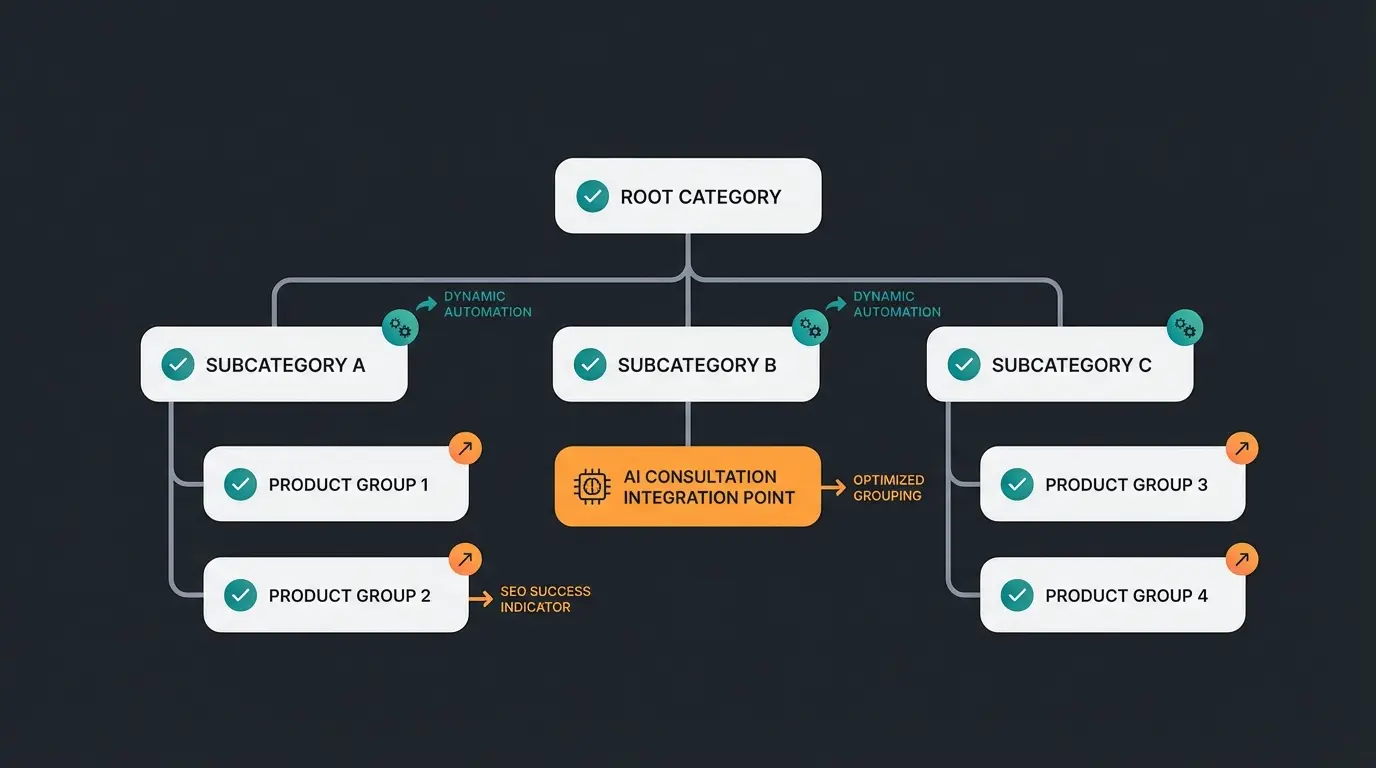
Integration into Shopware: You can keep your Shopware categories (important for SEO!), but embed an AI consultant on category pages or the homepage. This uses data from your Custom Fields to recommend products not only by hard facts (price, color) but by use case. Learn more about this approach in our comprehensive Shopware AI Guide.

Static vs. Dynamic vs. AI: Complete Comparison
Understanding the differences between these three approaches helps you decide when to use each one. This comparison highlights why combining all three creates the most effective e-commerce experience, especially when implementing AI-powered product consultation strategies.
| Feature | Static Category | Dynamic Product Group | AI Consultation (Guided Selling) |
|---|---|---|---|
| Setup | Manual (Drag & Drop) | Rule-based (Backend) | Data-based (Training/Prompting) |
| Maintenance Effort | High (with every new product) | Low (automatic) | Minimal (uses product data) |
| Flexibility | Rigid | Medium (rules are rigid) | High (reacts to user input) |
| User Experience | "Search & Filter" | "Thematic List" | "Consultation Conversation" |
| Best Use Case | Standard Navigation | Sale, New Arrivals, Brands | Complex Assortments, Gifts |
For businesses dealing with complex product ranges, an AI-powered digital sales consultant can dramatically improve the customer journey while reducing support load.
Custom Fields: The Secret Weapon for Categories
An often overlooked feature in Shopware 6 is Custom Fields. They allow you to enrich categories with information not provided in the standard setup. According to Folio3 and Emizentech, custom fields unlock advanced customization possibilities.
Application Examples:
- Additional Banner: A special promotional banner only for the "Sale" category.
- SEO Text Below: A second text block below products for SEO purposes.
- Background Color: Individual color coding per category (e.g., red for Sale, green for Organic).
Setup Process:
- Go to Settings > System > Custom Fields.
- Create a new set and select "Categories" as the assignment.
- Define fields (e.g., text field, image upload, color picker).
- In the category ("Custom Fields" tab), maintain the data.
- Output: To display this data in the frontend, you usually need to customize the template or use CMS elements that can access custom fields.
This level of customization is part of what makes Shopware powerful for AI consultation optimization and advanced store configurations.
Optimizing Customer Experience Beyond Categories
While category structure is crucial, it's just one piece of the customer experience puzzle. Consider how categories interact with Shopware customer service to create a seamless shopping journey.
Modern e-commerce success requires thinking beyond simple navigation. Explore how AI Chatbots for customer service can complement your category structure by answering questions and guiding customers who get lost in complex product hierarchies.
For businesses looking to implement intelligent assistance across their entire operation, understanding various AI product consultation providers helps you choose the right solution for your Shopware store.
Frequently Asked Questions
The most common reason is a missing Layout (Shopping Experience) assignment. Check the Layout tab in your category settings and assign a layout. Also verify that both the category and its parent category are set to active, and that the category is assigned to the correct sales channel.
Follow the 3-click rule: users should reach any product within 3 clicks from the homepage. This means a maximum of 3 category levels is recommended. Deeper structures harm both SEO (reduced link juice) and user experience (navigation fatigue).
Manual categories require you to drag-and-drop products individually, giving full control over sorting. Dynamic product groups use rules (price, manufacturer, tags) to automatically populate categories. Dynamic groups save time but limit manual sorting control.
Yes, Shopware 6 allows products to appear in multiple categories simultaneously. This is useful for cross-selling, but be careful not to create duplicate content issues. Consider using one primary category for SEO purposes.
Categories define your URL structure, internal linking hierarchy, and crawl paths. Properly optimized categories with unique meta titles, descriptions, and clean URLs significantly improve search engine visibility. Flat structures pass link juice more effectively.
Conclusion: Building Your Category Strategy
Managing Shopware categories is a balancing act between technical precision and strategic foresight.
- Technology: Master the basics (layout assignment!) and use automation through Dynamic Product Groups to save time.
- SEO: Build flat hierarchies and use SEO settings for clean URLs and strong meta data.
- UX & AI: Recognize the limits of the category tree. It's a static directory. To significantly increase conversion rates, supplement this directory with intelligent, consulting elements (AI) that meet customers where they are: at their problem, not at your article number.
Next Steps: Review your category tree today. Are there "ghosts" without layouts? Are your meta descriptions maintained? And most importantly: Can a customer who doesn't know what your product is called still find their way to the goal?
Note: This article is based on the current state of Shopware 6 (versions 6.4/6.5/6.6). Functions and menu paths may change slightly in future updates. For the latest information, always consult the official Shopware documentation and resources from [Microtech](https://microtech.de) and other certified partners.
Combine your optimized category structure with AI-powered product consultation. Help every visitor find exactly what they need, even when they don't know what to search for.
Get Started Now